

What a data connection adds
A data connection gives Atlas a second, server-side source of conversions next to the script:- Events the page never sees. A renewal, a trial that converts, a refund or an order placed by phone all happen in your billing tool, not in the visitor’s browser.
- Events that survive blockers. Server-side records arrive even when the visitor’s browser blocks the script.
- Values and ids you can trust. Amounts and currencies come straight from the payment, and each conversion carries the tool’s own id, so it is never counted twice.
One connection per store
Each store has one integration. The step shows a card per tool with the events it records; choose one and the step turns into that tool’s instructions. Once a tool is connected or chosen, the step shows it with a Connected or chosen badge, a Manage (or View setup) button, and the rule spelled out: to use another one, disconnect this one first (Manage, then Disconnect), or click Change for a tool that was only chosen.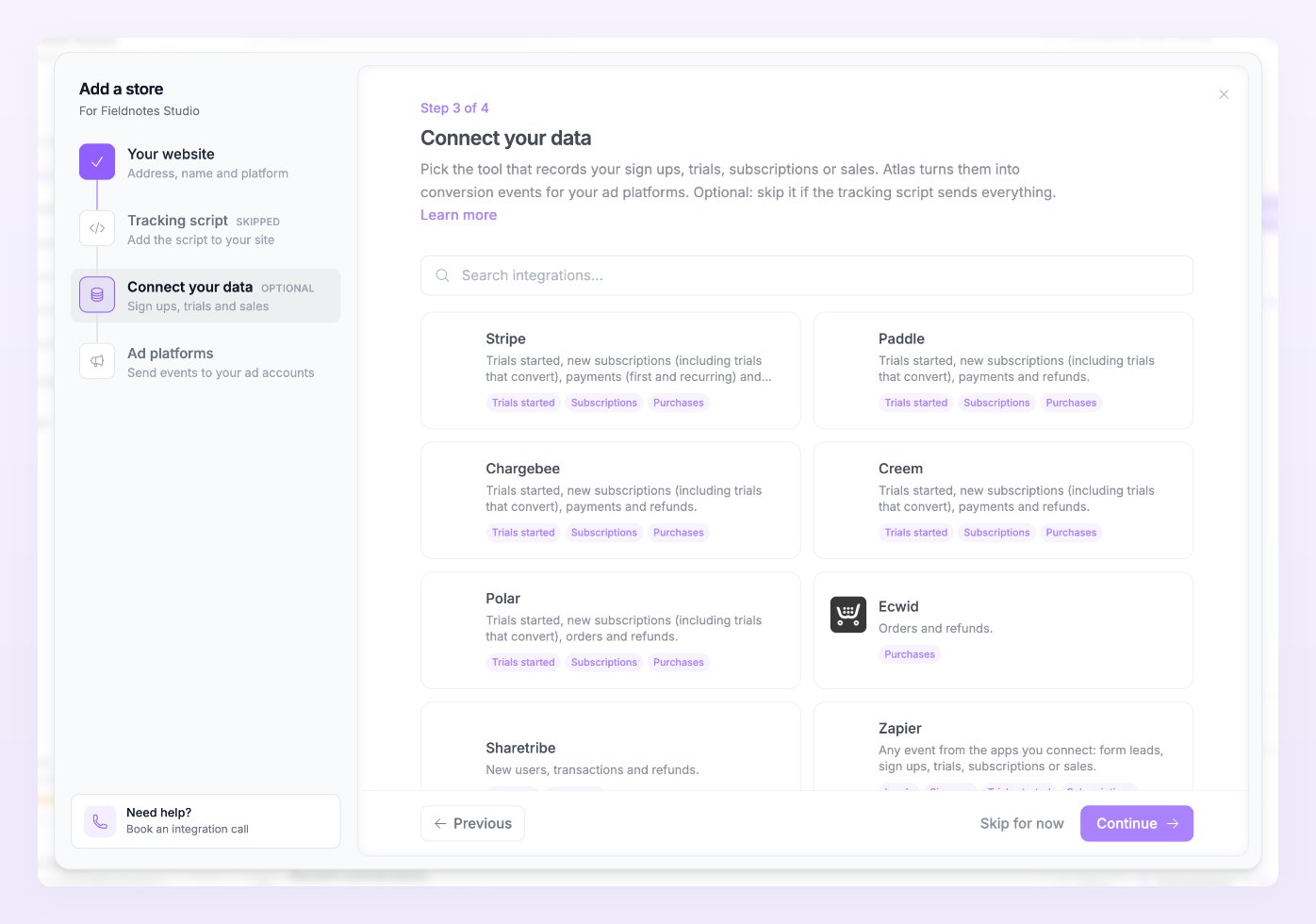
A business with several billing tools needs one store per tool. Stores are limited by plan; see Billing.
What each integration sends
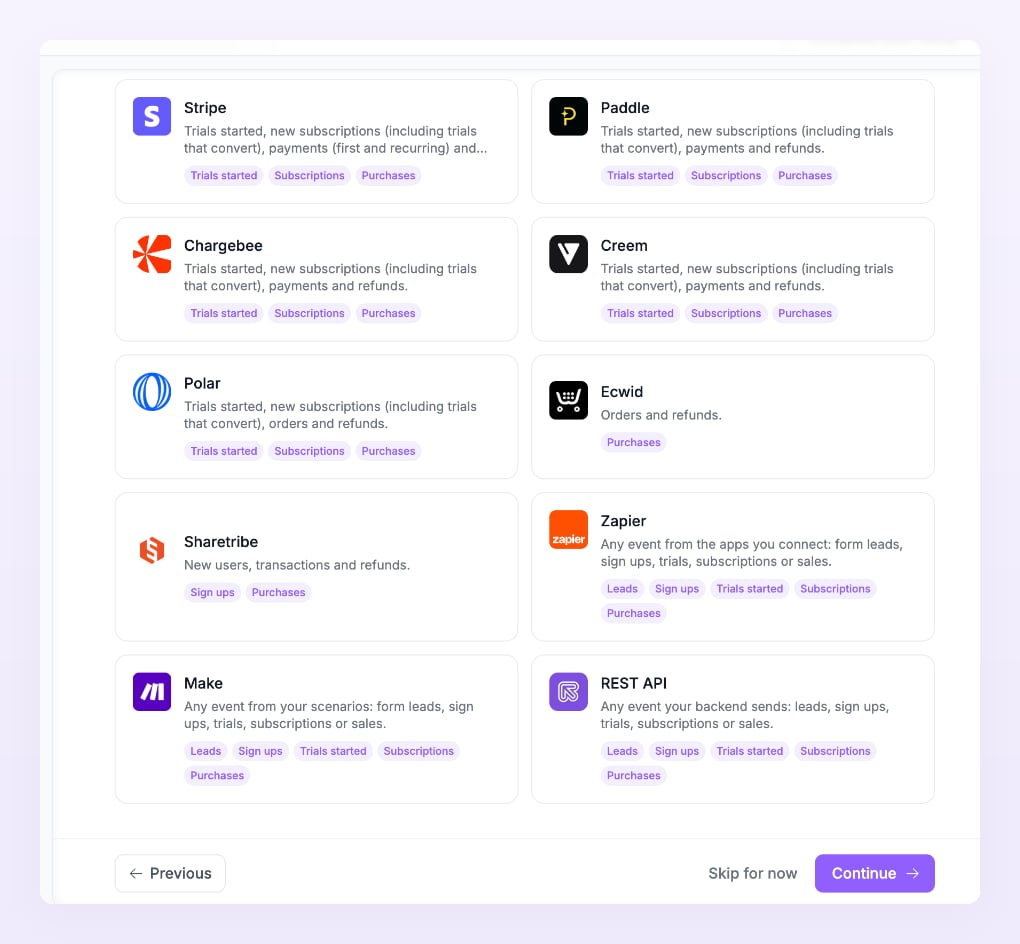
Two more tools, Zylvie (leads and purchases) and Skillplate (subscriptions and purchases), appear only for accounts that were granted access to them.
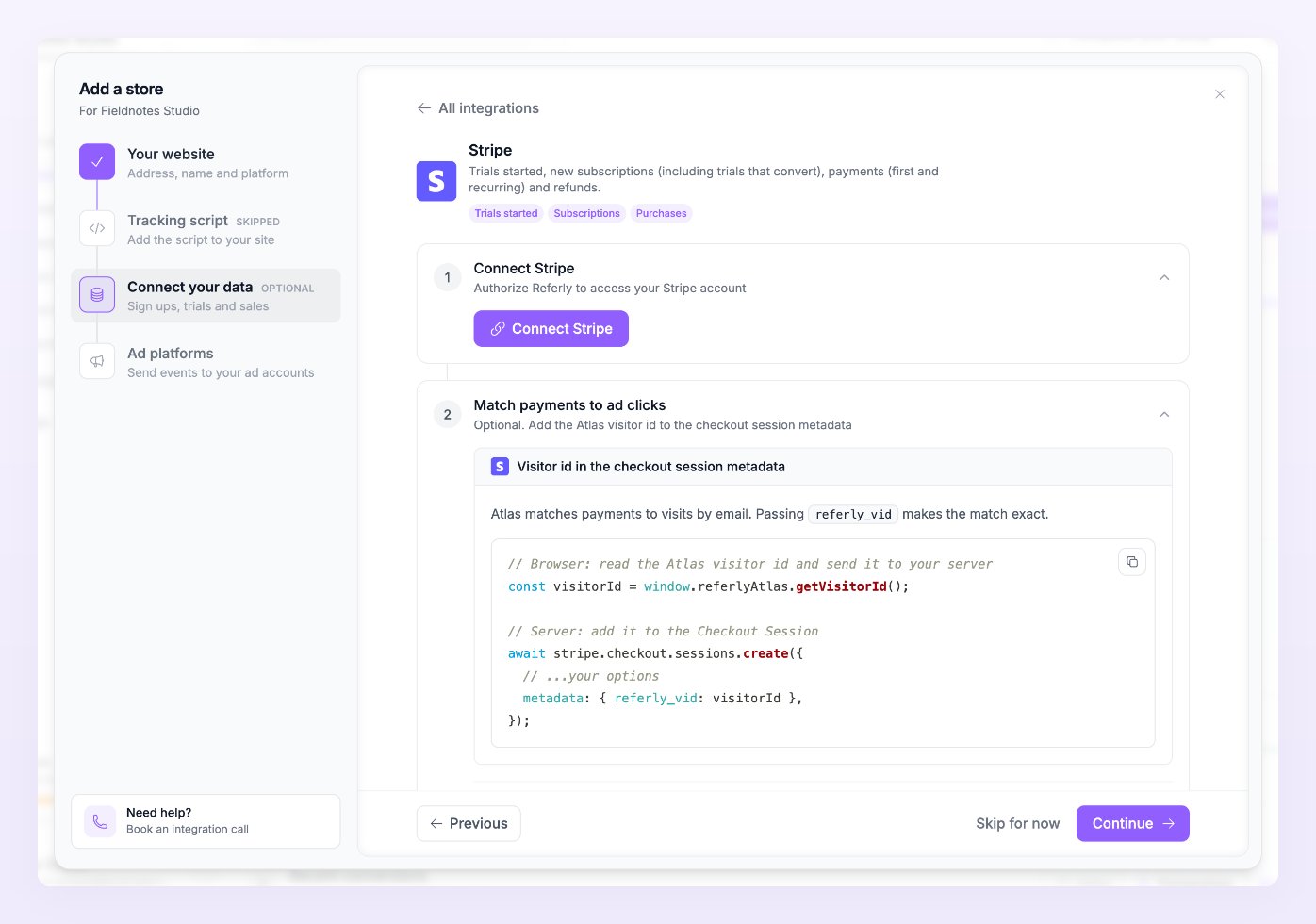
Every card for a payment tool starts with a Connect block whose subtitle reads “Authorize Referly to access your … account”. The connection is the same one your affiliate program uses, so if you already connected the tool there, the block shows Connected with the account name and a Reconnect button. If the wizard asks you to open the store first, select Open store and come back to the step from there.
Stripe
Select Connect Stripe and approve the connection on Stripe’s site, as described in the Stripe integration. Atlas then records trials, subscriptions and payments as they happen. Test mode and live mode are separate connections, so connect the one you want to track. The optional Match payments to ad clicks block shows how to put the Atlas visitor id in the checkout session metadata: read it in the browser and add it asreferly_vid when your server creates the Checkout Session. Atlas matches payments to visits by email; passing referly_vid makes the match exact. If you use Stripe Buy Buttons, Pricing Tables or payment links, the tracking script sets the client reference id for you, so there is nothing to add.
Paddle
Select Connect Paddle and follow the Paddle integration. The Match payments to ad clicks block passesreferly_vid in the checkout’s custom data. A Paddle connection made before Atlas needs the subscription.activated event added to its webhook so trials and subscriptions arrive.
Chargebee
Select Connect Chargebee and follow the Chargebee integration. Chargebee has no visitor id step: payments are matched by email.Creem
Select Connect Creem and follow the Creem integration. The optional block addsreferly_vid to the checkout metadata when you create the checkout.
Polar
Select Connect Polar and follow the Polar integration. The optional block addsreferly_vid to the checkout metadata. Polar’s webhook needs the subscription.created, subscription.active and subscription.updated events enabled for trials and subscriptions to reach Atlas.
Ecwid
Select Install the Referly app on Ecwid: the app comes from the Ecwid App Market and there is nothing to paste. Approve it in your Ecwid admin and you come back with the store connected. Orders and refunds then come in from Ecwid automatically. The Ecwid integration covers the app in detail. If you picked the Ecwid tile in step 1 of the wizard, the same block already appeared in the tracking script step.Sharetribe
Select Connect Sharetribe and follow the Sharetribe integration. Atlas records sign ups and purchases from your marketplace.Zylvie and Skillplate
Zylvie connects like the payment tools above and records leads and purchases. Skillplate asks you to add a webhook: in Skillplate, go to Settings, Webhooks, Create Webhook, paste the endpoint shown in the wizard, pick the event Payment Succeeded and save, then repeat for Subscription Started. Both tools are listed only for accounts that have been granted access.Zapier, Make and the REST API
These three do not connect to a platform. They let anything that can make a web request send conversions to Atlas, which makes them the way in for a CRM, a booking tool, a course platform or your own backend. Each has the same two blocks:1
Get your Atlas API key
Select Generate token to reveal your Atlas API key. It is shown once when generated, so copy it now. Send it as a Bearer token. A Referly API key from your affiliate program works too. Lost it? Regenerate it under Tracking and connection in Store settings.
2
Send your events
The block shows the URL, the header and a JSON body you can copy. For Zapier: in your Zap, add the Webhooks by Zapier action and choose POST, then use the URL, the Authorization header and a JSON body like the one shown. For Make: in your scenario, add the HTTP module and make a POST request the same way. For the REST API, pick your language from the dropdown and send a POST request from your backend each time a conversion happens.
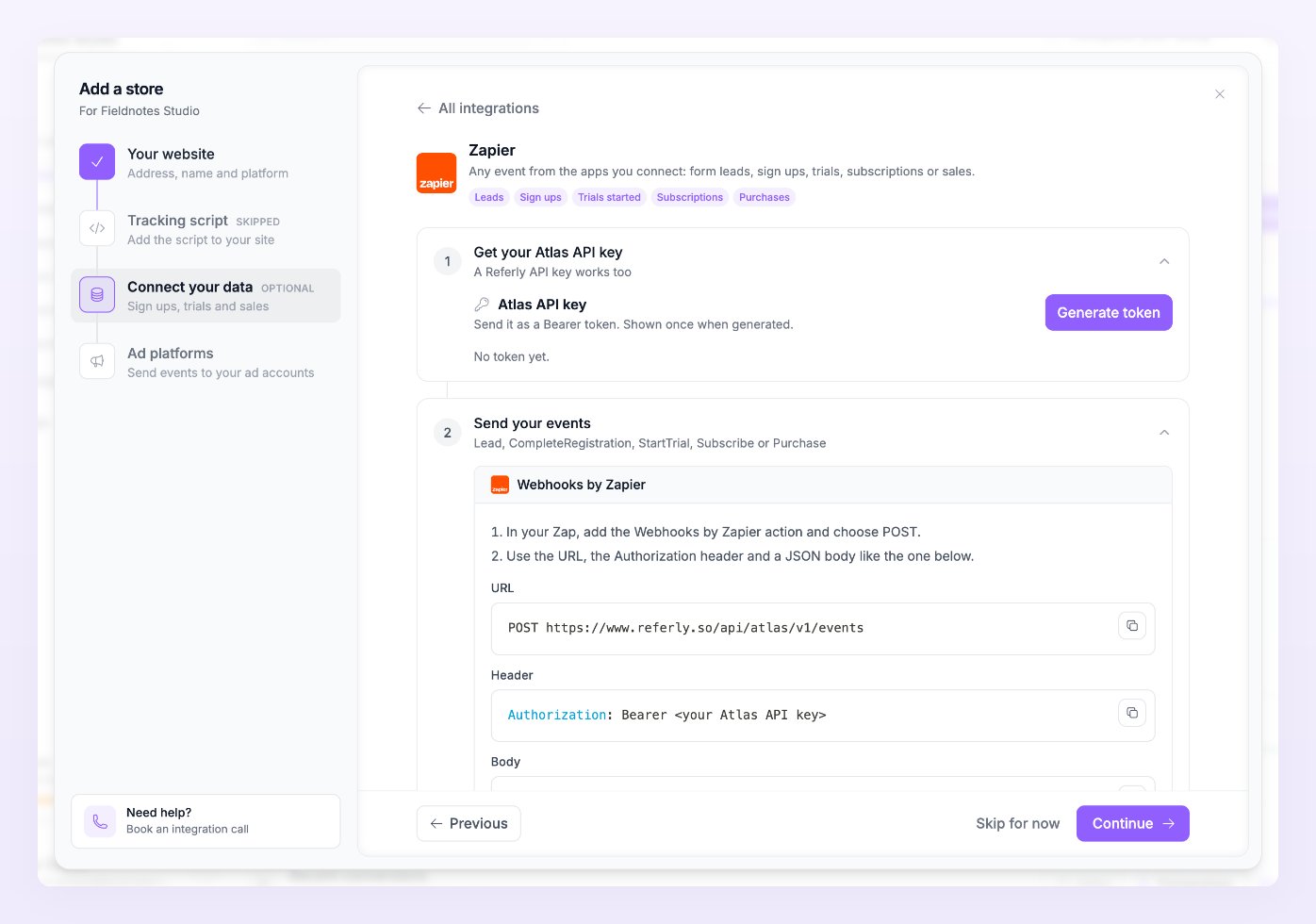
Lead, CompleteRegistration, StartTrial, Subscribe or Purchase), an id, and the person’s email. A purchase needs an id and a value. You can send up to 50 events in one request. Send one from your tool, check that it shows in Live activity, then select Mark as completed on the Send your events block: the tool becomes this store’s integration and the step shows it as chosen.
Field by field, with limits, errors and examples in several languages, see the Events API. The affiliate guides for Zapier, Make and API keys show where those tools keep their settings.
Disconnect a data source
Open the store’s wizard (Setup wizard from the store’s row on the All stores page) and go to Connect your data.- For a connected tool (Stripe, Paddle, Chargebee, Creem, Polar, Ecwid, Sharetribe, Zylvie): select Manage, then Disconnect. New payments stop arriving in Atlas at once.
- For Zapier, Make, the REST API or Skillplate: select Change on the card. The API key keeps working, so requests from your Zap, scenario or backend are still recorded; Regenerate the key under Tracking and connection in Store settings to stop them.
Related
Conversions
The four conversions, where they come from and how duplicates merge.
Events API
The request body, errors, rate limits and examples.
Add the tracking script
The browser side of conversions, on any site.
Stripe integration
What the Stripe connection can and cannot track.