

How Atlas is organised
- Account: your Referly login. It carries the Atlas plan, the seats and the monthly tracked revenue meter, counted across every business and store you own.
- Business: a group of stores with a business type (ecommerce, SaaS, courses, marketplace, agency or other) and a team. The type sets the default events for new pixels. The All stores page says it plainly: a business groups the stores you track.
- Store: one site or app with its own platform connection (Shopify, WooCommerce or the tracking script), its own pixels, event filters, store settings, currency and time zone. Orders, conversions and visits are always recorded against a store.
Switch between businesses
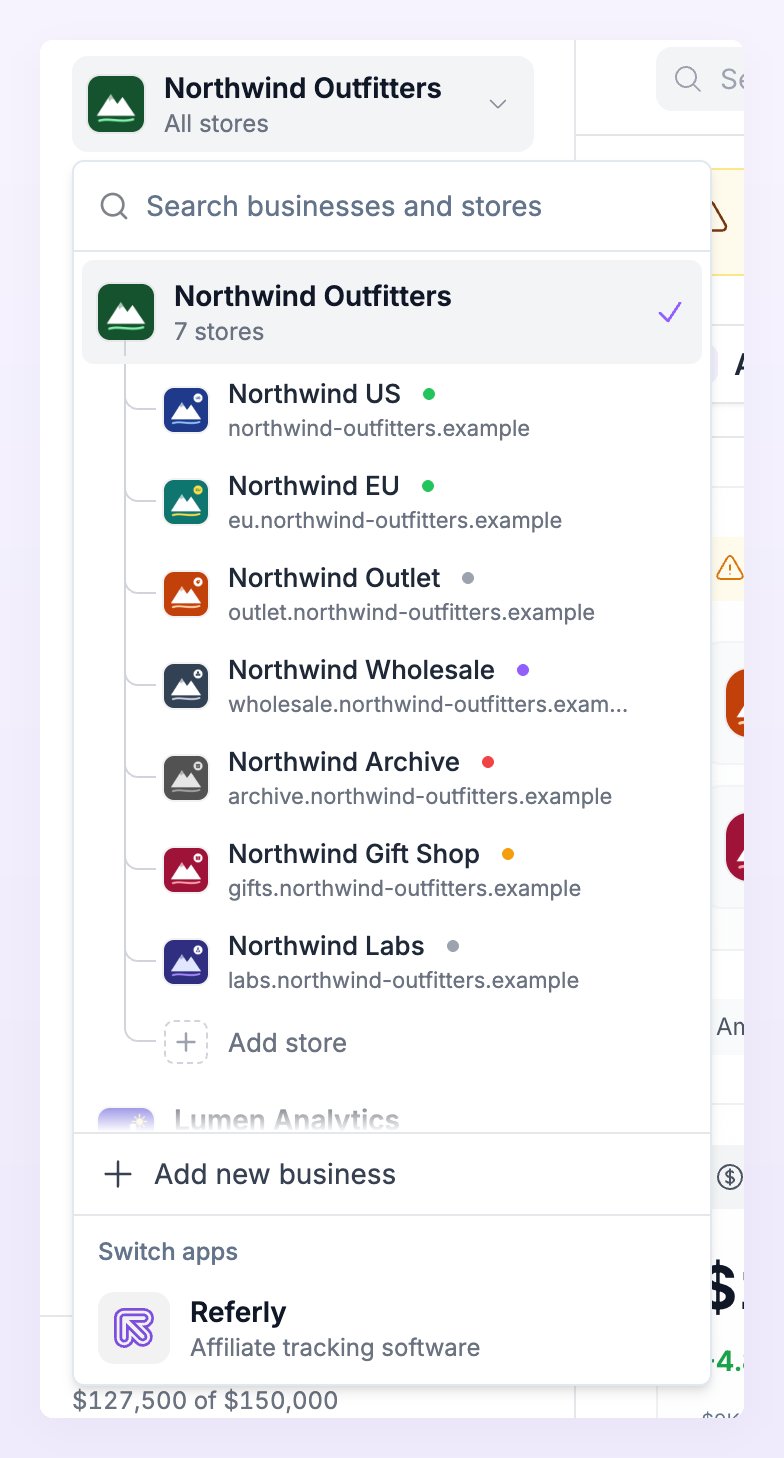
Open the business switcher by clicking the name of the current business in the navigation. It lists the business with its stores, and offers:- Add store, which opens the Add a store wizard for this business.
- Add new business, which starts the three-step business setup described below.
- Switch apps, which takes you to your Referly affiliate program.
All stores or one store
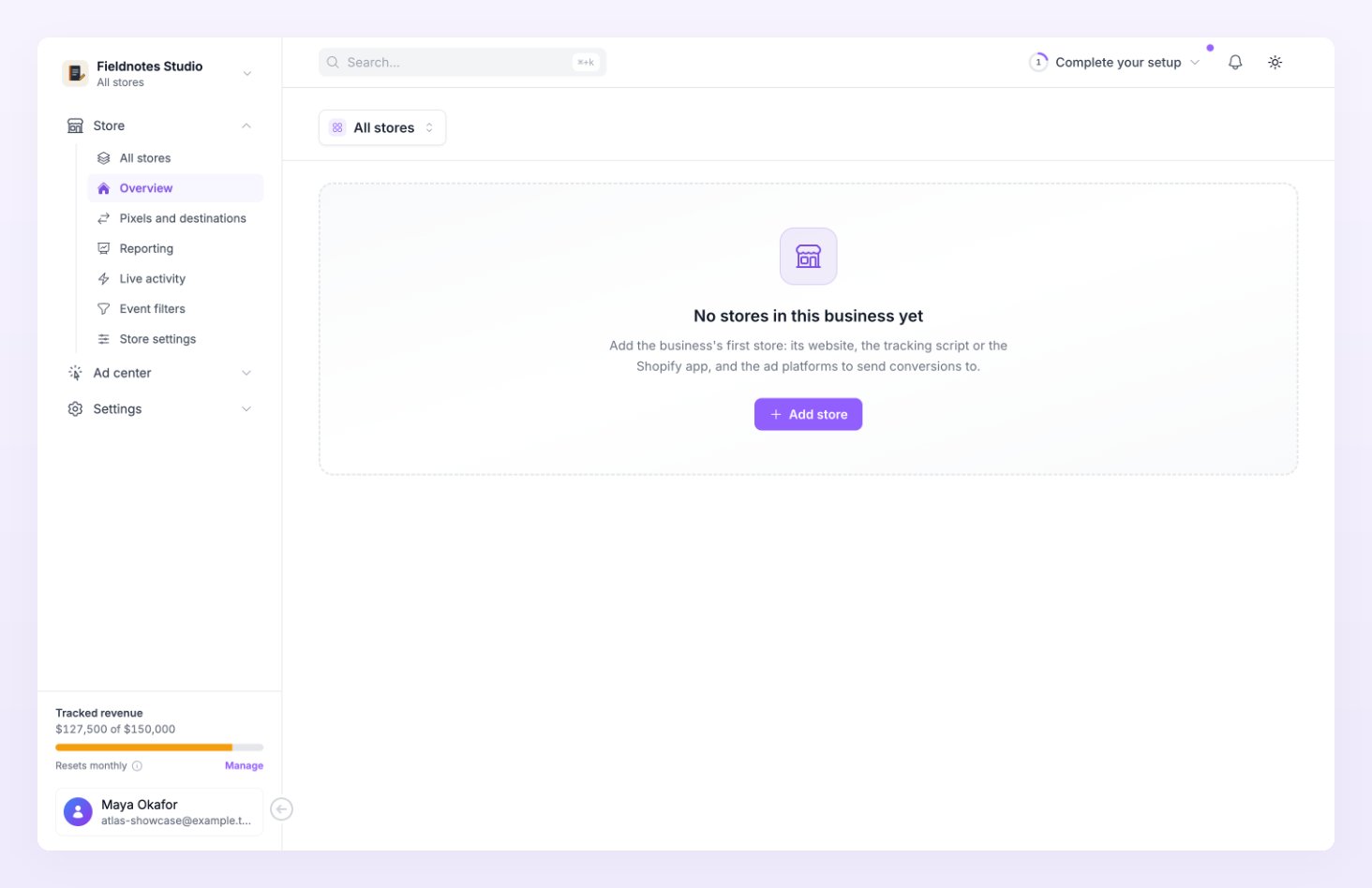
The store picker at the top of every page decides whose numbers you are looking at. Choose All stores for the whole business, or one store for that store alone. Each store appears with its status dot, and when the business has seven or more stores a Find a store box lets you search.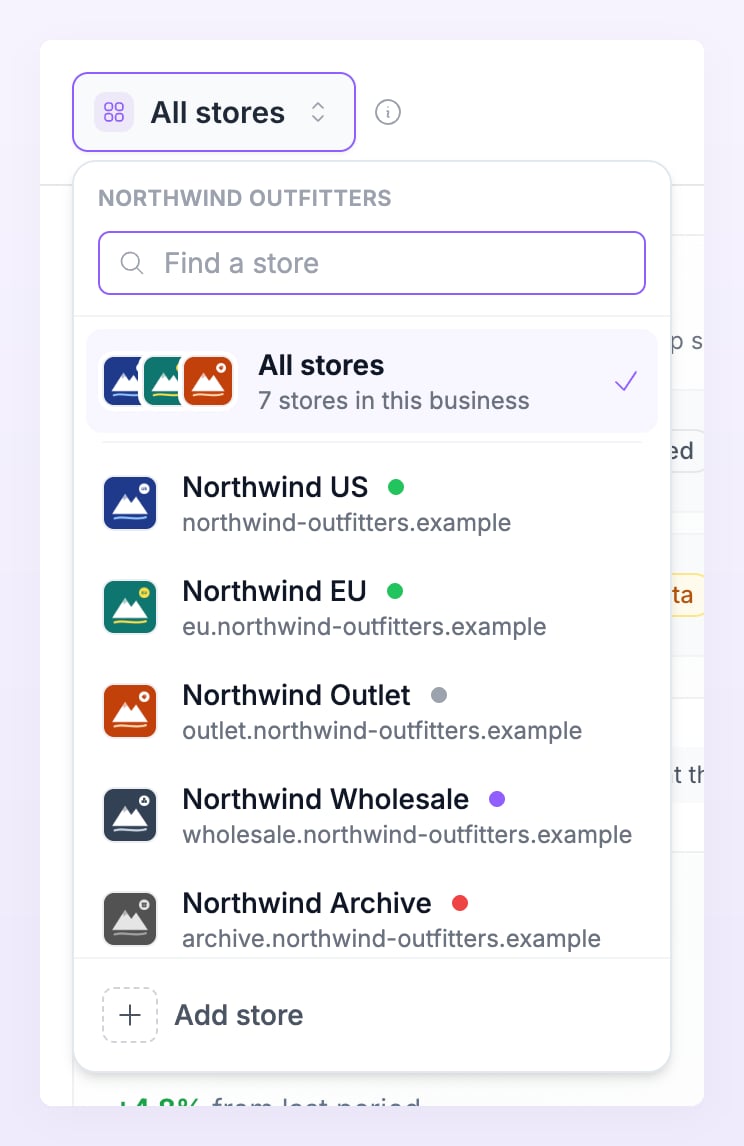
Some things need one store: the setup wizard, the store settings (which list your stores on the left so you can switch there), and pixel credentials. When you connect an ad account while All stores is selected, Atlas asks For which store? first.
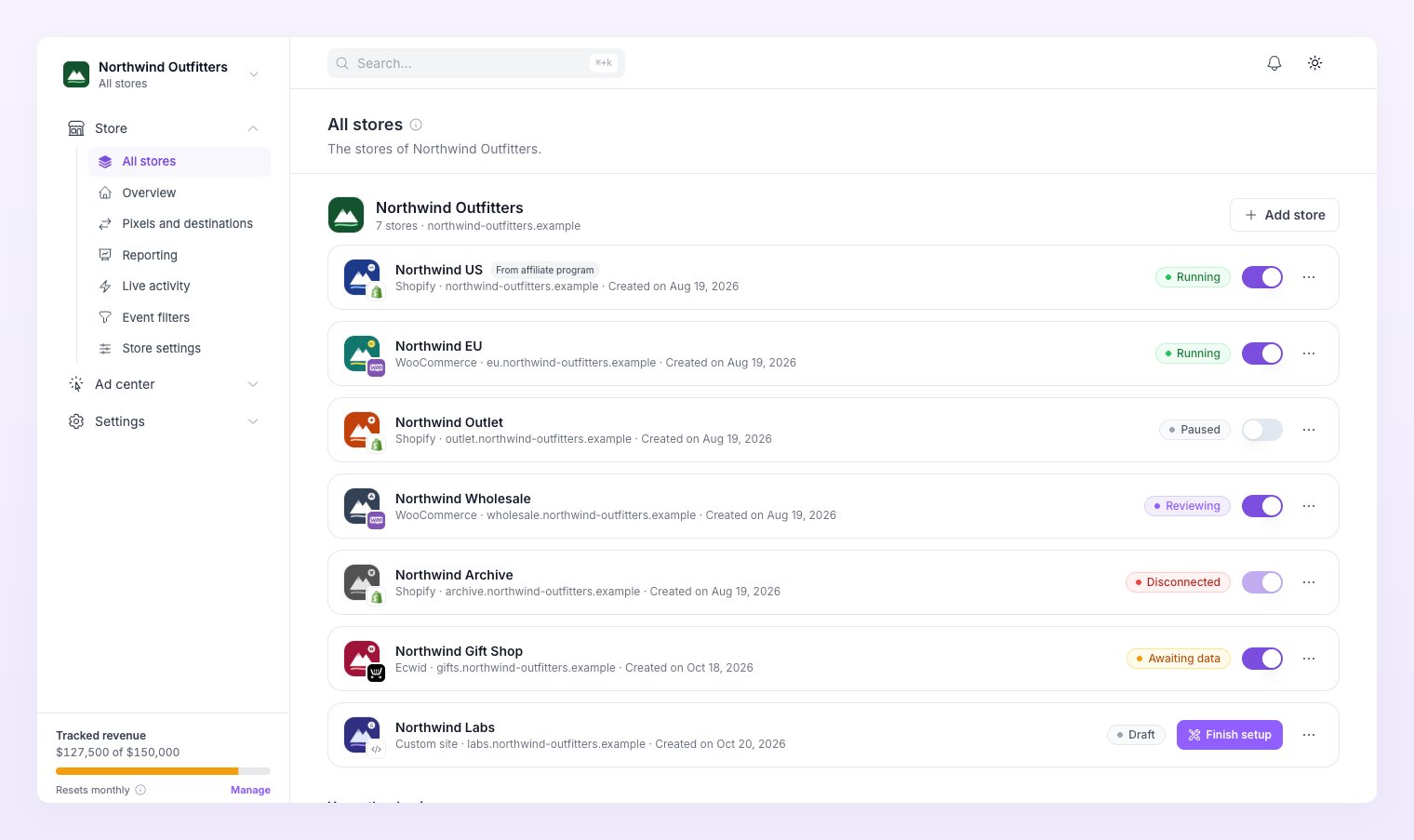
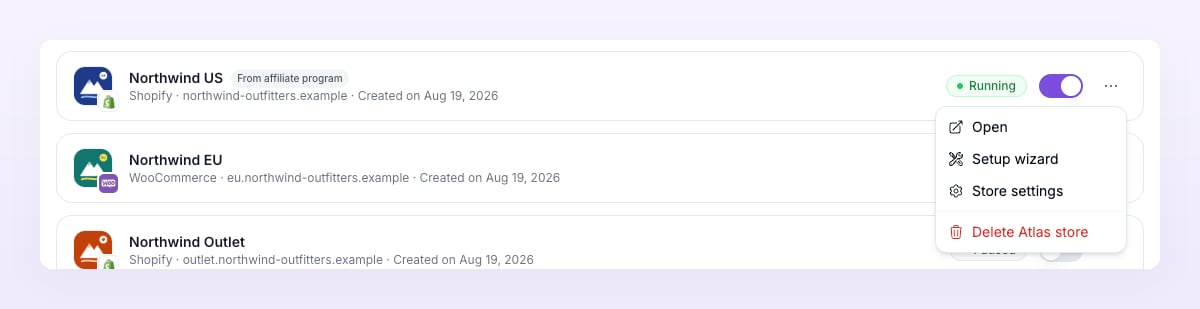
The All stores page itself lists every store of the business with its platform, status badge and an on/off switch. From a store row you can Open it, resume its Setup wizard, open Store settings or Delete Atlas store. A store whose setup is not finished also offers Finish setup.
Add a business
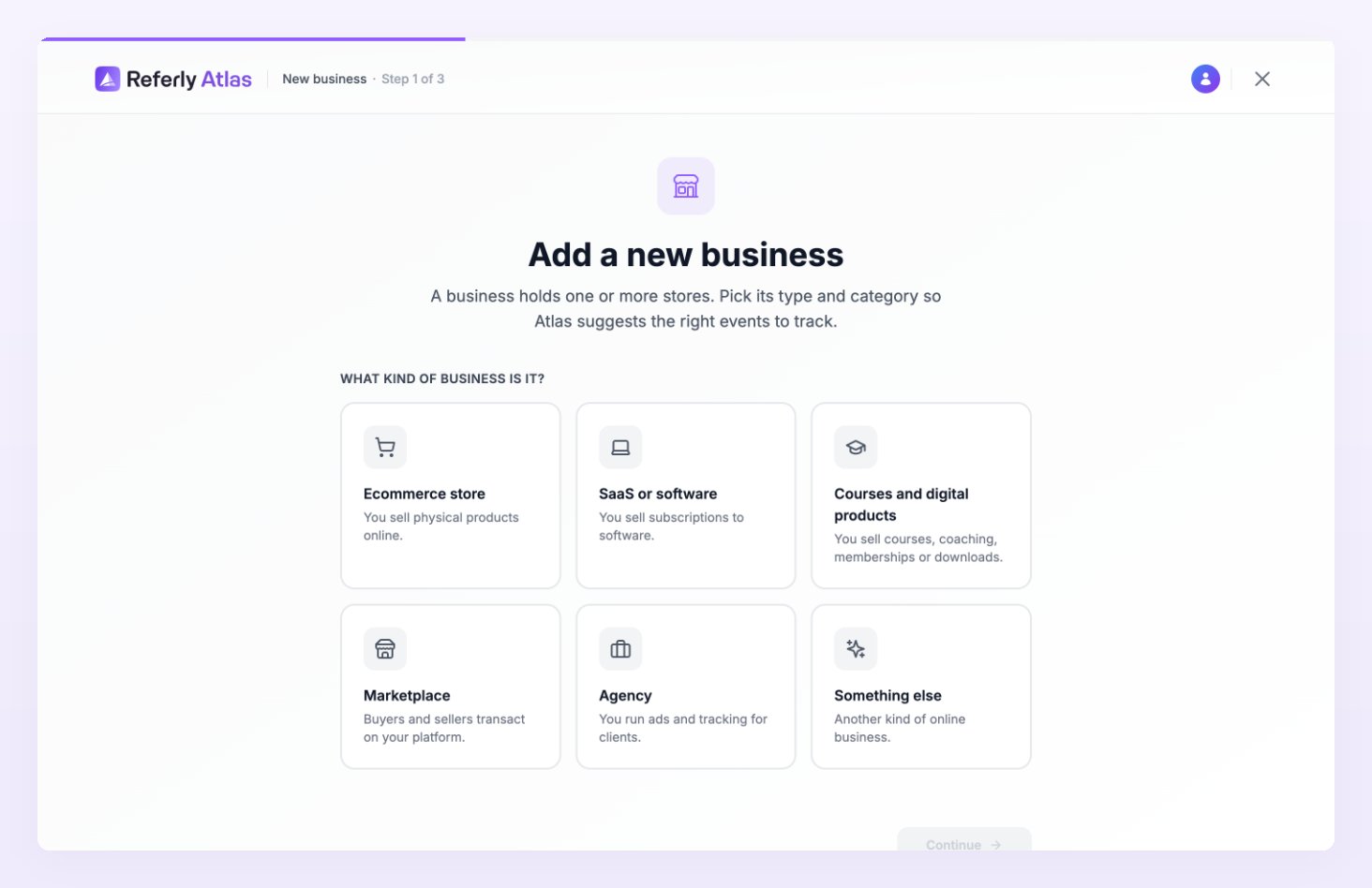
You need a second business when the sites you track belong to different brands or clients and should not share reports, pixels or team members. An agency, for example, usually runs one business per client.- Open the business switcher and select Add new business.
- Answer What kind of business is it: the same six types as in onboarding, with a category chip underneath. See Step 1 of onboarding for what each type changes.
- Fill in About the new business: the website URL, the business name (filled in automatically when Atlas can read the site) and an optional logo up to 1MB.
- On Connect its first store, select Connect your store to open the wizard, or Skip for now to come back later.
Store statuses
Every store carries a status badge, shown on the All stores page, in the store picker and as a banner on its Overview. The ones you will meet most often:- Draft: the wizard is not finished. No events are tracked yet.
- Awaiting data: connected and waiting for the first event or order.
- Running: events are flowing to your destinations.
- Paused: nothing is sent until you resume the store.
Pause or delete a store
Pause when you want to stop sending events for a while without losing anything. Flip the switch on the store’s row on the All stores page, or open Store settings, scroll to Danger zone and select Pause tracking. The store moves to Paused: Atlas keeps recording orders and visits, but nothing is sent to your pixels until you select Resume tracking (or flip the switch back on). Resuming needs an active plan. Delete when the store is gone for good. Choose Delete Atlas store from the row menu or from Danger zone in Store settings. The confirmation dialog spells out what happens: tracking stops and the store’s Atlas data is deleted for good, while your affiliate data stays. Turning a platform off for one store, without pausing the store, is done on Pixels and destinations.Related
Add a store
Connect a new store to a business in four steps.
Statuses and labels
Every store, pixel and delivery status explained.
Store settings
Currency, attribution, consent, test mode and the danger zone.
Team
Give people access to a business or to specific stores.