What a pixel is in Atlas
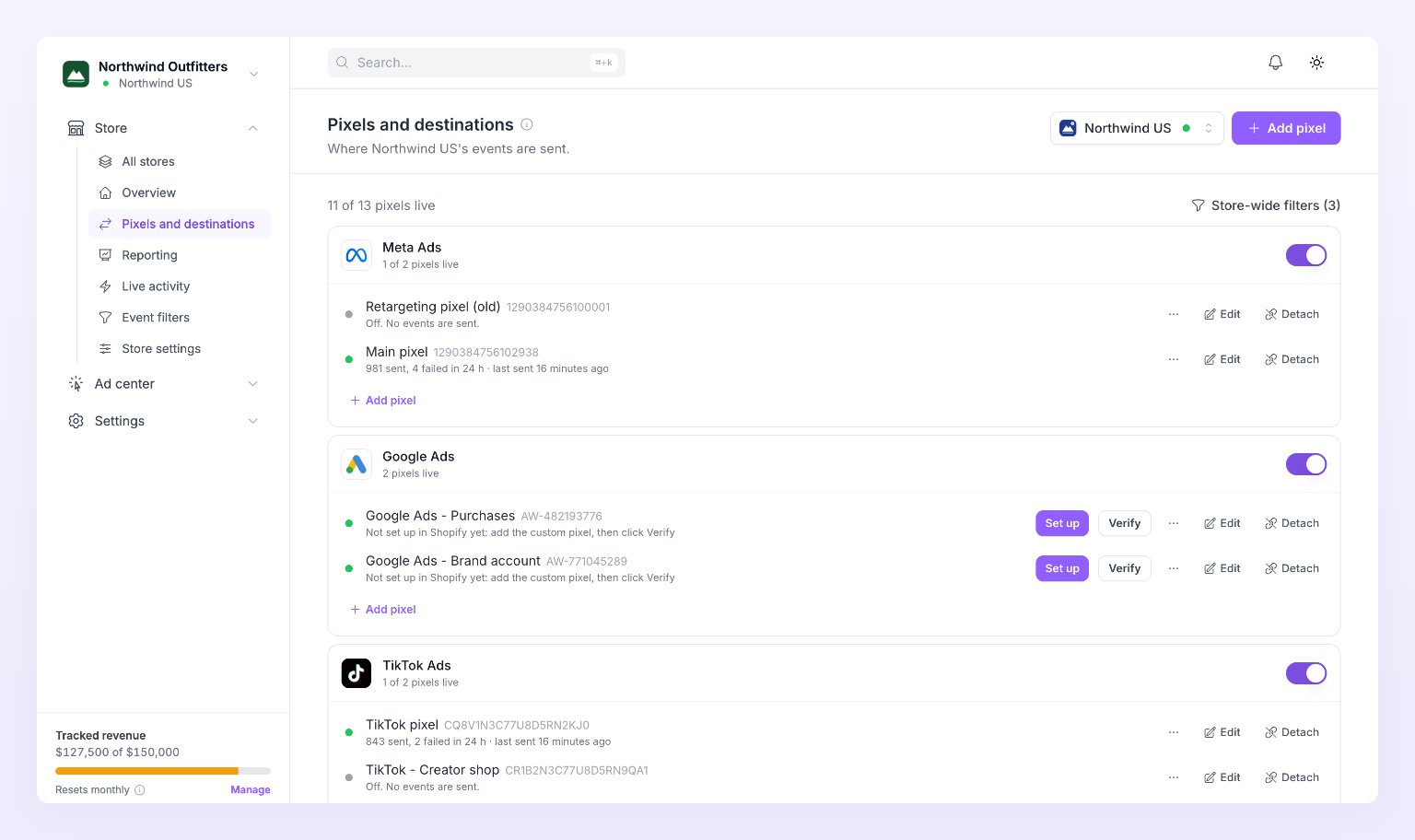
Each platform has its own row with a switch and a count such as “1 of 2 pixels live”. Under the row sit the pixels themselves. Every platform except Google Ads receives events server-side; the row says so under its name. Google Ads reads “Browser, Shopify custom pixel” or “Browser, automatic” because its conversions fire from the page: see Google Ads pixel. You can add more than one pixel per platform, for example a main Meta pixel and an older retargeting pixel, and turn each one on or off on its own.Add a pixel
Select the store in the picker at the top, then click Add pixel in the top right, or + Add pixel under a platform row to start with that platform selected.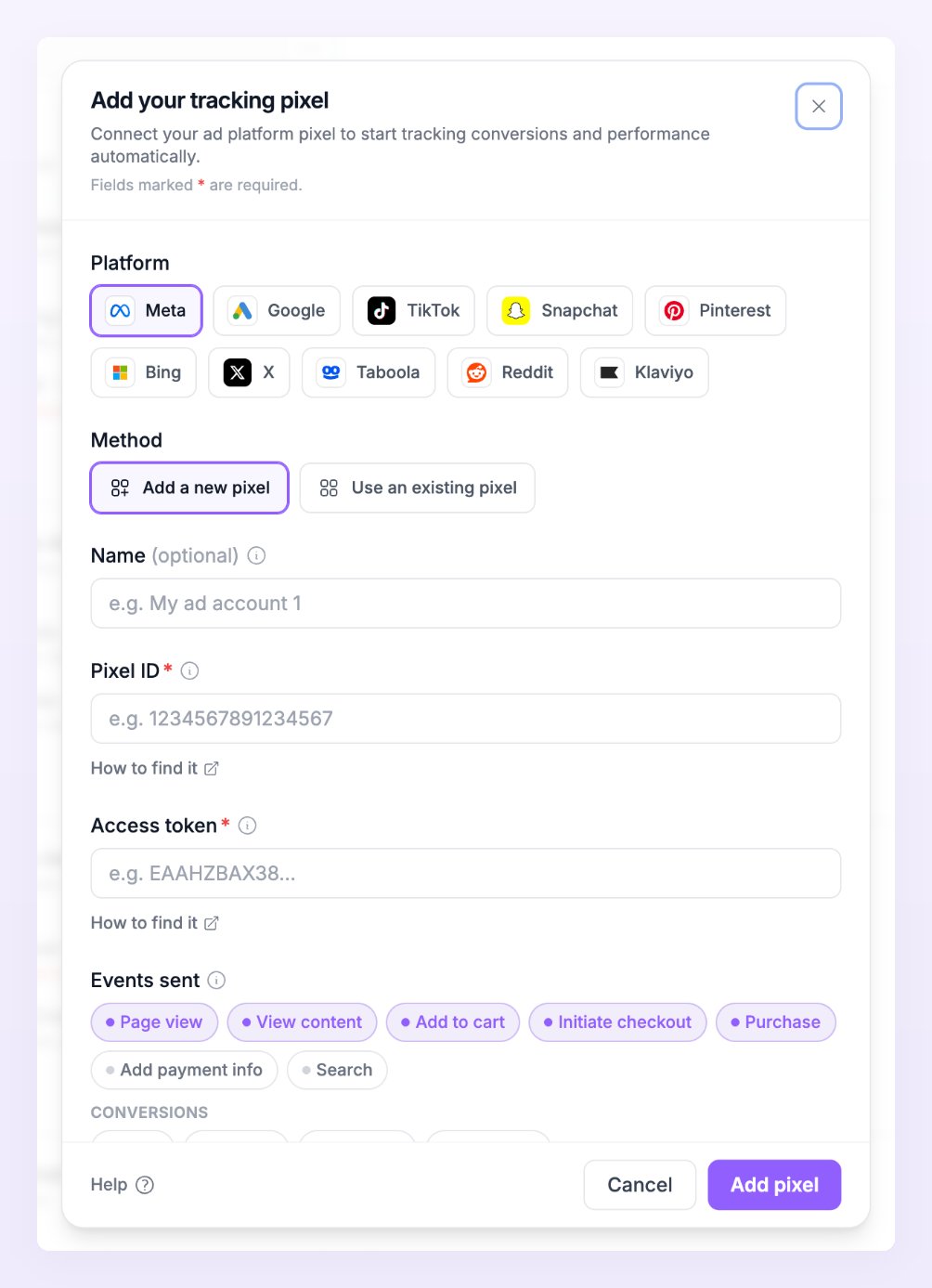
1
Choose the platform
Pick a chip: Meta, Google, TikTok, Snapchat, Pinterest, Bing (Microsoft Ads), X, Taboola, Reddit or Klaviyo. The fields below change with the platform.
2
Name it (optional)
A name such as “Main pixel” shows on the row instead of the platform name. It is only for you.
3
Paste the ids and token
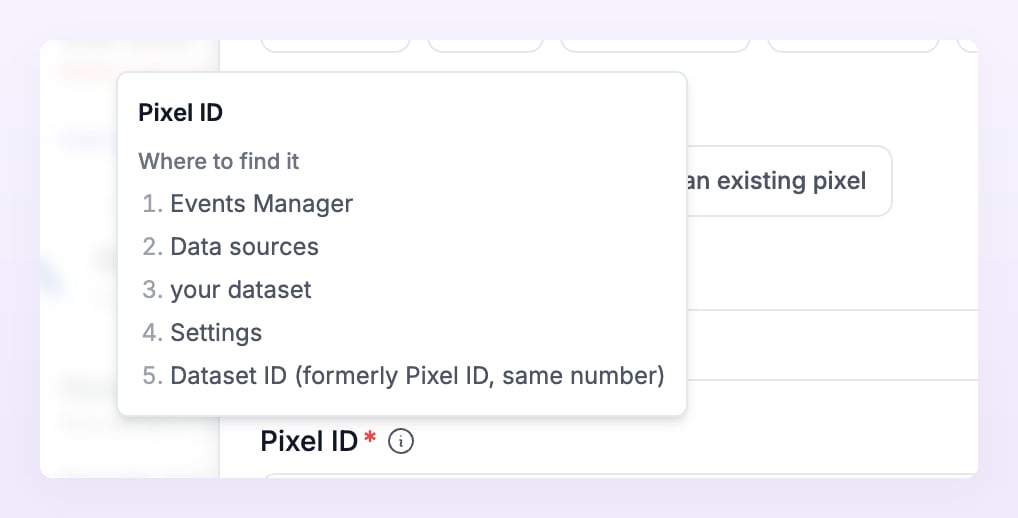
Each field has an info icon with a Where to find it list and a How to find it link to the platform’s own article. Fields marked with an asterisk are required. Each platform guide below repeats the steps.
4
Choose the events
Under Events sent, turn on the events this pixel should receive. A new pixel starts with the funnel of your business type: carts, checkouts and purchases for a store, leads, sign ups, trials and subscriptions for a SaaS. Google Ads and X do not have this section; they take one conversion label or event ID per event instead, and only events with an id are sent.
5
Save
Click Add pixel. The toast reads “Pixel saved”.
Use an existing pixel
When another store of the same business already has a pixel on the platform you picked, the dialog shows a Method choice: Add a new pixel or Use an existing pixel. The second lists the other stores’ pixels with their ids (“In Northwind EU”). Pick one and Atlas copies its ids and keys to this store. Each store keeps its own on or off switch and its own events, so you can send purchases from both stores to one Meta pixel while filtering them differently.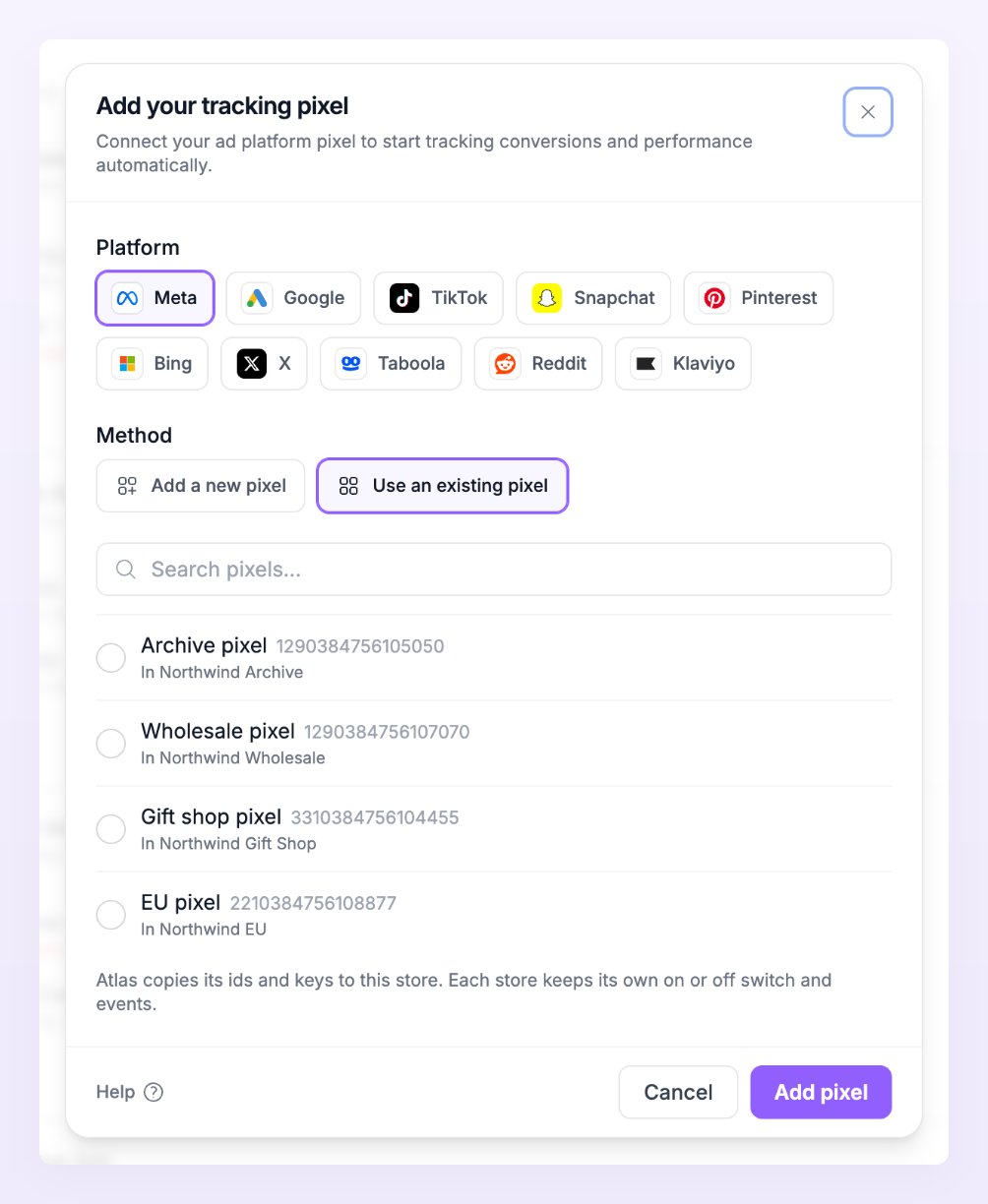
After you save
The dialog turns into a Pixel saved screen. For server-side platforms the badge reads Data flowing and the text says events usually show in your ads manager within 15 to 30 minutes. Below it, “Not sure if you added the right pixel? You can verify that here.” sends one test event and shows the platform’s answer: “Test event accepted (HTTP 200). Check Events Manager for it.” or the platform’s error, which usually means a mistyped id or token. Google Ads on Shopify shows One step left instead, because the custom pixel still has to be added in Shopify; on other sites it shows Ready.Read a pixel row
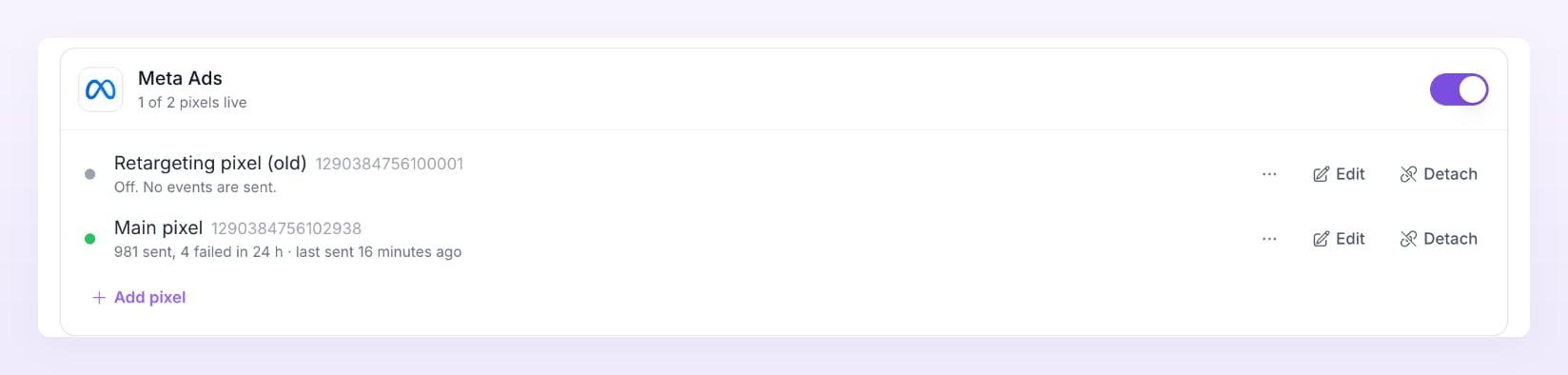
- A dot: green and pulsing for Live (events are being sent), red for Error (the last send failed; the line shows why), gray for Off. See Pixel states.
- The name and id: the pixel’s label or “Meta pixel”, and its public id.
- The delivery line: “981 sent, 4 failed in 24 h · last sent 16 minutes ago”, or “No events in the last 24 h”, or “Off. No events are sent.” Google Ads pixels read “N fired in the browser in 24 h”.
- Edit and Detach buttons, and a More pixel actions menu with Send test event and Event filters (n), which opens the pixel’s own rules.

Send a test event
Open the pixel’s More pixel actions menu and click Send test event. Atlas sends one PageView-style test to the platform and shows a toast: “Meta accepted the test event”, or the platform’s error. The test also shows in Live activity with a Test pill and in the Recent deliveries card on the Overview. A test proves the ids and token work; it does not prove your store sends events, which is what Test connection checks.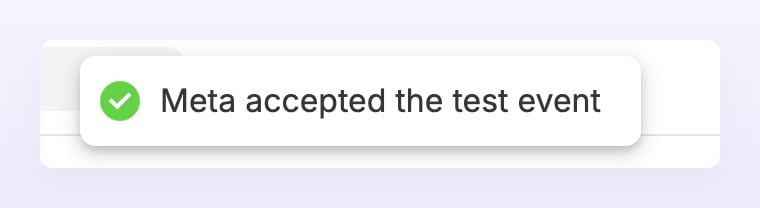
Turn a platform on or off
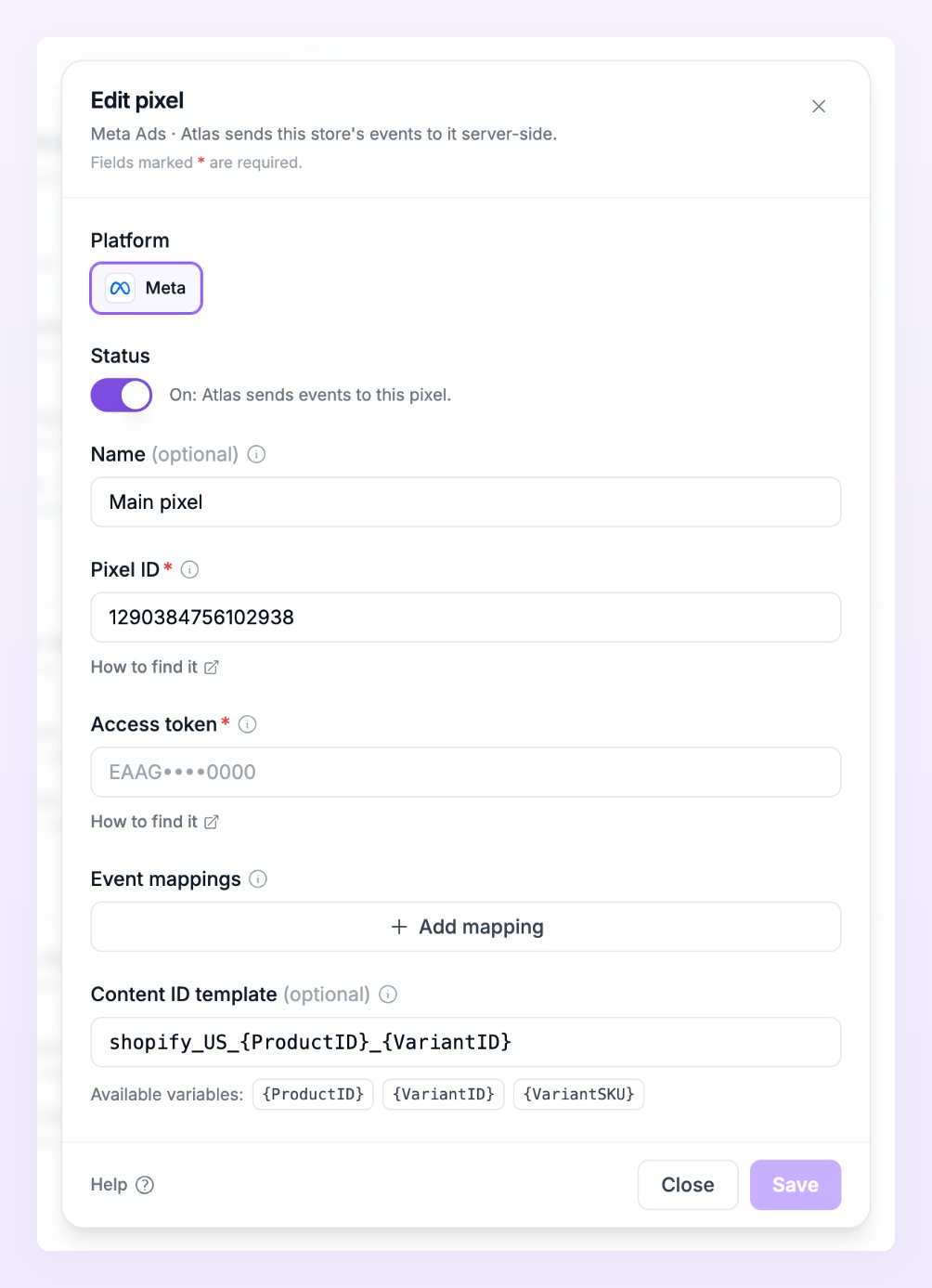
The switch on a platform row controls every pixel under it. Switching Meta off pauses all Meta pixels of the store; switching it back on re-enables them. To pause one pixel, open Edit and turn its Status switch off instead.Edit or detach a pixel
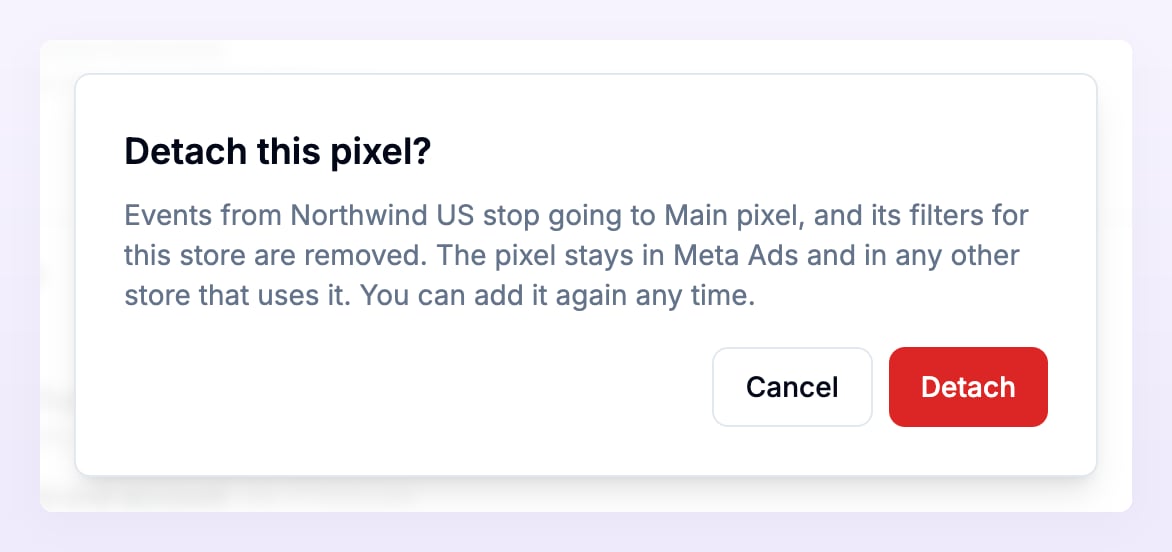
Edit opens the same dialog with the saved values. Secret fields stay blank: leave them empty to keep the saved token, or paste a new one to replace it. Saving an edit clears the pixel’s last error and sets it back to untested, so send a test event afterwards. Meta pixels have two extra settings here, Event mappings and Content ID template, explained in the Meta Ads pixel guide.