

Before you start
You need:- A store in Atlas that is set up and live. See Store statuses.
- A Google Ads account with at least one conversion action for the events you want to count. Atlas builds the tag only for events that have a conversion label, so create the actions in Google Ads first.
- On Shopify, access to Customer events in your Shopify admin (under Settings), where custom pixels are added.
Step 1: Find your Conversion ID
Your account has one Conversion ID, shared by every conversion action.1
Open a conversion action
In Google Ads, go to Goals, then Conversions, then Summary, and open the action you want to track.
2
Open the tag setup
Select Tag setup, then Use Google Tag Manager.
3
Copy the Conversion ID
Copy the Conversion ID (one per account). Atlas accepts it with or without the prefix, so
AW-123456789 and 123456789 both work.Step 2: Find your conversion labels
Each conversion action has its own label, shown on the same Use Google Tag Manager screen as the Conversion ID, under Conversion label (one per action). A label looks likeX9dKCJvA75kDEND8kMQo.
Collect one label for every event you want Atlas to count. Atlas has a row for each of these eight events: Page view, Add to cart, Initiate checkout, Purchase, Lead, Sign up, Start trial and Subscribe. You need at least one.
Step 3: Add the pixel in Atlas
1
Open Pixels and destinations
In the left sidebar of Atlas, open Pixels and destinations for the store, then select + Add pixel.
2
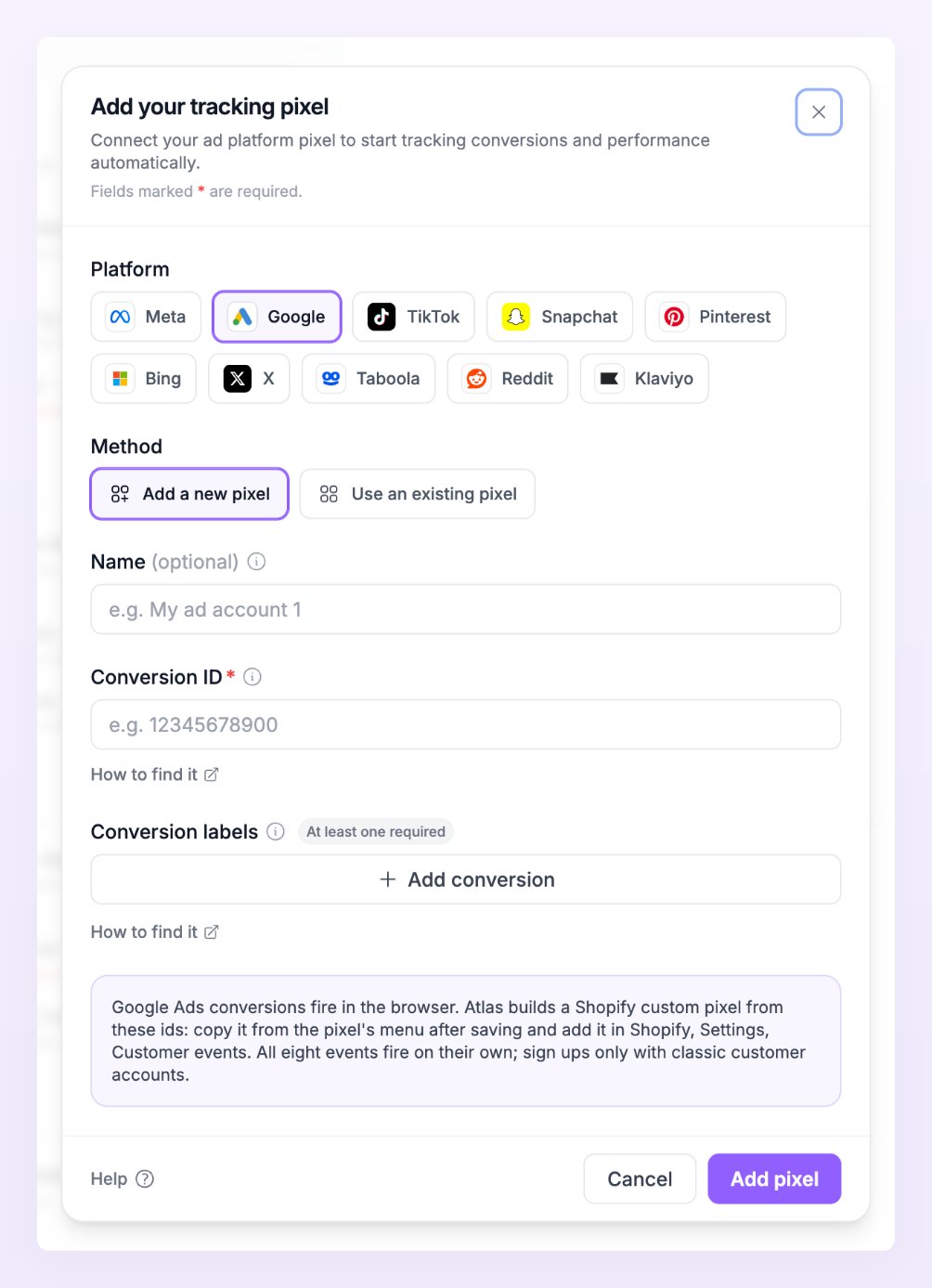
Choose Google
In the Add your tracking pixel dialog, select the Google chip (the chip reads Google, not Google Ads). Leave Method on Add a new pixel, or choose Use an existing pixel if another store of your business already has this account set up. See Use an existing pixel.
3
Paste the Conversion ID
Fill in Conversion ID. Name (optional) helps you tell accounts apart.
4
Add your conversion labels
Under Conversion labels, select Add conversion, pick the event and paste its label. Repeat for every event you collected in Step 2. There are no Events sent chips for Google: the label rows are the event selection, and Atlas saves only when at least one row is filled in.
5
Save
Select Add pixel. The Pixel saved screen shows One step left on a Shopify store (the custom pixel still has to be pasted) or Ready on every other site.
Events Atlas sends to Google Ads
Each row in the table is one conversion label. Events without a label are not built into the tag.
View content, Add payment info and Search have no conversion label row and are not sent to Google Ads.
Verify that events arrive
Google Ads pixels have no Send test event, because the conversions fire in the browser rather than from Atlas. Use these checks instead:- On Shopify, run Verify. The last step of the Set up Google Ads in Shopify dialog opens your store in a new tab and watches for the custom pixel for up to 90 seconds. When it fires, the dialog reads Google Ads pixel connected.
- Read the delivery line. The Google Ads row reads how many conversions fired in the browser in the last 24 hours, for example 8 fired in the browser in 24 h. The row’s sub-line says where they come from: Browser, Shopify custom pixel or Browser, automatic.
- Watch Live activity. Each fired conversion is reported back to Atlas and listed in Live activity with Google Ads as the destination. See Live activity.
- Check Google Ads. Open your conversions summary in Google Ads and look for the actions whose labels you added.
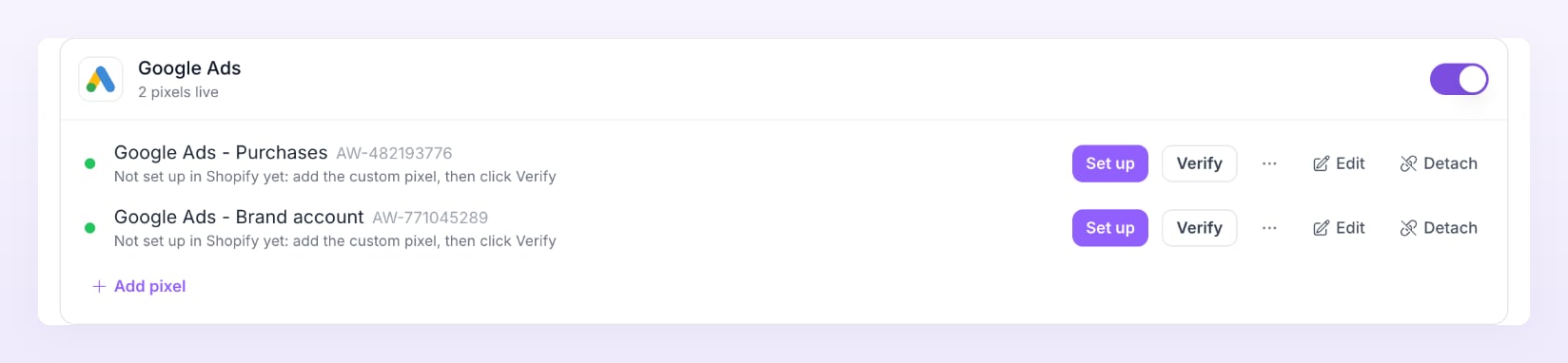
Google Ads settings in Atlas
Shopify stores: paste the custom pixel
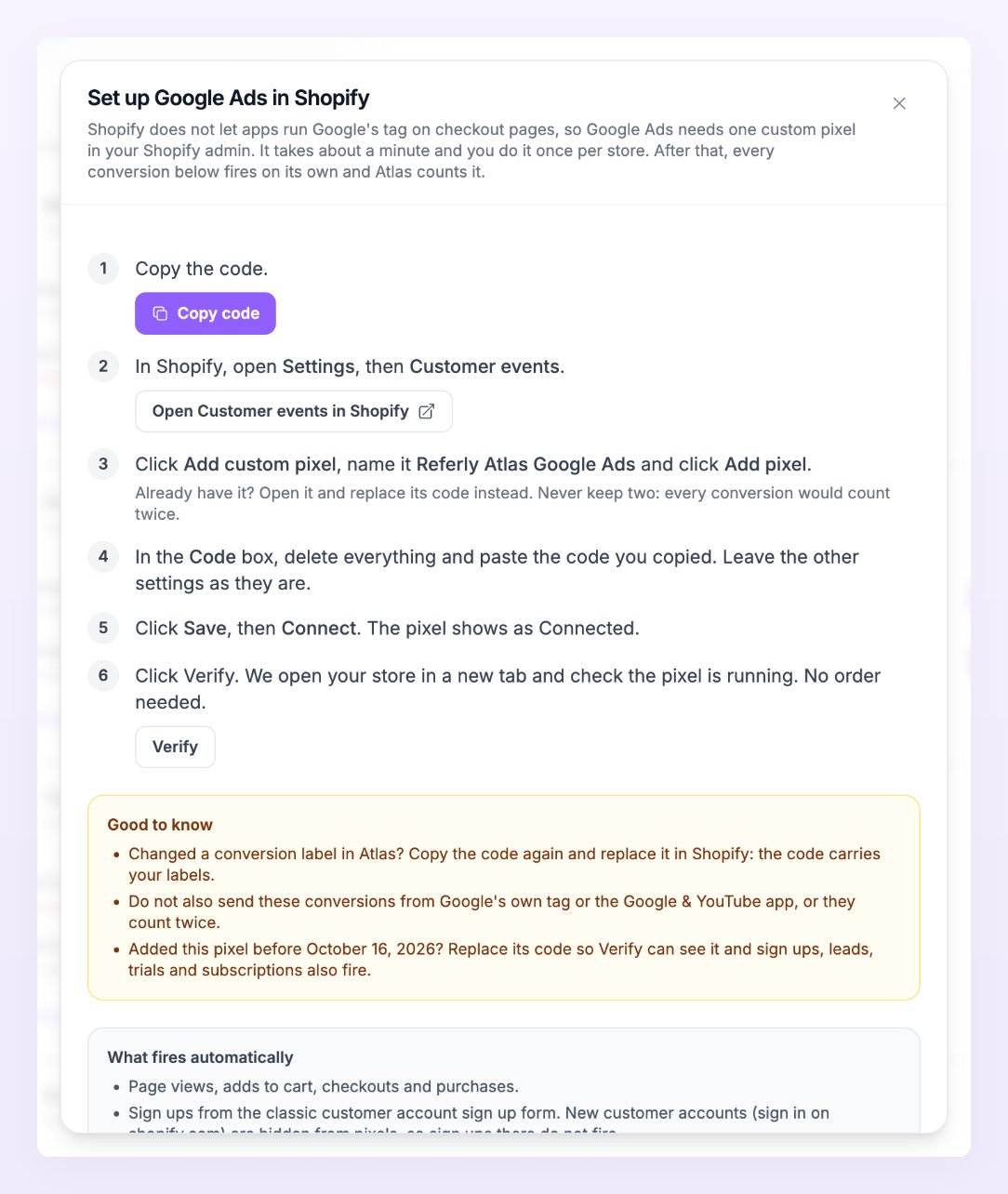
On a Shopify store the Google Ads row shows Set up (and Shopify setup in the row’s menu). It opens the Set up Google Ads in Shopify dialog, which walks you through six steps:- Copy code: copies the tag Atlas built from your labels.
- In your Shopify admin, open Settings, then Customer events.
- Add a custom pixel and name it Referly Atlas Google Ads.
- Paste the code in the Code box.
- Select Save, then Connect.
- Back in Atlas, select Verify. Atlas opens your store in a new tab and checks for up to 90 seconds.
Other sites: automatic through the Referly tracker
On WooCommerce, Wix, Squarespace, Webflow and custom sites, the Referly tracker fires the conversions, so there is nothing to paste. The WooCommerce plugin fires all eight events from version 2.3.3. If a page cannot run the tracker, choose Copy snippet in the row’s menu and paste that code on the page instead.After you change a label
The pasted code carries your labels. After you add or change one, copy the code again and replace what you pasted earlier, in the Shopify custom pixel or on any page that uses the snippet. The tracker picks up the change on its own.Event filters and consent
The tracker applies your event filters in the browser, with country and customer type rules staying neutral. The Shopify custom pixel and the pasted snippet apply no event filters. Google Ads tags use Consent Mode: in regions that need consent they start denied, unless the store’s consent mode is Off. See Consent and privacy.Where the conversions show
Reporting counts every fired conversion in the Google Ads column, marked via snippet. See Reporting.Troubleshooting
Verify does not find the pixel on Shopify
Verify does not find the pixel on Shopify
Check that the custom pixel is saved and connected under Customer events in Shopify, with the code pasted in full. Then open your store in the new tab Atlas opened and load a page: Verify waits up to 90 seconds for the pixel to fire. If you changed a label since you pasted, copy the code again.
The row says no conversions fired in the last 24 h
The row says no conversions fired in the last 24 h
Atlas counts only from stores that are Running or Awaiting data, and only events that have a label. On Shopify, the custom pixel has to be connected. On other sites, the tracker must be on the page: run Test connection in Store settings to confirm it is seen. See Test the connection.
Google Ads counts twice as many conversions as Atlas
Google Ads counts twice as many conversions as Atlas
Another tag is sending the same actions: Google’s own tag, or the Google & YouTube app on Shopify. Keep one source per conversion action. See Avoid double counting.
Related
Pixels and destinations
Add, edit, test and detach pixels on any store.
Set up Shopify
Install the Referly app and turn on the Atlas pixel.
Avoid double counting
Keep Google’s own tag and Atlas from counting the same conversion twice.
UTM tagging
The Google Ads tracking template that fills Reporting.