

Before you start
You need:- A store in Atlas that is set up and live. Only stores that are Running or Awaiting data send events. See Store statuses.
- A Snap Pixel in Events Manager. Atlas sends to a pixel you already have, it does not create one.
- The Organization Admin role in Snapchat Ads Manager, because only an Organization Admin can generate a Conversions API token.
- Up to 24 hours of patience for a brand new token. Snapchat can answer Invalid access token for up to a day after a token is created, even when everything is right. Create the token first, then add the pixel.
Step 1: Find your Pixel ID
1
Open Events Manager
In Snapchat Ads Manager, open the menu, then Events Manager.
2
Open your pixel
Select the pixel you advertise with.
3
Copy the Pixel ID
Copy the Pixel ID shown under the pixel’s name. It is a UUID like
a72aa7aa-aa7a-7aa-aa7a-a7a7777777a7.Step 2: Generate an API token
1
Open Business Details
In Snapchat Ads Manager, open the menu, then Business Details.
2
Go to Conversions API Tokens
Open Conversions API Tokens.
3
Generate the token
Select Generate Token (you need the Organization Admin role) and copy it.
Step 3: Add the pixel in Atlas
1
Open Pixels and destinations
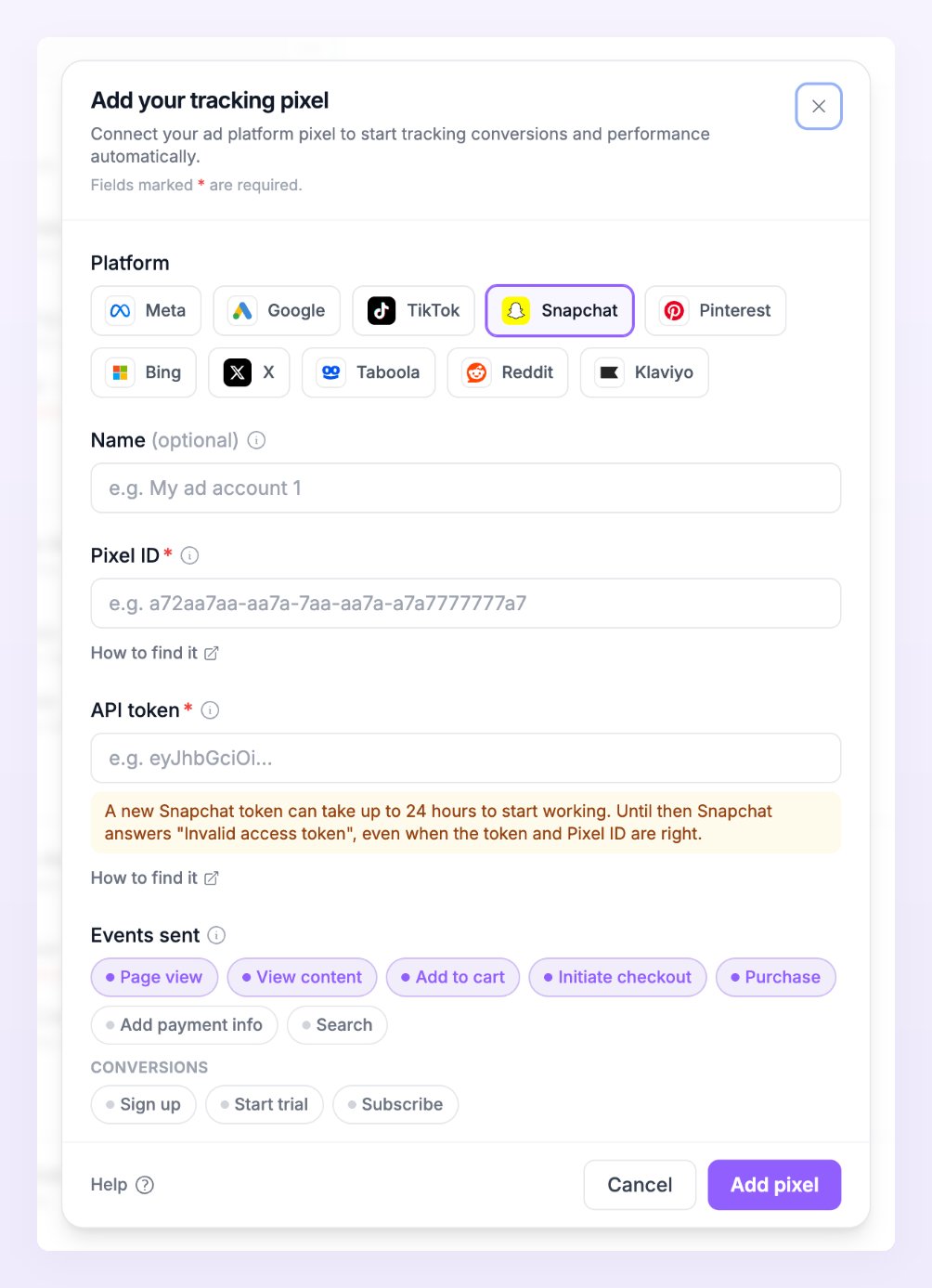
In the left sidebar of Atlas, open Pixels and destinations for the store, then select + Add pixel.
2
Choose Snapchat
In the Add your tracking pixel dialog, select the Snapchat chip. Leave Method on Add a new pixel. If another store of your business already sends to this pixel, choose Use an existing pixel instead and Atlas copies its ids and keys to this store. See Use an existing pixel.
3
Paste the two values
Fill in Pixel ID and API token. Under the token field Atlas repeats the notice that a new token can take up to 24 hours to start working. Name (optional) helps you tell pixels apart when a store sends to more than one Snap Pixel.
4
Choose the events to send
Under Events sent, keep or change the events Atlas pre-selected for your business type. Every event in the table below is available. See Default events by business type.
5
Save
Select Add pixel. Atlas shows the Pixel saved screen with a Data flowing badge.
Events Atlas sends to Snapchat
Snapchat has no standard lead event, so Lead is not sent to Snapchat. Sign ups, trials and subscriptions map one to one.
Only the events ticked under Events sent are forwarded. Orders and conversions are always evaluated; the browser events (page views, product views, carts, checkouts, payment info, searches) are forwarded only when a pixel wants them.
Verify that events arrive
- Send a test event. On the pixel row, open the row’s menu and choose Send test event. A toast confirms that Snapchat accepted the event, or shows Snapchat’s error. Test events time out after 10 seconds.
- Read the delivery line. The line under the pixel reads how many events reached Snapchat in the last 24 hours, for example 8 sent in 24 h, or 8 sent, 2 failed in 24 h when some were rejected. A green dot means Live: events are being sent. See Pixel states.
- Watch Live activity. Open Live activity in the left sidebar and filter by destination to see each event’s status and Snapchat’s response. See Live activity.

Snapchat settings in Atlas
Snapchat pixels have no extra settings in Atlas. The one thing to plan for is the token:- A new token can take up to 24 hours to start working. Until then Snapchat answers Invalid access token, even when the token and the Pixel ID are right. Atlas keeps retrying failed sends (8 attempts, spaced out from 10 seconds), but events that fail all attempts in that window show as Failed and are not sent again. If you can, create the token a day before you add the pixel.
- Replace a token without losing anything else. Select Edit on the pixel row and paste the new token into API token. A blank field keeps the saved token.
Troubleshooting
The test event fails
The test event fails
Atlas shows Snapchat’s error next to the test. Check the Pixel ID first, then the token: Atlas never shows a saved token again, so select Edit on the row and paste a fresh one (a blank field keeps the saved value). Test events time out after 10 seconds, so a slow answer also counts as a failure: try once more.
The row says No events in the last 24 h
The row says No events in the last 24 h
Atlas sends only from stores that are Running or Awaiting data, only the events ticked under Events sent, and never test-mode orders. Check that the platform switch at the top of the Snapchat row is on, then open Live activity and read the Status column: Skipped means no consent or no identifiers Snapchat can match, Filtered means an event filter stopped it, Deduped means the same event was already sent within 48 hours. See Delivery statuses.
Snapchat answers Invalid access token
Snapchat answers Invalid access token
If you generated the token less than 24 hours ago, wait: Snapchat activates new tokens with a delay, and the token and Pixel ID are most likely fine. If it is older than a day, generate a new token under Conversions API Tokens in Business Details (Organization Admin role), select Edit on the pixel row and paste it in.
Related
Pixels and destinations
Add, edit, test and detach pixels on any store.
Events
What each event means and which platform calls it what.
Consent and privacy
What is hashed before it leaves and what consent Atlas needs.
Live activity
Watch every event and Snapchat’s response as they happen.