

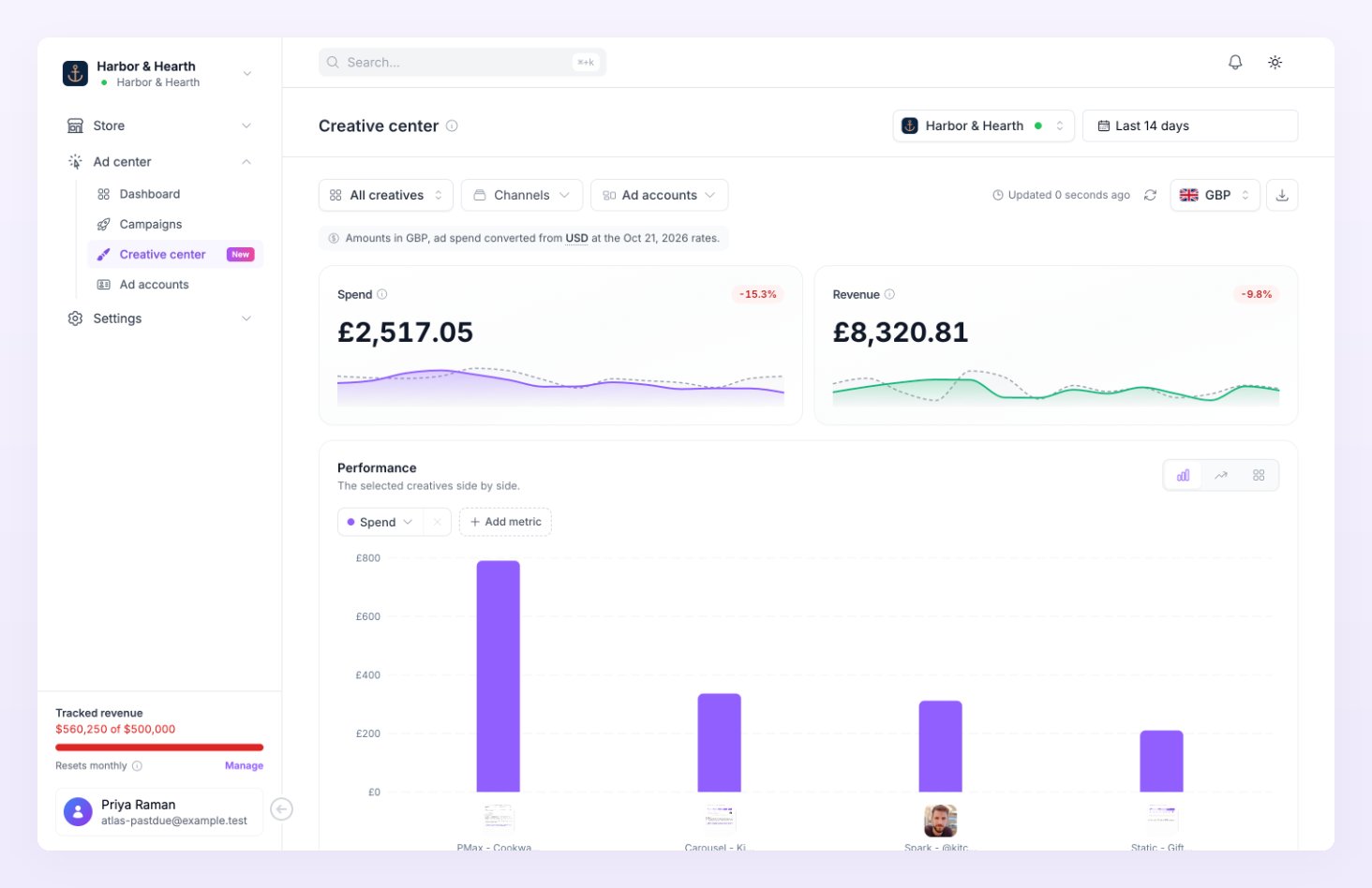
Who can use it
The Creative center is included in the Scale and Enterprise plans. On other plans the page shows a locked card, Creative center is not in your plan, with a See plans button that opens the plan drawer; see Billing.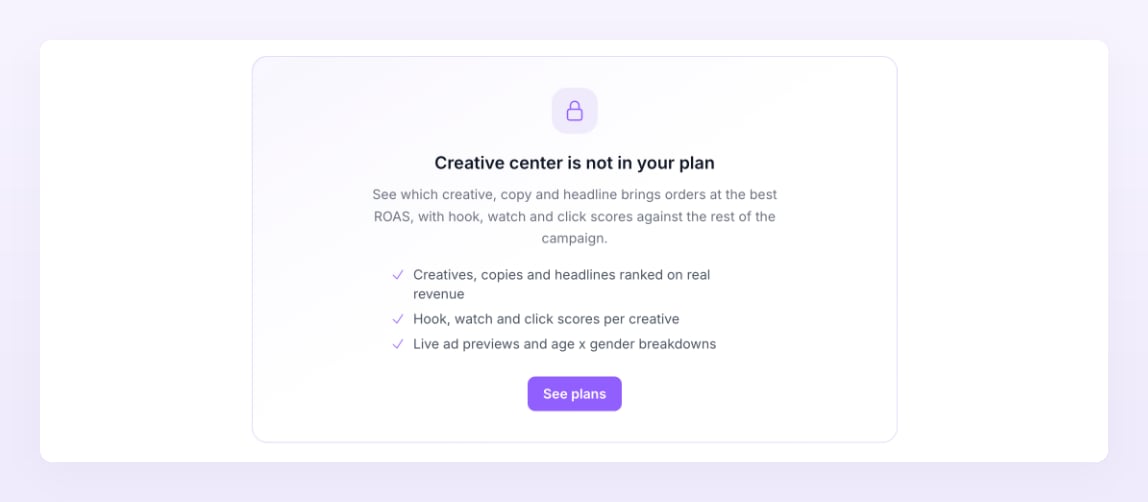
What counts as a creative
Atlas identifies a creative by what the ad actually shows, in this order:- The video. Every ad on the same platform that runs the same video is one creative.
- The image, for ads without a video. Ads that use an identical image are one creative.
- The ad name, for ads with neither, compared with spacing and capitalisation ignored.
Reports
The report selector at the top left (Report: All creatives by default) lists the System reports:
Above the table, two cards sum the scope: Spend (what the ad platforms charged for the channels in scope, before the table filters) and Revenue (revenue your store tracked to these ads, before the table filters). The Performance chart compares the rows you tick in the table, up to ten at once; with nothing ticked it charts the top four.
The Channels and Ad accounts selectors, the search box, the Filter menu (platform, status and metric ranges) and the date range behave as on the Campaigns page. Paused and removed creatives are hidden while Show disabled is off; that switch lives in the Campaigns table menu.
Scores
Four columns rate each creative from 0 to 100: Hook, Watch, Click and Overall. A score is a percentile rank, not a raw value: the creative is compared with the other ads of the same platform, ad account and campaign that had impressions in the range. 100 means it beat every peer; 50 means it sits in the middle. A creative with no peers scores 60, which stands for “no evidence either way”.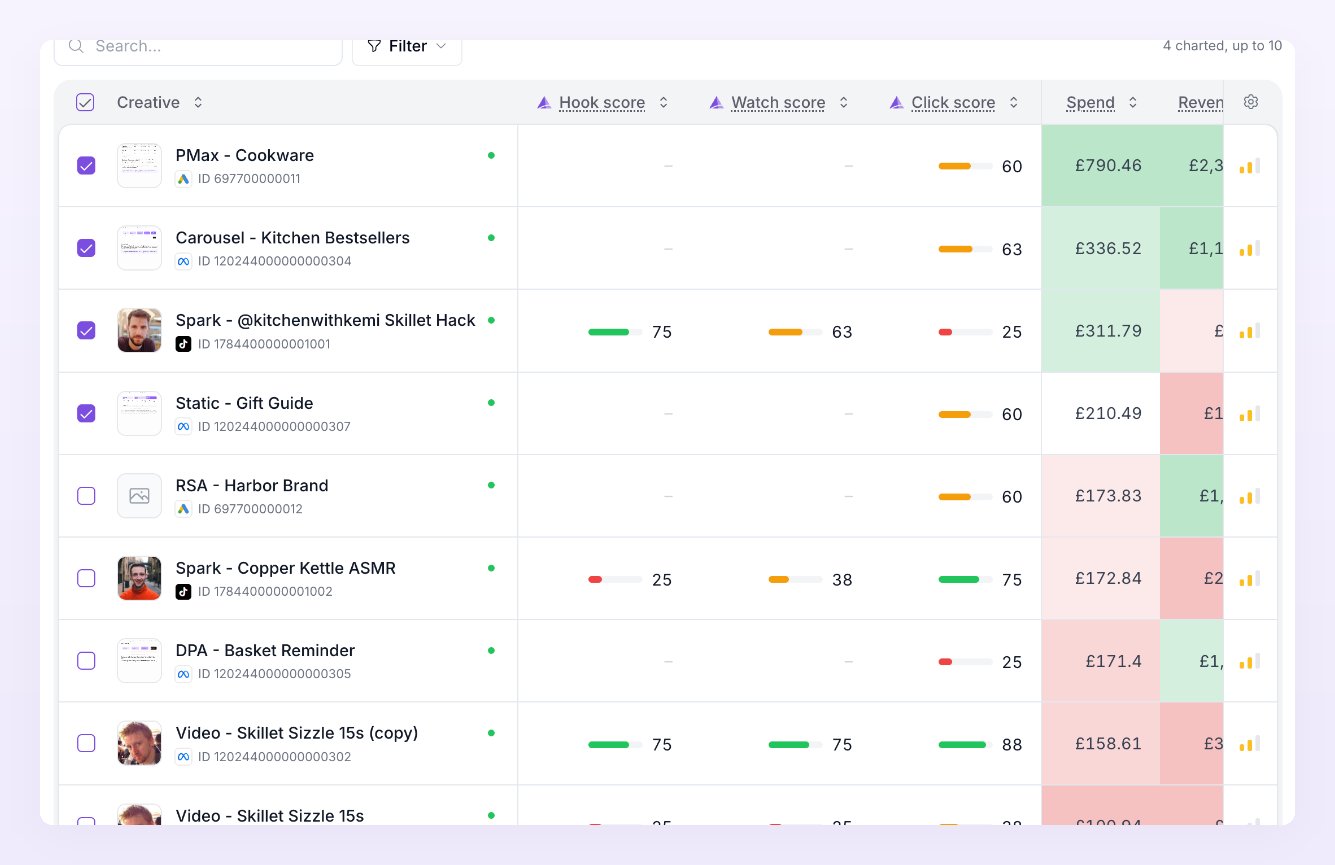
Image ads have no video views, so they get no Hook or Watch score; the row carries a note saying so. In the Overall score, a metric the creative has no value for (no orders, no reach) is left out and the remaining weights are rebalanced.
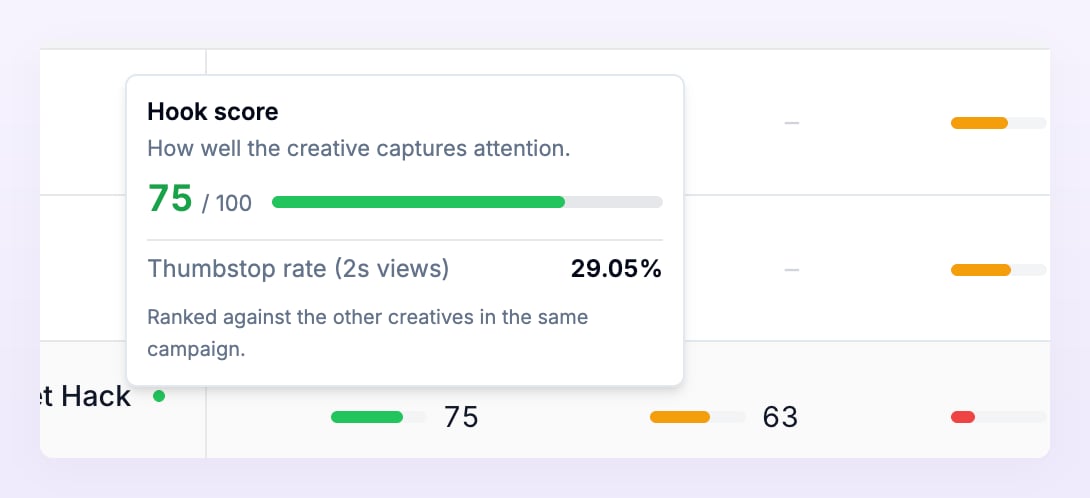
The Overall band reads Excellent from 70, Fair from 40 and Poor below. The Hook, Watch and Click bars are green from 67, amber from 34 and red below. Hover any score for the explanation behind it, including the rate it was ranked on.
Creative insights
Select a row to open the Creative insights sheet. On the left you see a preview built from the synced creative: for Meta, a placement selector lets you switch between placements such as Facebook Feed; for TikTok, the preview is the For You feed. On the right, the Gender & age breakdown chart shows how the creative’s spend was split by audience, from the audience data Atlas reads from Meta.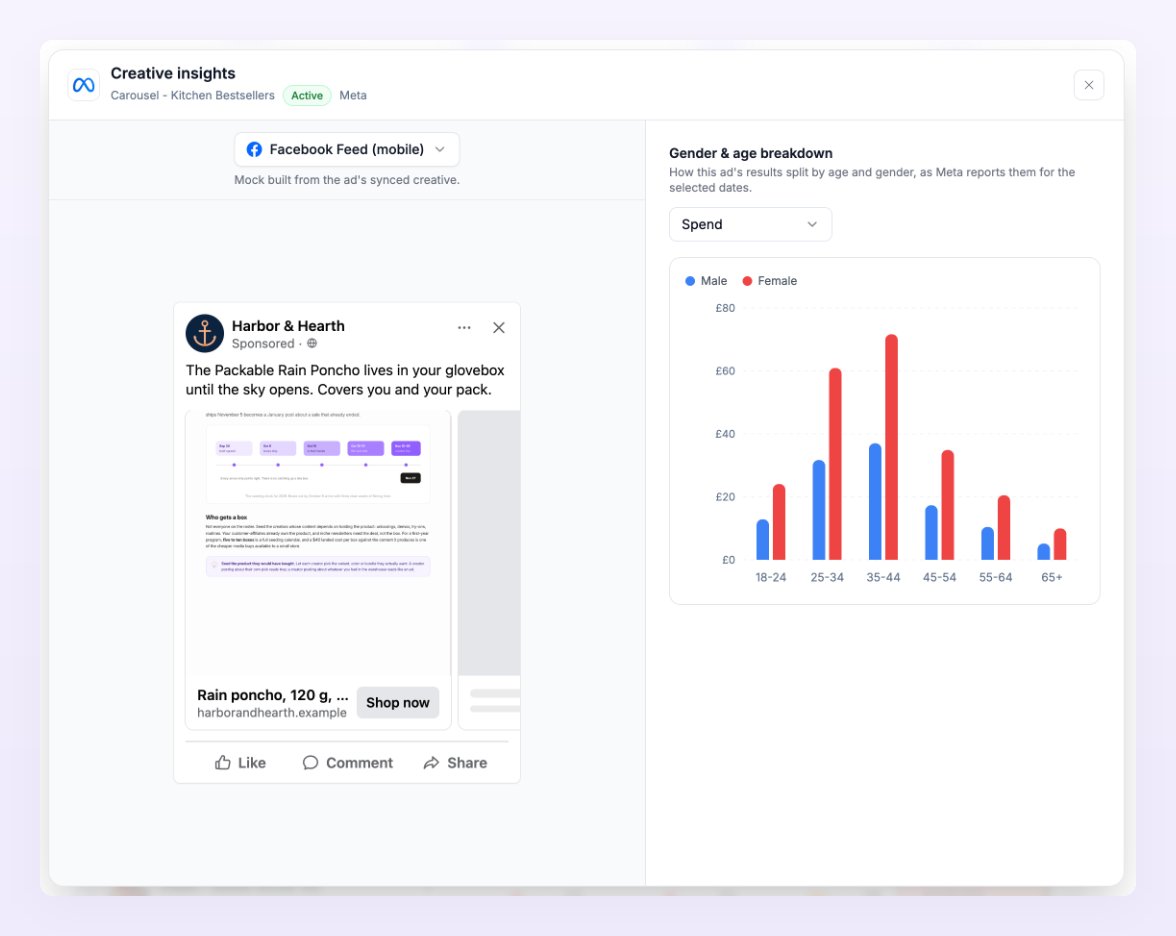

The breakdown depends on the Meta audience sync, which Atlas skips while an account’s API usage is above 50%. If the chart is empty, check the account’s API usage row on the Ad accounts page and try again after the next sync.
Color formatting
The Table settings menu in the table header has two entries. Customize columns picks which metric columns show, from the same list as the Campaigns table plus the four scores. Color formatting shades the metric cells so the strong and weak rows stand out without reading every number: green where a row is better than the rest of the column, red where it is worse, with the column’s average as the reference. Each metric column is compared with its own average across the rows on screen: cells above the average turn green and cells below it turn red, with darker shades the further from the average. The menu offers Off, Green, Red or Both; both colours are on by default. Turn it off from the same menu if you prefer plain numbers; the table options menu of the Campaigns page is a separate setting.Related
Campaigns
The same metrics per campaign, ad set and ad.
Metrics
The video and creative metrics behind the scores.
Connect ad accounts
Sync the accounts whose creatives show here.
Billing
Move to Scale or Enterprise to unlock the Creative center.