

Open Atlas from Referly
Atlas and your affiliate program share one login. In your Referly dashboard, open the program switcher or your profile menu and look for the Switch apps section. Choose Referly Atlas (labelled Ad tracking software). Two things to know:- If your account has no Atlas business yet, Atlas opens its onboarding straight away. Follow the steps below.
- If you are a team member of a Referly account rather than its owner or an admin, Atlas shows Ask your account owner to set up Atlas with the owner’s name and email instead of the setup. Only the account owner or an admin can create a business.
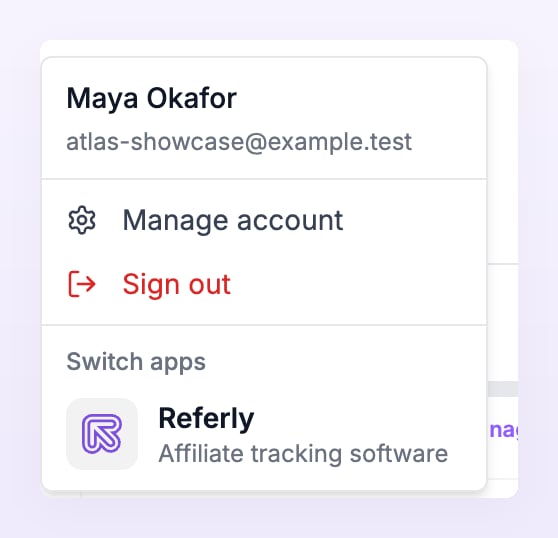
The Switch apps row is hidden when you are signed in to an agency workspace. Open Atlas from the account that owns the program instead.
Create a new Atlas account
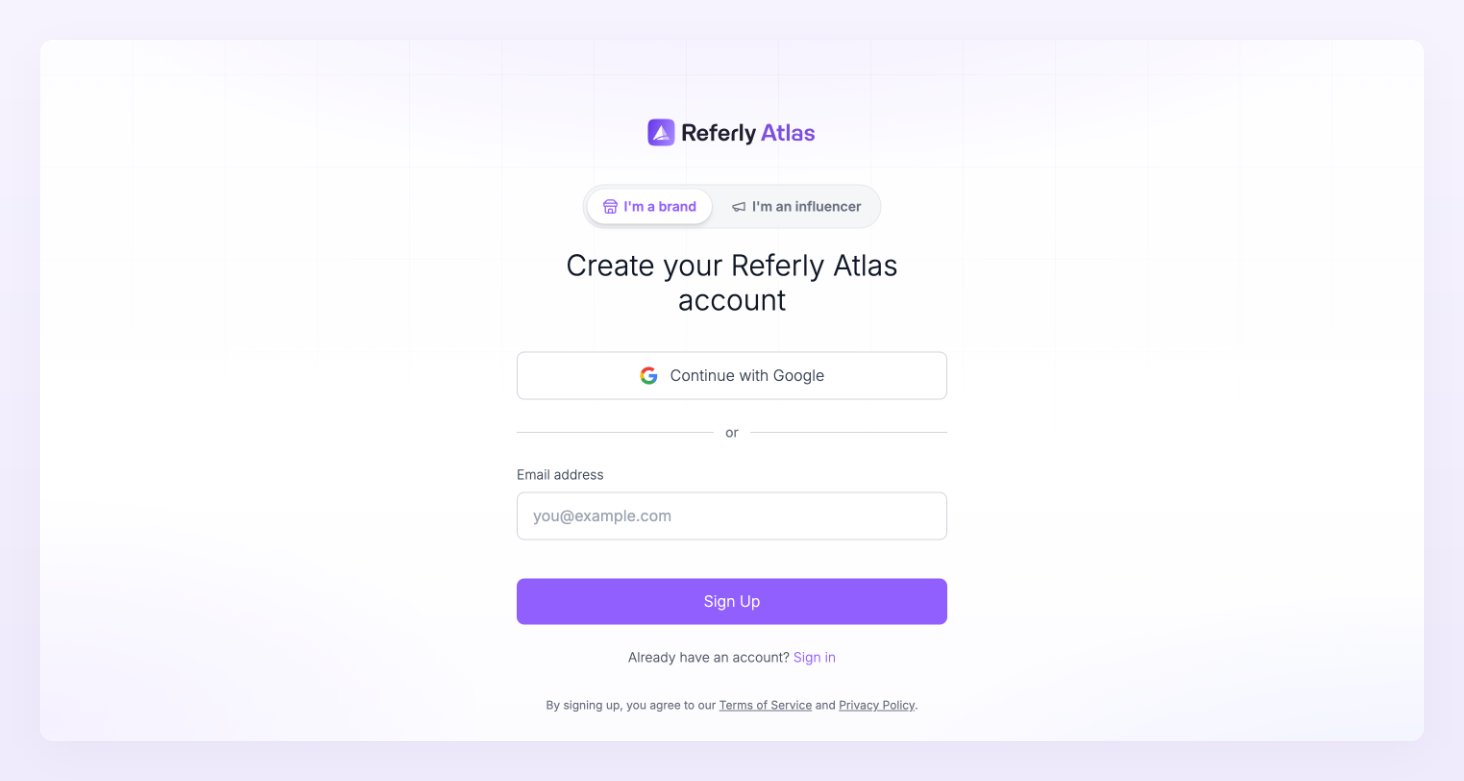
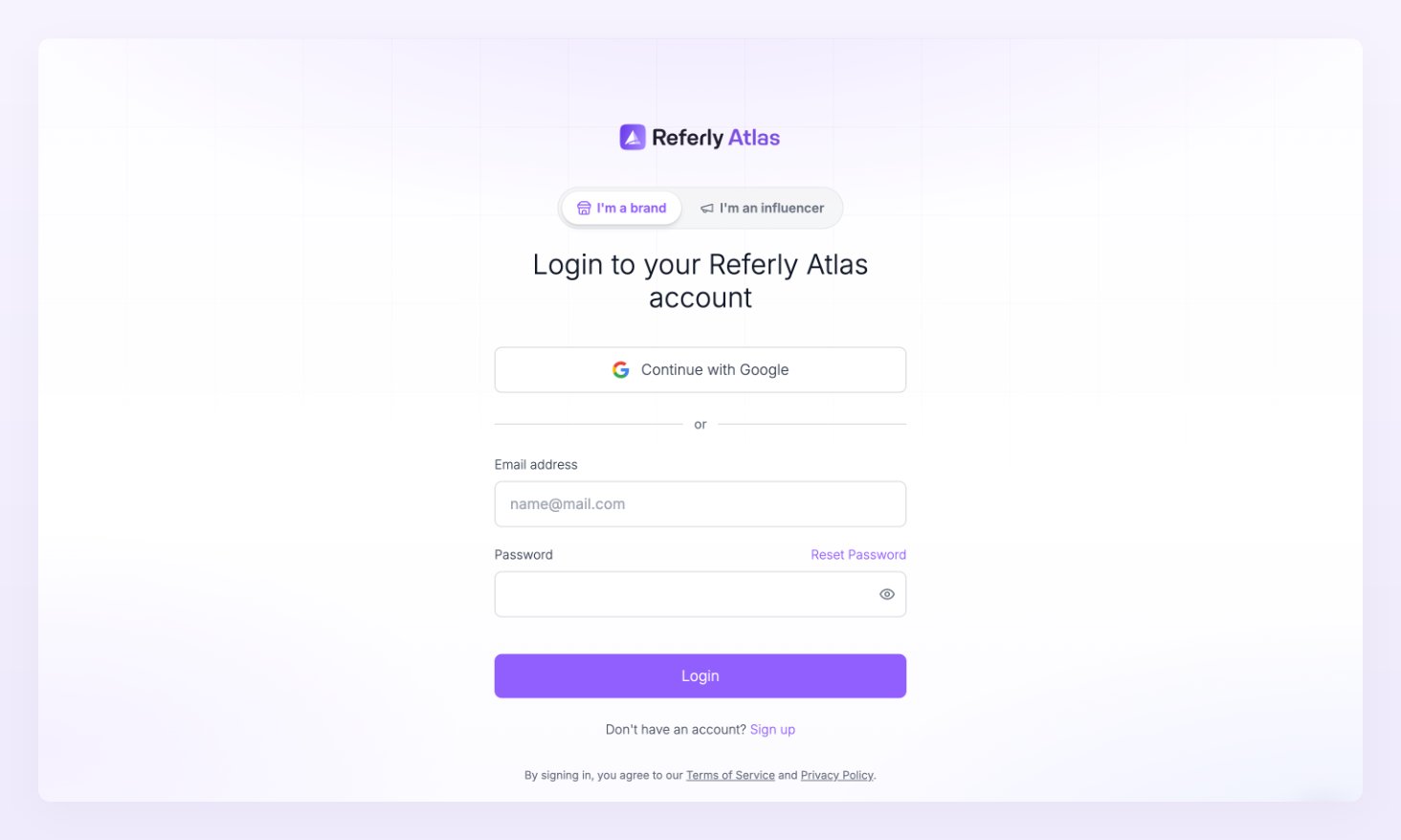
If you do not have a Referly account, go to the Atlas sign-up page athttps://www.referly.so/sign-up?product=atlas. The page is titled Create your Referly Atlas account and promises what the product does: set up in under 5 minutes, every order matched to the ad behind it.
Step 1: What do you sell?
The first screen asks What do you sell? Pick the card that fits best: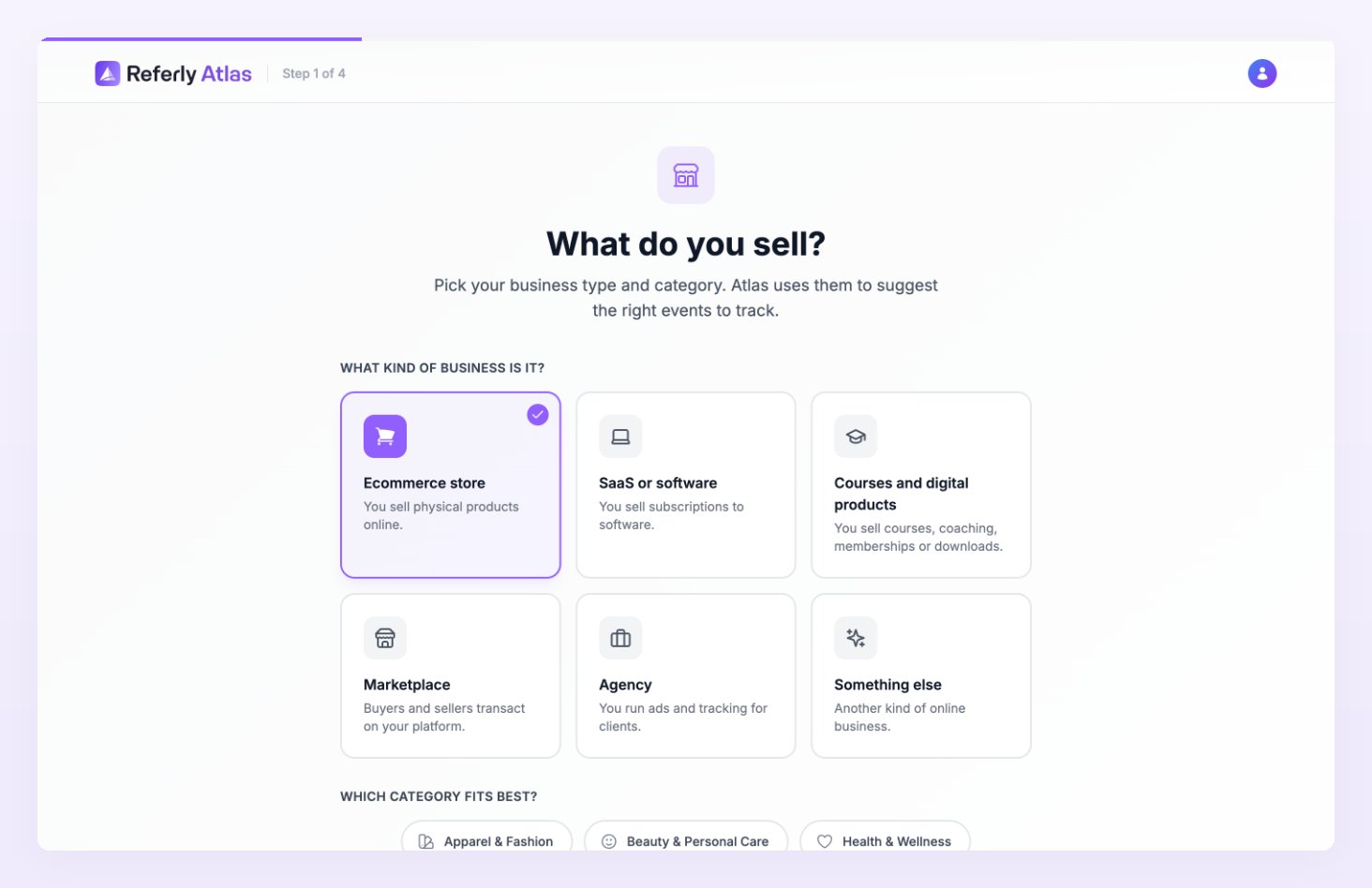
You can change the events for each pixel later. See Events.
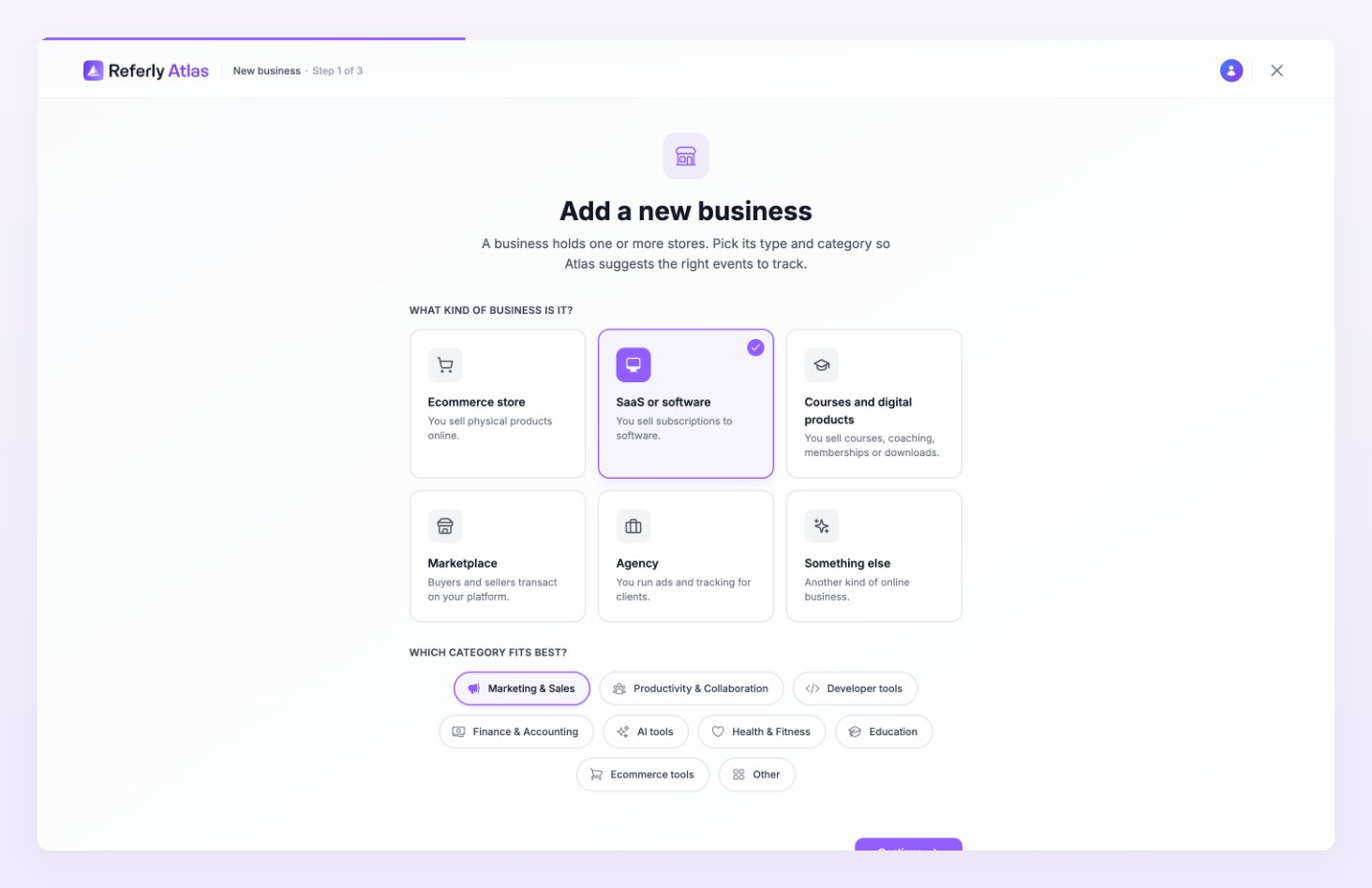
Step 2: Your business
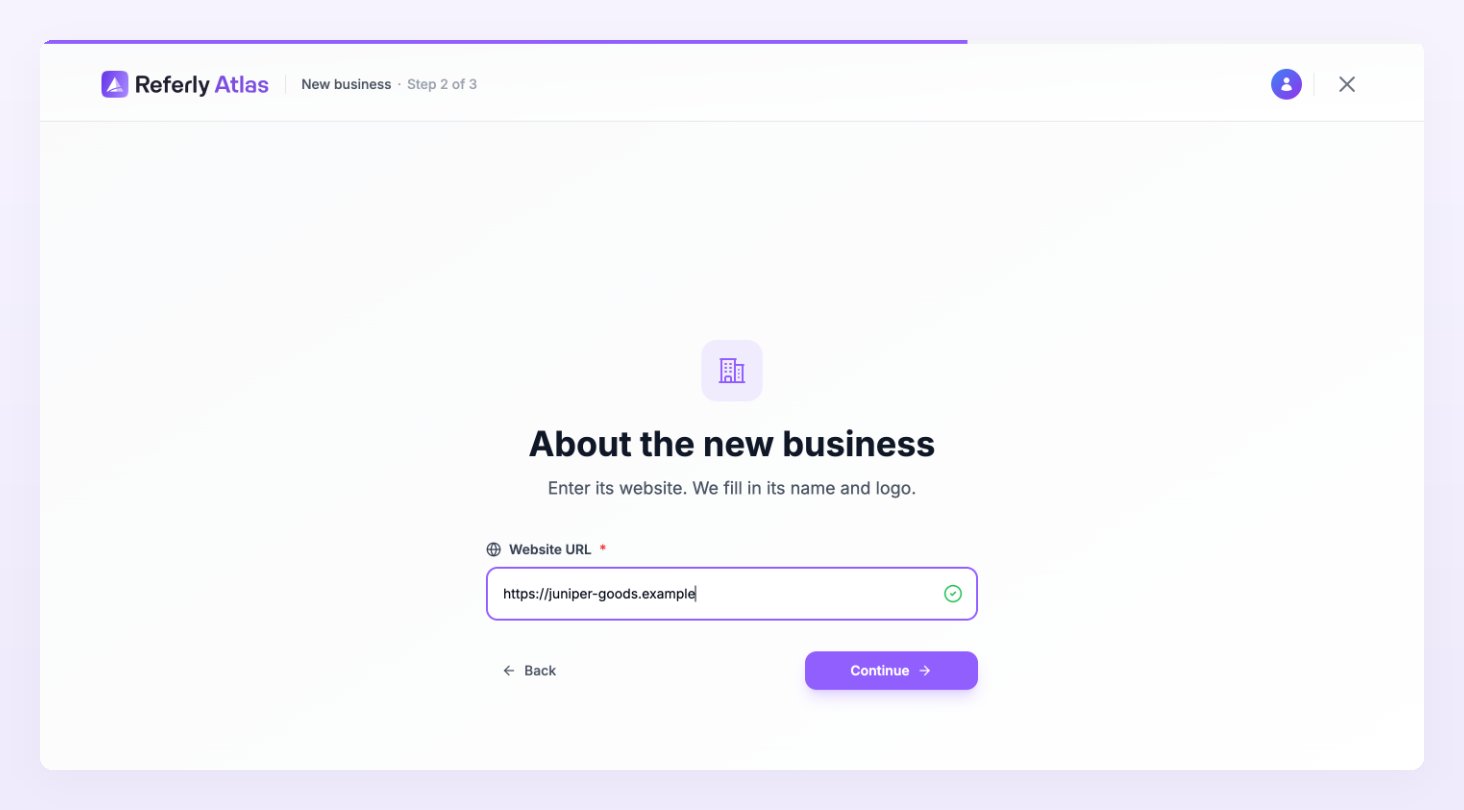
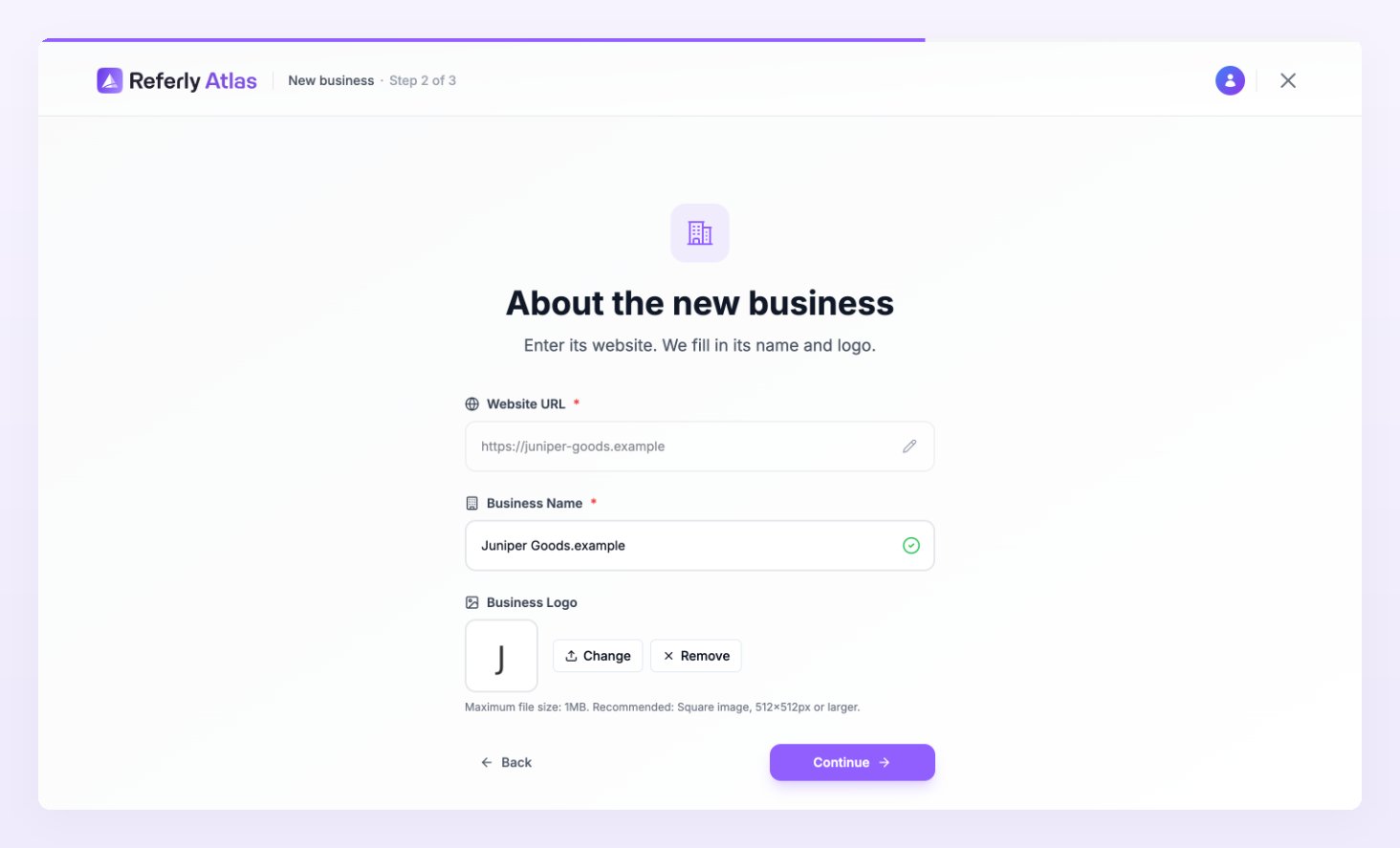
Next, Atlas asks about Your business:- Website URL: the address of the site you want to track. Atlas reads the site and fills in the name and logo for you when it can.
- Business Name: how the business appears in the business switcher and on your reports. Edit it if the automatic name is wrong.
- Business Logo: optional. Upload an image up to 1MB, or use Change and Remove on the one Atlas found.
Step 3: Connect your store
The third screen, Connect your store, shows the business you created and explains what connecting does:- Connect your store or app: Shopify, WooCommerce, Stripe, Paddle and more. Or add the tracking script to any site.
- Connect your ad accounts: Meta, Google, TikTok and more. Atlas sends each event to the ad platforms you connect.
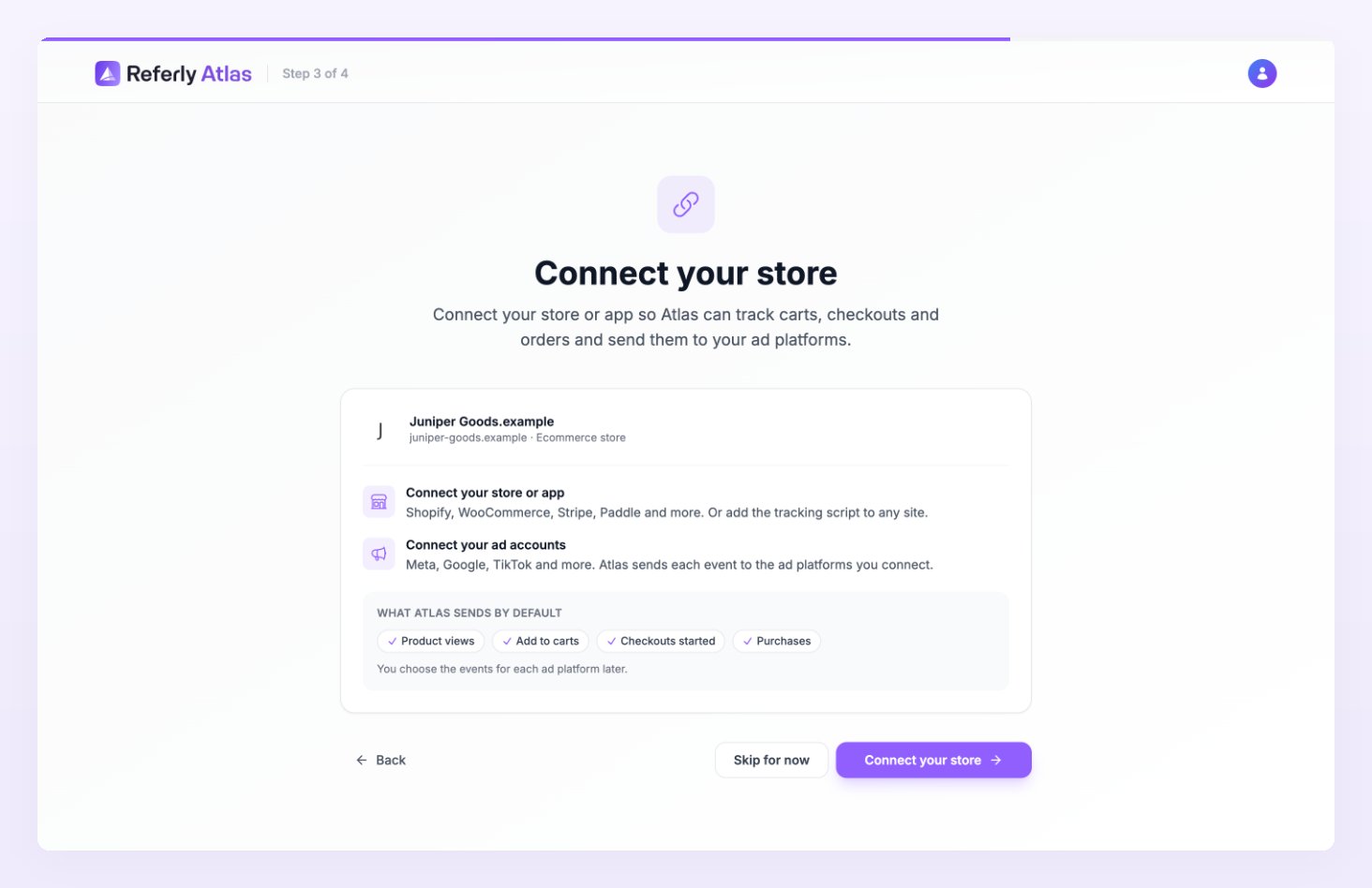
- Connect your store opens the Add a store wizard, which detects your platform and walks you through Shopify, WooCommerce or the tracking script.
- Skip for now still creates your first store, unconnected, and moves on. The store stays in Draft until you finish its setup from the All stores page.
If your plan has no room for another store, this screen shows a message with an upgrade button in place of Connect your store, and Do this later leaves the business without a store. Store limits per plan are on the Billing page.
Step 4: Start your free trial
The last screen appears only when your account has no Atlas plan. It is titled Start your free trial and shows your business with a Not tracking yet label: nothing is sent to your ad platforms until a plan is active. Pick Starter, Growth or Scale and select Start 14-day free trial. The trial runs for 14 days on a monthly plan, once per account, and you pay nothing if you cancel before it ends. A yearly plan is charged today instead. If you hold an active Referly plan, a Referly plan holder: 20% off badge shows the bundle discount.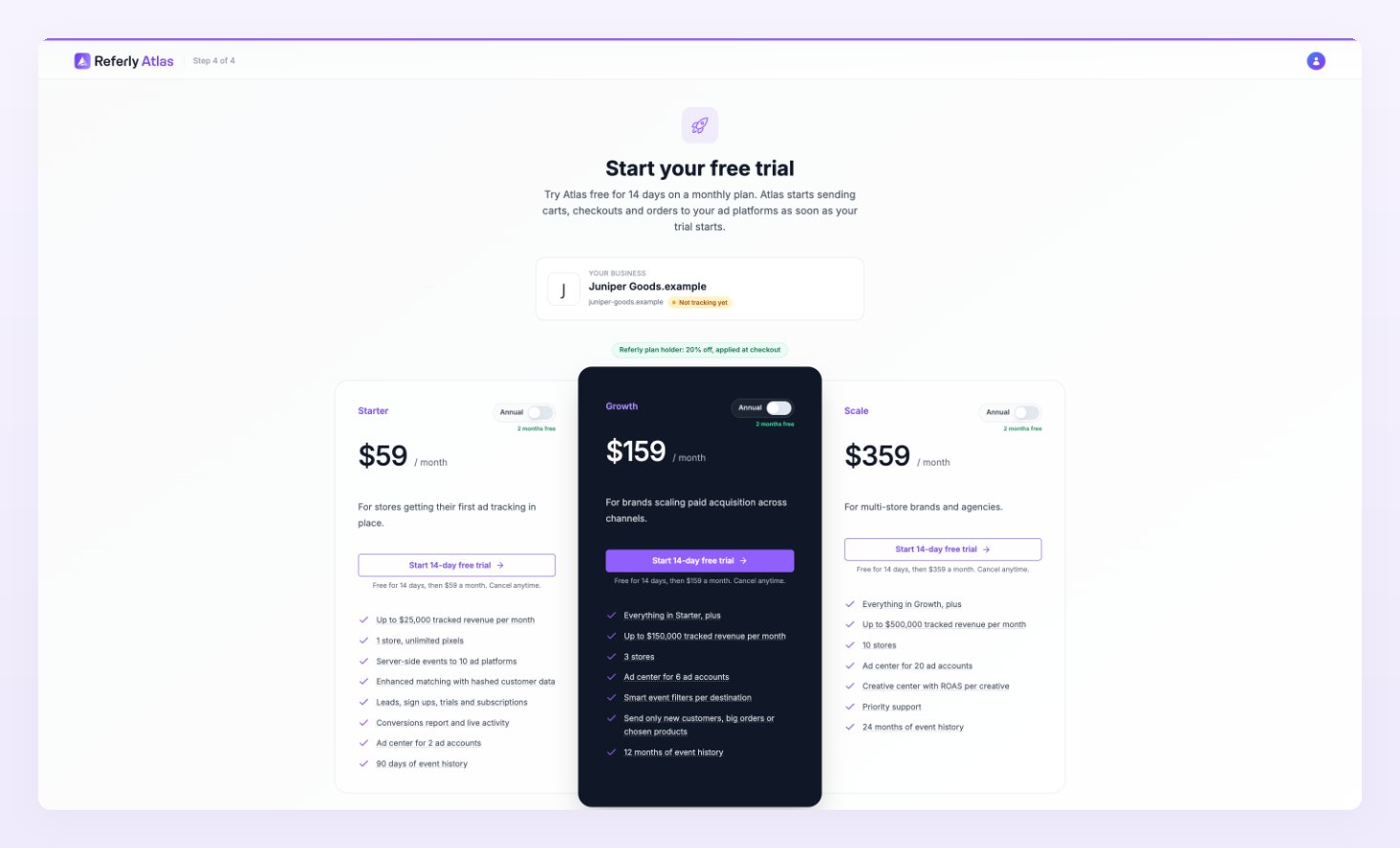
If you were invited to a business
Someone can add you to their Atlas business as an admin or a member. You get an email titled with the inviter’s name and the business, for example “Maya invited you to Northwind Outfitters on Referly Atlas”, with a link to a Team invitation page.- Open the link. The page says who invited you and to which business, and names the email address the invitation was sent to.
- Choose Create account if you are new to Referly, or Sign in if you already have an account. The email you sign in with must match the one on the invitation.
- Select Accept invitation (or Decline).
Related
Businesses and stores
How businesses, stores and the store picker fit together.
Add a store
The wizard that connects your first store.
Billing
Plans, the 14-day trial and the Referly bundle discount.
Team
Invite people and choose what they can open.