

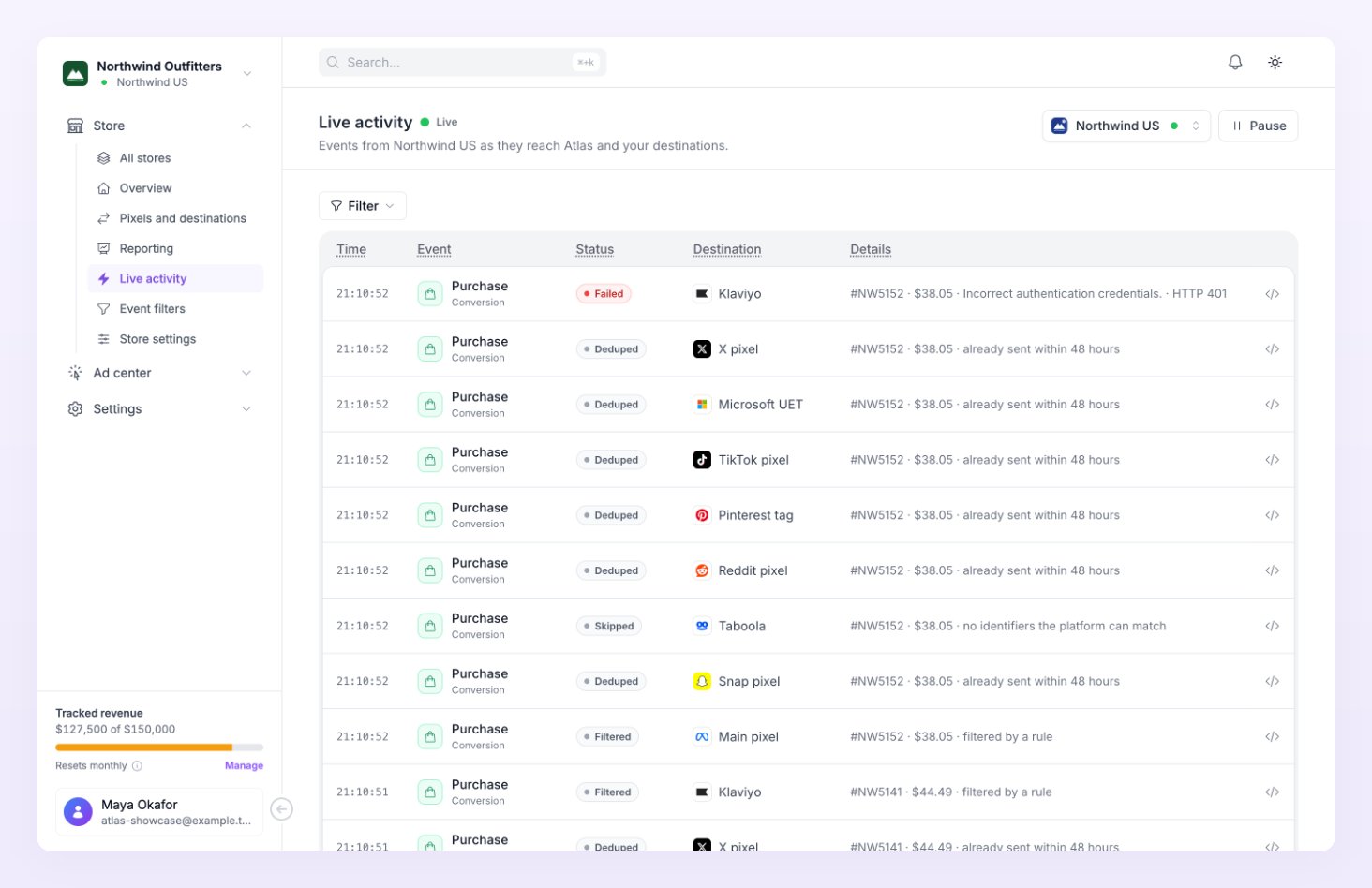
What the feed shows
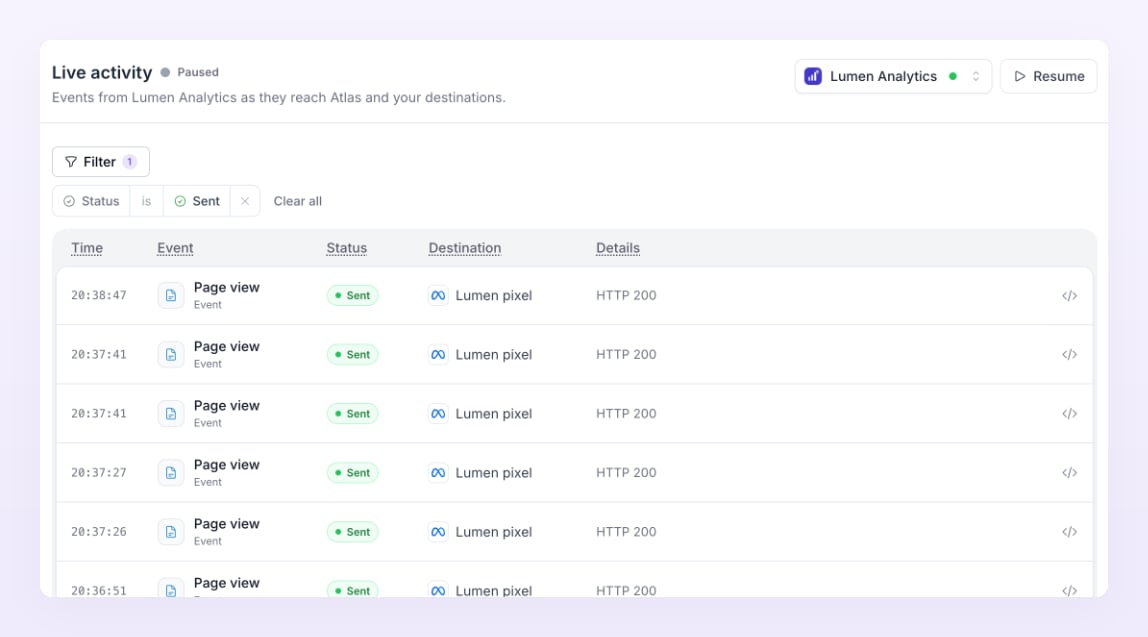
The subtitle reads “Events from” your store “as they reach Atlas and your destinations.” (or “from every store of this business” with All stores selected). A green dot and Live in the header mean the feed is refreshing: Atlas checks for new rows every 3 seconds while the tab is visible, and slows down to every 15 seconds when nothing changes. Press Pause to freeze the list while you read it (the label turns to Paused) and Resume to catch up. Newest rows are at the top. The columns:
Delivery rows only appear for stores that are Running or Awaiting data. A paused store records events but sends nothing, and orders placed while test mode is on are recorded as Test and never sent. Pixels and destinations explains which events each pixel receives.
Delivery statuses
Every row carries a status pill. Hover the Status header for the one-line meaning of each: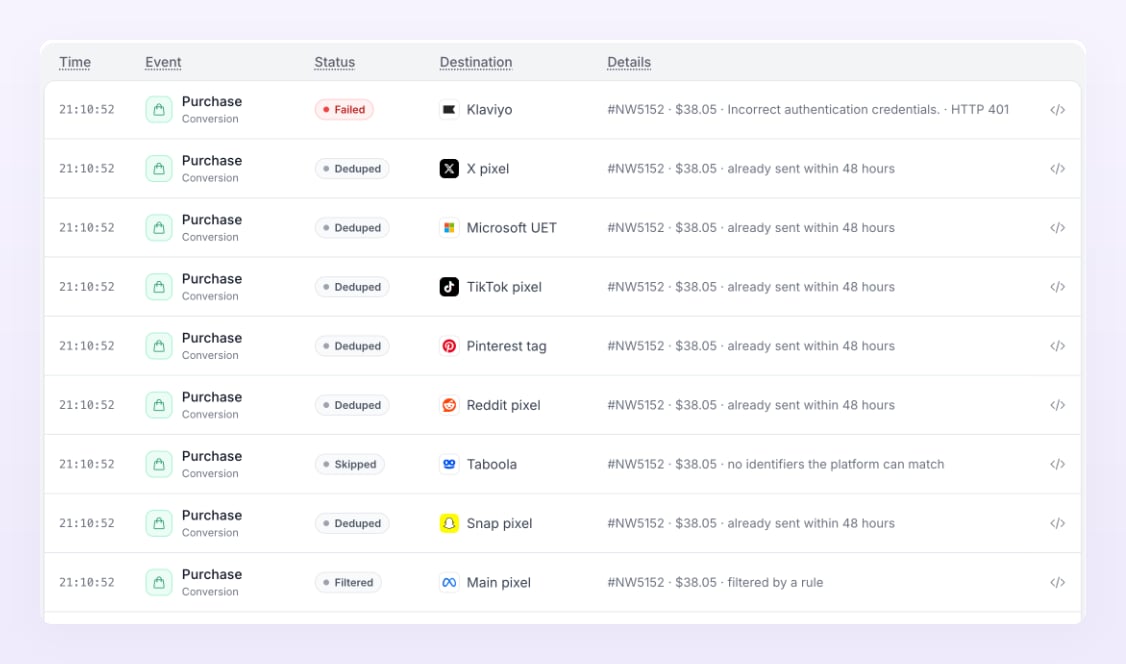
Open an event
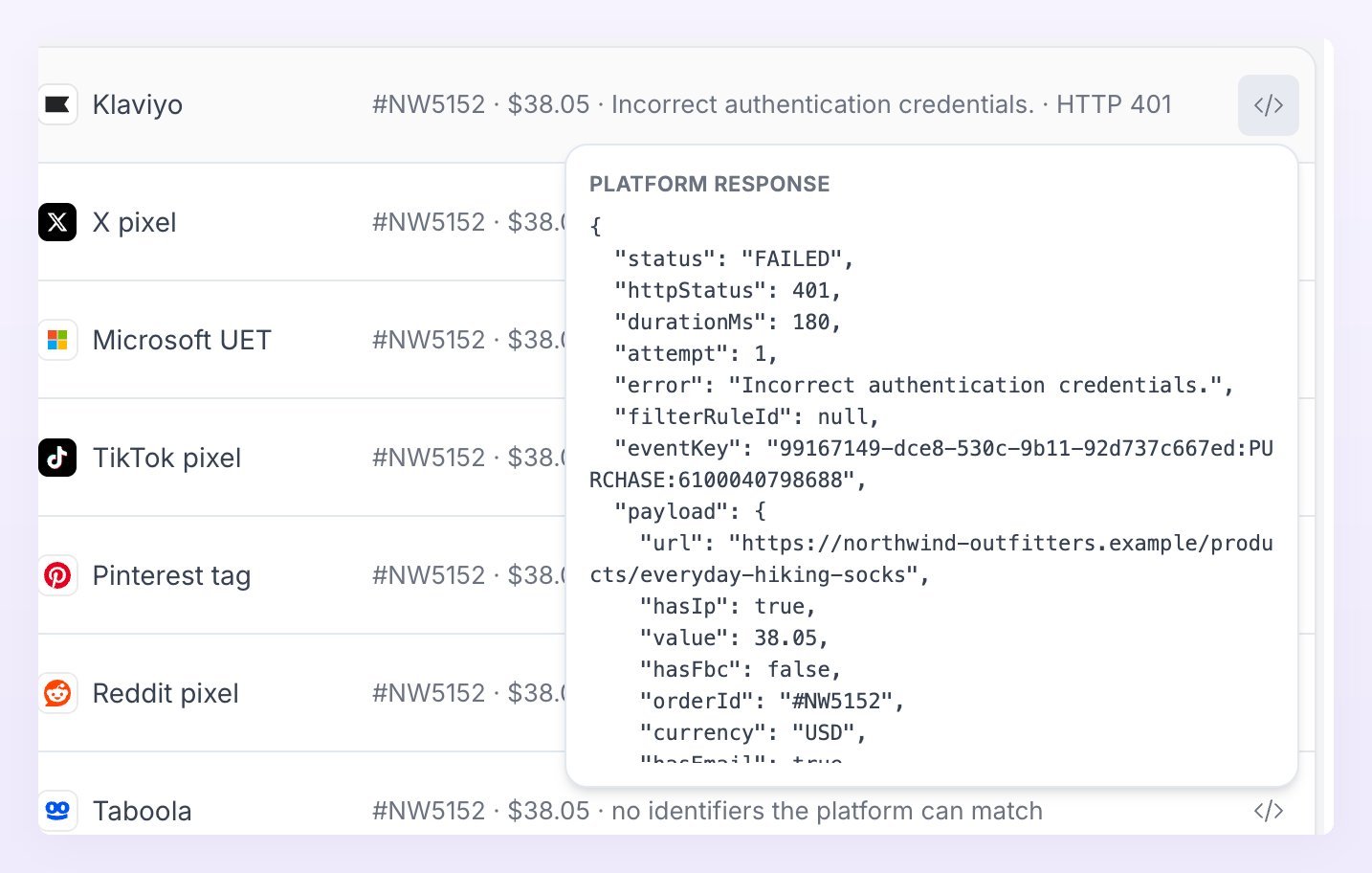
Hover a row and click the code icon at its right end. What opens depends on the row:- Event payload for an incoming event: what your site or app sent to Atlas.
- Platform response for a delivery: the status, the HTTP status, how long the call took, the attempt number, the platform’s error message, the event filter rule that stopped it (if any), the event key, the payload Atlas sent and the platform’s raw response.
- Order or Conversion for ledger rows: the record Atlas stored.
Filter the feed
Filter (top right) opens a menu with four categories: Status, Events, Conversions and Destination. Each option shows how many rows matched in the last 24 hours, given the other filters you have on. Hold Shift and click to select more than one option.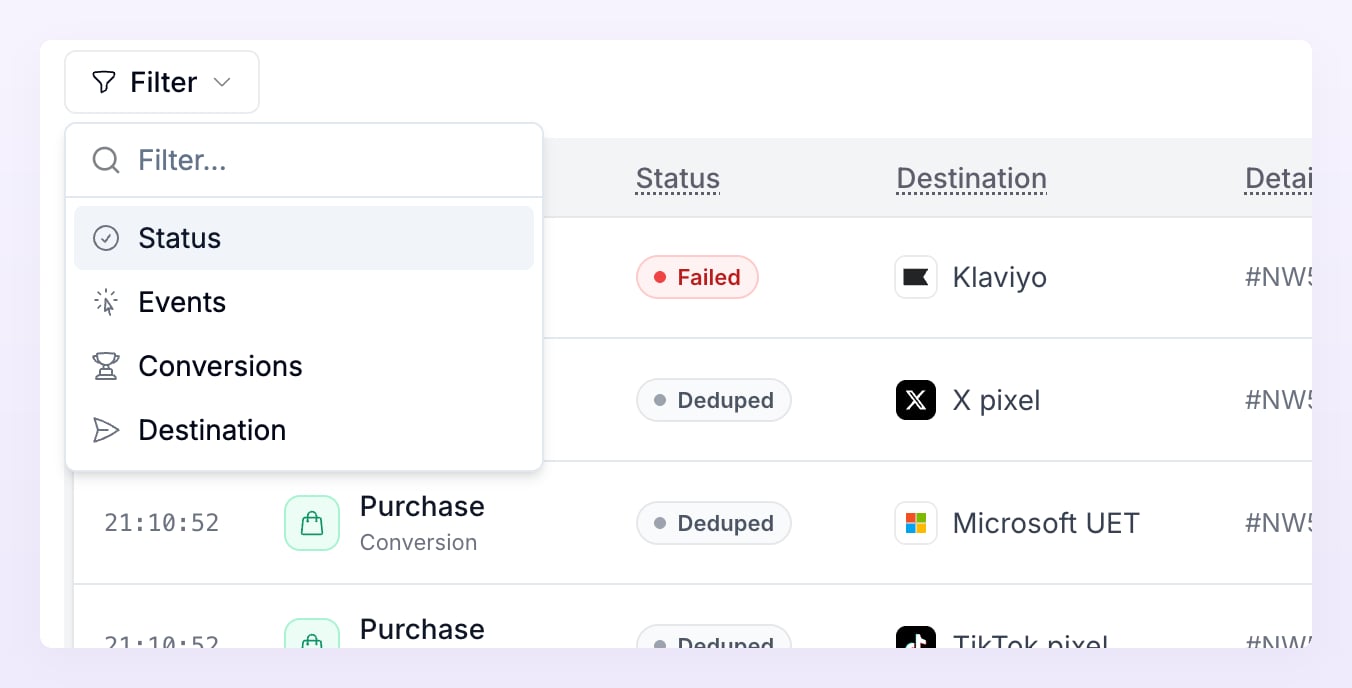
Load older events
The feed loads 50 rows at a time and keeps up to 500 on screen; as new rows arrive, the oldest drop off. Press Load older at the bottom to bring in the next 50. For anything further back, narrow the feed with a filter, or use Reporting for totals. Atlas keeps delivery rows for 90 days. Events and sessions are kept for the event history your plan includes; see Billing.Use it to debug
Live activity answers most “is it working?” questions in a minute.Is my site sending events at all?
Is my site sending events at all?
Open your site in another tab and browse to a product page. A page view row with Atlas as the destination should appear within seconds. If nothing shows, the tracking script or app embed is not live: run Test connection in Store settings and follow Test the connection.
Is a platform accepting them?
Is a platform accepting them?
Filter Destination to the platform and Status to Failed, then open Platform response on a row and read the error. It is the platform’s own message, so Troubleshooting lists the common ones and what to change.
Why was an event Skipped, Filtered or Deduped?
Why was an event Skipped, Filtered or Deduped?
The reason is in the Details column. Skipped means the visitor had no marketing consent or the event carried nothing the platform can match; Filtered names the event filter rule; Deduped means the same event already went to that pixel within 48 hours. See Consent and privacy and Avoid double counting.
Did my test event go through?
Did my test event go through?
Send test event from a pixel’s menu on Pixels and destinations adds a row with a Test passed or Test failed pill. Filter Status to Test to see only those.
Related
Delivery statuses
Every status pill and what to do about it.
Event filters
Rules that stop events before they reach a destination.
Troubleshooting
No events, failed deliveries and numbers that differ from Ads Manager.
Pixels and destinations
Add, test, edit and detach the pixels your events go to.