

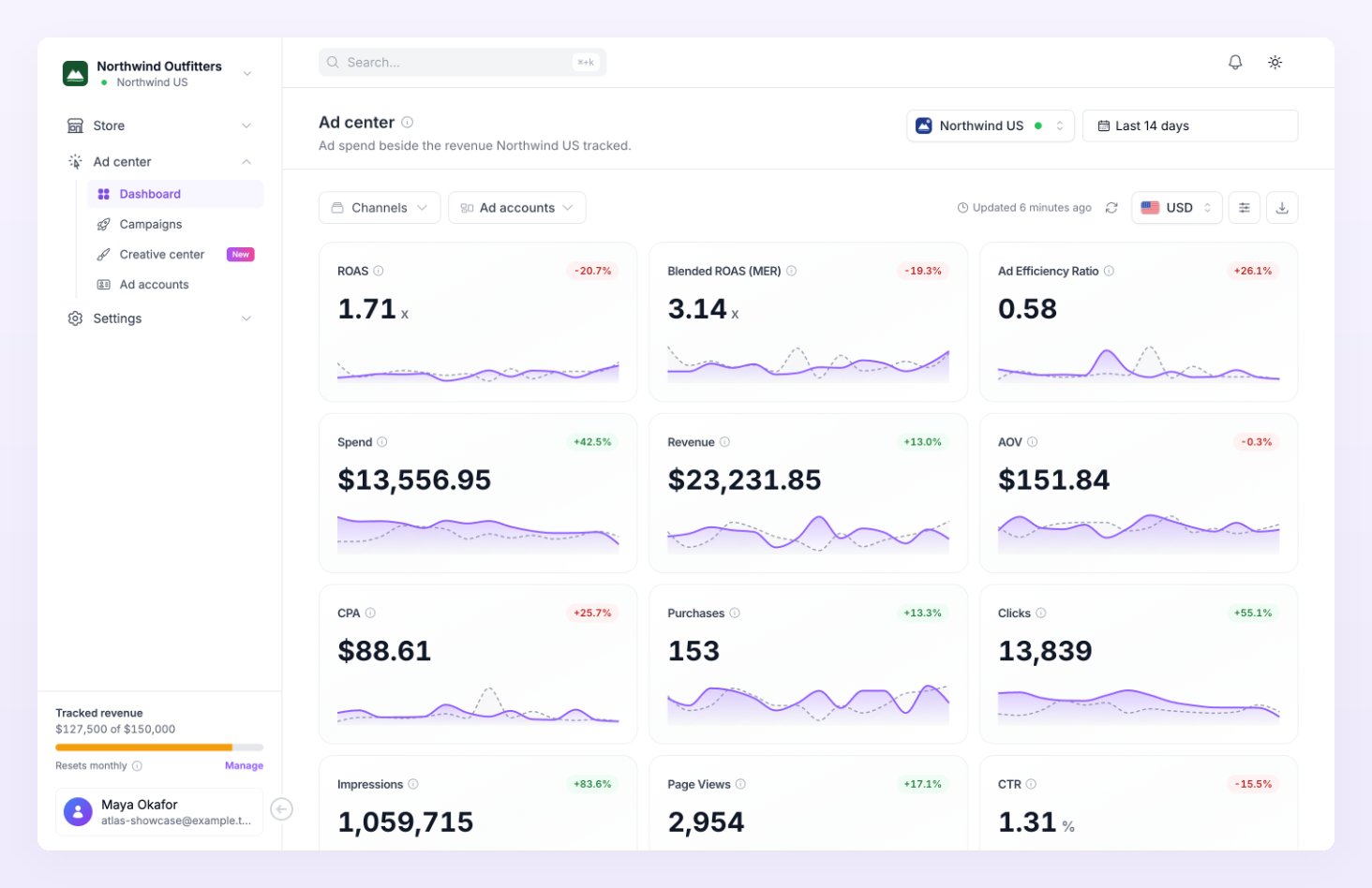
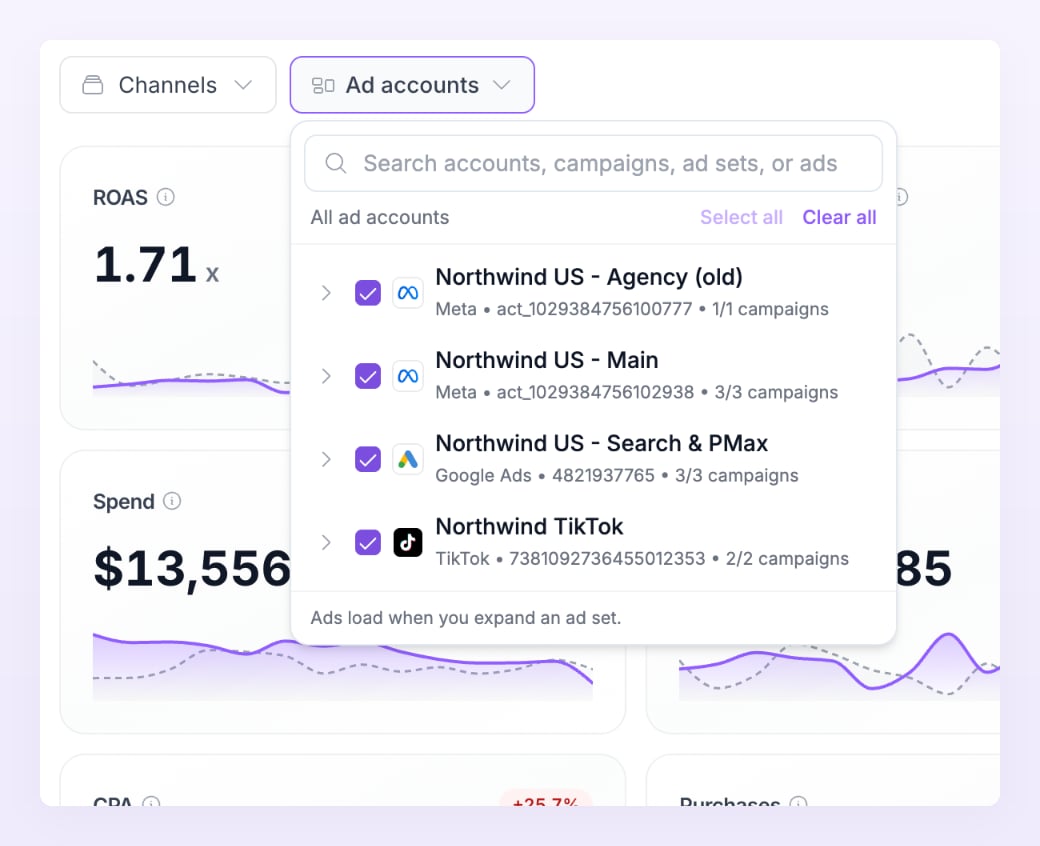
Choose channels and ad accounts
Two selectors in the top left decide what the numbers cover. Channels lists every connected ad account grouped by platform, with a checkbox each. Pick All channels or tick the accounts you want. An account that is not healthy carries a hint next to its name: Sync paused, Needs reconnecting, Sync failing or Waiting for the first sync. Add channel takes you to the Ad accounts page, and Clear all unticks everything.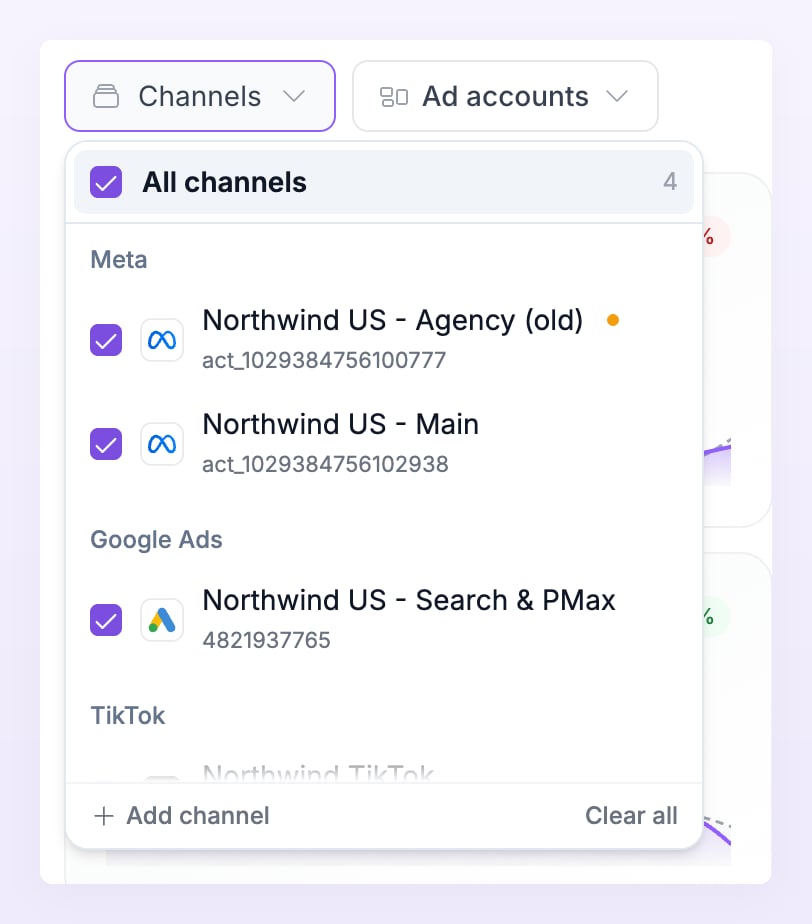
The metric cards
The dashboard has 19 cards, in this order: ROAS, Blended ROAS (MER), Ad Efficiency Ratio, Spend, Revenue, AOV, CPA, Purchases, Clicks, Impressions, Page Views, CTR, CPM, Frequency, Conversion Rate, Add to Cart, Cost per Add to Cart, Initiate Checkout and CPC, followed by any custom metrics you created.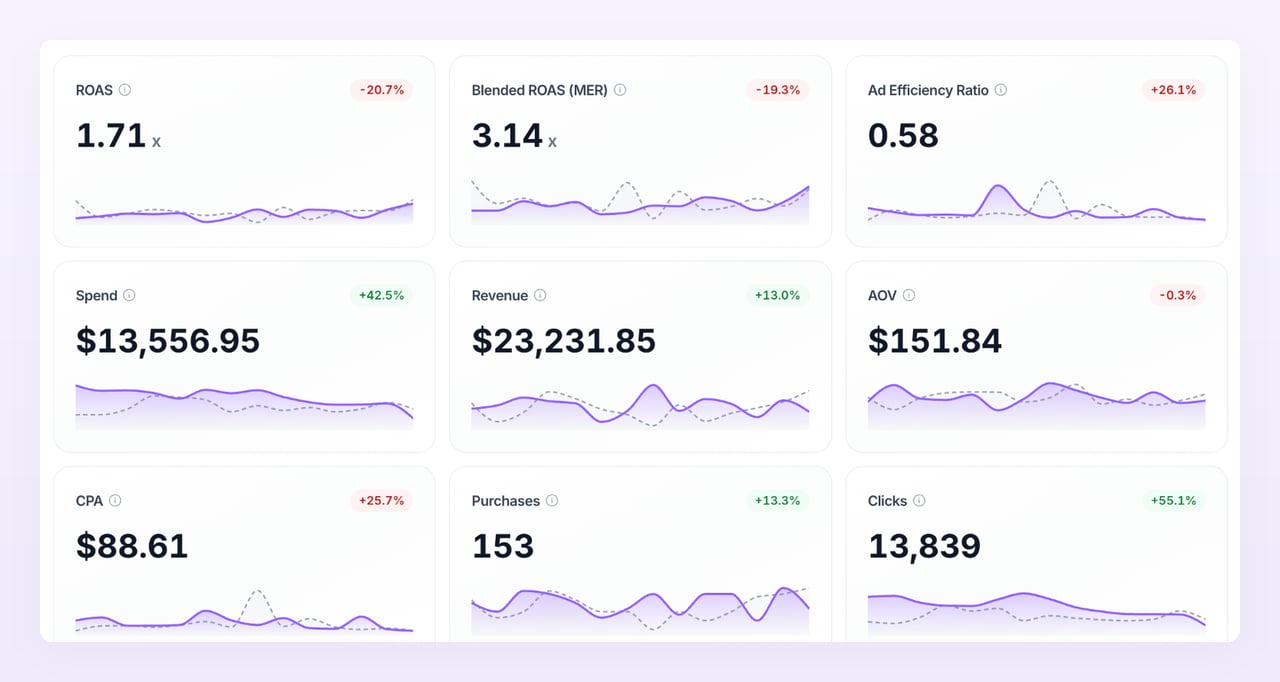
- A ratio shows - when its divisor is 0, for example ROAS with no spend.
- The change reads new when the previous period’s value was 0.
- Comparison is always on. Hover the change to see what it is compared with, for example Compared with Sep 1 to Sep 8, the same dates last month. How the previous period is chosen is explained in Date ranges.
- Blended ROAS (MER) is the one card that ignores your channel, ad account and campaign selection: it is always all revenue of the store minus refunds, divided by all of its ad spend.
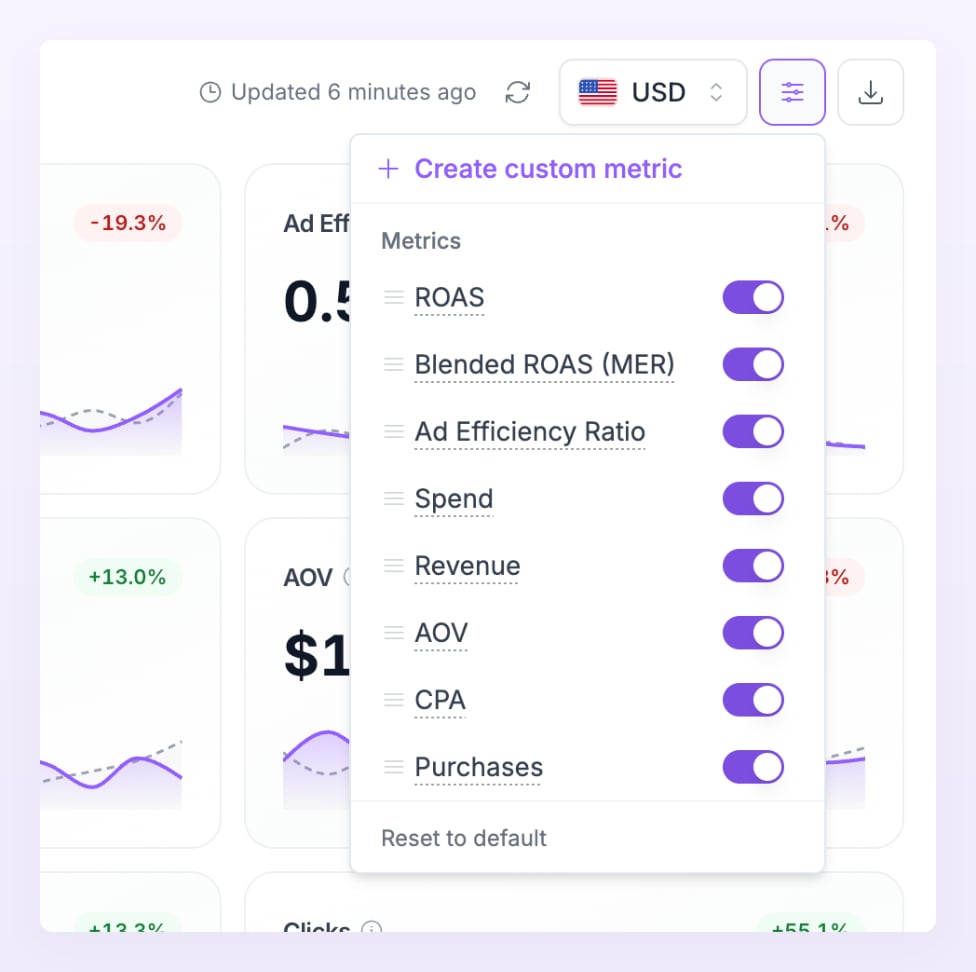
Create a custom metric
A custom metric combines two metrics, or a metric and a number, into a card of its own. In Metrics, select Create custom metric.1
Name it
Type a Metric name, such as Profit per order. Names are limited to 40 characters and must be unique.
2
Build the formula
Pick the first Metric, a Condition (+, −, × or ÷), and the second Metric. In either field you can search the metrics or type a number instead. The preview under the fields shows the formula as you go.
3
Save
Select the save button. The new card appears after the standard ones and becomes available as a mode in the trend card.
The trend card
Under the cards, the trend card plots the range day by day, with the previous period drawn as dotted lines. Its mode selector offers Spend & revenue (the default, both lines on one chart), ROAS, Purchases, CPA, CTR, and every custom metric you created. Ranges up to 90 days are plotted daily; longer ranges are grouped by week.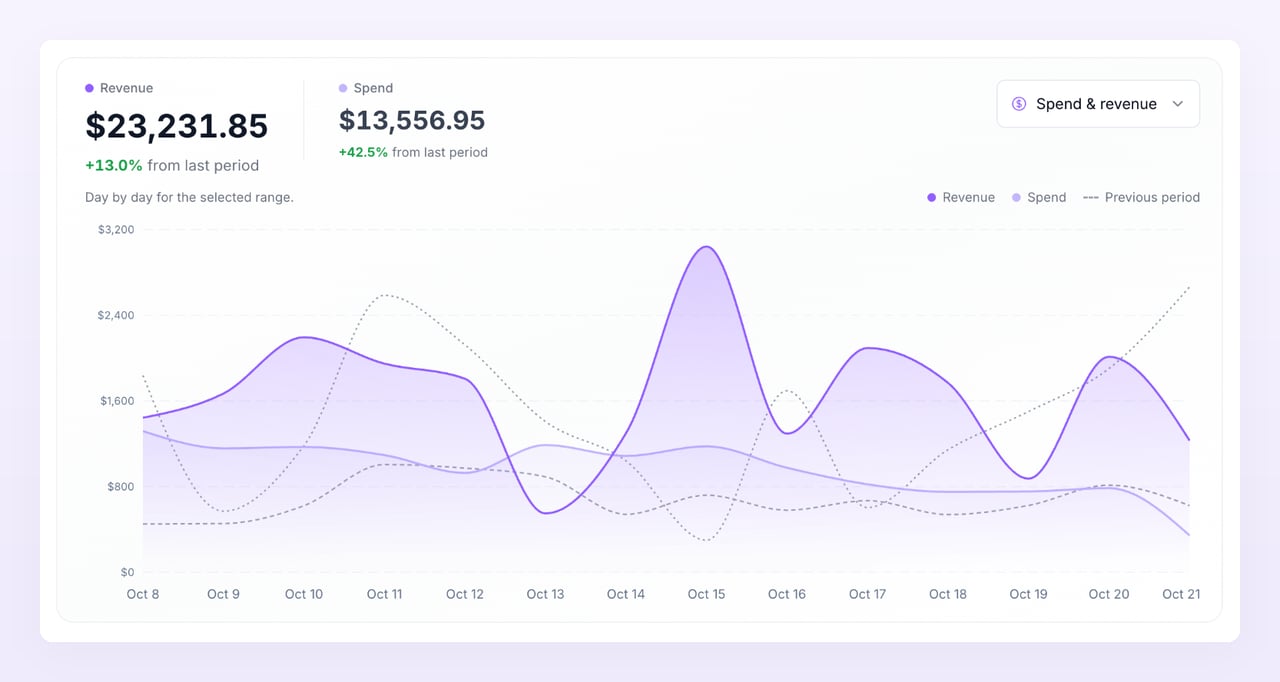
How revenue is matched to ads
The page note says it in one line: Revenue and orders come from your store, matched to the last paid click. Spend comes from your ad accounts. In more detail:- For each paid order, Atlas looks for the last paid click in the 7 days before the order: a click id from Meta, Google or TikTok, or a visit whose source is one of those platforms.
- That click is matched to a campaign, ad set and ad. Ids win: the
utm_id,adset_idandad_idvalues your tracking templates add. When ids are missing, Atlas matches by name (utm_campaign,utm_content,utm_term) against the synced campaign, ad set and ad names. - If the platform is known but neither ids nor names match a synced entity, the order lands in an Unmapped row for that platform. If there is no paid click inside the 7 days, it is Unattributed. Both rows are explained on the Campaigns page.
This 7-day window is specific to the Ad center. The Reporting page uses your store’s attribution window from Store settings instead, so the two pages can credit the same order differently.
Refresh and update times
Spend syncs from each ad account every hour, and the dashboard rebuilds itself every 15 minutes. Updated 6 min ago in the toolbar tells you when the numbers on screen were built. Select Refresh to rebuild them now; it also re-syncs any account whose last sync is more than 10 minutes old. Right after you connect your first account, a banner reads Your first numbers are on the way. Spend syncs every hour and the Ad center refreshes every 15 minutes. The 90-day history import that runs behind it is described in What syncs and how often. Every Monday, stores with an ad account also get an email, Ad center weekly report for your store with the dates covered. Turn it on or off under Weekly report in Preferences. The currency selector in the toolbar changes the currency the cards are shown in. Spend converts from each ad account’s currency and sales from each store’s, with the rate of each day.Export
Select Export in the toolbar to download the dashboard for the current channels, ad accounts and date range. Three formats are offered: CSV, JSON for AI and Markdown for AI. The last two are shaped for pasting into an AI assistant. Atlas confirms with Export ready and the file downloads.Related
Connect ad accounts
Bring in the accounts the dashboard reads from.
Campaigns
The same numbers per campaign, ad set and ad.
Metrics
The formula and source behind every card.
Date ranges
How the range and the comparison period work.