

What filters do
Event filters are part of the Growth plan and above. On Starter, the page shows the banner Event filters are on Growth and above with an Unlock event filters button that opens the plans. Rules you saved earlier stay visible but cannot be edited until you upgrade. See Billing.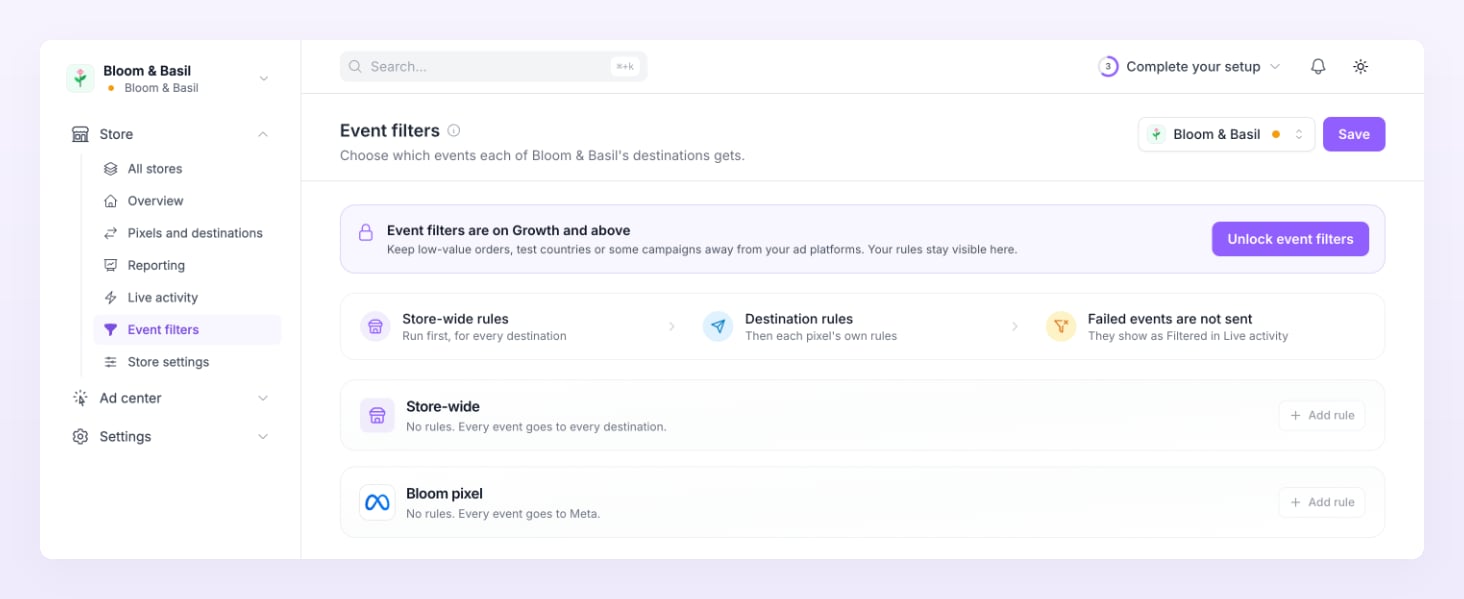
Store-wide rules and pixel rules
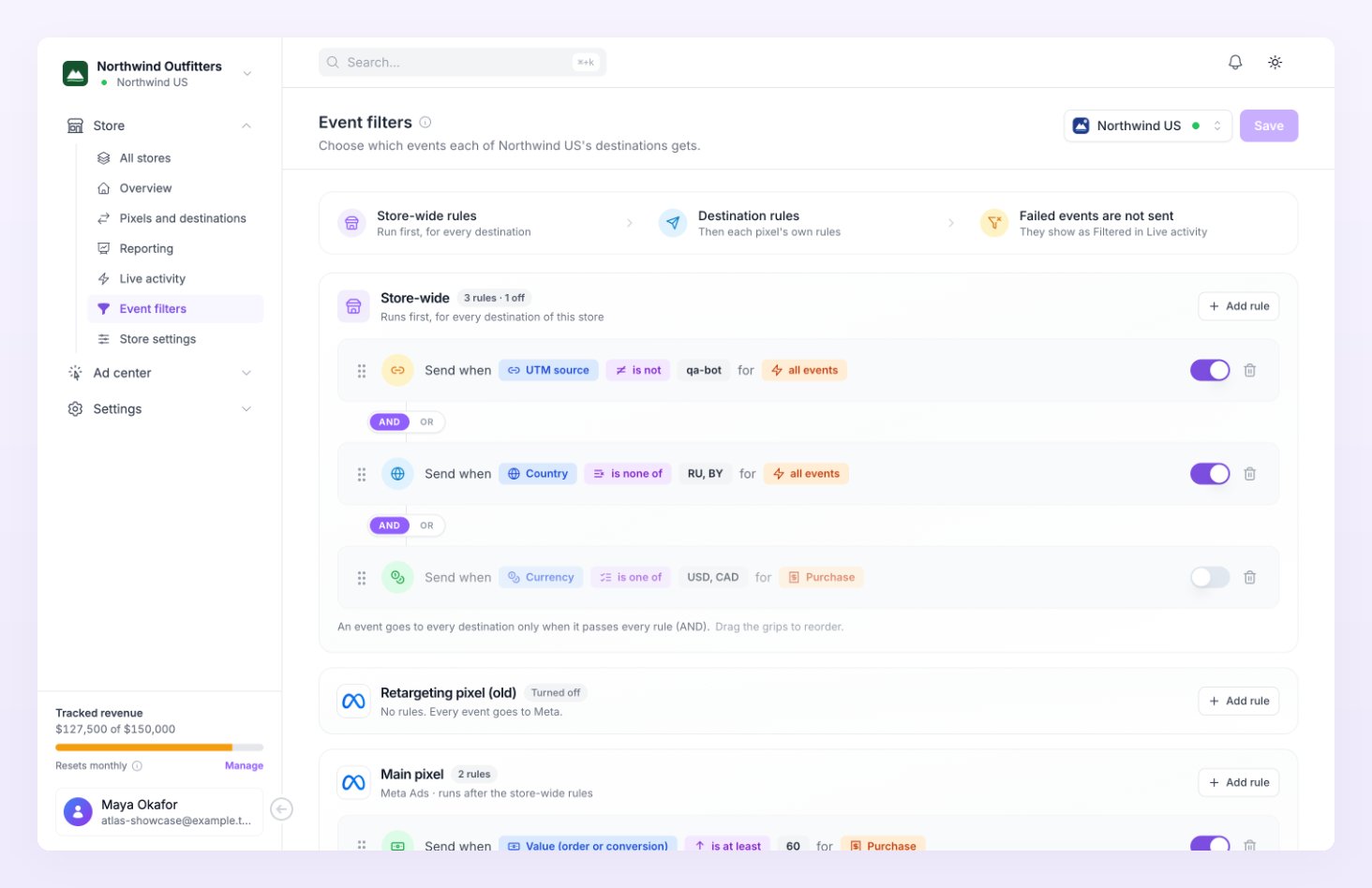
The page has one Store-wide card (“Runs first, for every destination of this store”) followed by one card per pixel, each labelled with its platform and “runs after the store-wide rules”. A pixel that is switched off shows a Turned off badge on its card. An event reaches a pixel only when it passes both cards: the store-wide rules and that pixel’s own rules. A card with no rules passes everything, so you can keep the store-wide card empty and work pixel by pixel, or do the opposite.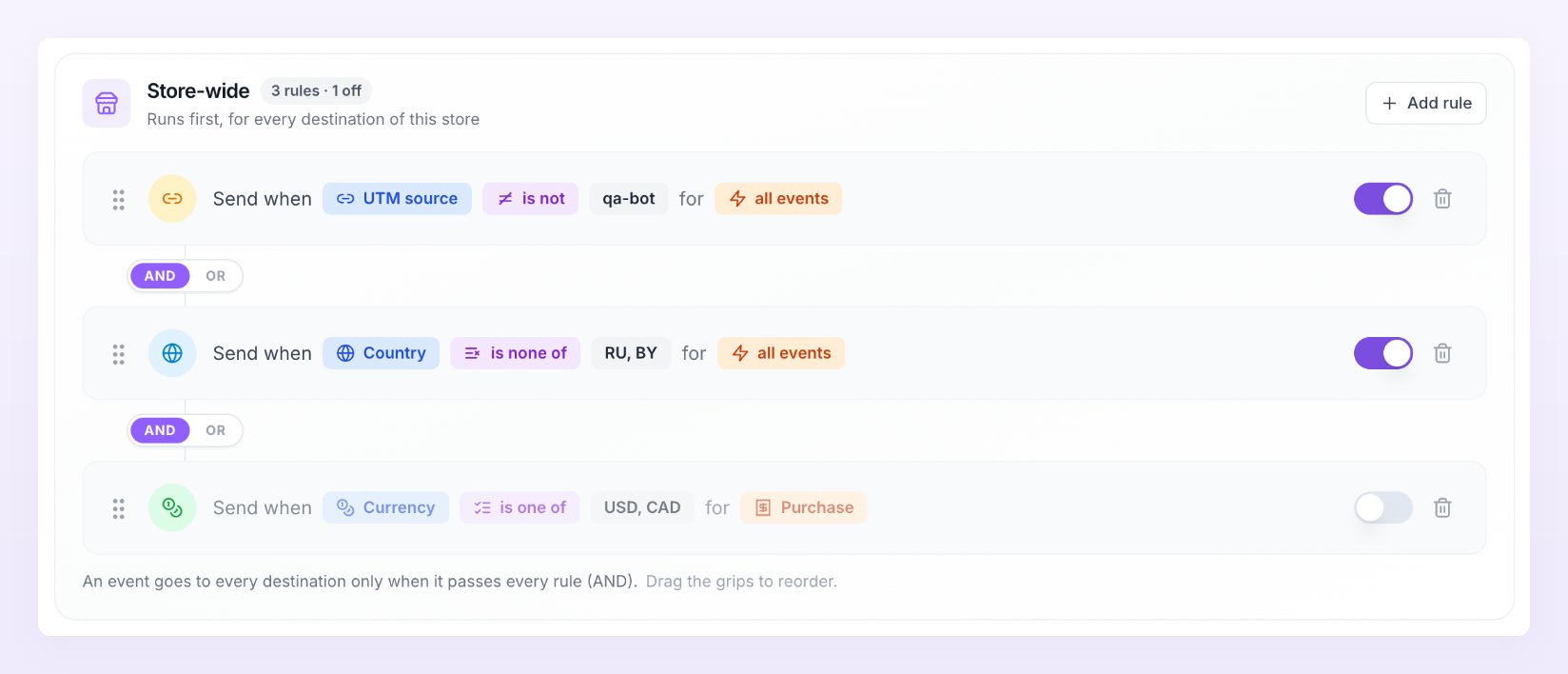
Build a rule
Click Add rule at the top of a card. Every rule is one sentence: Send when a field, a comparison, a value, for the events it applies to. Each row has its own switch, so you can turn a rule off without deleting it, and a delete icon.
Fields and comparisons
The field picker groups the fields into Traffic source, Customer and Order.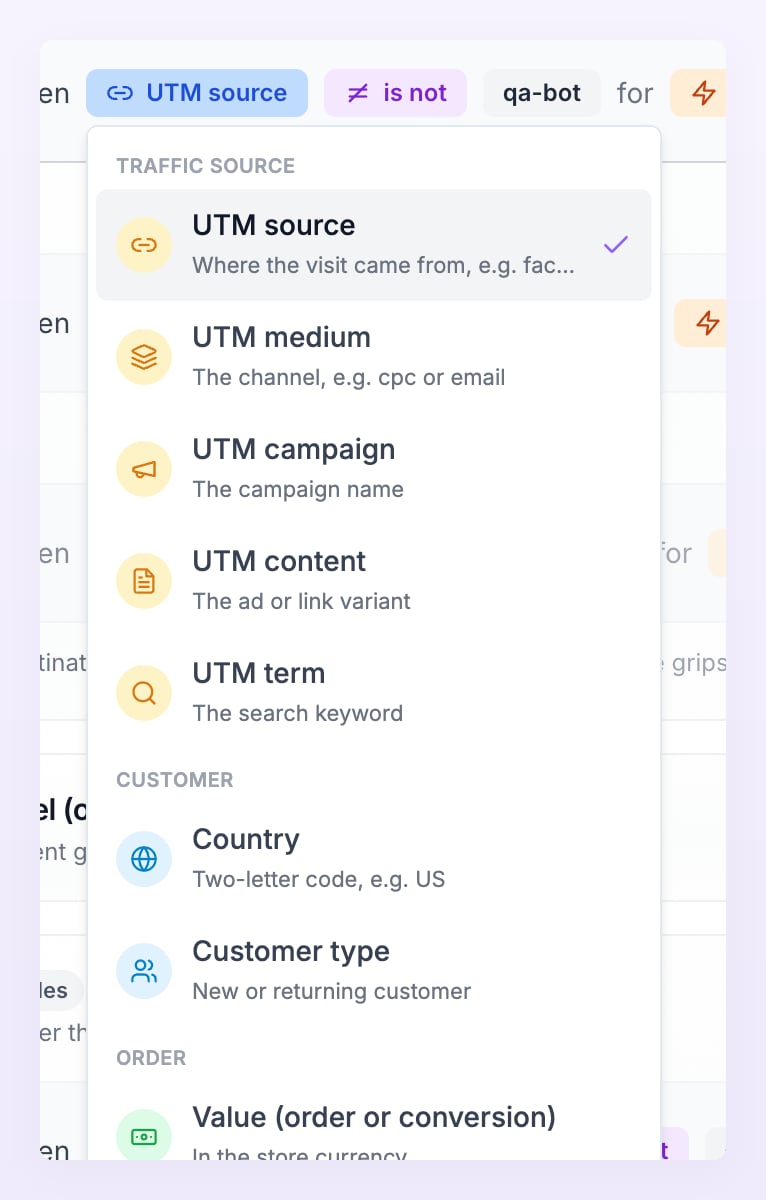
Values are not case sensitive, so
Facebook and facebook match the same visits. Customer type takes no value. For is one of and is none of, the value box becomes a list: “Press Enter or a comma after each value.”
A rule with is, contains or is one of only passes an event that carries the field: a visit with no UTM campaign fails “UTM campaign is summer-sale”. A rule with is not, does not contain or is none of passes events that have no value for the field.
Events
The last part of the sentence picks the events the rule judges. Leave it on All events or choose from the Site and checkout and Conversions groups. A rule never affects events outside its list.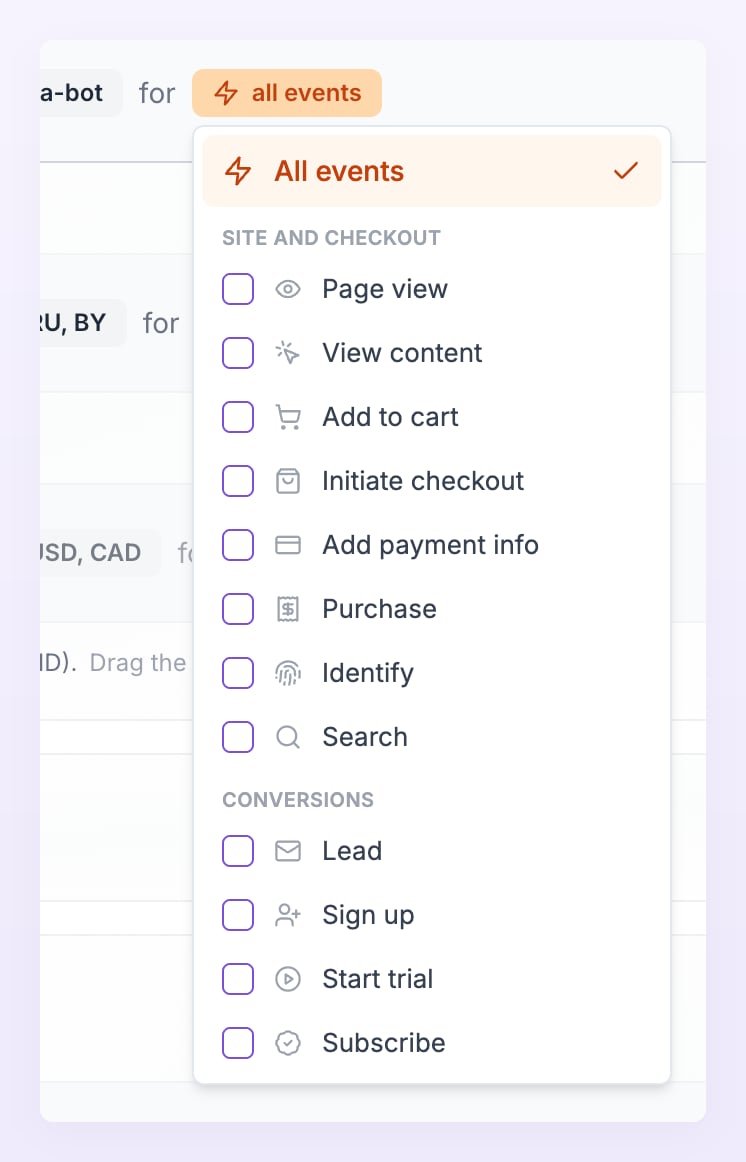
AND or OR
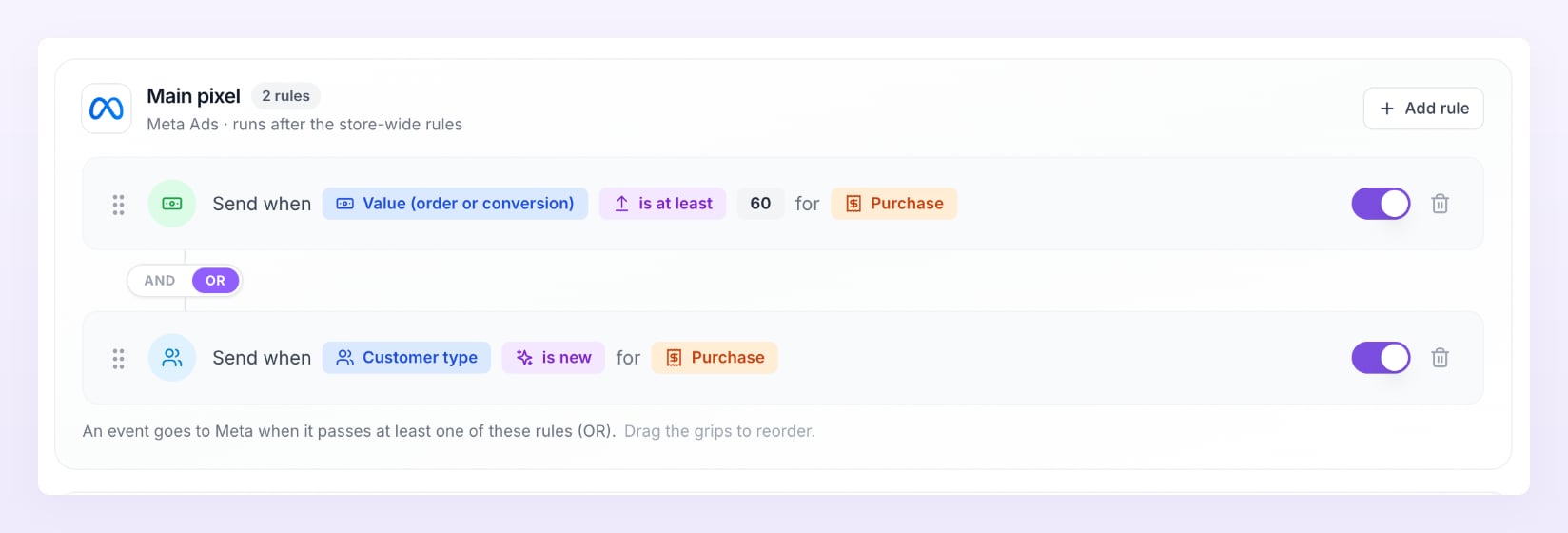
Each card combines its rules in one of two ways, switched from the connector between any two rules: And (“Every rule must pass”) or Or (“At least one rule must pass”). The setting applies to the whole card, and the note under the rules restates it, for example “An event goes to every destination only when it passes every rule (AND).”
Order, limits and saving
Drag the grips on the left to reorder rules. Atlas checks them in that order, and the first rule that fails is the one named in Live activity. A card holds up to 50 rules. Edits collect in the Unsaved changes bar at the bottom. Save writes every card you touched and shows Filters saved. A rule with an empty value box blocks the save with Every rule needs a value; fill it in or delete the rule.Examples
Two notes on the last example. Events from visits without UTMs, such as a server-side order whose visit Atlas could not match, fail the rule, which is usually what you want for a single-campaign pixel. If you also want returning customers who came back directly, add a second rule and switch the card to Or.
What filters do not cover
- Google Ads on Shopify and pasted snippets. Google Ads conversions fire in the browser. The Shopify custom pixel that Atlas builds for Google Ads applies no filters, and neither does a snippet you pasted on a page. On every other site the Referly tracker applies your rules in the browser before firing a Google Ads conversion, but Country and Customer type stay neutral there, because the browser does not know them. Use UTM, value, currency or product rules for Google Ads. See the Google Ads pixel guide.
- Your own numbers. Filters never remove an order or conversion from Overview, Reporting or your tracked revenue.
- Consent and identity. An event the visitor did not consent to is skipped before filters run, and an event with nothing the platform can match is skipped after them. Both show as Skipped, not Filtered. See Consent and privacy and Events that need an identity.
Check a rule
Open Live activity for the store and filter the feed by status Filtered (“Stopped by an event filter”). Each filtered row names the rule that stopped it as “Filtered by rule: …” in its details, so you can tell a rule that works from one that is too broad.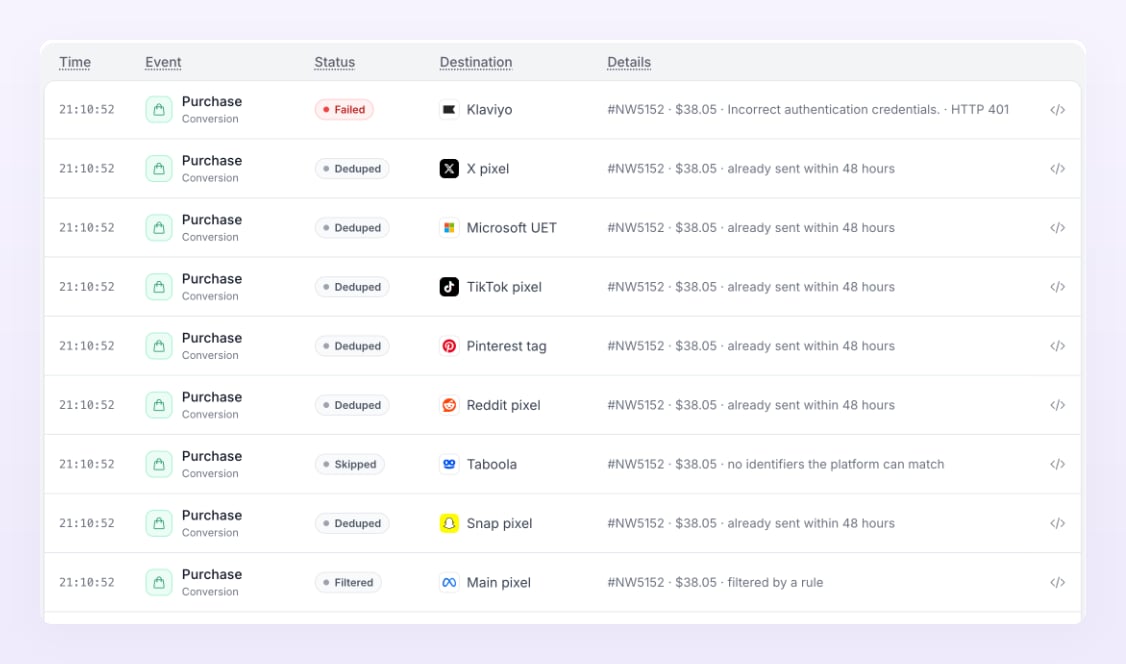
Related
Events Atlas sends
Every event, who sends it and what each platform calls it.
Pixels and destinations
Add, edit and test the pixels your filters apply to.
Live activity
Watch events reach Atlas and your destinations in real time.
Billing
Plans, trials and what each plan includes.