

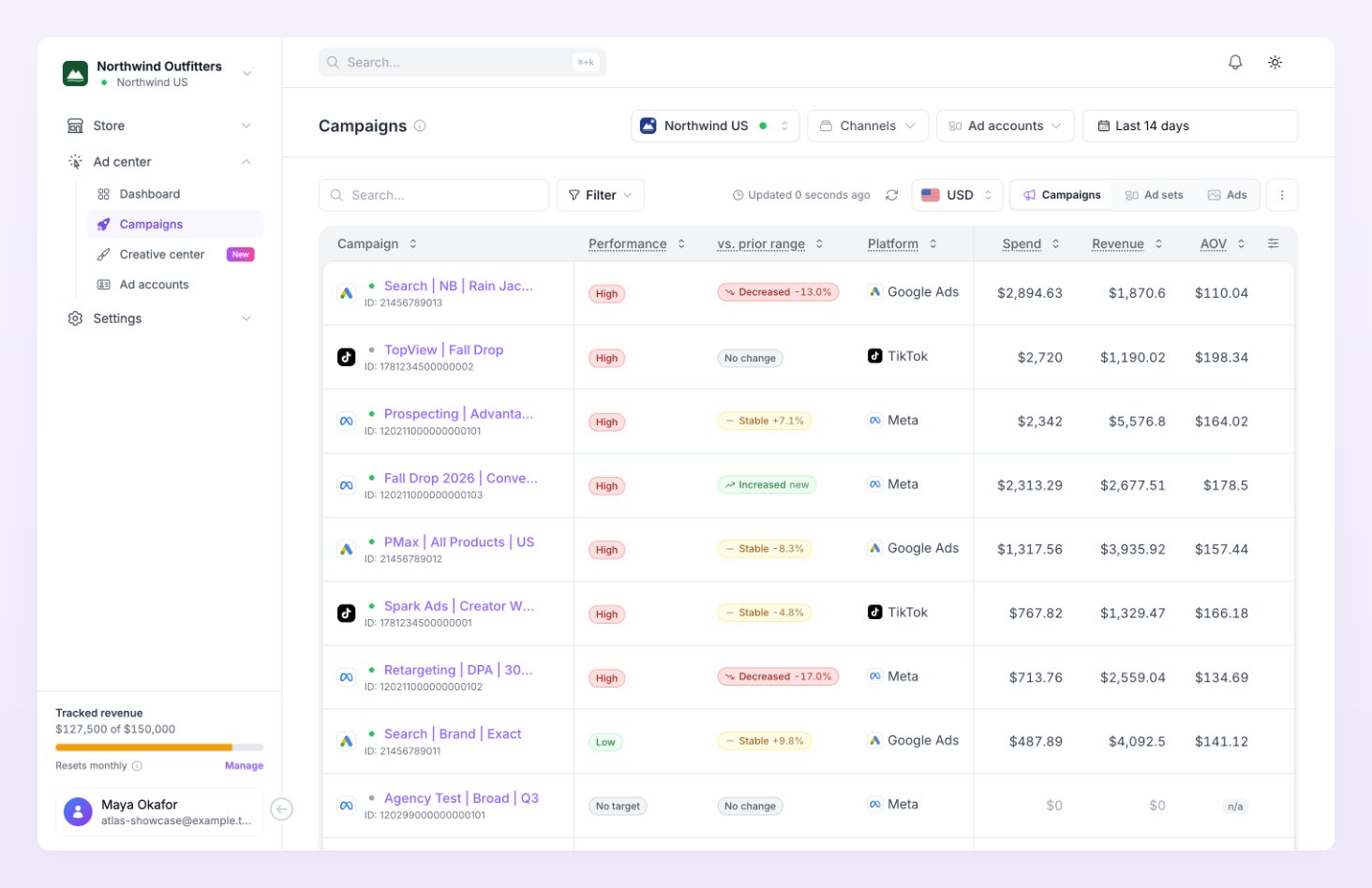
Campaigns, ad sets and ads
The Level tabs above the table switch between Campaigns, Ad sets and Ads. Each row shows the name, its id, a platform icon and a status pill (hover it for Active on Meta and similar). To drill down, select a name: a campaign opens its ad sets, and an ad set opens its ads. On the deeper levels a line under the name shows where the row belongs, such as Campaign: Summer Sale or Ad set: Lookalike 1%.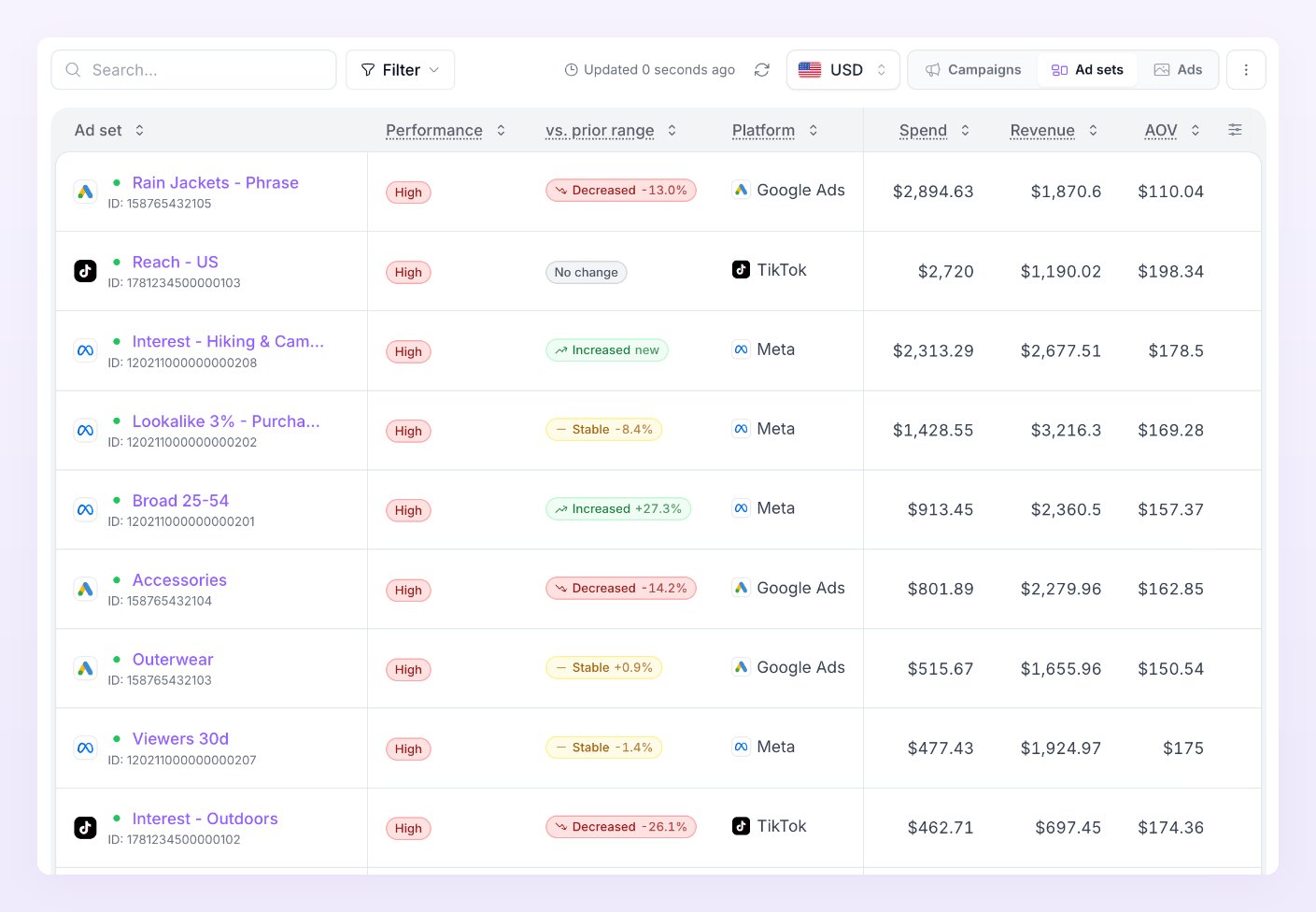
Columns
Hover a column header for its definition; the formulas are collected on the Metrics page. Select a header to sort by it. The columns available are:
Your column choice is saved separately for the Campaigns, Ad sets and Ads levels.
To change the columns, click the Customize columns icon at the right end of the table header, tick or untick metrics, and drag to reorder them.
Performance targets and period comparison
The two rating columns are driven by settings you reach from the table’s options menu (the Table options button at the top right of the table).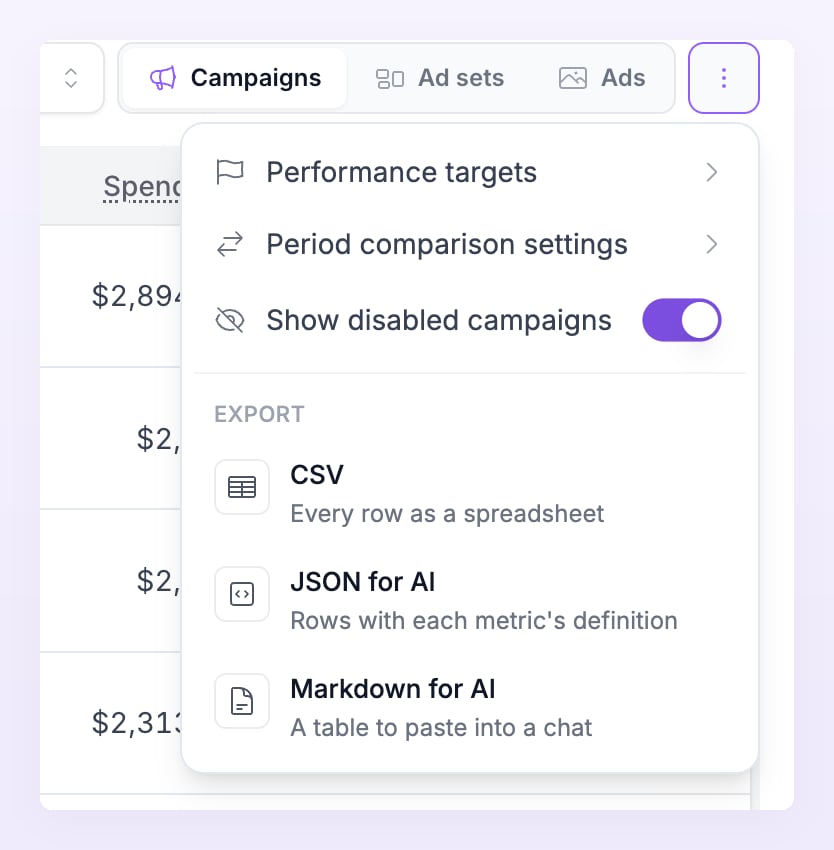
Performance targets
Performance targets rates every row on one metric against your targets, and fills the Performance column with High, Medium or Low.1
Pick the metric
Choose the Metric the rating is based on. ROAS is the default; CPA, CTR and CPC are the other common choices.
2
Set the thresholds
Under Threshold ranges, type the value High starts from and the value Low sits below. Medium is everything in between and is shown as read-only text, for example 1.5x to 3x. High has to be at least Low, or the dialog says so.
3
Apply
Select Apply. The dialog confirms with Saved for this store. Turn on Apply settings for all stores before applying to use the same targets everywhere; it overrides the settings you set per store, and the confirmation reads Saved for every store. Reset to default restores the defaults below.
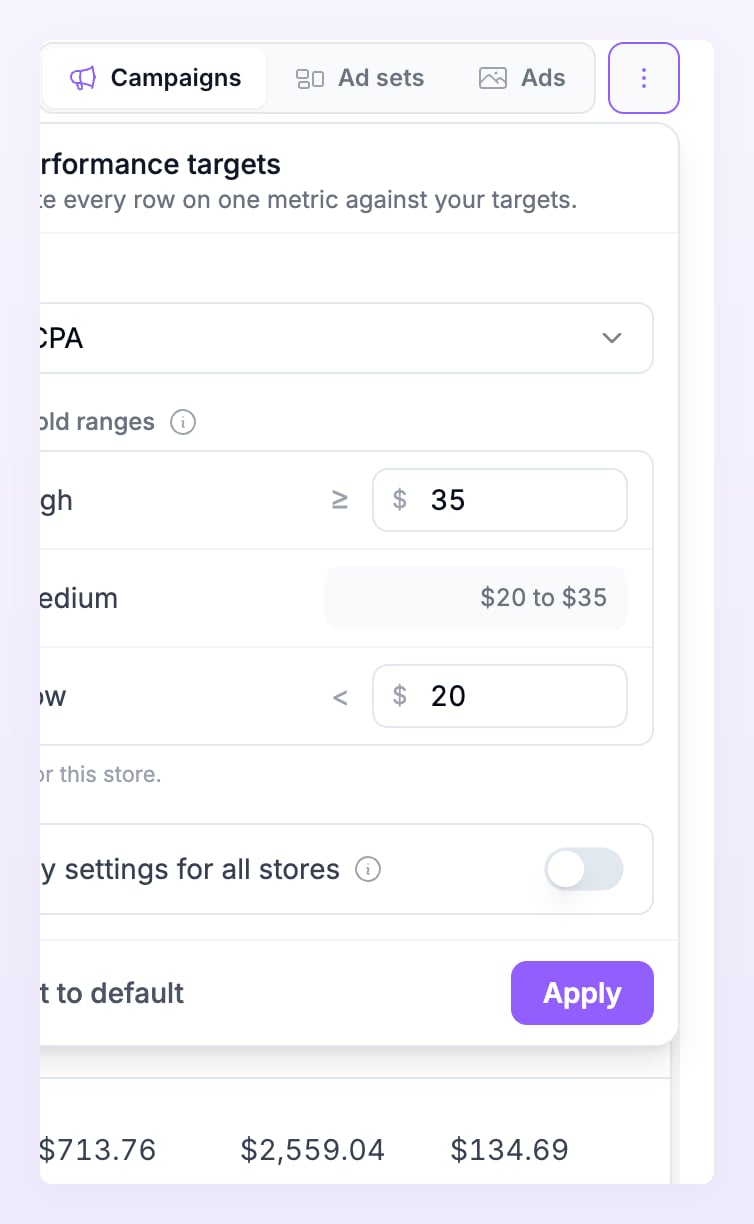
Currency amounts are in the store currency.
Period comparison
Period comparison settings rates how each row moved against the previous range of the same length, and fills the vs. prior range column with Increased, Stable or Decreased. Pick the metric, then the change above which a row counts as Increased and below which it counts as Decreased; the default is ROAS with a 10% band either way. The same Apply settings for all stores switch and Reset to default button are there.Filter, search and Show disabled
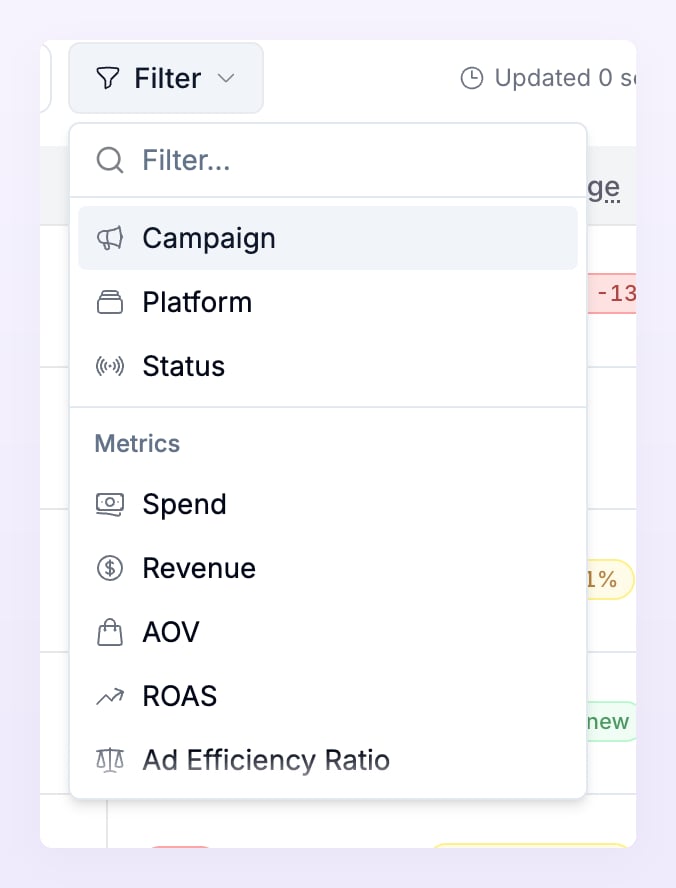
The search box above the table narrows the rows by name. Filter opens a menu with:- Campaign and Ad set: tick one or more by name. Long lists show the first matches with Type to narrow.
- Platform: Meta, Google Ads or TikTok.
- Status: Active, In review, Issue, Paused or Removed. What each one means is on the Statuses page.
- A Min and Max range for any metric, for example Spend above 100 or ROAS below 1. The menu refuses a range where Min must not be above Max.
Totals and export
The last row of the table is the total. It reads Total · this page (25 of 112) when it sums the rows on screen, or Total · all 112 campaigns when it sums every row that matches your selection and filters; switch between the two on the row itself. Export in the table options menu downloads the table as CSV (every row as a spreadsheet), JSON for AI or Markdown for AI. The export follows the level, filters and date range on screen. Atlas confirms with Export ready.Unmapped and Unattributed rows
Two rows appear at the bottom of the table when the Ad center could not tie an order to a synced campaign. They carry revenue but no spend, so you can see what is missing from your ROAS.
Hover either row’s name for its description. The Mapping health card on the Ad accounts page shows how many of your orders were matched by id, by name, platform only, or not at all.
Related
Ad center dashboard
The same metrics as cards, with the trend over time.
Metrics
What every column means and how it is calculated.
Creative center
Rank the creatives, copies and headlines behind your ads.
UTM tagging
Make every click carry the ids the table matches on.