

Pick a store
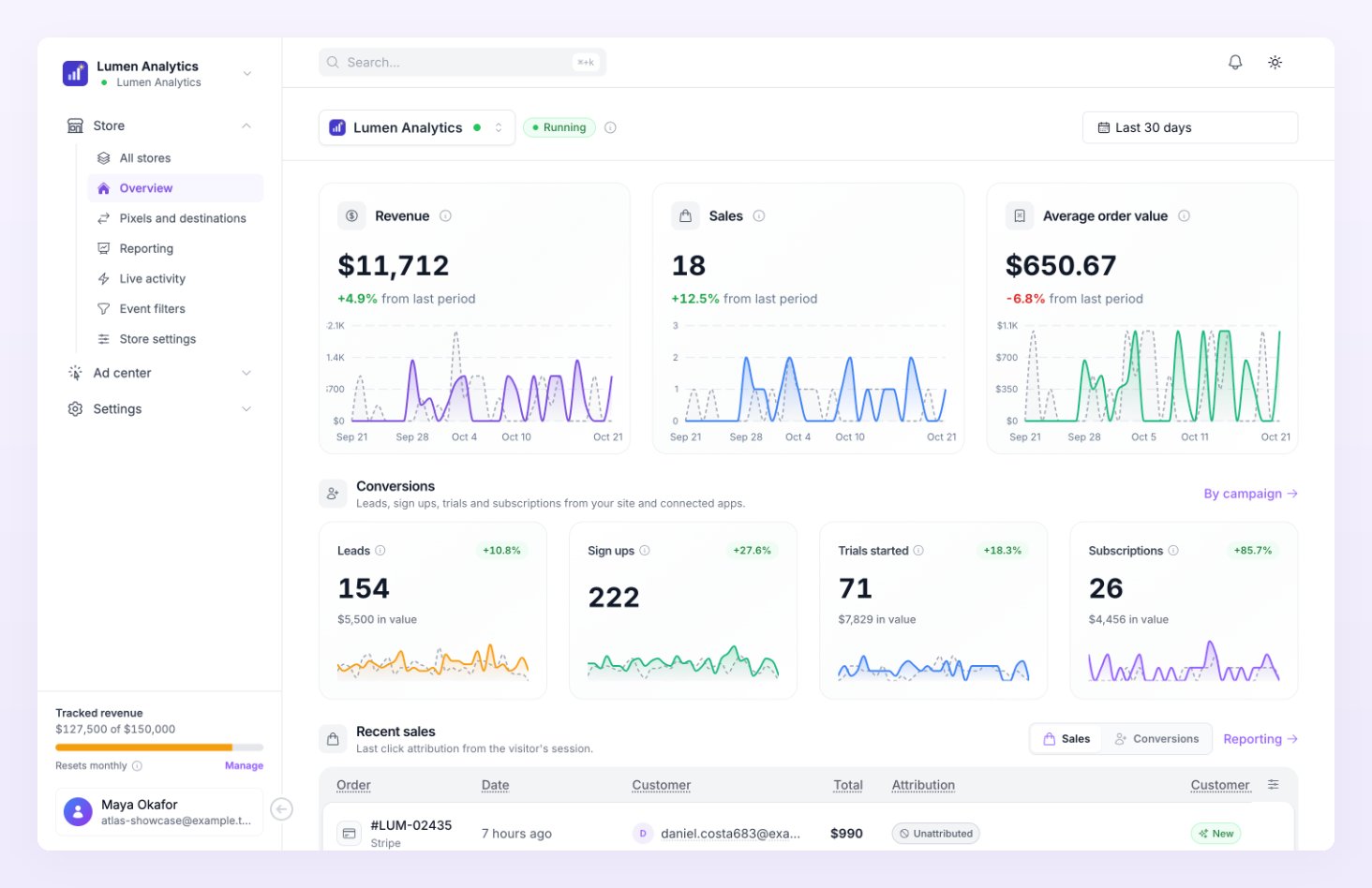
The store picker sits at the top left of the page, in front of the title. Choose All stores to see the whole business, or pick one store to see that store on its own. With All stores selected the subtitle reads Business overview with the number of stores; with one store it reads Store overview and the store’s status badge appears next to its name.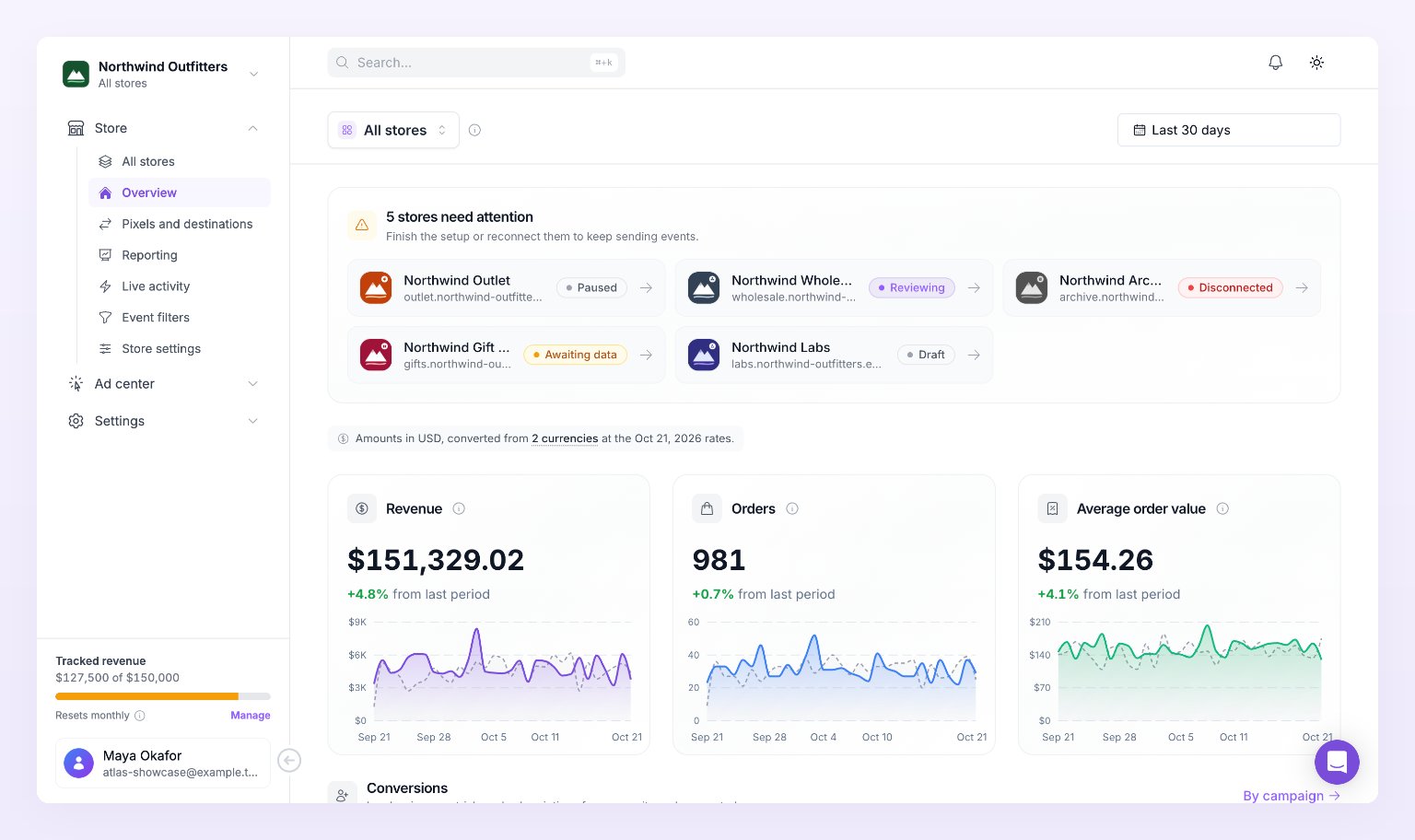
Stores that need attention
With All stores selected, a card at the top lists every store that is not running: stores with setup to finish, paused stores, stores under review, disconnected stores and stores still waiting for their first order. The card is titled with the count, for example 3 stores need attention, and reads “Finish the setup or reconnect them to keep sending events.” Each row shows the store and its status badge.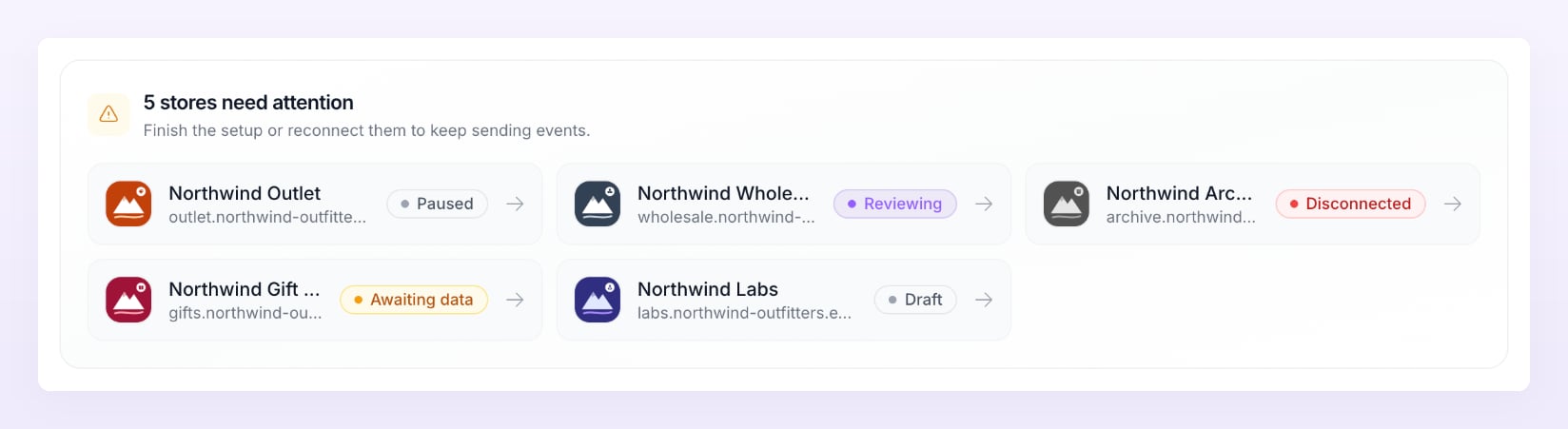

Revenue, orders and average order value
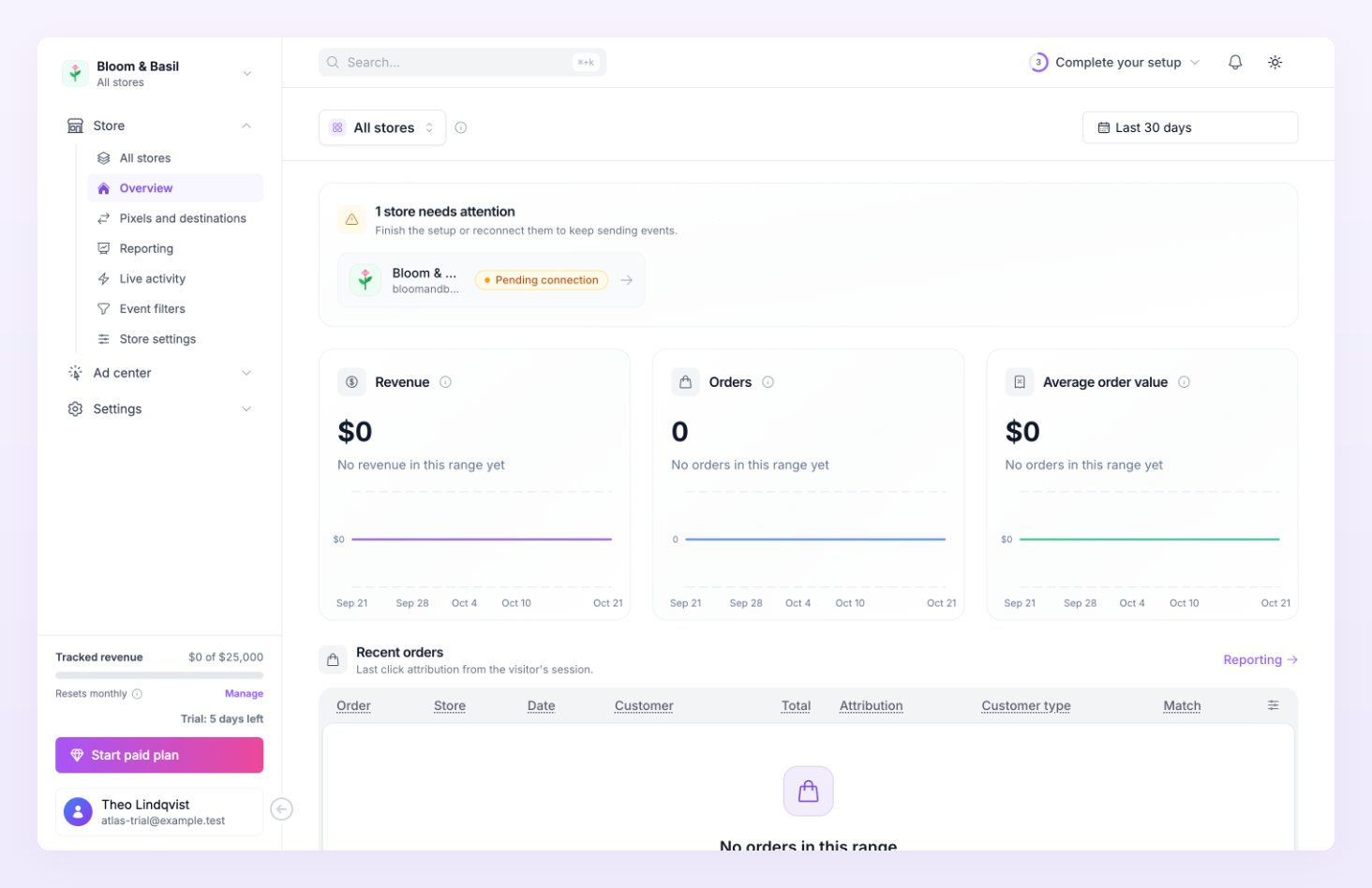
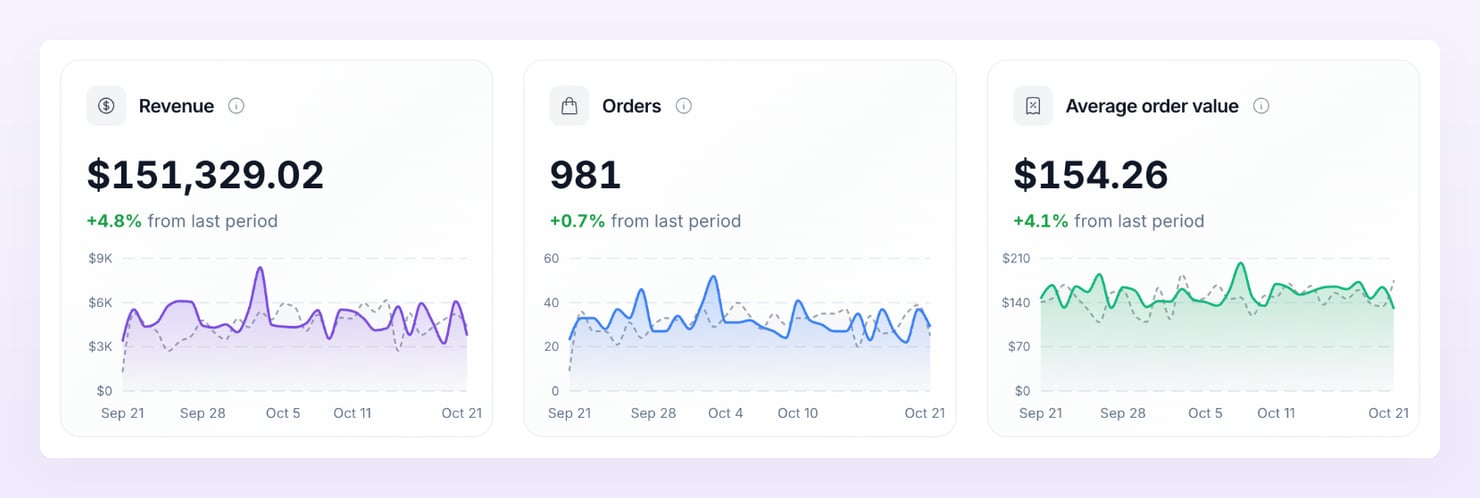
Three cards show the money side of the selected range:
Each card has a chart for the range, with the previous period drawn behind it as a dashed gray line, and a badge with the change against that period. Hover the badge to see which dates it compares, for example “Compared with Sep 1 to Sep 8, the same dates last month.” When there is nothing to compare, the card says so under the value, such as “No revenue in the previous period”.
Conversions
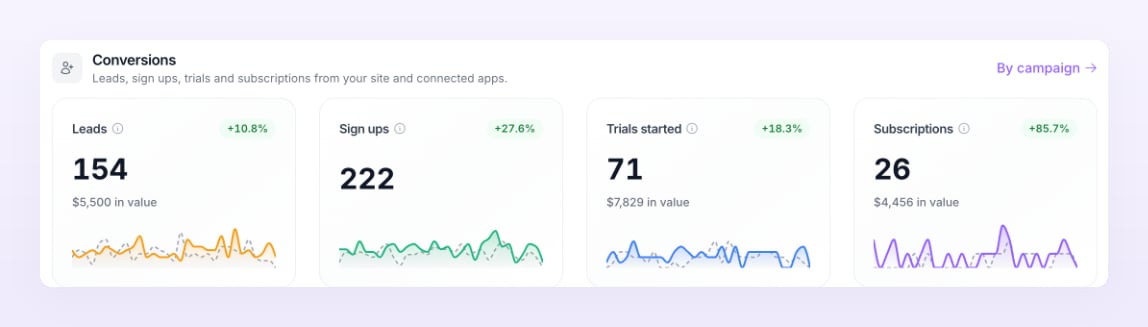
The Conversions section has one tile per conversion type: Leads, Sign ups, Trials started and Subscriptions. Each tile shows the count for the range, a sparkline with the previous period behind it, and the total value sent with those conversions (“in value”) when there is one. Each tile also carries a short note on where that conversion comes from, for example “Trials started, from your billing platform or your site.”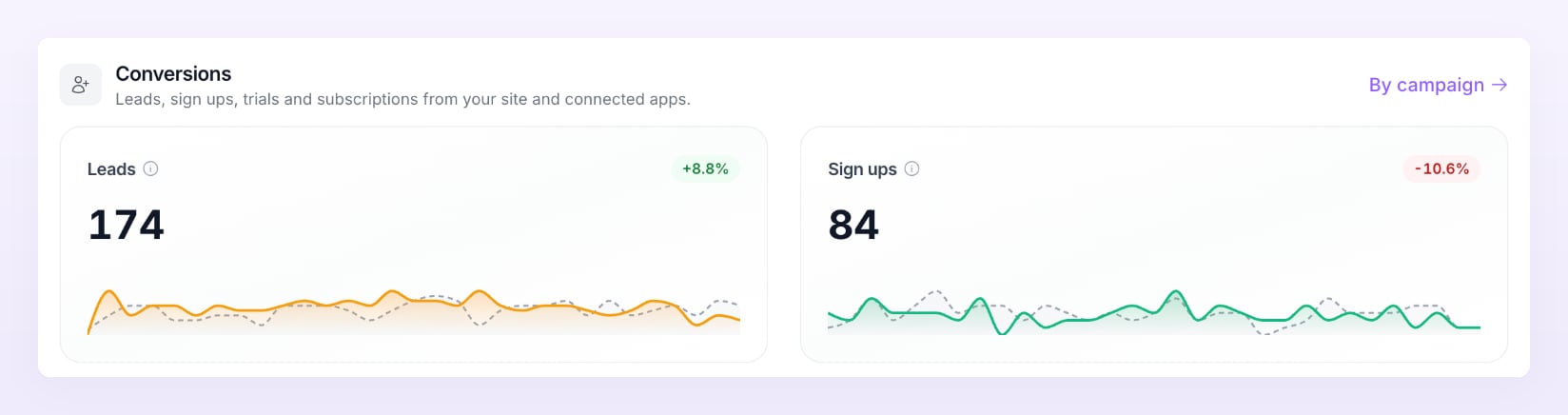
Recent orders and the Match column
The ledger at the bottom of the page lists the latest orders and conversions. It has two tabs, Orders (or Sales) and Conversions, and is titled Recent orders, Recent sales or Recent conversions to match. With All stores selected a Store column is added.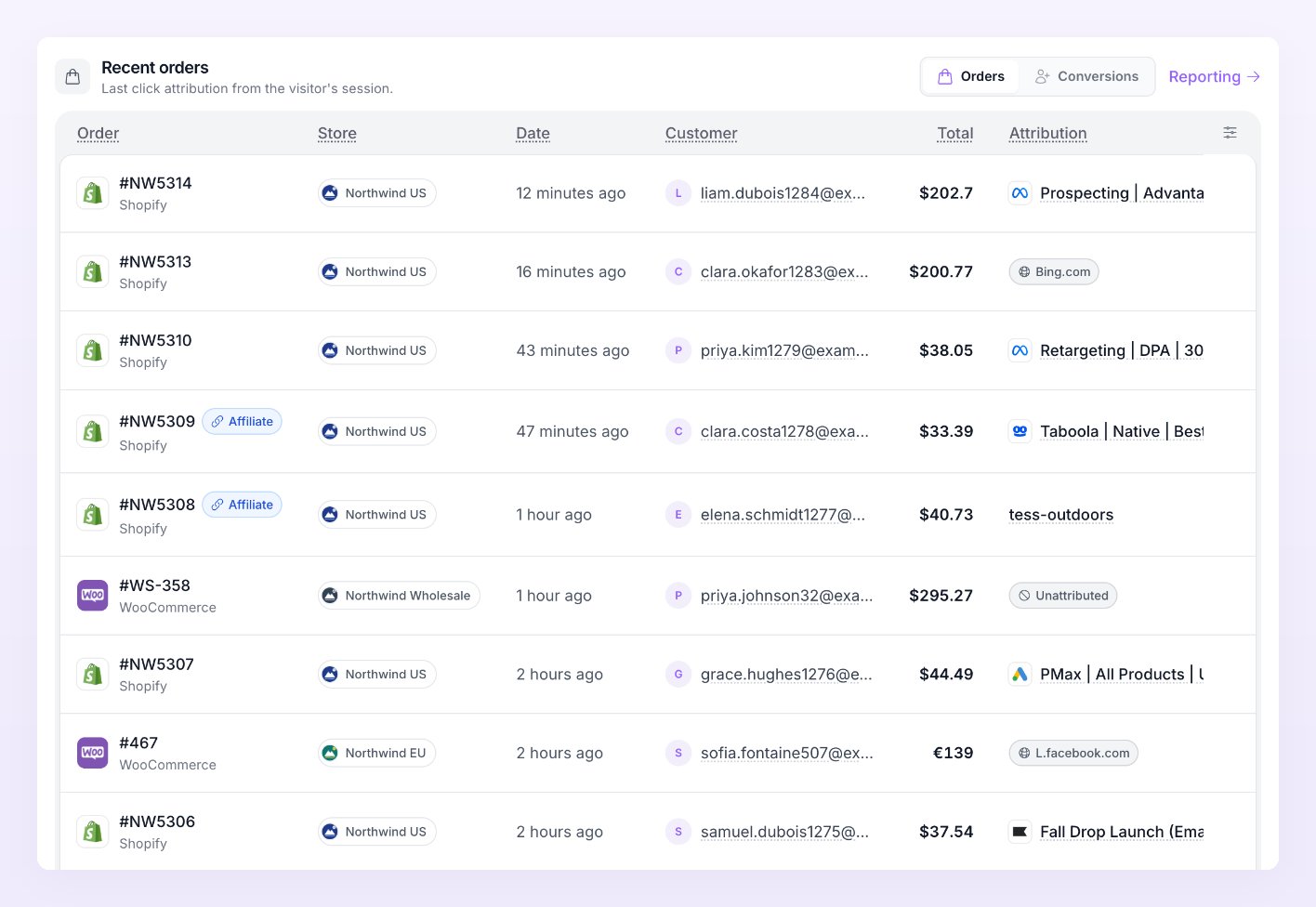
Tracking health
On the right, the Tracking health card gives four numbers for the range: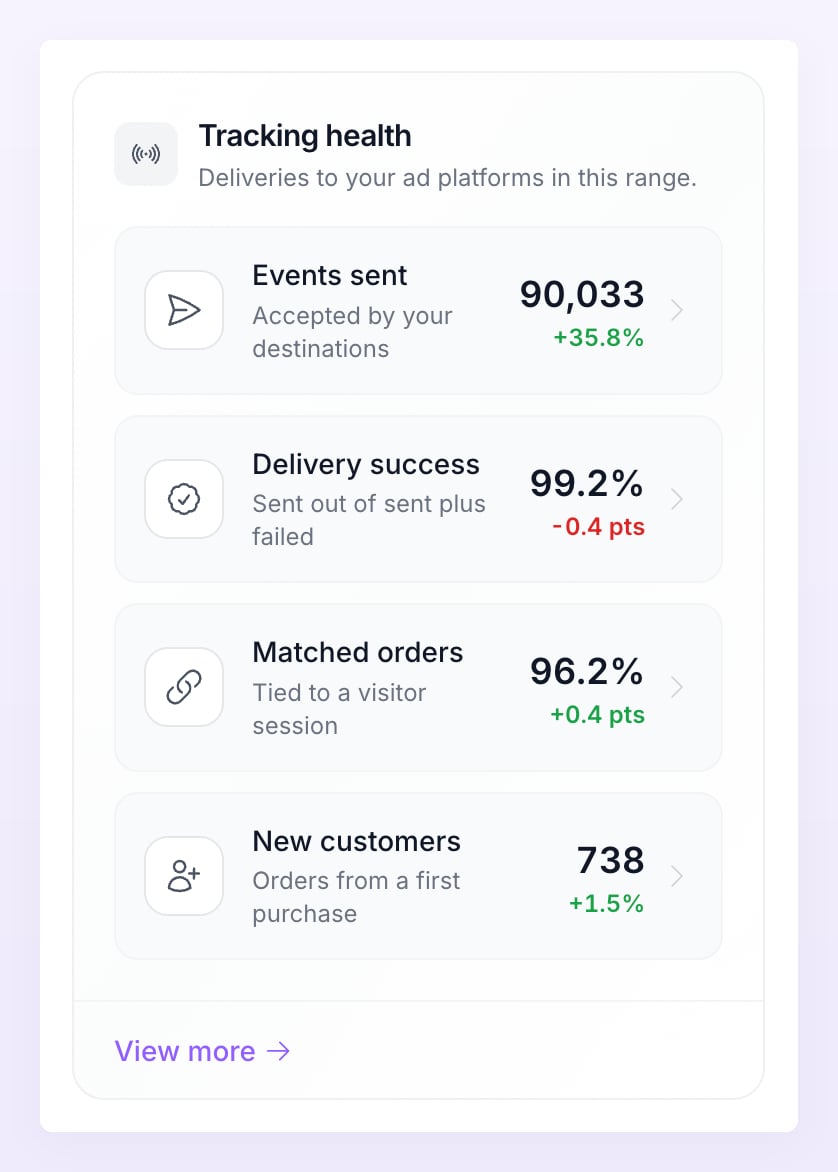
Recent deliveries and the impact card
Recent deliveries shows the last five deliveries to your destinations with their status (Sent, Failed, Retrying or Test), so you can tell at a glance whether events are flowing right now. Open Live activity for the full feed. Below it, Referly Atlas impact shows what Atlas adds beyond a browser pixel: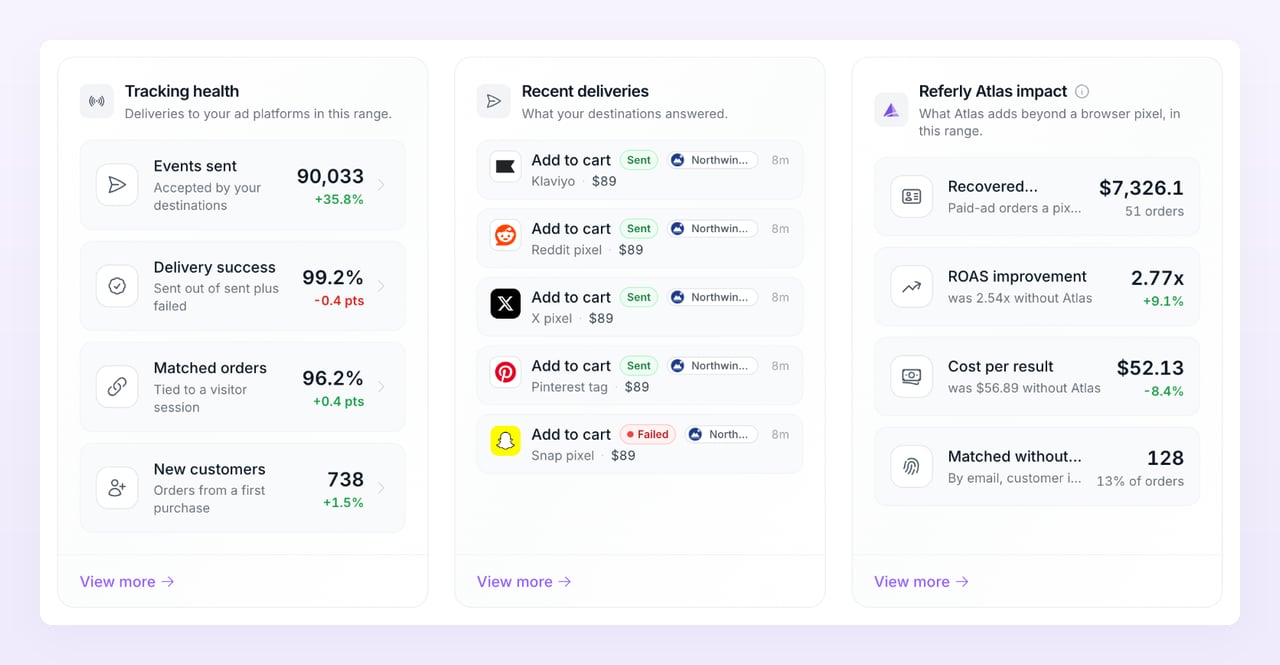
Related
Reporting
Conversions by campaign, ad set and ad, next to what each platform reported.
Live activity
Watch events reach Atlas and your destinations as they happen.
Date ranges and comparison
Presets, one range for every page, and how the comparison period is picked.
Store statuses
What Running, Paused, Reviewing and the other statuses mean.