

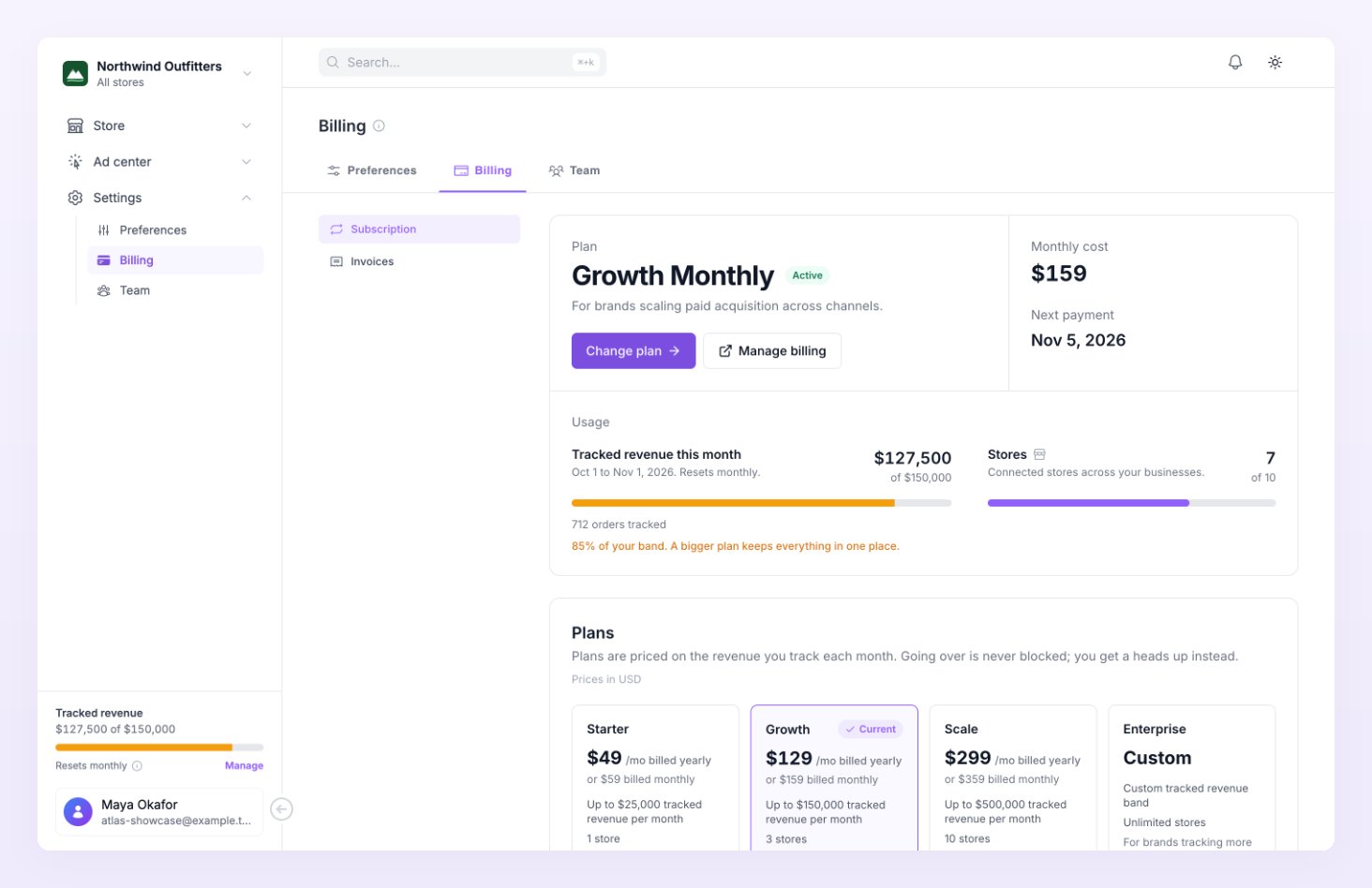
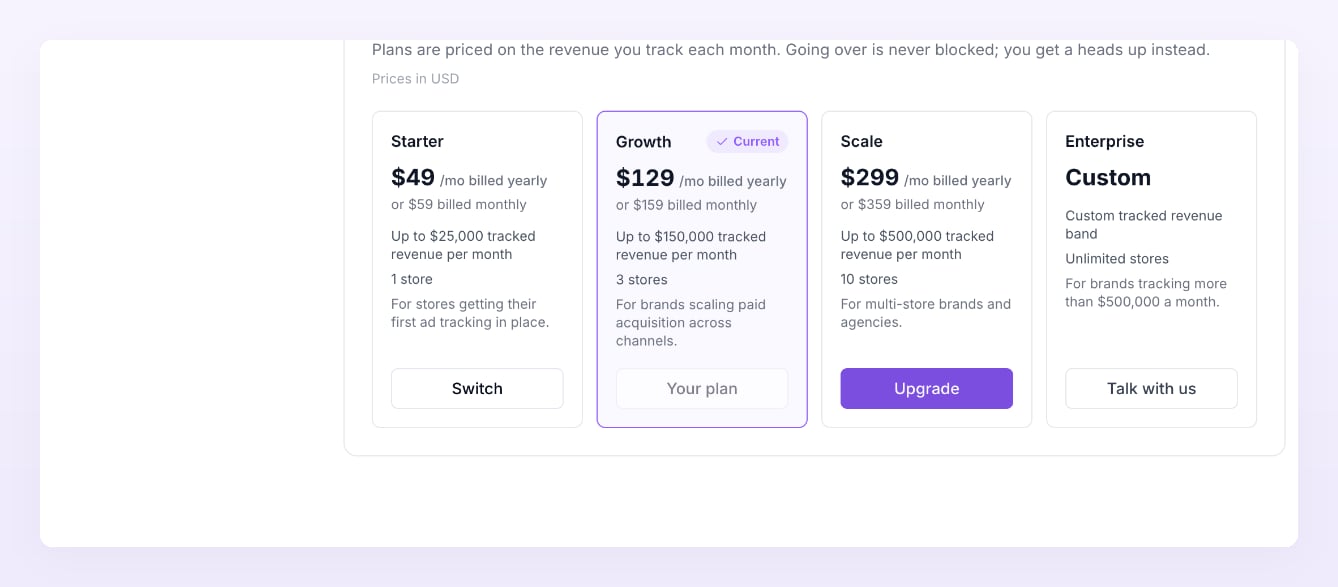
Plans and prices
Every plan sends server-side events to all ten platforms with enhanced matching, tracks leads, sign ups, trials and subscriptions as well as purchases, and includes the conversions report, Live activity, the Ad center dashboard and campaigns, CSV export and the weekly report. Yearly billing works out to two months free. Enterprise is sales-led: Talk with us books a call.
Start a trial or choose a plan
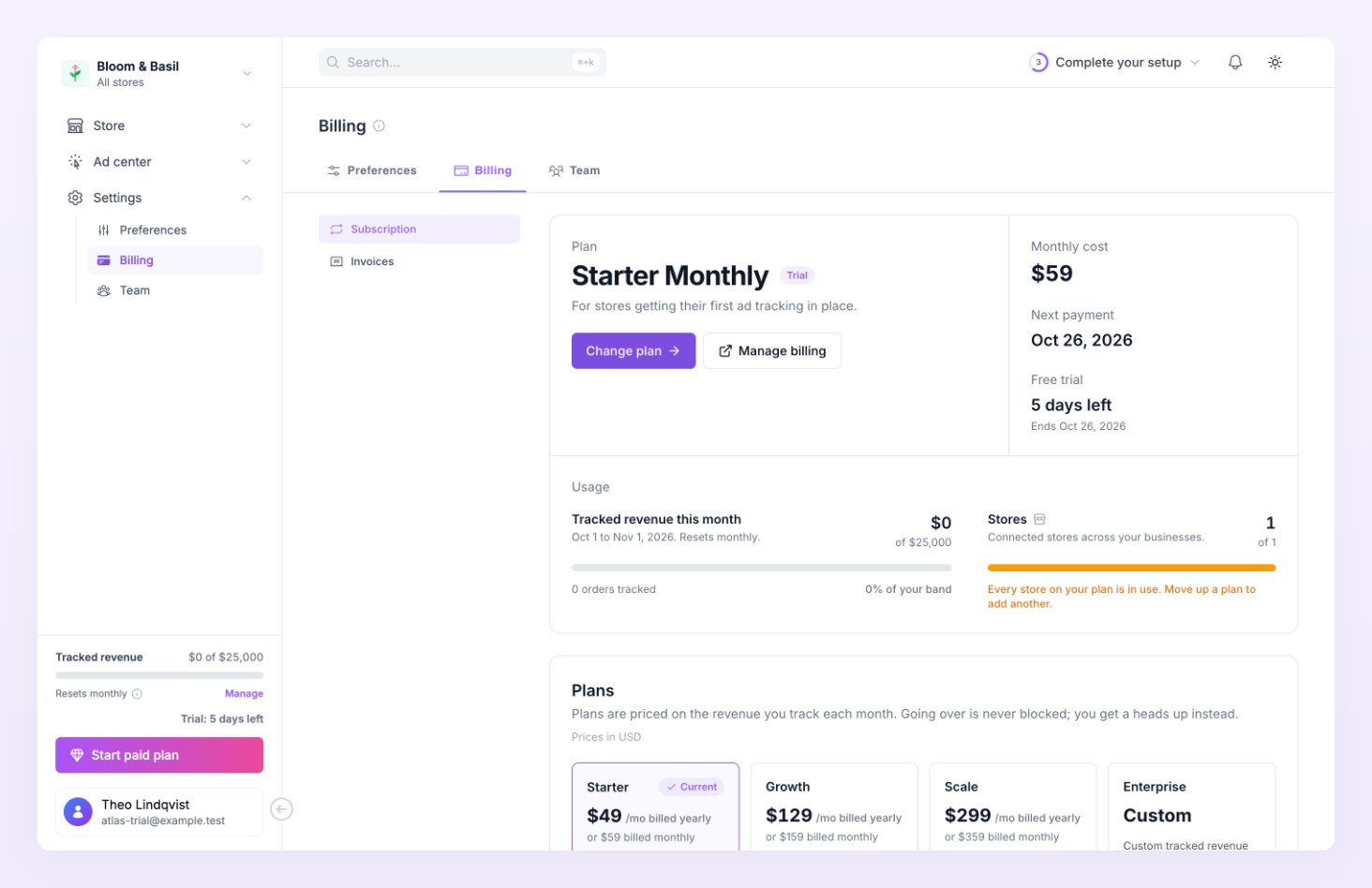
Your first Atlas plan starts with a 14-day free trial when you pick monthly billing. The trial is offered once per account; a plan change later never restarts it. Yearly plans are paid today and have no trial. Click Choose a plan on the plan card (or follow the onboarding’s last step, or the setup checklist). The Choose a plan sheet lists the plans with a Yearly / Monthly toggle. With a trial available and monthly selected it reads “Get full access for 14 days. Cancel before and you won’t be charged.” Pick a plan and click Continue: Stripe’s checkout collects a card. Monthly billing starts when the trial ends, unless you cancel first. If no card is on file when the trial ends, the plan cancels.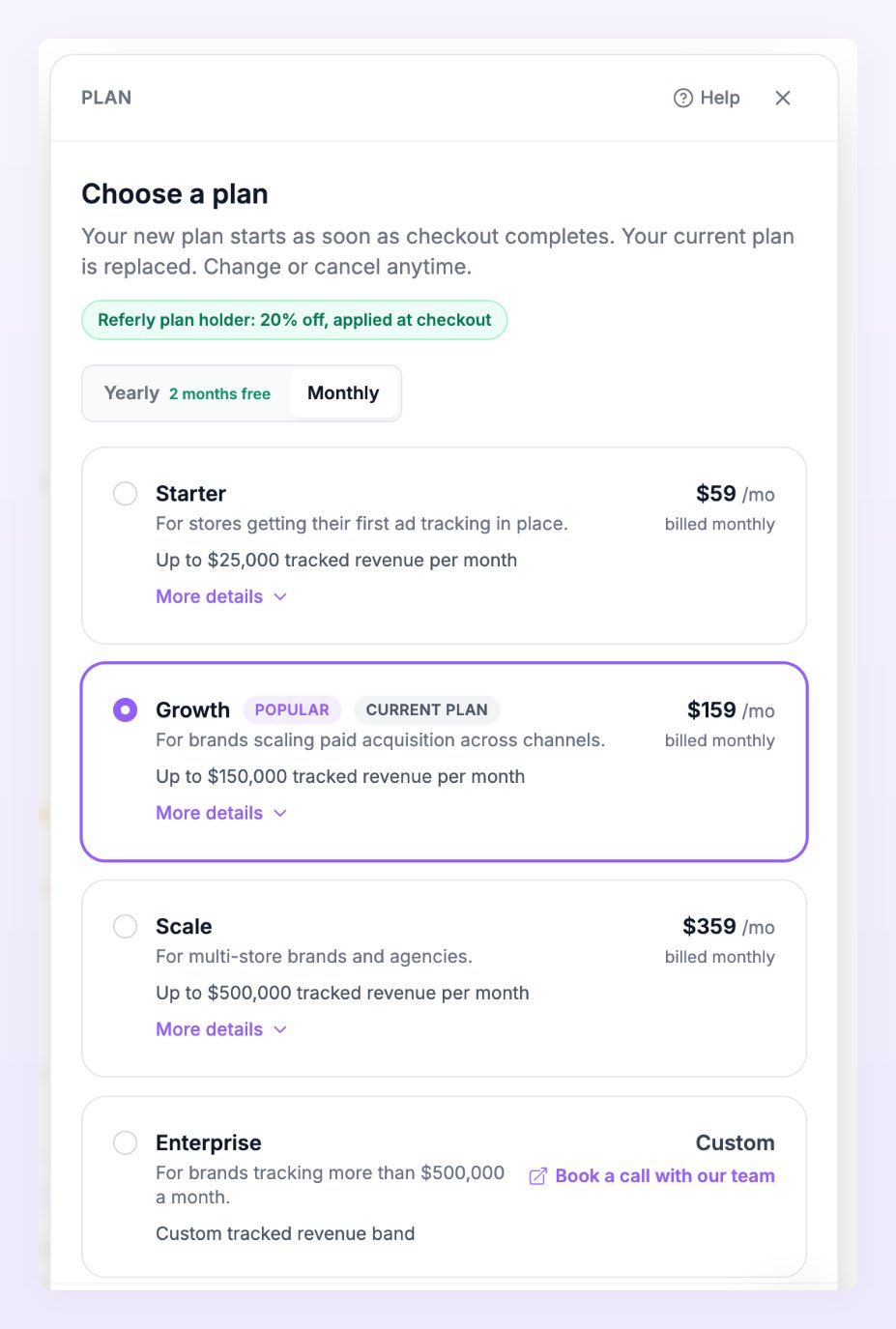
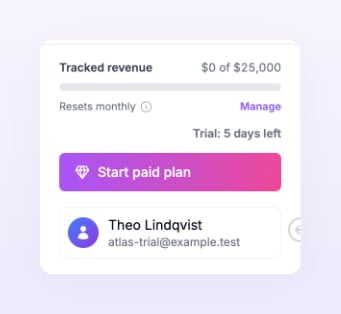
Tracked revenue and the usage meter
Tracked revenue is the revenue of the orders Atlas records for you, converted to US dollars, added up per calendar month across all your stores and businesses. Refunds count as negative amounts. Leads, sign ups and trials do not count; only paid orders and subscriptions with a value do. The meter resets on the first of each month, on yearly plans too. The meter sits in the sidebar of every page and on the Billing page as Tracked revenue this month, with the orders tracked and the share of your band. It turns amber at 80% and red past 100%.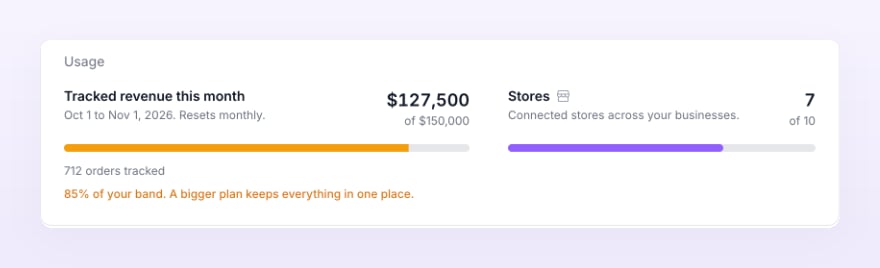

Stores, ad accounts and seats
The Stores meter on the Billing page counts connected stores across your businesses against the plan’s limit; at the limit it reads “Every store on your plan is in use. Move up a plan to add another.” and the store wizard asks you to upgrade. Ad accounts are counted the same way across stores, with the same account in two stores counting once. Team seats count the owner, every member and every pending invitation. The limits for each plan are in the table above.Change or cancel your plan
Click Change plan on the plan card to open the plan sheet, pick another tier or cycle, and click Continue. A plan change goes through a new checkout: the new plan starts as soon as it completes and replaces the current one. Downgrades work the same way; stores beyond the new limit keep running, but you cannot add more until you are back within it. To cancel, click Manage billing. It opens Stripe’s customer portal, where you can cancel the subscription, update your card and change your billing details. A cancelled plan keeps access until the end of the paid period; the plan card then reads Cancels at period end. You can reactivate it from the same portal before the period ends.Discount for Referly plan holders
Accounts with an active Referly affiliate plan (not on a Referly trial) get 20% off Atlas, for as long as both plans are active. The plan sheet shows “Referly plan holder: 20% off, applied at checkout” and the discount comes off every Atlas invoice. If the Referly plan ends, the discount ends with it on the next invoice.Past due
When a payment fails, Atlas emails the owner (“Atlas: your payment did not go through”) and shows a red banner on every page: “Your last Atlas payment failed. Update your card to keep sending events to your ad platforms.” with Update billing. Tracking continues for 7 days past the end of the paid period. After that, and 14 days after the period end at the latest, stores are disabled and stop sending events. Update the card in Manage billing and the stores come back on their own: Running if they had orders, Awaiting data otherwise.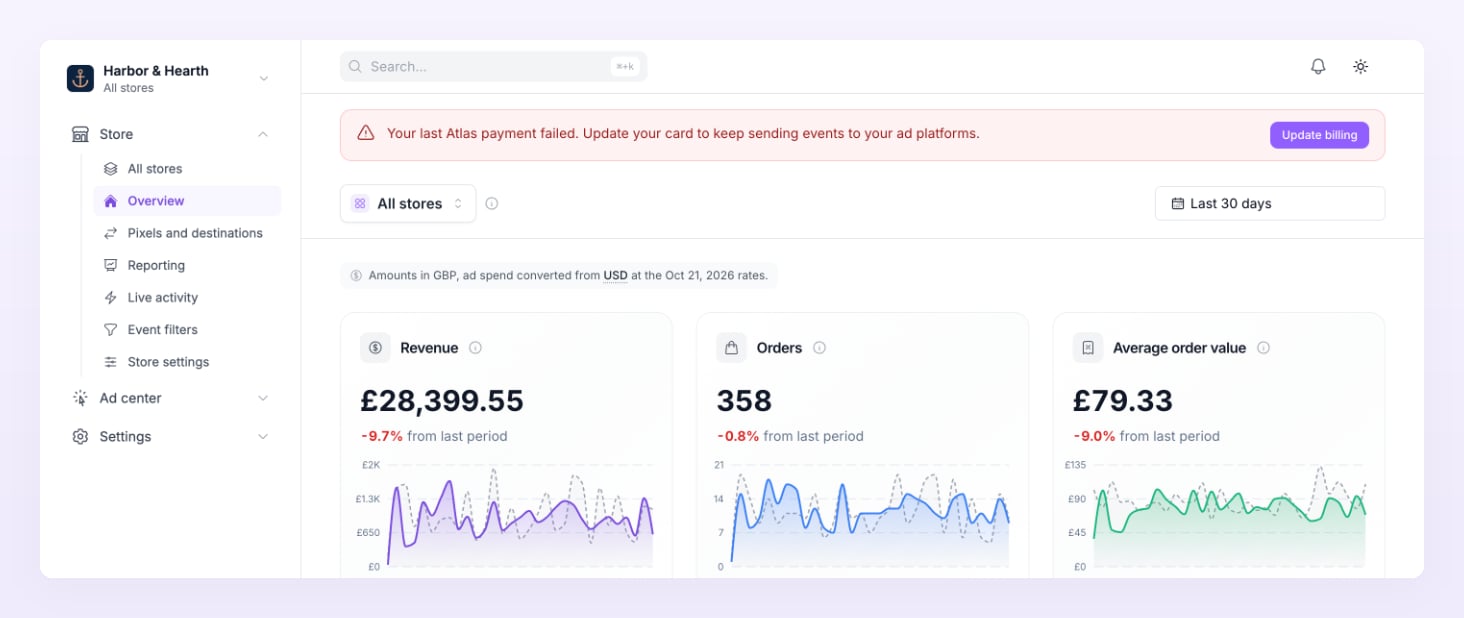
Invoices
The Invoices tab lists every Atlas invoice, newest first, with its date, number, amount and status (Paid, Open, Void, Uncollectible or Draft). Download PDF saves a copy; Pay now appears on open invoices. The tab shows the last 24 invoices; older ones are in the Stripe portal under Manage billing.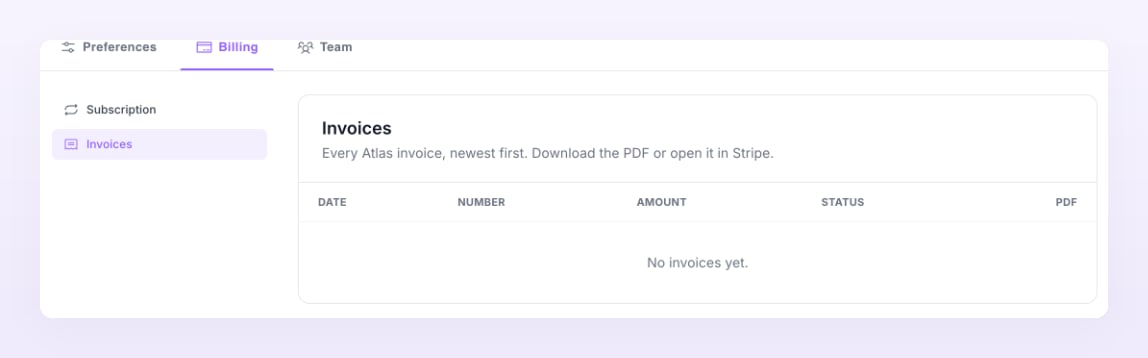
Related
Statuses and labels
Trial, Active, Past due and the other plan statuses.
Team
Seats, roles and invitations.
Add a store
Store limits and what happens when a plan is active.
Preferences
Usage warning emails and the display currency.