Most problems in Referly Atlas show up in one of three places: the Test connection results in Store settings, the pixel rows on Pixels and destinations, and the Status column in Live activity. Find the symptom below, open the matching entry and work through the cause and the fix. Every status name used here is explained in Statuses.

No events are arriving

A store only tracks once its setup is finished and a plan is active. Draft means “Setup not finished. No events are tracked yet.”; Pending connection means “Nothing received yet. Finish the setup to start tracking.” Open the store’s row menu on the All stores page and pick Finish setup, or press Finish setup on the store card in Store settings, and complete the wizard. Without a plan the store waits, and the banner reads “Atlas is not sending events yet. Choose a plan to start your 14-day free trial.”
The verify step in the wizard tells you what it found. “Not found yet.” means no Atlas script answered on your site: on Shopify, turn on the app embed in the theme editor and save the theme; on WooCommerce, activate the Referly plugin and paste your Atlas token; on any other site, paste the snippet before the closing head tag on every page. “A Referly script is on this site, but with another store ID” means the snippet belongs to a different store: copy the one shown in Store settings, under Tracking and connection. “We could not reach this address” means the website address is wrong or the site is offline. Fix it, then press Verify again.
Awaiting data means “Connected. Waiting for the first event or order.” and the verify block reads “No events yet. Visit your site, then verify again.” Open your site in a browser, browse a few pages and add something to the cart. First events usually show within 15 to 30 minutes, and coverage completes within 24 to 48 hours. Under Strict consent mode nothing goes out until the visitor grants marketing consent, so accept your own cookie banner while testing.
When a subscription is canceled or past due, stores are disabled 14 days after the period ends and the banner reads “Tracking stopped when the plan ended. Choose a plan to turn it back on.” Choose a plan in Settings, Billing; the stores are re-enabled when the subscription is active again. See Past due.

Test connection fails

The full message is “No page load from your site yet. Open your store in a browser and run the test again.” This check fails when Atlas has not seen a page load from your site in the last 7 days. Open your store in a normal browser tab, load two or three pages, then press Test connection again. If it still fails, the snippet or app embed is not loading: go through the section above.
The script loads but no event has reached Atlas. Browse product pages and add to the cart, with your cookie banner accepted. On Shopify, check that the Atlas pixel was turned on in the wizard (Turn on Atlas pixel) and that the Web pixel tile reads Registered. If you filled in Allowed domains, make sure the domain you are browsing is in the list: events from other domains are not accepted.
This is a waiting state, not a failure. It clears with the first order Atlas receives. To get one in without touching your numbers, turn on Test mode in Store settings, place an order and look for a row with the Test status in Live activity. On Shopify with a third-party checkout, set Type of checkout to External checkout, so orders are recorded when they are created rather than when Shopify marks them paid.
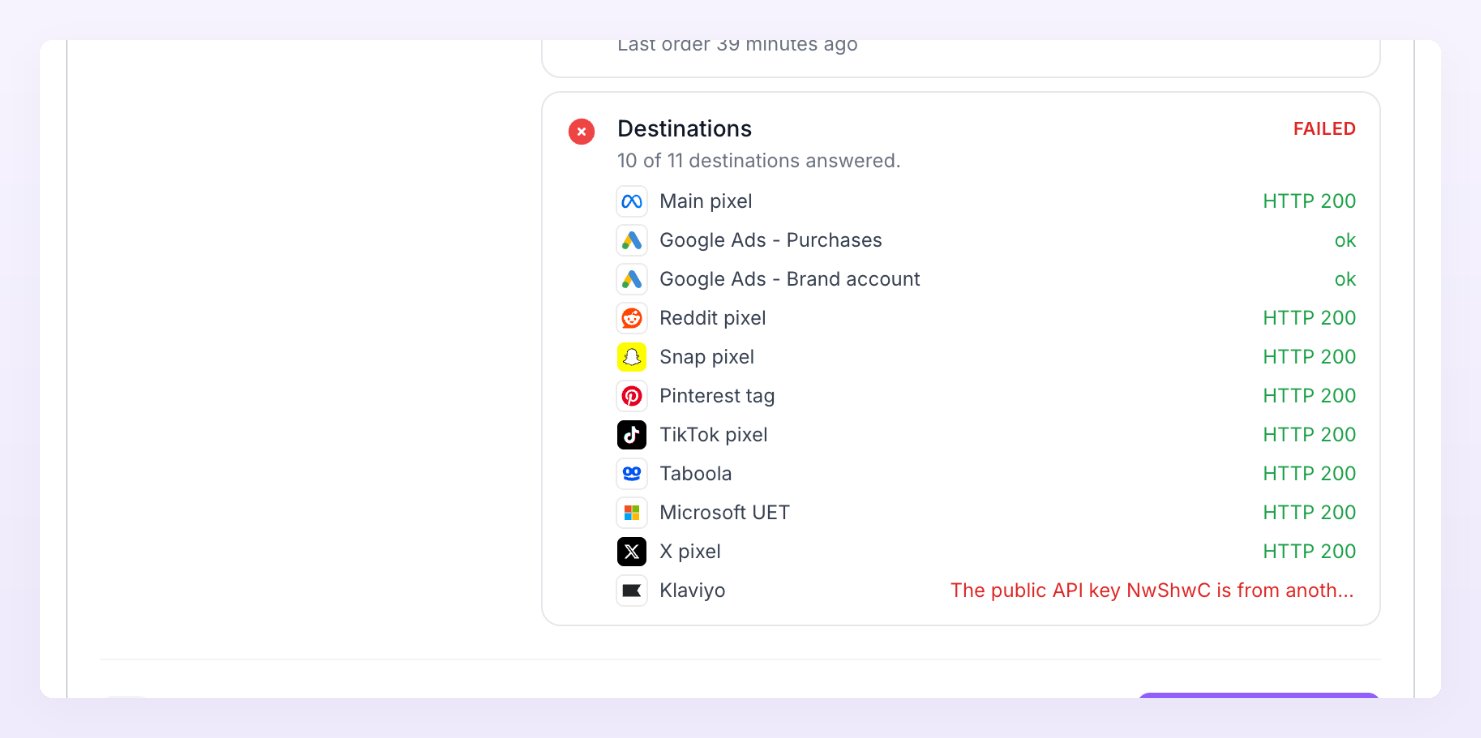
One pixel rejected the test event. The results list each pixel with the platform’s answer; the failing one shows the error, for example a key mismatch. Open Pixels and destinations, press Edit on that pixel, paste a fresh token or key and save, then pick Send test event from the row menu. A test that gets no answer within 10 seconds counts as failed. “Add a destination to send test events.” means the store has no pixel yet.
Test connection results with one failing destination

A pixel shows Error

The red dot reads Error with the platform’s last message, such as an invalid or expired access token. Press Edit on the row, paste a new token (secret fields left blank keep the saved value) and save. Then open the row menu and pick Send test event: “Test event accepted” with the HTTP code means the fix worked. The platform guide for that pixel tells you where to create a new token; start from Pixels and destinations.
Each event gets up to 8 attempts, starting 10 seconds apart and spacing out. Retrying means “Trying again shortly”; Failed means “Rejected or out of retries”. In Live activity, click the code icon on the row and open Platform response to read the status, the HTTP status and the error the platform returned. A string of failures on one pixel usually means its credentials changed or the pixel was removed on the platform side.
A grey dot reads Off: “No events are sent.” Either the pixel’s own Status switch (in Edit) is off, or the platform row’s switch is off, which pauses every pixel of that platform for the store. Turn the right one on. A Paused store sends nothing either; see the store section below.

Events are Skipped, Filtered or Deduped

These statuses are not errors: Atlas chose not to send the event, and the Details column says why. Filter the feed by Status to see them together. Live activity rows with the Failed, Deduped, Skipped and Filtered pills
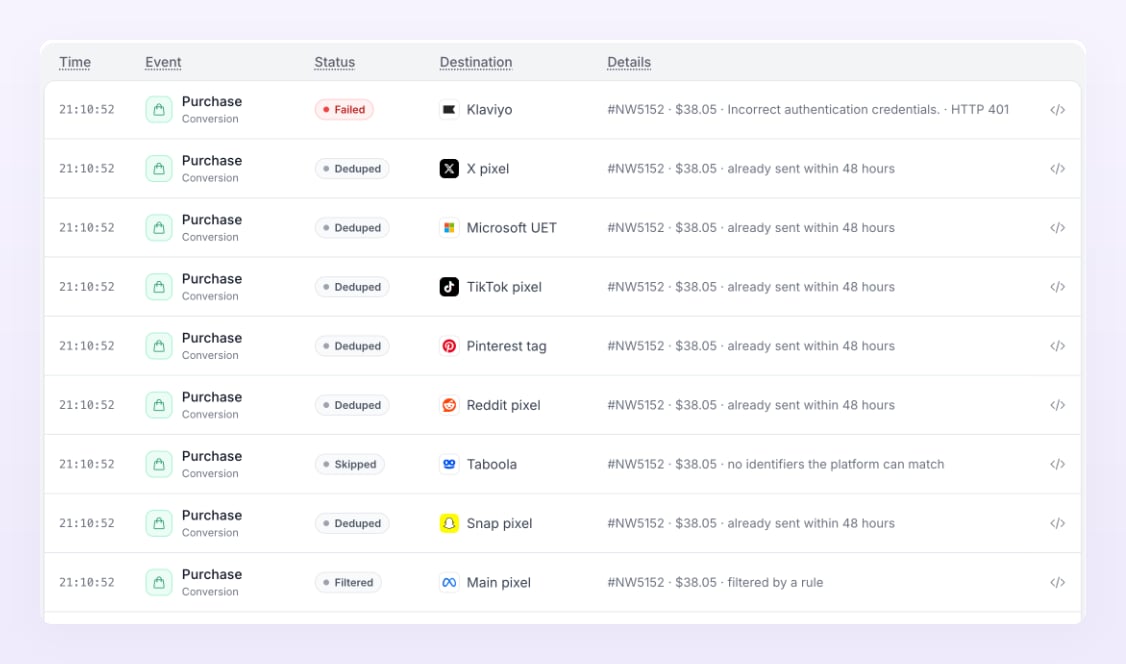
The event carried nothing the platform can match a person with: no email, phone, click id or browser cookie it accepts. Some platforms are stricter: Taboola matches by click id only, Klaviyo needs an email or phone. Fix it at the source: make sure Atlas gets an email at sign up or checkout, and that your ads carry the platform’s click id. See Events that need an identity.
An event filter stopped it; the Details column names the rule. Open Event filters and check the store-wide card first, then the pixel’s own card. Value rules are the usual surprise: an event with no value counts as 0, so a rule such as “Value is at least 50” for all events stops every page view. Scope value rules to Purchase or conversions. See Event filters.
The same event for the same pixel was already sent in the last 48 hours, for example an order that arrived from both the browser and the order webhook, or a thank-you page that was reloaded. Atlas keeps the first copy, so nothing is lost. If you see Deduped on events that are different, check that your own code sends a distinct id per order or conversion. See Avoid double counting.

Numbers differ from Ads Manager

The platform counts with its own attribution: view-through conversions, its own window and modelled results. Atlas counts last-click conversions inside your store’s attribution window, and it only sends the events that passed consent, filters and identity checks. In Reporting, a platform’s count cell on its own rows shows both numbers: Atlas’s count, the signed difference and the platform’s figure, with a tooltip such as “Atlas tracked 60 purchases. Meta reported 79. 38 of Atlas’s 60 were sent to Meta.” Use the sent count as the bridge between the two.
Sent events can still be dropped by the platform when it cannot match them to a person or an ad, or deduplicated against its own browser pixel. Check the sent and failed counts on the pixel row (“120 sent, 4 failed in 24 h”) and the Skipped rows in Live activity. Also check that the orders really came from that platform: the platform of a visit comes from its click id first, then from utm_source, so a campaign tagged with the wrong source lands under another platform.
Atlas excludes refunded and cancelled orders, nets partial refunds and never counts test orders. The platform reports the value it received at the time of the event. Currency plays a part too: when a report is shown in another currency the note “Amounts in USD, converted from EUR” appears with an Exchange rates hover card, and ad spend converts from each ad account’s currency while sales convert from each store’s. Platform revenue columns in the Ad center are the platform’s own numbers, not Atlas’s.
Reporting groups by utm_campaign (Campaign), utm_content (Ad set) and utm_term (Ad). Visits whose ads carry no UTMs land in “Ad click without campaign UTMs” or “Direct”. Paste the tracking templates from UTM tagging into each platform and watch the Mapping health card: it tells you what share of paid clicks carry campaign, ad set and ad ids.

A store is Paused, Reviewing, Disabled or Disconnected

Someone pressed Pause tracking. Orders are still recorded; nothing goes to your destinations. Open Store settings, scroll to Danger zone and press Resume tracking. The Overview banner for a paused store reads “This store is paused”.
Events keep flowing while the store is reviewed; the Overview reads “We’re reviewing your store”. There is nothing to fix on your side. If the state does not clear, write to support@referly.so.
The Overview reads “This store is disabled”. The usual cause is a plan that ended: “Tracking stopped when the plan ended. Choose a plan to turn it back on.” Re-subscribing in Settings, Billing re-enables the store.
The Overview reads “Shopify connection required” or “Connection lost” with a Connect now button. On Shopify, press it and go through the Referly app again: stores connected before Atlas was added to the app need to reconnect once to grant the new permissions. On other platforms, reopen the setup wizard and run the verify step. See Store statuses.

Ad center is not syncing

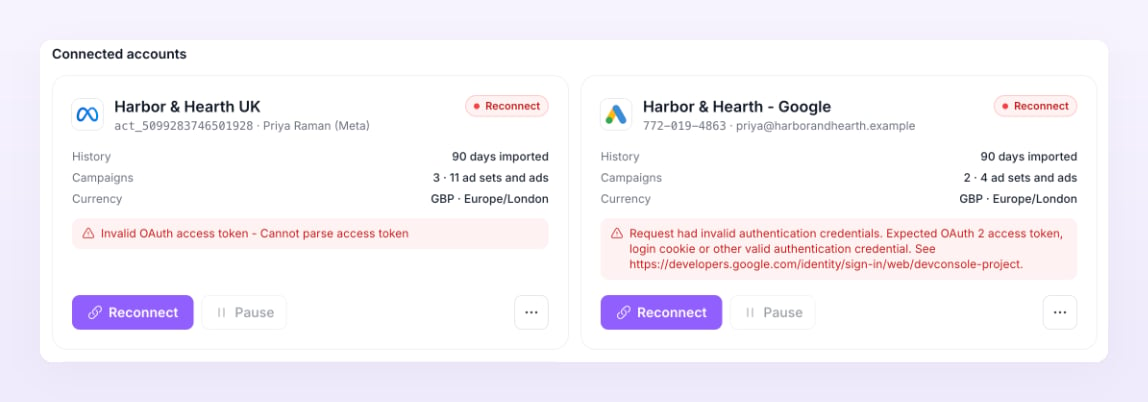
“The platform stopped accepting this login”: the token expired or the person who connected lost access to the ad account. Press Reconnect on the account card under Ad center, Ad accounts and sign in again with a login that can read the ads. Atlas also sends one email asking you to reconnect when this happens. Reconnecting does not use up another ad account on your plan.
“Several syncs in a row failed” shows after five failures in a row; before that the card reads Retrying (“Retrying within the next 10 minutes”), with waits that double from 15 minutes up to 24 hours. Press Re-sync to pull the last 28 days again (“Re-sync queued. You can watch it below.”). If the error names the platform, open the ad account on the platform side and check that it still exists and is not closed.
“The platform asked Atlas to slow down”: the ad account is close to its API quota. The API usage card shows the share used once it passes 50%; above that, Meta’s audience and age and gender breakdowns are skipped to save calls. Nothing to do but wait; the next hourly sync picks up where it left off.
Spend syncs every hour and the Ad center dashboard rebuilds every 15 minutes; a new account first imports 90 days of history (History reads “Importing 90 days”, then “90 days imported”). Press Refresh on the dashboard to rebuild now; it also re-syncs accounts last synced more than 10 minutes ago. A Paused account syncs nothing until you press Resume. See Account health.
Ad account cards in the Reconnect state
Last modified on October 23, 2026