

Before you start
- Know which platform the site runs on. The wizard detects it from the address, and you can correct it.
- Have access to the platform: the Shopify admin, the WordPress admin, or wherever your site’s head code is edited.
- Have a plan or a trial. You can finish the whole wizard without one, but the store only starts sending events once a plan is active. The setup checklist reminds you.
- Check your plan’s store limit: Starter includes 1 store, Growth 3, Scale 10. At the limit the wizard asks you to upgrade before adding another.
Open the Add a store wizard
There are three ways in, and they all open the same wizard:- During onboarding, click Connect your store on the last step.
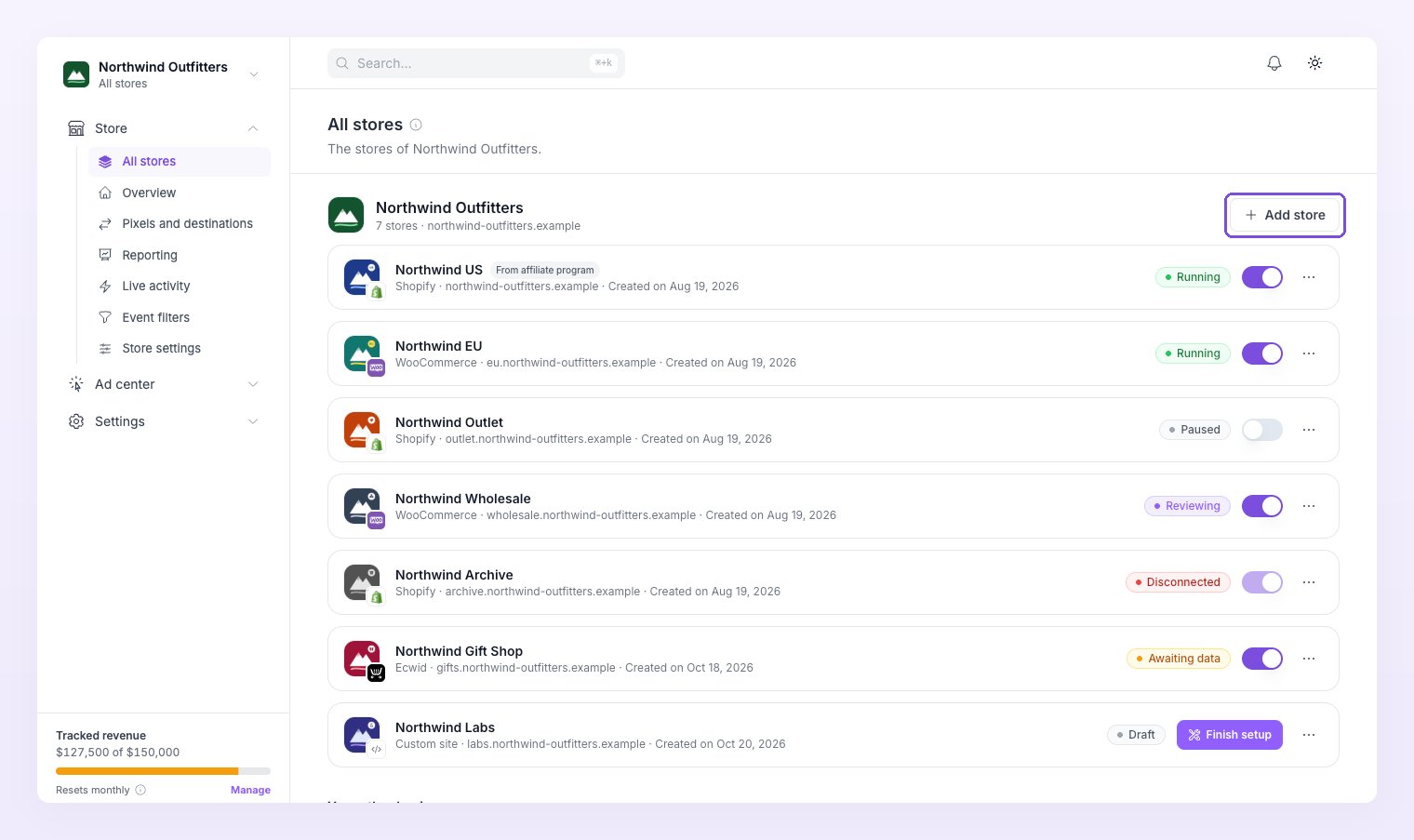
- On the All stores page (left sidebar, Store, All stores), click Add store in the top right of the business card.
- In the business switcher at the top of the sidebar, click Add store under the business.
Step 1: Your website
Enter the site’s address in Website (for examplemystore.com). Atlas suggests the Store name and checks the site for its platform: “Checking your site…”, then “Detected Shopify. Pick another if that is wrong.”
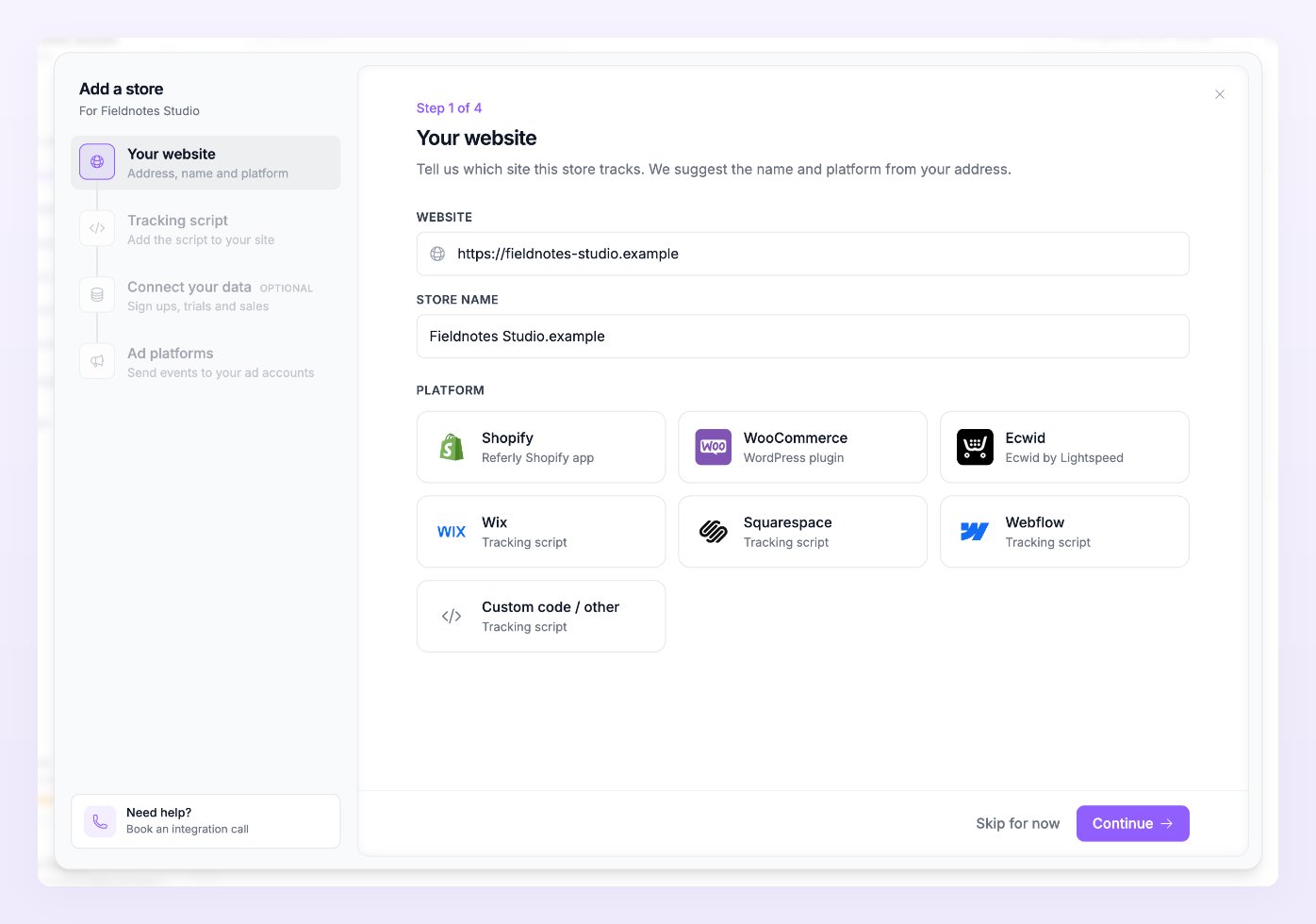
Below the tiles, Or use a site from your affiliate program lists sites you already connected for your affiliate program. Click Use next to one and Atlas reuses that connection: nothing to reinstall. Click Continue.
Step 2: Connect your platform
The second step depends on the platform you picked. Each has its own guide:Shopify
Install the app, turn on the app embed and the Atlas pixel.
WooCommerce
Install the plugin and paste your Atlas token.
Tracking script
Any other site, including Wix, Squarespace, Webflow and Ecwid.
Step 3: Connect your data
This step appears for custom sites only (Shopify and WooCommerce already send their orders). Pick the tool that records your sign ups, trials, subscriptions or sales: Stripe, Paddle, Chargebee, Creem, Polar, Ecwid, Sharetribe, Zapier, Make or the REST API. Atlas turns what they report into conversion events for your ad platforms. Each store has one data integration. The step is optional: click Skip for now if the tracking script already sends everything. See Connect your data.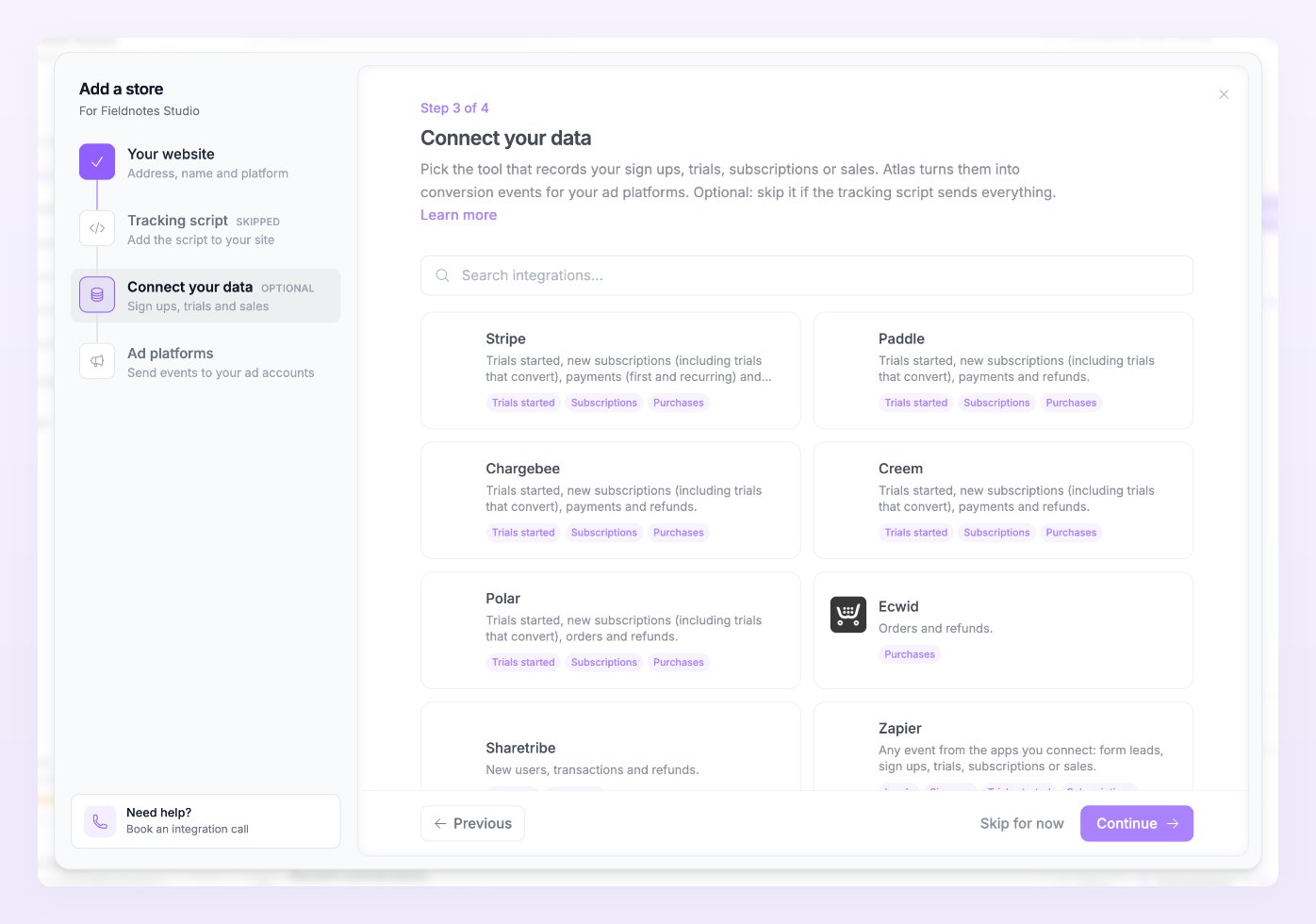
Step 4: Ad platforms
Turn on the platforms you advertise on and add a pixel for each: Meta Ads, Google Ads, TikTok Ads, Snapchat Ads, Pinterest Ads, Microsoft Ads, X Ads, Taboola, Reddit Ads and Klaviyo. Each switch opens the Add your tracking pixel dialog, which is the same one you find later under Pixels and destinations. The optional box below connects ad accounts for the Ad center.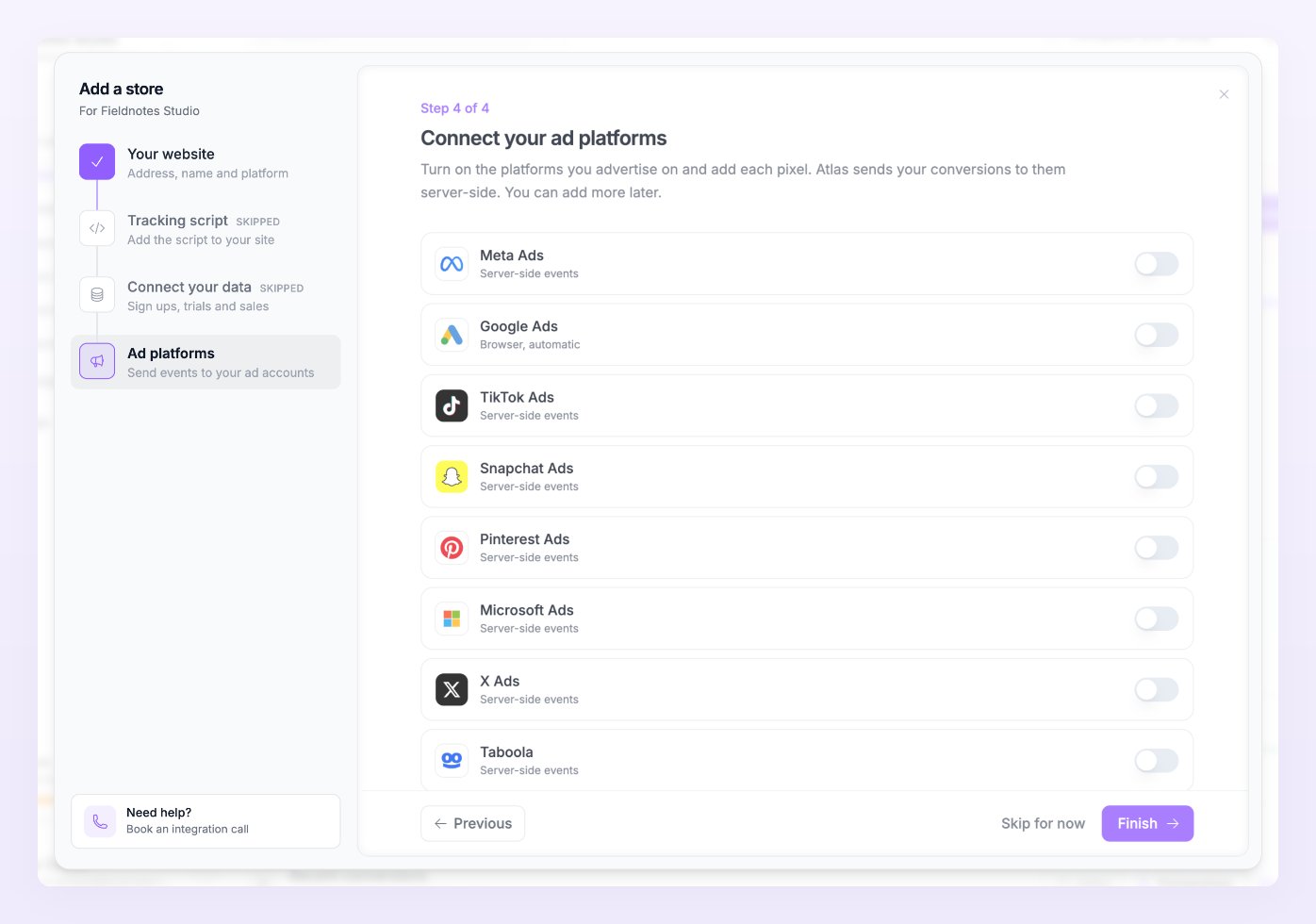
What happens after you finish
A store goes live on its own as soon as the tracking step is done and your plan is active. It shows as Awaiting data until the first order arrives, then Running. Without a plan it waits, and moves on the moment you choose one. Every status is explained under Store statuses. First events usually show in your ads managers within 15 to 30 minutes. Full coverage takes 24 to 48 hours, because Atlas needs new visits to link to new orders. To reopen the wizard later, open All stores, click the three dots on the store row and choose Setup wizard (or Finish setup while the store is still a draft). To change the platform of a connected store, open Store settings and click Change next to Platform.The setup checklist
While anything is left to do, the top bar shows a Complete your setup pill. It opens a five-step list for the business: Choose a plan (or Start your free trial), Add your store, Add a destination, Connect an ad account and Receive your first order (or Receive your first conversion for SaaS and lead businesses). Each step opens the right page. Hide checklist hides it for the business for good; every step stays available from the sidebar.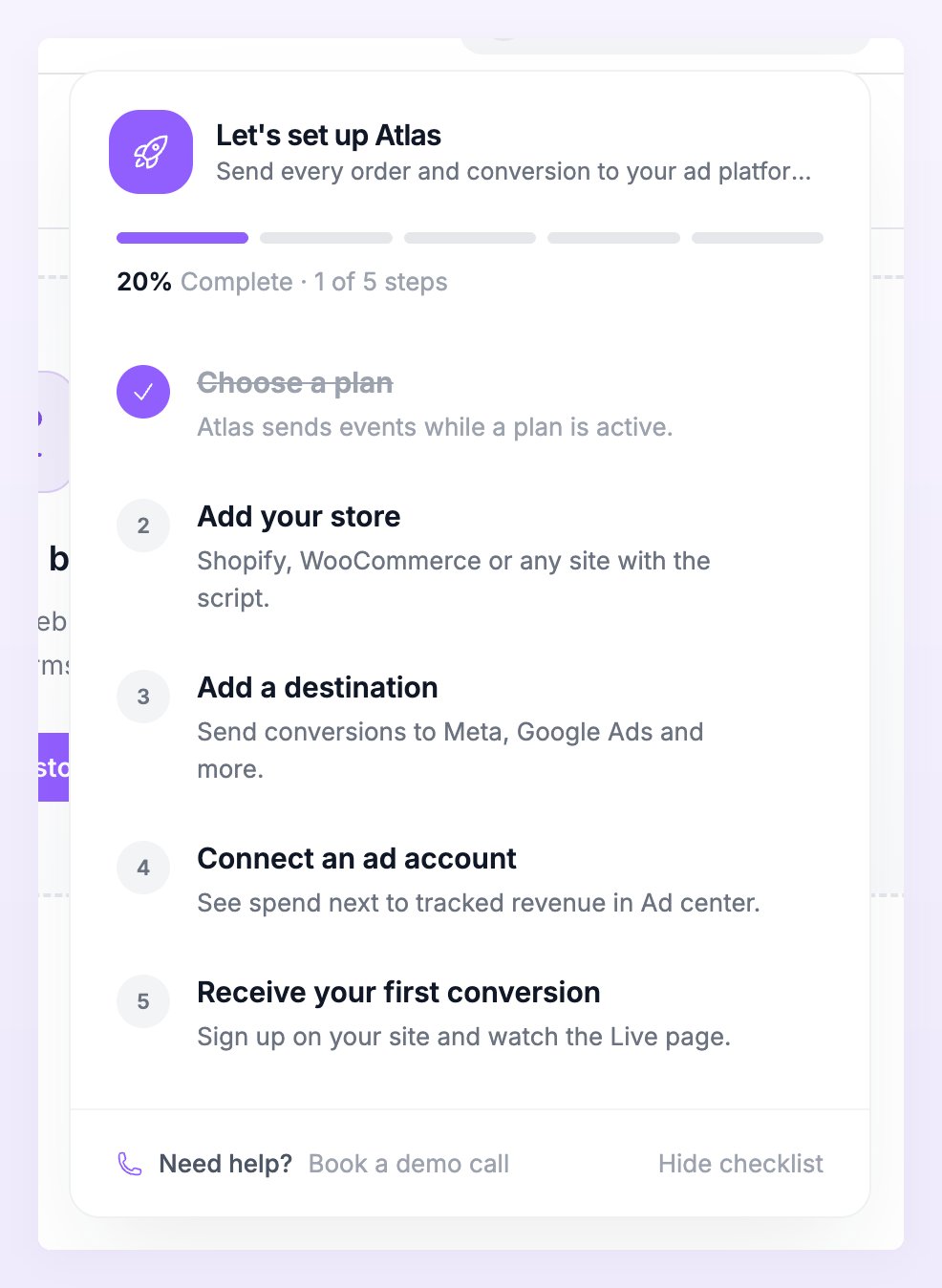
Related
Test your connection
The four checks and what the results mean.
Pixels and destinations
Add and manage the pixels of a store.
Businesses and stores
How businesses group stores, and the All stores view.
Store settings
Currency, time zone, attribution, consent and test mode.