

Before you start
You will need:- Your Shopify store domain, the one that ends in
.myshopify.com. Find it in your Shopify admin address. - Permission to install apps on the store, so you can approve the Referly app when Shopify asks.
- An Atlas store set up to step 2 of the wizard. On Step 1: Your website, enter your storefront address and pick the Shopify tile (Atlas usually detects it for you).
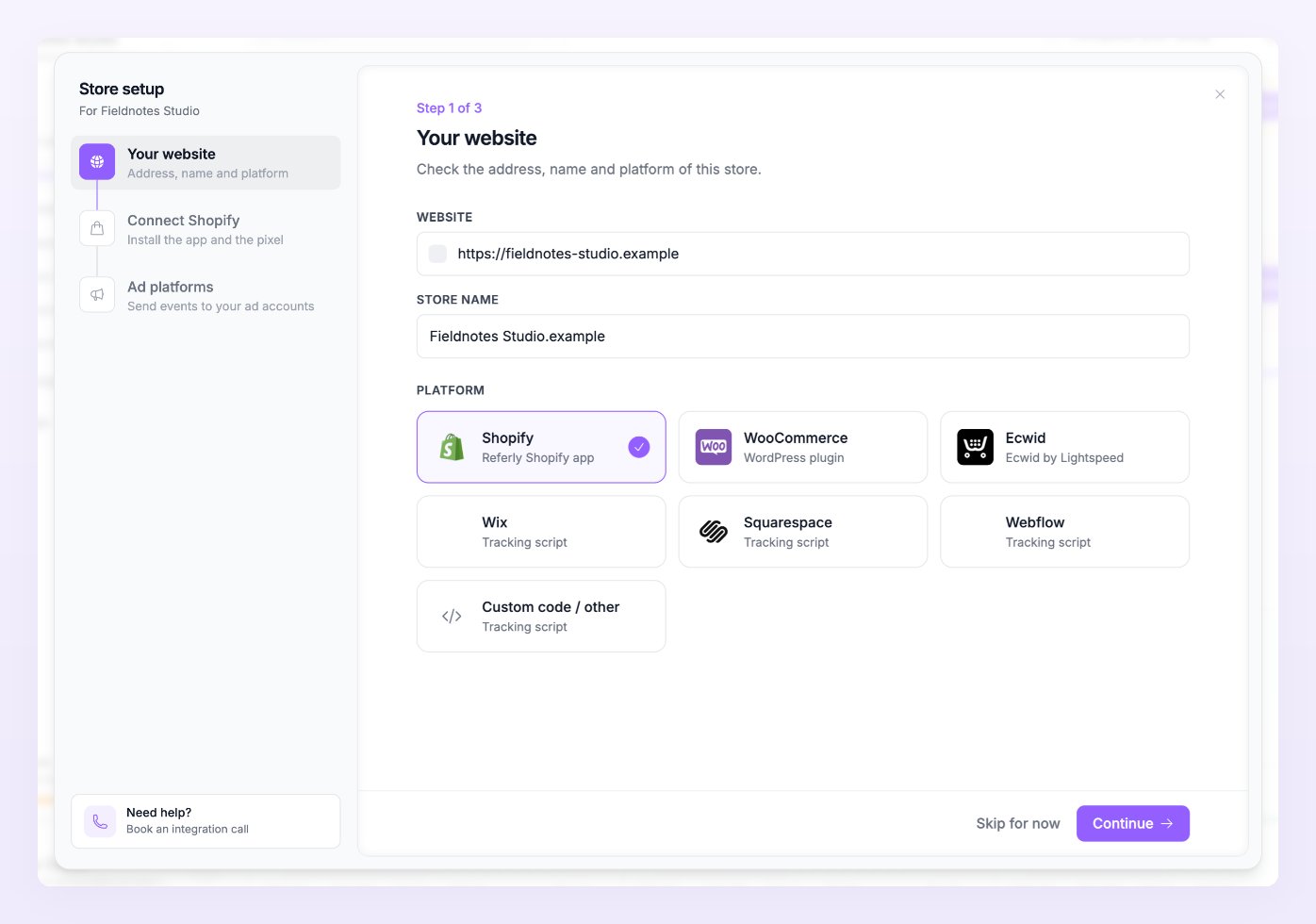
Step 1: Install the Referly app
The first block of the step is Install the Referly Shopify app. Its subtitle tells you what to expect: approve the app in your Shopify admin, then come back here.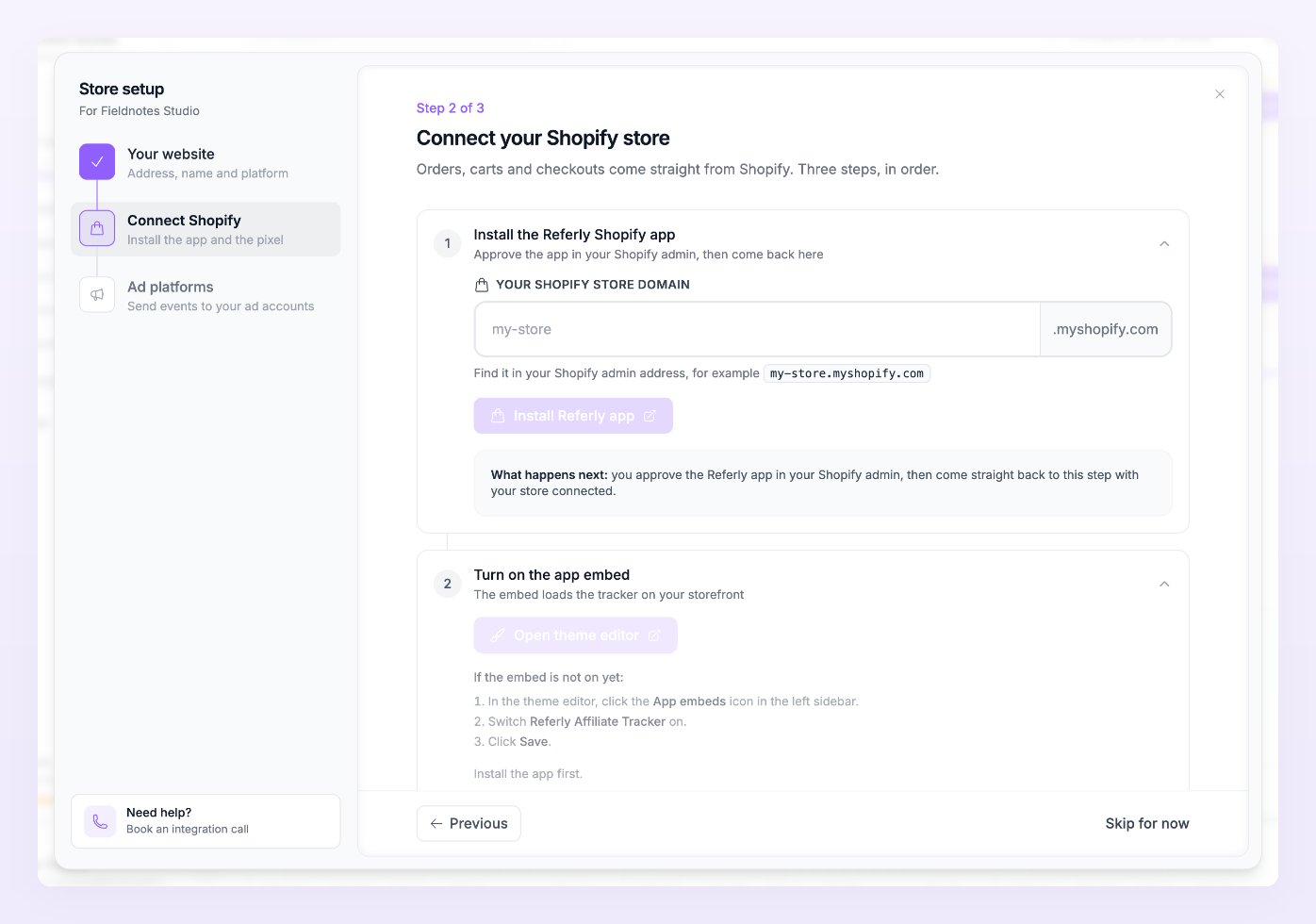
1
Enter your store handle
In Your Shopify store domain, type the part before
.myshopify.com (for example my-store). Handles only use lowercase letters, numbers and dashes; if you paste something else, Atlas shows the cleaned-up version it will use.2
Select Install Referly app
Shopify opens in a new tab and asks you to approve the app and the access it needs.
3
Approve and come back
After you approve, Shopify sends you straight back to this step. The block turns green, names your store followed by is connected, and confirms that the Referly app is installed on your store.
Step 2: Turn on the app embed
The embed loads the tracker on your storefront, which is what records page views, product views and carts before the checkout. Shopify never turns app embeds on by itself, so this is a step you do in your theme.- Select Open theme editor. Your current theme opens in Shopify’s editor.
- In the theme editor, click the App embeds icon in the left sidebar.
- Switch Referly Affiliate Tracker on.
- Click Save.
Step 3: Turn on the Atlas pixel
The third block, Turn on the Atlas pixel, registers Atlas’s web pixel on your store. Before you press the button, set Type of checkout: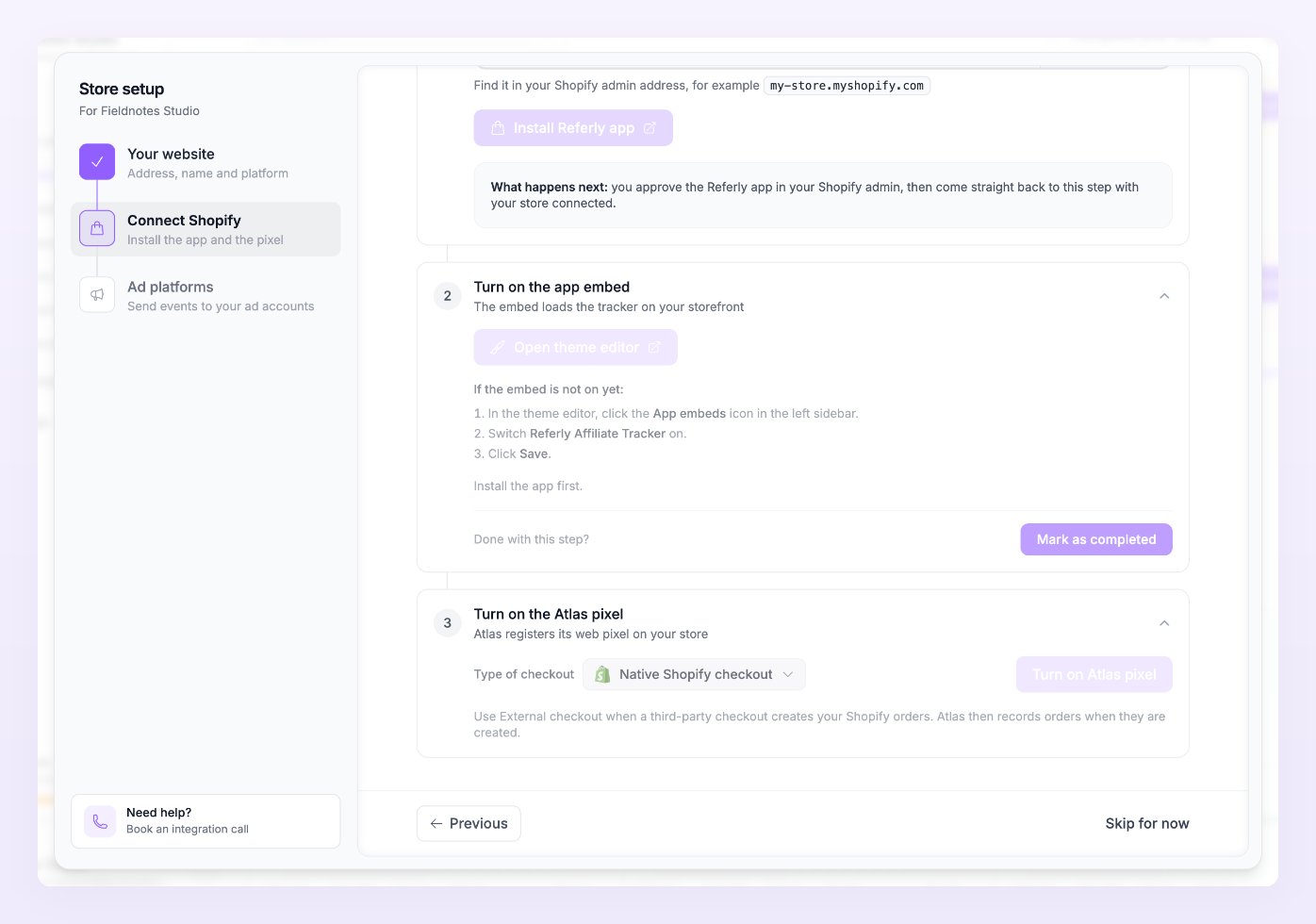
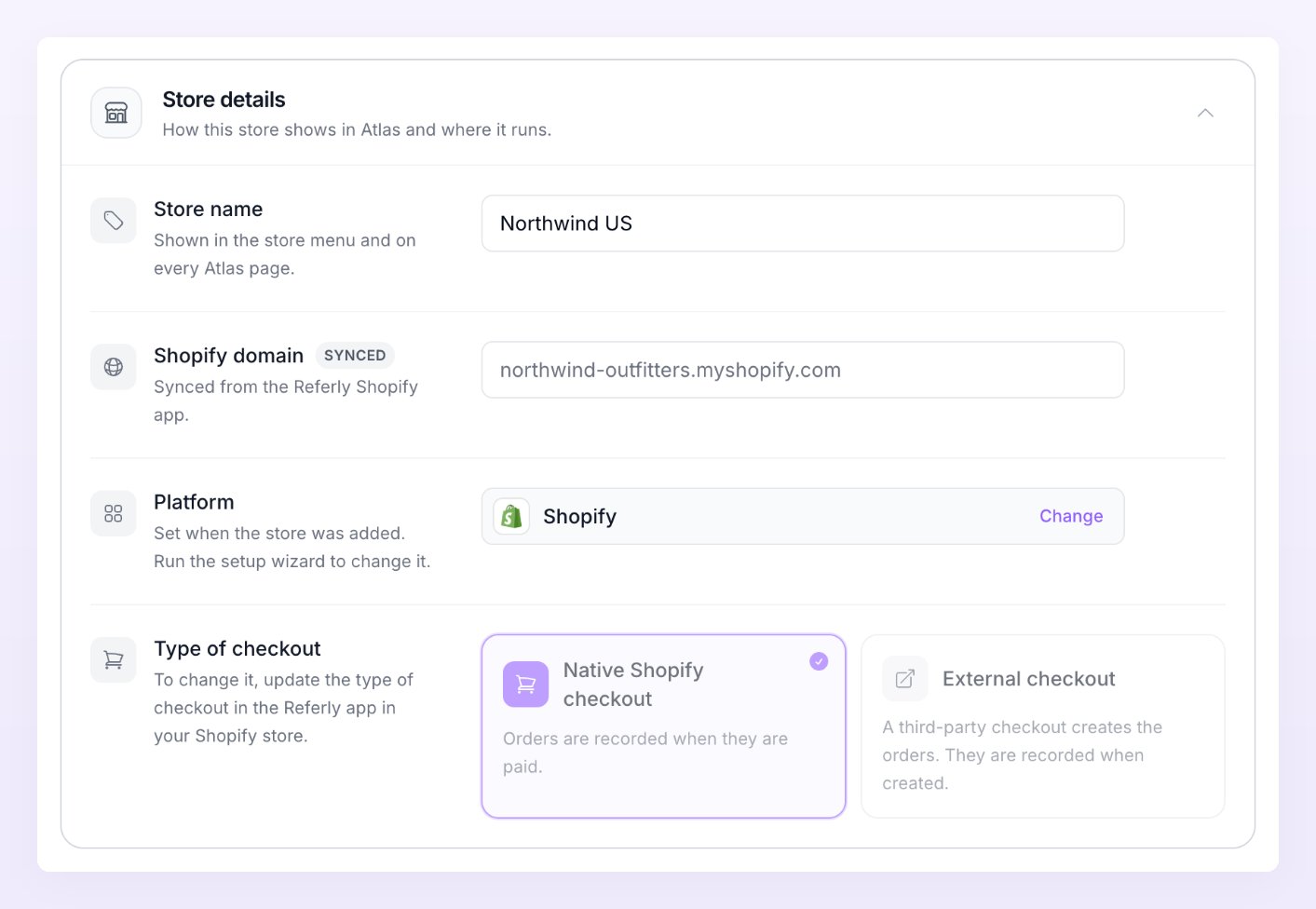
The type of checkout is locked once the store is connected. It is shown under Store details in Store settings, where you can see which one is in use.
Step 4: Verify the connection
As soon as the pixel is on, a Test the connection block appears under it. Enter your storefront address (your custom domain if you have one) and select Verify. Password-protected stores cannot be checked, so remove the password or test on a store that is open. Atlas looks at your storefront for the embed and reports one of these:
Under the field, a second line reports events: Events received. Last event 2 minutes ago. once the pixel has sent something, No events yet. Visit your site, then verify again. when it has not, or Events start when you finish setup and the store goes live. while the store is still a draft. Last checked shows when you last ran it.
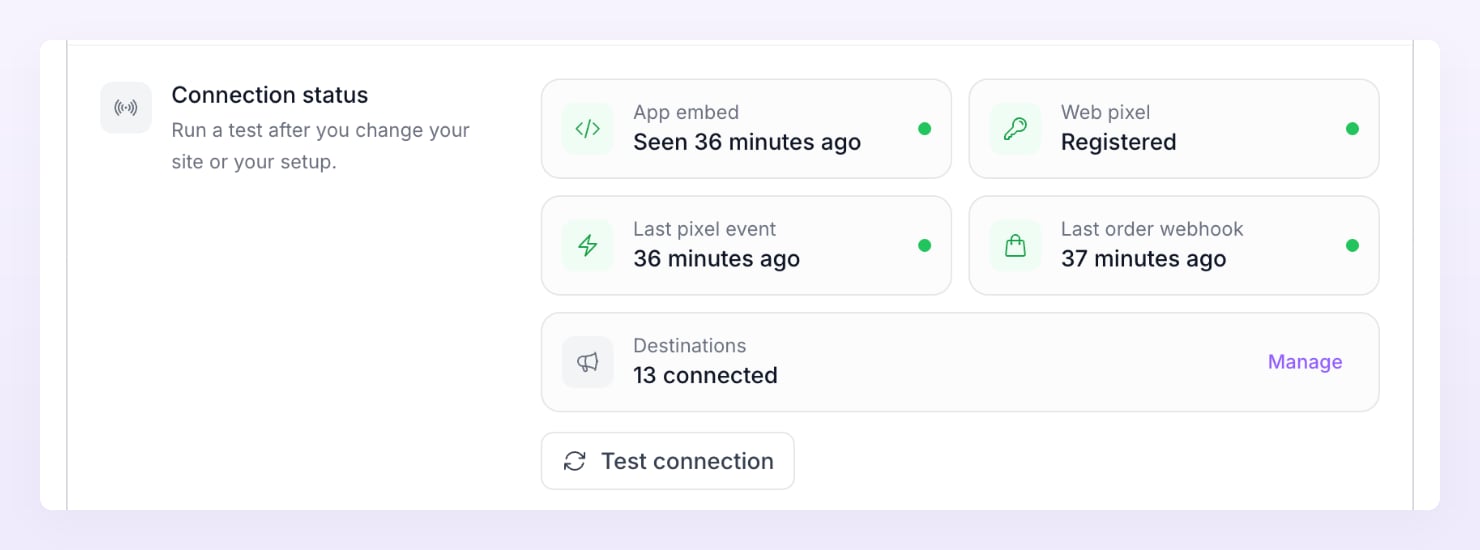
Select Continue to move on to the ad platforms step, then Finish. The toast Store is live. Tracking is on. confirms the store is live (if your plan is active; otherwise it waits for one). You can rerun the same checks any time with Test connection.
What the app sets up for you
Once the three blocks are done, the Referly app has put these in place on your store:- A web pixel that records page views, product views, collection views, searches, adds to cart, checkouts started and checkouts completed. A checkout completed in the browser is provisional until Shopify confirms the paid order.
- The theme app embed that loads the tracker on your storefront, so visits get a visitor cookie and the ad click that brought them.
- Order notifications from Shopify to Atlas: paid orders for a native checkout, created orders for an external checkout. These are what Atlas sends to your pixels as purchases, with refunds netted off.
- Customer notifications, used for sign ups (classic customer accounts) and newsletter leads. These need Shopify’s protected customer data access to be approved for the app.
Shopify’s own pixels and Atlas
Many Shopify stores already send events through the Facebook & Instagram app or the Google & YouTube app. Atlas is built to sit next to them. Meta. Atlas reuses the event id Shopify generates for each event, the same id Shopify’s Facebook & Instagram app sends from the browser. When Meta receives the browser event and the server event from Atlas with the same id, it keeps one. You have two options:- Leave customer data sharing on in the Facebook & Instagram app and let Meta deduplicate. You keep Shopify’s browser signal and gain Atlas’s server-side one.
- Turn off customer data sharing in the Facebook & Instagram app so Atlas is the single source. Cleaner reporting, one fewer thing to compare.
Troubleshooting
Turn on Atlas pixel says to install the Referly Shopify app first
Turn on Atlas pixel says to install the Referly Shopify app first
The app is not installed on the store named in Step 1, or the install was not approved. Go back to Install the Referly Shopify app, check the handle, and select Install Referly app again.
Verify keeps saying Not found yet
Verify keeps saying Not found yet
The embed is off, or your theme was not saved after you switched it on. Open the theme editor, confirm Referly Affiliate Tracker is on under App embeds, and click Save. If you are previewing a different theme, switch the embed on in the live theme. Allow popups for the Atlas page, then verify again.
Shopify did not accept every setting
Shopify did not accept every setting
Atlas could not store its settings on the web pixel or the theme. Select Turn on again, then open the theme editor to check the embed. If it keeps failing, reinstall the app from Step 1 so Shopify grants it the access it needs.
My storefront is password protected
My storefront is password protected
Verify cannot read a storefront behind Shopify’s password page. Remove the password while you test, or skip Verify, select Mark as completed on the embed block, and check the Tracking and connection tiles after your first real visits.
The Overview shows Shopify connection required or Connection lost
The Overview shows Shopify connection required or Connection lost
The store was connected before Atlas, so the app does not yet have the access Atlas needs, or the app was uninstalled. Select Connect now on the banner, or reinstall the app from your Shopify admin, then run Turn on Atlas pixel again. See Store statuses.
Orders do not show up but page views do
Orders do not show up but page views do
Check Type of checkout. If a third-party checkout creates your orders, Atlas needs External checkout (3rd party) so it records orders when they are created. Also check that the store is not in test mode in Store settings: test orders show in the feed but stay out of reporting and are never sent.
Meta reports more purchases than Atlas
Meta reports more purchases than Atlas
Meta counts everything it receives, from Shopify’s Facebook & Instagram app and from Atlas, while Atlas only sends the purchases that passed consent and your event filters. In Reporting, the Meta cell shows Atlas’s count next to Meta’s own number and how many were sent. If the gap is large, read Avoid double counting.
Related
Add a store
The whole wizard, from Your website to Ad platforms.
Test your connection
Rerun the four checks from Store settings.
Avoid double counting
Shopify’s apps, Meta deduplication and Google Ads.
Shopify for affiliates
The same Referly app, on the affiliate program side.