

Before you start
You will need:- Admin access to your WordPress site, to upload and activate a plugin.
- The Referly plugin at version 2.1.0 or later. The block’s subtitle asks the question: already use it for your affiliate program? Update it to version 2.1.0 or later.
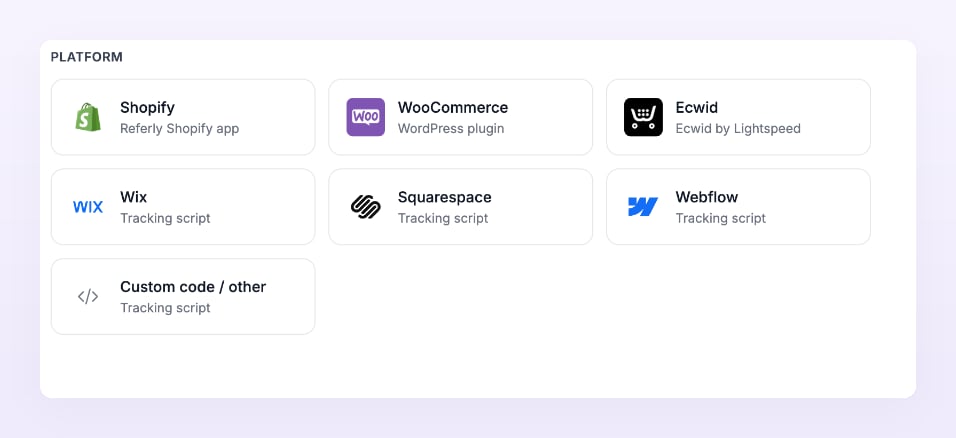
- An Atlas store set up to step 2 of the wizard. On Step 1: Your website, enter your site address and pick the WooCommerce tile.
Step 1: Install the plugin
The first block is Install the Referly plugin on WordPress.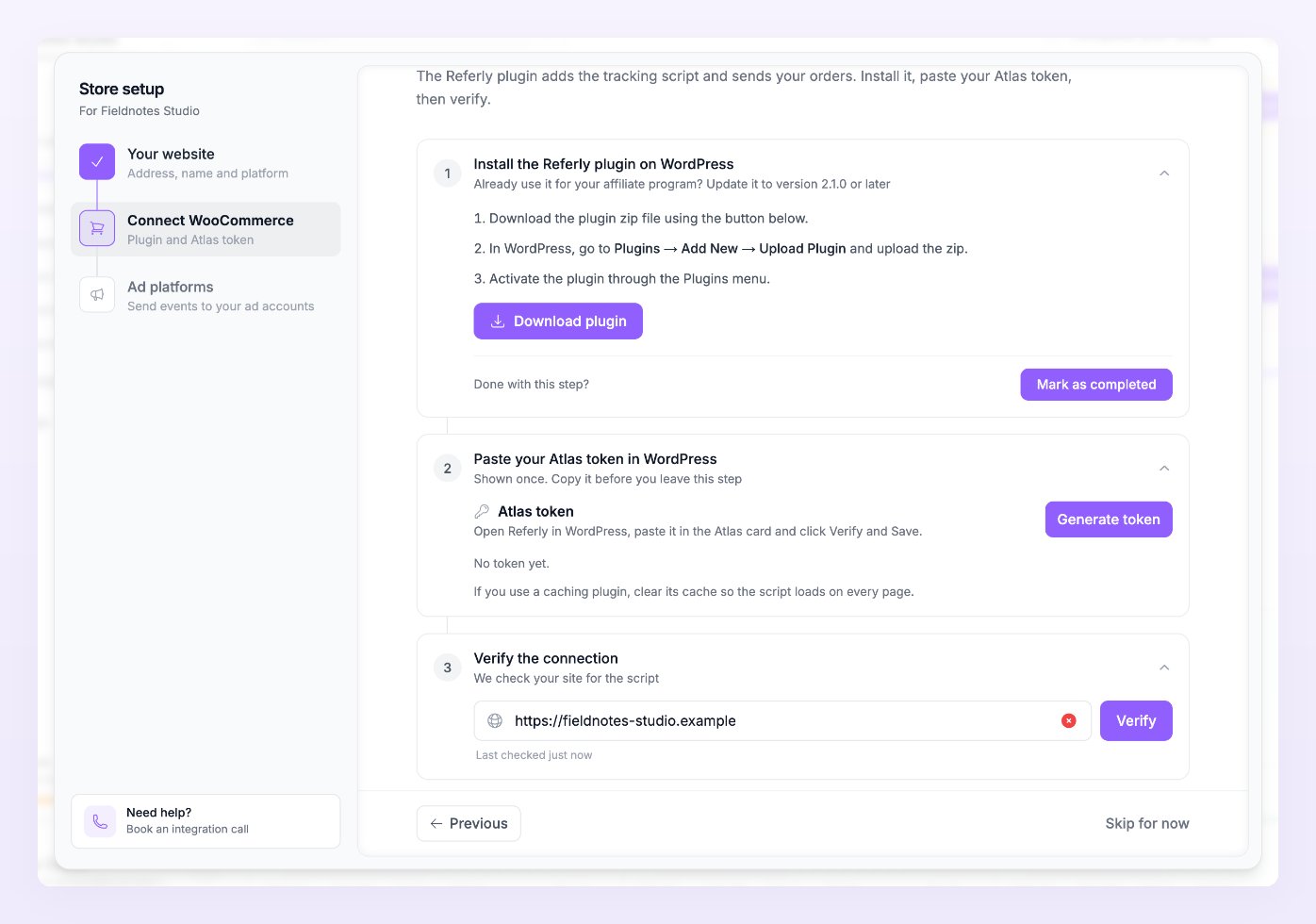
- Select Download plugin to get the plugin zip file.
- In WordPress, go to Plugins, Add New, Upload Plugin, and upload the zip.
- Activate the plugin through the Plugins menu.
Step 2: Paste your Atlas token
The second block, Paste your Atlas token in WordPress, shows an Atlas token that is shown once. Copy it before you leave this step.- Select Generate token to reveal the token, then copy it.
- In WordPress, open Referly in the admin menu.
- Paste the token in the Atlas card and click Verify and Save.
atl_ and Atlas shows the last four characters of the one in use.
Step 3: Verify
The last block, Verify the connection, checks your site for the script. Your site address is prefilled from Step 1 of the wizard; select Verify.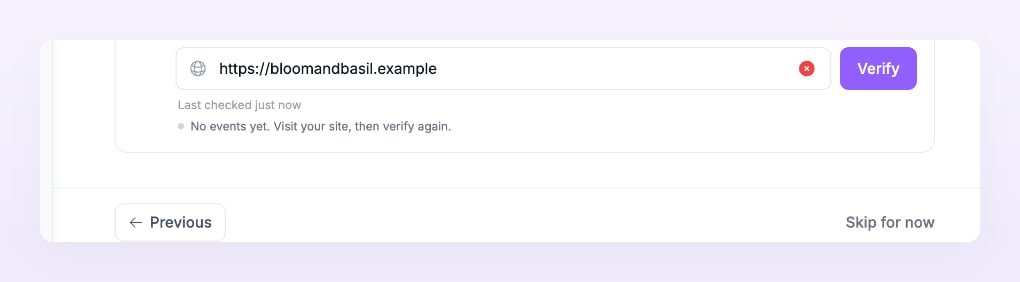
Caching plugins
If you use a caching plugin (WP Rocket, LiteSpeed Cache, W3 Total Cache and the like) or a host with page caching, clear its cache so the script loads on every page. The wizard reminds you of this under the token block, and it matters twice:- After activating or updating the plugin, cached pages still carry the old HTML without the script, so Verify reports Not found yet even though everything is set up.
- After pasting the token, the script tag changes to include your store, and a cached copy would keep serving the old one.
What the plugin sends, by version
The plugin sends your orders and conversions to Atlas from your server, so they arrive even when a visitor’s browser blocks tracking. What it sends grew with each version:
Update to the latest version to get everything. The version you run is visible on the Plugins page in WordPress. For what each event means and where it goes, see Events and Conversions.
Troubleshooting
There is no Atlas card in the Referly plugin settings
There is no Atlas card in the Referly plugin settings
Your plugin is older than 2.1.0. Select Download plugin in the wizard and upload the zip over the old version.
Verify and Save in WordPress fails
Verify and Save in WordPress fails
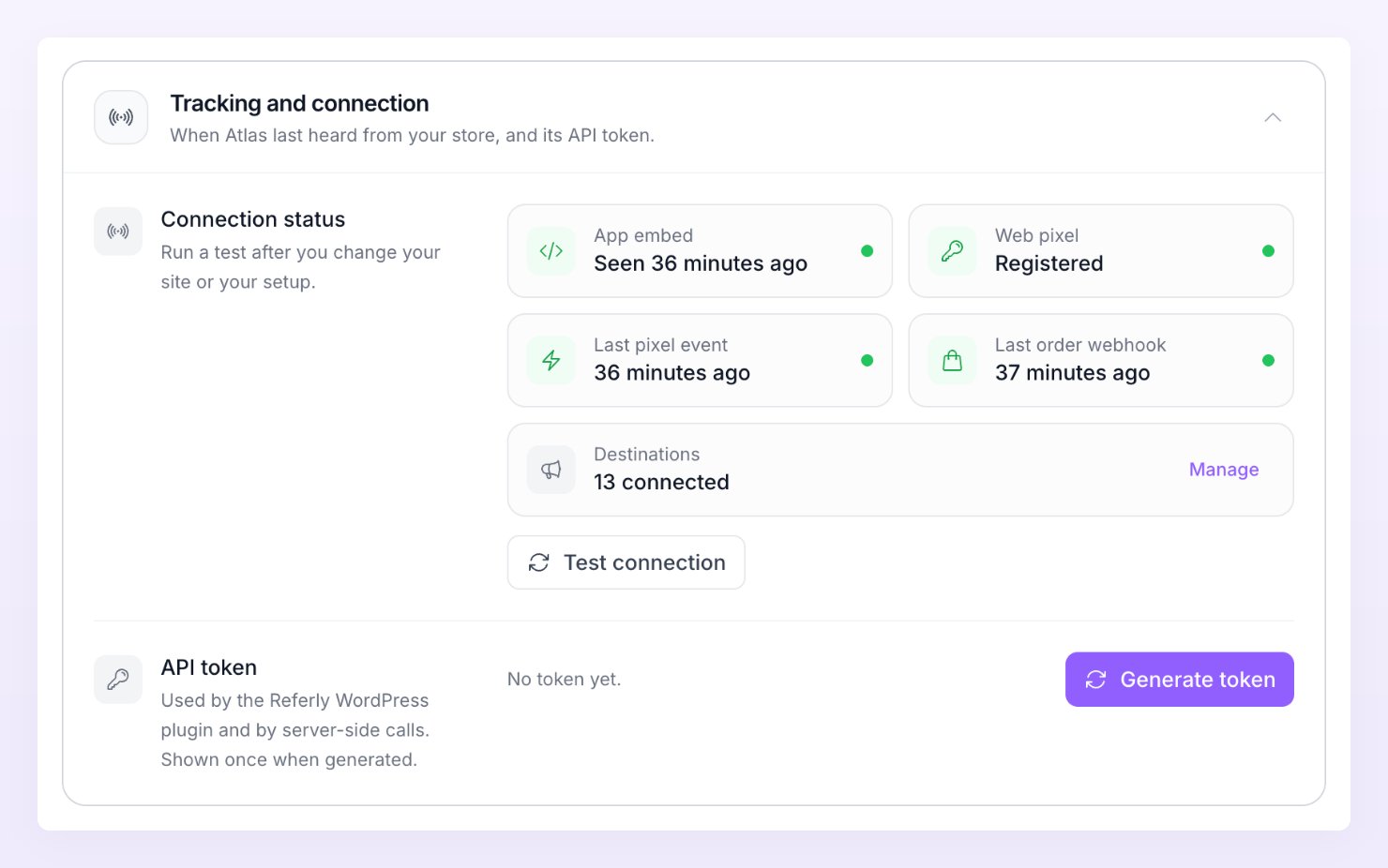
The token was copied incompletely, or it has been regenerated since. Go to Store settings, Tracking and connection, select Regenerate on the API token row and paste the new token.
Verify says Not found yet although the plugin is active
Verify says Not found yet although the plugin is active
Almost always a cache. Clear it, load your homepage, verify again. If you use a plugin that moves scripts or delays them, exclude the Referly script from it.
Page views arrive but orders do not
Page views arrive but orders do not
The token in WordPress belongs to another store, or Verify and Save was never clicked. Paste this store’s token and save. If orders are tests placed while Test mode is on in Store settings, they show in Live activity as Test and stay out of reporting.
Sign ups, leads, trials or subscriptions are missing
Sign ups, leads, trials or subscriptions are missing
Check the version table above: sign ups and form leads need 2.2.0, trials and subscriptions need 2.3.3. Leads are only recorded from Contact Form 7 and WPForms.
Related
Add a store
The whole wizard, from Your website to Ad platforms.
Test your connection
Rerun the four checks from Store settings.
WooCommerce for affiliates
The plugin’s affiliate features and full install guide.
Google Ads pixel
How the plugin fires Google Ads conversions for you.