

Where to find it
In the left sidebar, open Store settings and pick the store (the stores are listed on the left of the settings page). Scroll to Tracking and connection. The section opens with status tiles that describe the connection as it stands, followed by the Test connection button.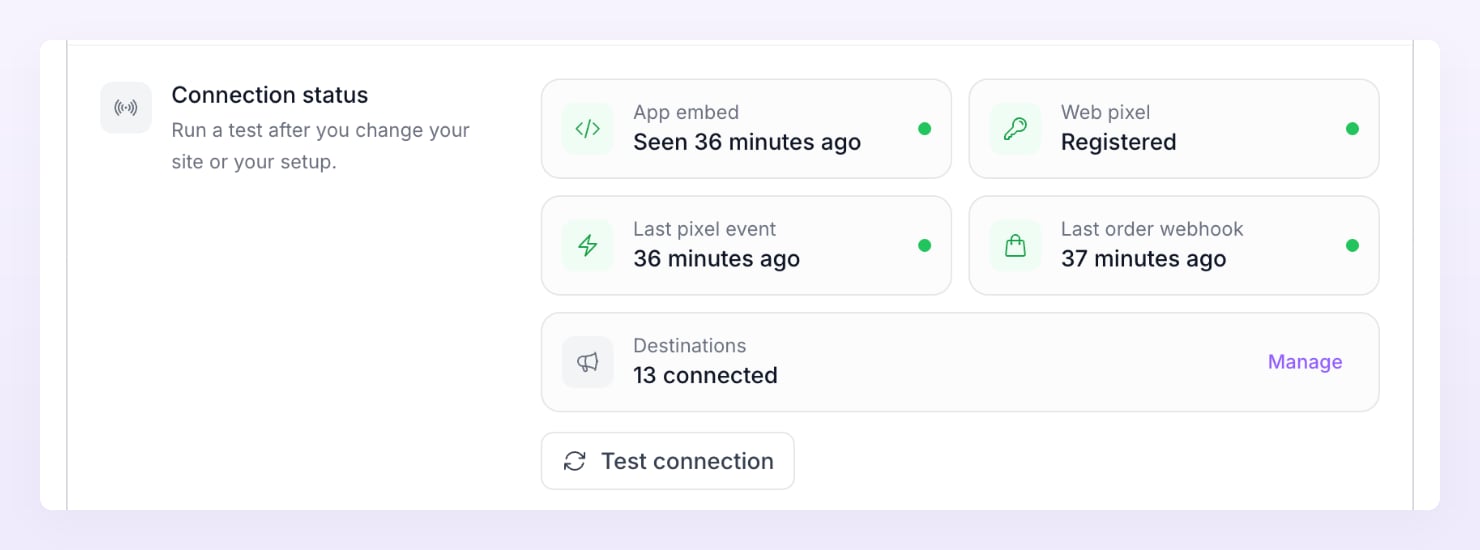
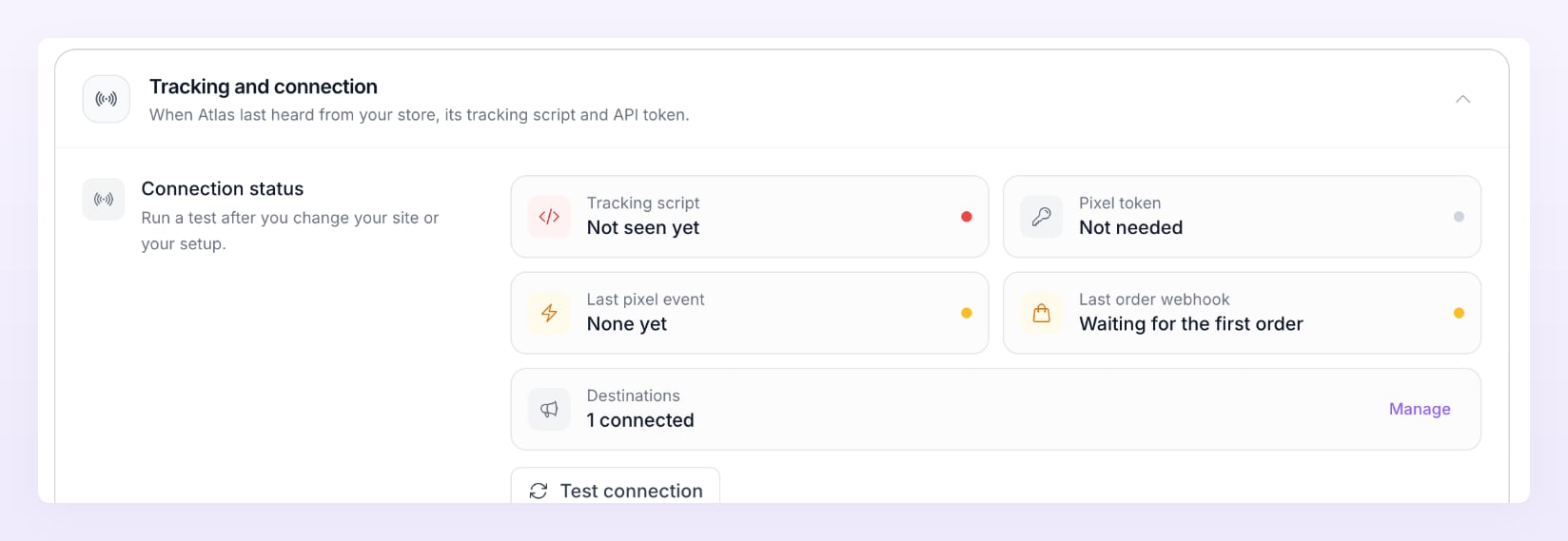
The four checks
Select Test connection. Atlas runs these four checks and lists them with a pass, a wait or a fail:
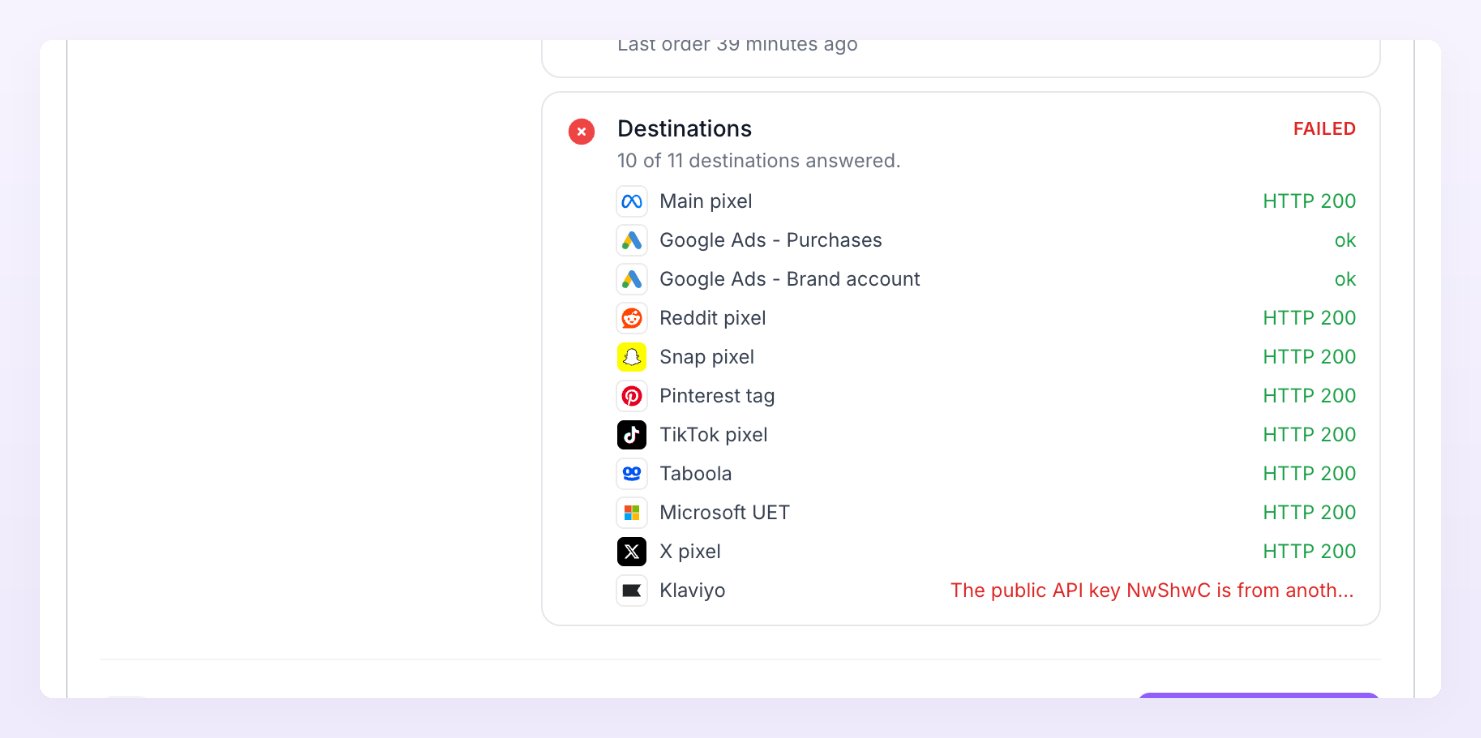
The destination check sends a real test event to each pixel, the same as Send test event on a pixel row. Each platform has 10 seconds to answer; a pixel that is switched off is not tested.
Reading the results
- All four pass: the store is healthy. If reports still look thin, the gap is usually consent, filters or dedupe rather than the connection. Live activity shows which.
- Order webhook is waiting on a store with no orders yet: normal. The store sits in Awaiting data until the first order and switches to Running on its own.
- Destinations lists a failure: the pixel’s answer names the problem, for example a key that does not match the pixel id. Open Pixels and destinations, select Edit on that pixel, fix the credential and run the test again. Each platform’s guide under Pixels says where to find the right values.
- Tracking script fails but events pass (or the other way round): one of the two sources has gone quiet. A script that is no longer seen after a site redesign, or a Shopify embed switched off, are the usual causes.
How long the first events take
Right after setup, Atlas is honest about the timing: first events usually show within 15 to 30 minutes, and full coverage within 24 to 48 hours. In practice:- Page loads count as soon as someone (including you) opens your site with the tracker on it. Open your store in a normal browser window, browse a product, and run the test again.
- Events (product views, adds to cart, checkouts) follow the first visits. Browser events are forwarded only to pixels that want them, and consent rules may skip them; the incoming row still counts for the check.
- Orders arrive with the first paid order (or created order, for an external checkout). A purchase sent from the browser waits 60 seconds for the matching order from your platform before it is sent on.
- Pixels answer within seconds. What you see on the platform’s side (Events Manager, Events API diagnostics) can take longer to update.
The setup checklist
While a store is not fully live, the top bar shows a Complete your setup pill. Open it for the Let’s set up Atlas checklist, five steps that tick themselves as you go: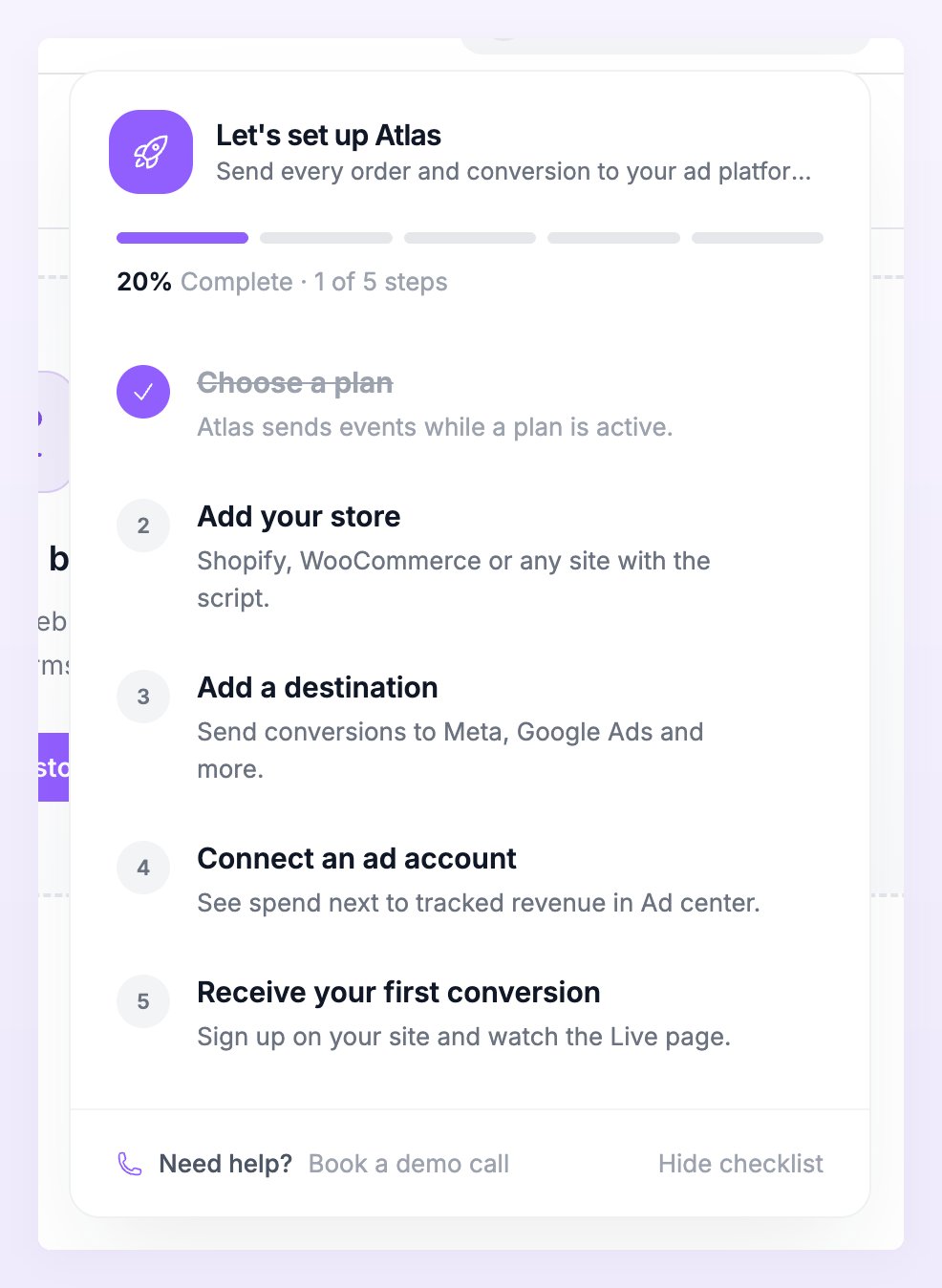
Clicking a step takes you where it is done: Billing, the store wizard, Pixels and destinations, Ad accounts or Live activity. The checklist follows the store the page shows; on All stores it follows the business’s most set-up store, so the list always describes one store going live. Choose Hide checklist to put it away for good.
If a check fails
Tracking script: No page load from your site yet
Tracking script: No page load from your site yet
Nothing from your site has reached Atlas in 7 days. Open your site in a browser and reload a page, then test again. If the check still fails, the tag is missing or carries another store’s ID: rerun Verify in the wizard’s tracking step (see Add the tracking script). On WooCommerce, clear your caching plugin; on a site that runs the tracker through Google Tag Manager, confirm the container is published.
Theme app embed: No page load from your site yet
Theme app embed: No page load from your site yet
The Referly Affiliate Tracker embed is off in your live theme, or your storefront is password protected. Open the theme editor, switch the embed on under App embeds, save, then open your storefront and test again. See Connect a Shopify store.
Tracked events or Web pixel events: No events received yet
Tracked events or Web pixel events: No events received yet
The tracker loads but has not reported an event. Browse a product page and add something to the cart, then test again. On Shopify, check that Turn on Atlas pixel was run in the wizard; the Web pixel tile should read registered. A store still in Draft starts tracking only after the setup is finished.
Order webhook is still waiting after real orders
Order webhook is still waiting after real orders
On Shopify with a third-party checkout, set Type of checkout to External checkout (3rd party) so orders are recorded when they are created. On WooCommerce, confirm the token was saved with Verify and Save and that the plugin is 2.1.0 or later. On a custom site, orders come from your data connection or your own purchase events. Orders placed while Test mode is on are recorded as tests and do not satisfy this check.
A destination failed
A destination failed
Read the error on the pixel’s line: it comes from the platform. A wrong access token, a pixel id that does not match the key, or a conversion label that does not exist are the usual answers. Edit the pixel under Pixels and destinations and test again. If the line says the test timed out, the platform did not answer within 10 seconds; try once more before changing anything.
Everything passes but reports are empty
Everything passes but reports are empty
The connection is fine, so look at what happens after an event arrives. In Live activity, rows marked Skipped, Filtered or Deduped explain themselves; Test rows never reach reporting; and a Paused store records but does not send. The Troubleshooting page walks through each case.
Related
Live activity
Watch events and test deliveries arrive in real time.
Store settings
Tracking and connection, test mode and the API token.
Pixels and destinations
Add, edit and test the pixels that failed.
Troubleshooting
No events, failing tests, pixels in error and more.