

Roles
Admins always open every store, so store access is a member-only setting. Only the owner and admins can invite people, change roles or remove members.
Invite people
1
Open the dialog
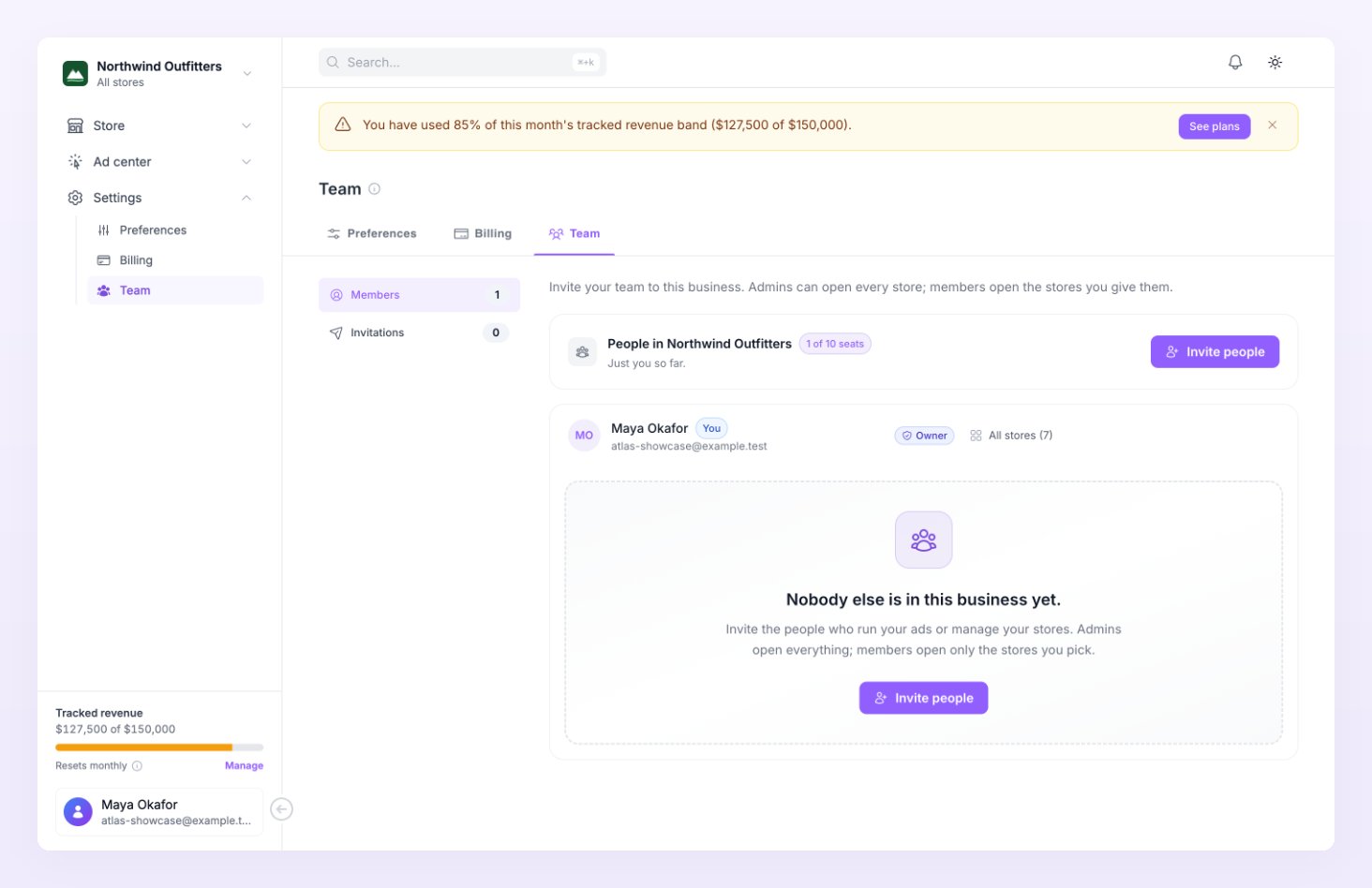
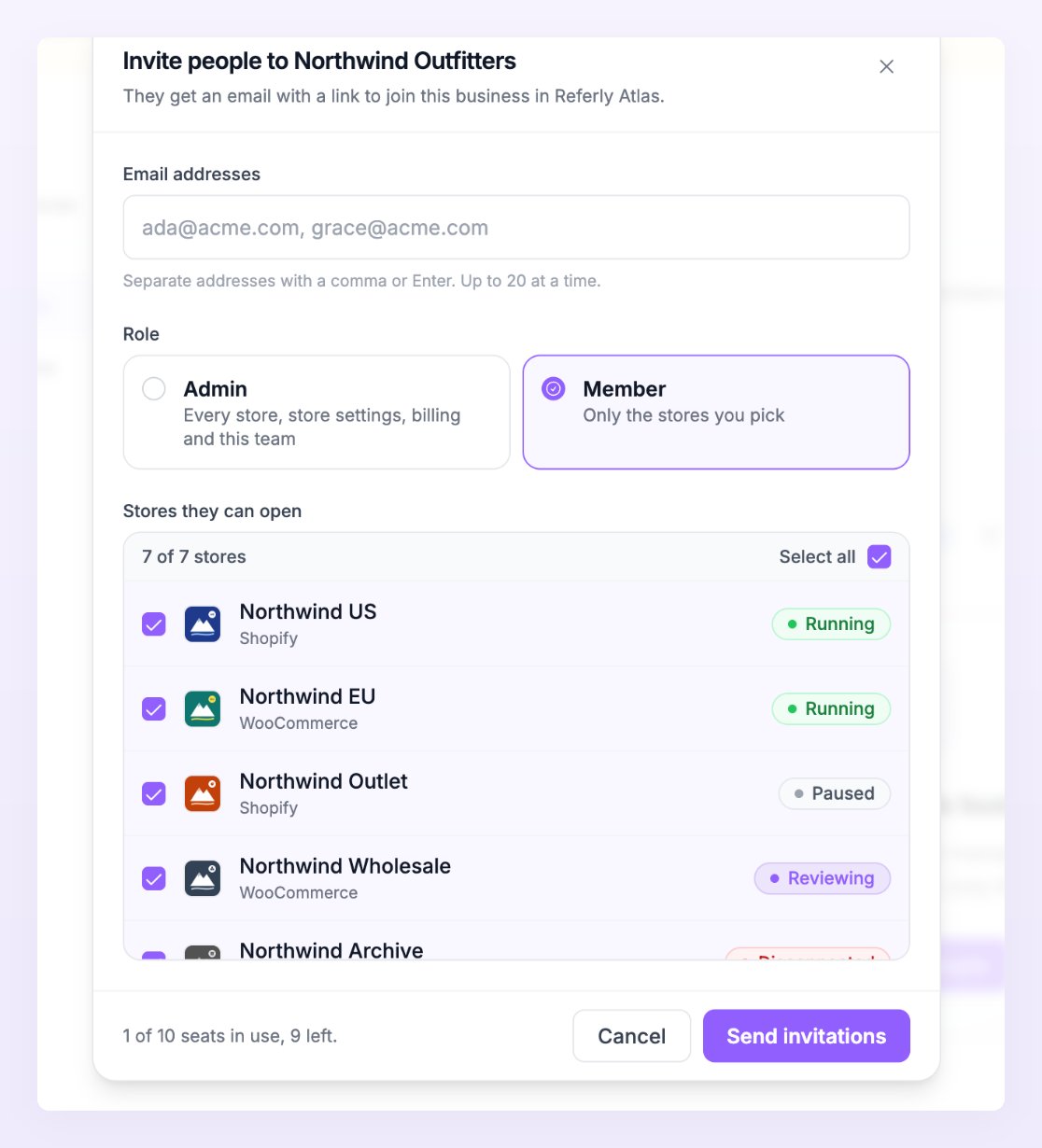
Press Invite people, top right of the People in card. The dialog is titled Invite people to your business: “They get an email with a link to join this business in Referly Atlas.” Under it a line shows your seats, for example “3 of 10 seats in use, 7 left.”
2
Add email addresses
Type or paste addresses into Email addresses. A comma, a space or Enter separates them. One batch takes up to 20 addresses.
3
Pick a role
Under Role, choose Admin or Member.
4
Pick stores for a member
For a member, Stores they can open appears. Tick at least one store.
5
Send
Press Send invitations. Each person gets an email whose subject names who invited them and the business, “on Referly Atlas”. The link works for 7 days.
Accept an invitation
The link in the email opens the Team invitation page. It names who invited you and to which business, shows the role, the address the invitation was sent to and, for a member, the stores you can open: “As an admin you open every store, the settings, billing and the team.” or “As a member you open these 2 stores.”- Not signed in yet: “Create your Referly Atlas account to join” the business, “or sign in if you already have one.” Press Create account or Sign in. Use the address the invitation was sent to; an invitation only works for that address.
- Signed in with another address: press Sign out, then sign in with the invited address.
- Accept invitation adds you to the business: “You are in”, and the business opens. Decline leaves everything as it was: “Nothing was changed. If this was a mistake, ask to be invited again.”
Manage members
The Members tab lists the owner first, then every member with a role pill and the stores they open.
When nobody else has joined yet the tab reads “Nobody else is in this business yet. Invite the people who run your ads or manage your stores. Admins open everything; members open only the stores you pick.”
Pending invitations
The Invitations tab: “Invitations you send show here until they are accepted. Each link works for 7 days; resend one to give it 7 more.” Each row shows the address, the role, the stores and how long the link has left: “Expires in 6 days”, “Expires today” or an Expired pill (“The link stopped working. Resend to give it 7 more days.”).- Resend invitation creates a fresh link, sends the email again and restarts the 7 days: “Invitation sent again”.
- Revoke invitation cancels it: “Invitation revoked”. The link stops working and the seat is freed.
Seats
The pill next to People in reads, for example, 3 of 10 seats: “Your plan includes 10 seats across your businesses: the owner, every member and every pending invitation.” Expired invitations do not count. Seats are shared by every business on the account, not counted per business.
To free a seat, revoke a pending invitation or remove a member. To add seats, move to a bigger plan in Billing.
Related
Billing
Seats, stores and ad accounts per plan, and how to change plan.
Businesses and stores
How businesses group stores, and how to switch between them.
Create your account
What to do when you were invited before you had an account.
Store settings
The per-store settings admins can change and members cannot.