

Before you start
You need an active Atlas plan or trial. Every plan includes the Ad center; what changes is how many ad accounts you can connect:
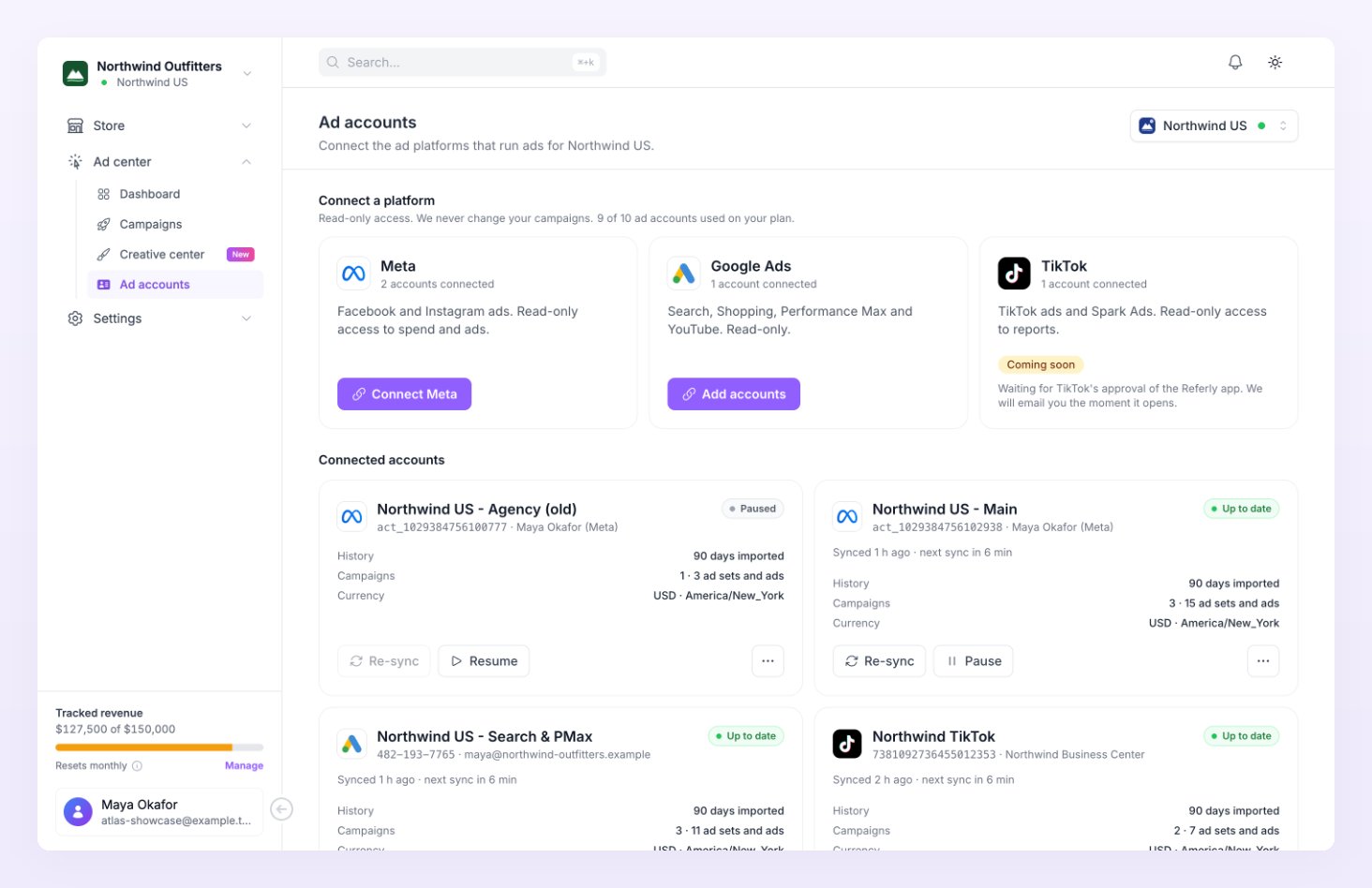
The count covers every store owned by your account. The same ad account connected to several stores counts once, and reconnecting an account that stopped working never uses another slot. The page shows where you stand, for example 2 of 6 ad accounts used on your plan. See Billing to change plan.
You also need a login with access to the ad account on the platform side: for Meta, a personal Facebook profile that can see the ad account in Meta Business Suite; for Google Ads, a Google account that can open the Google Ads account, manager accounts included, so one login can bring in every account it manages. And you need a store to attach the accounts to, because the store’s orders are what the spend is matched against. If you connect while All stores is selected, the connect button first asks For which store? and lists the stores of the business.
Open the Ad accounts page under Ad center in the left sidebar. You can also start from step 4 of the Add a store wizard, Connect your ad platforms, which has the same Meta, Google Ads and TikTok buttons under Connect ad accounts for Ad center. The top of the page shows one Connect a platform card per platform; the Connected accounts section below lists what you have so far.
Connect Meta
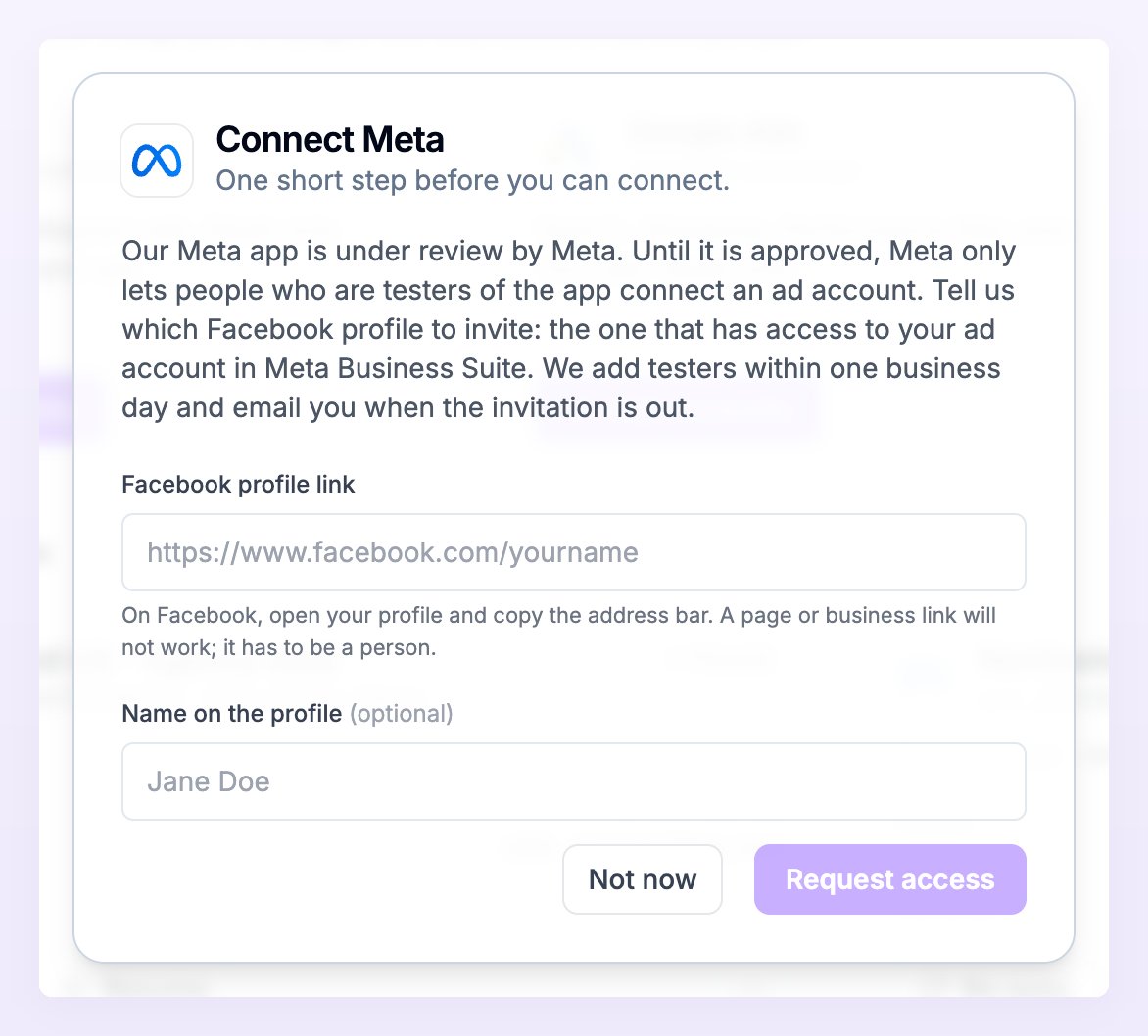
The Meta card covers Facebook and Instagram ads. Read-only access to spend and ads. Meta is currently reviewing the Referly app. Until that review completes, Meta only lets people who are registered as testers of the app connect an ad account, so connecting Meta starts with a short request. Here is how it looks today.1
Ask to be added as a tester
Select Connect Meta. The Connect Meta dialog explains that the app is under review and asks which Facebook profile to invite: the one that has access to your ad account in Meta Business Suite. Paste its address into Facebook profile link (open your profile on Facebook and copy the address bar; a page or business link will not work, it has to be a person), optionally add Name on the profile, and select Request access.
2
Wait for the invitation
The dialog switches to Request received and tells you that Atlas will invite that profile as a tester within one business day. The Meta card shows Tester invite pending in the meantime. Watch for the invitation on Facebook: it appears as a notification and is listed at developers.facebook.com/settings/developer/requests/.
3
Accept the invitation
Once Atlas has sent the invitation, the dialog reads You have been invited and the card shows Invitation sent. Sign in to Facebook with that profile, open developers.facebook.com/settings/developer/requests/ and accept the Referly Atlas invitation. It can also show up as a Facebook notification.
4
Connect
Come back to Atlas and select Connect Meta in the dialog. Facebook opens: choose the Facebook account that has access to your ad account and approve the read-only access. Meta sends you back to Atlas and the account picker opens, described in Choose ad accounts to sync.
Connect Google Ads
The Google Ads card covers Search, Shopping, Performance Max and YouTube. Read-only. Google Ads connects directly: there is no tester step.1
Start the connection
Select Connect Google Ads. If All stores is selected, pick the store under For which store? first. Once a Google login is already connected, the button reads Add accounts instead.
2
Sign in and approve
Google opens. Sign in with the Google account that can open your Google Ads account and approve the access Atlas asks for. If that account is a manager account, every account it manages shows up in the next step.
3
Pick the accounts
Google sends you back to Atlas and the account picker opens. Tick the accounts that run ads for this store and import them.
Connect TikTok
The TikTok card covers TikTok ads and Spark Ads. Read-only access to reports. Today it carries a Coming soon pill: TikTok has not yet approved the Referly app, and the card says it is waiting for that approval. Check back on this page; the connect button appears as soon as the platform opens.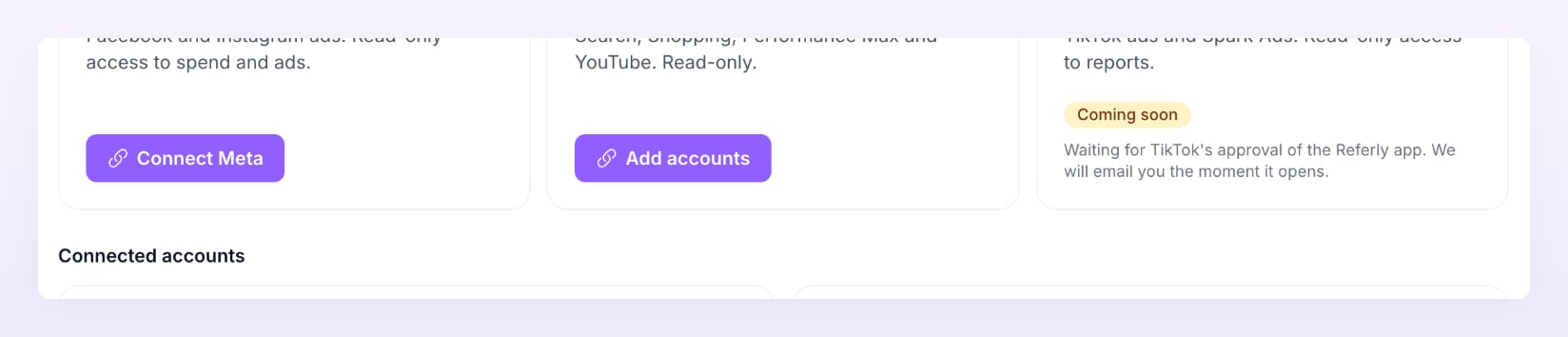
Choose ad accounts to sync
After you approve access on the platform, Atlas opens the Choose ad accounts to sync picker and tells you what it found: We found 4 ad accounts for this Meta login. Atlas imports 90 days of history for each one you pick. Each row shows the account name, its id, its currency and a status pill. Use the search box (Search by name, id or currency) when the login sees many accounts.
The meter at the bottom repeats your plan position (3 of 6 ad accounts used on your plan, or Unlimited ad accounts on your plan). If you tick more than you have left, the picker asks you to uncheck some or move to a bigger plan. Select Import 2 accounts (the number follows your selection). Atlas confirms with Importing history for 2 ad accounts, or Added 2 ad accounts with the history your other store already synced when another store of the business had them already.
The list is kept for 30 minutes. After that the picker shows This list expired; select Connect Meta again (or the platform you were connecting) to fetch it afresh. No ad accounts found means the login you used sees no ad accounts: check that you picked the right Business when logging in, then select Try another login.
What syncs and how often
Connecting an account starts an import that runs in the background. The account card shows its progress step by step: Accounts, Campaigns and ads, 90 days of spend, and for Meta Audience, with a line such as Importing history · 34 of 90 days.
Spend arrives in the ad account’s currency and is converted to the store currency with that day’s rate. Revenue and orders never come from the platform: they come from your store. See How revenue is matched to ads.
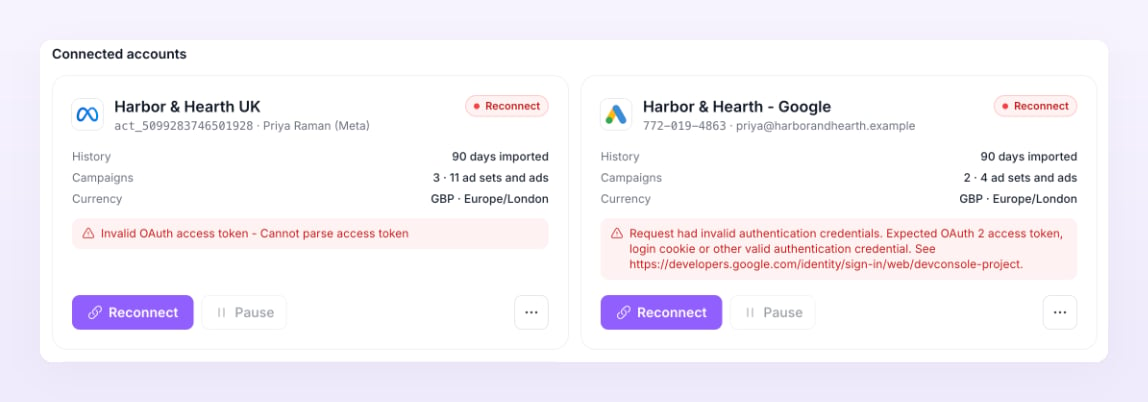
When a sync fails, Atlas retries on its own with a growing wait, from 15 minutes up to 24 hours between tries. After five failures in a row the card reads Sync error. When the platform stops accepting the login, the card reads Reconnect and Atlas sends one email, Reconnect Meta to keep Ad center syncing (with the platform’s name in the subject).
Account health
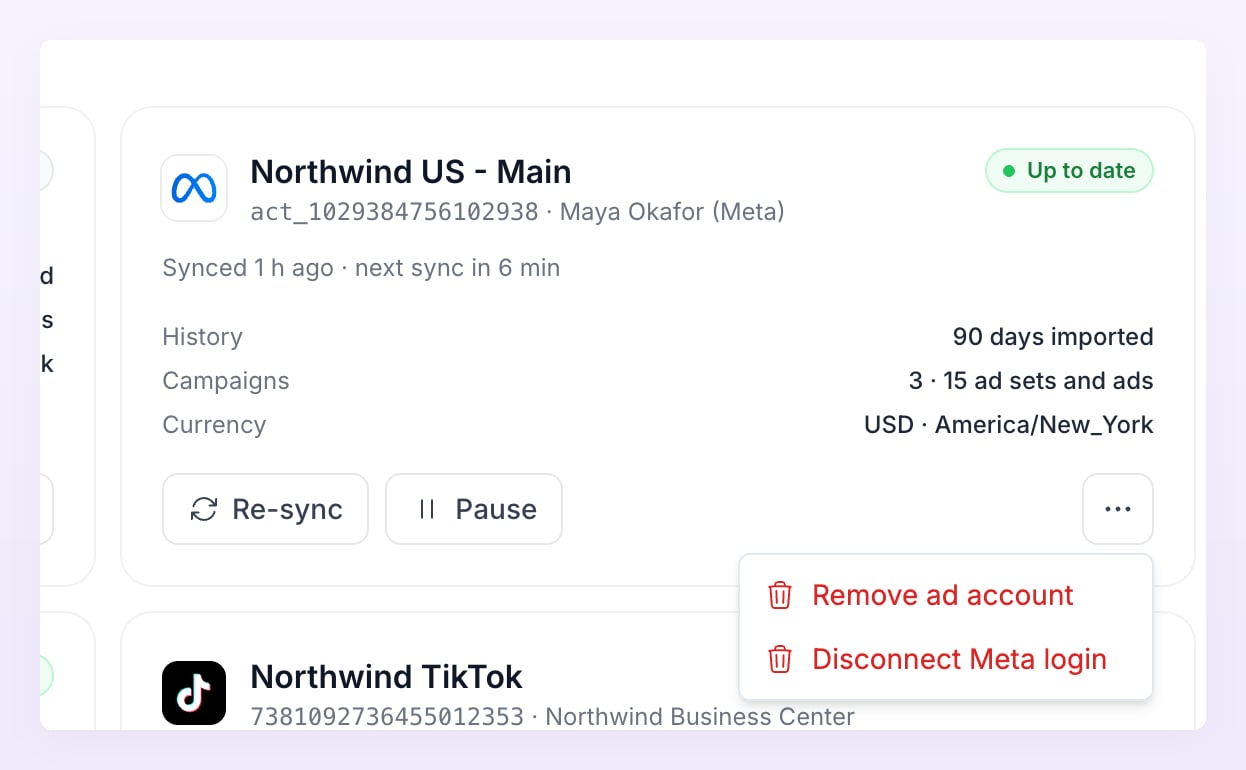
Every connected account has a card under Connected accounts with its platform, name, a state pill, and Synced 12 min ago · next sync in 48 min (or Next sync within the hour). Below that: History (90 days imported, Importing 90 days, Import failed, retrying or Not imported yet), Campaigns, Currency, and API usage once the platform’s rate limit is half used.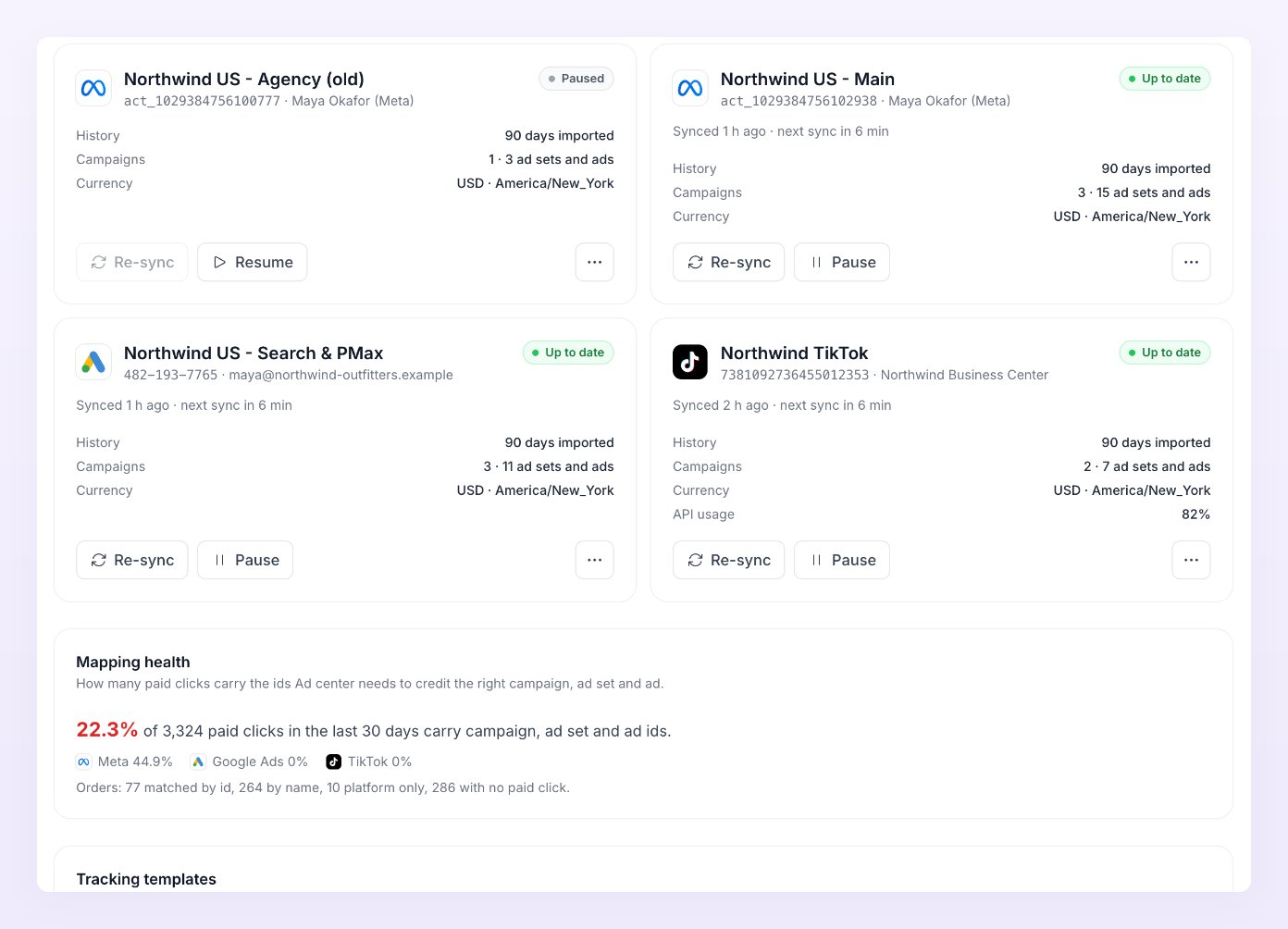
The full list of Ad center states is on the Statuses page.
Mapping health and tracking templates
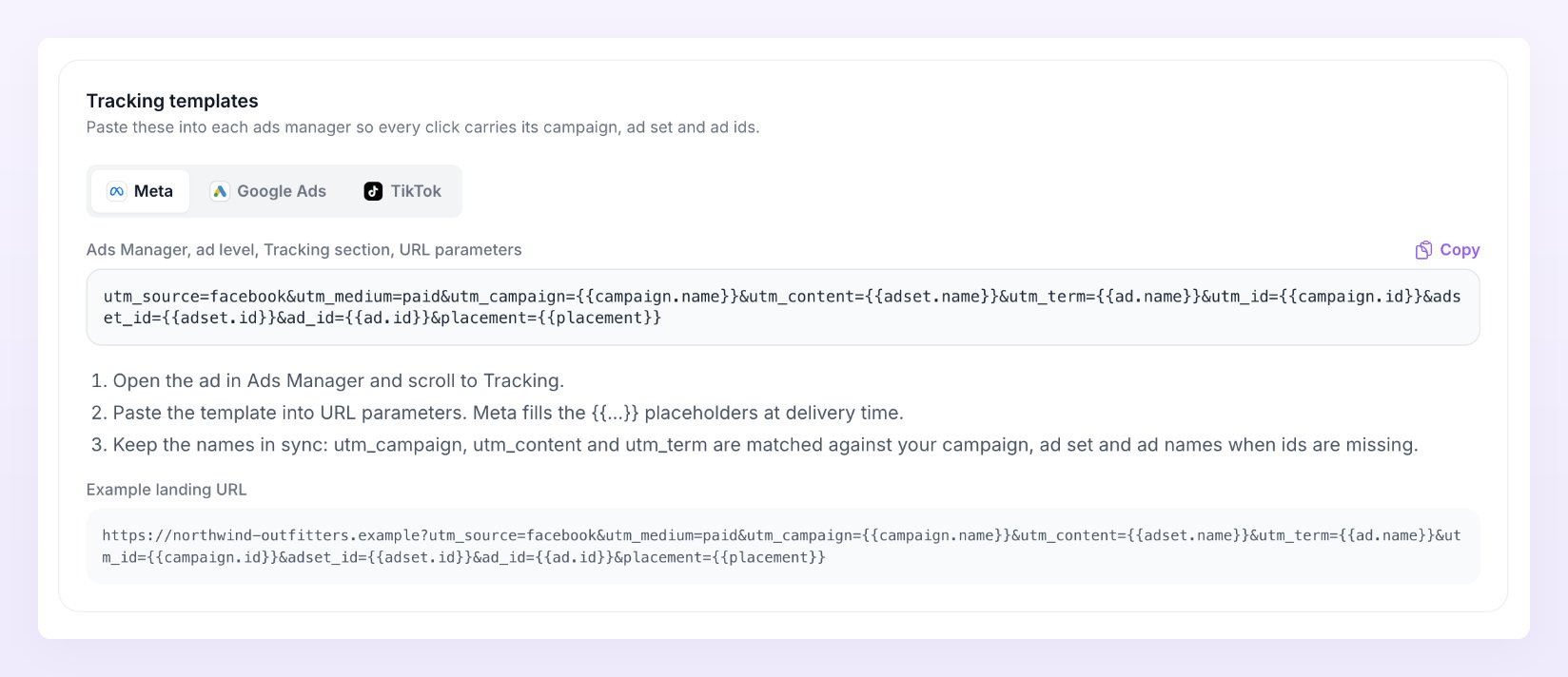
Below the accounts, the Mapping health card tells you how many paid clicks carry the ids the Ad center needs to credit the right campaign, ad set and ad: 82% of 1,240 paid clicks in the last 30 days carry campaign, ad set and ad ids. The number is green at 80% and above, amber from 40%, and red below. A line per platform follows, then Orders: 56 matched by id, 9 by name, 3 platform only, 12 with no paid click. With no paid clicks yet, the card asks you to add the tracking templates so every click carries its ids.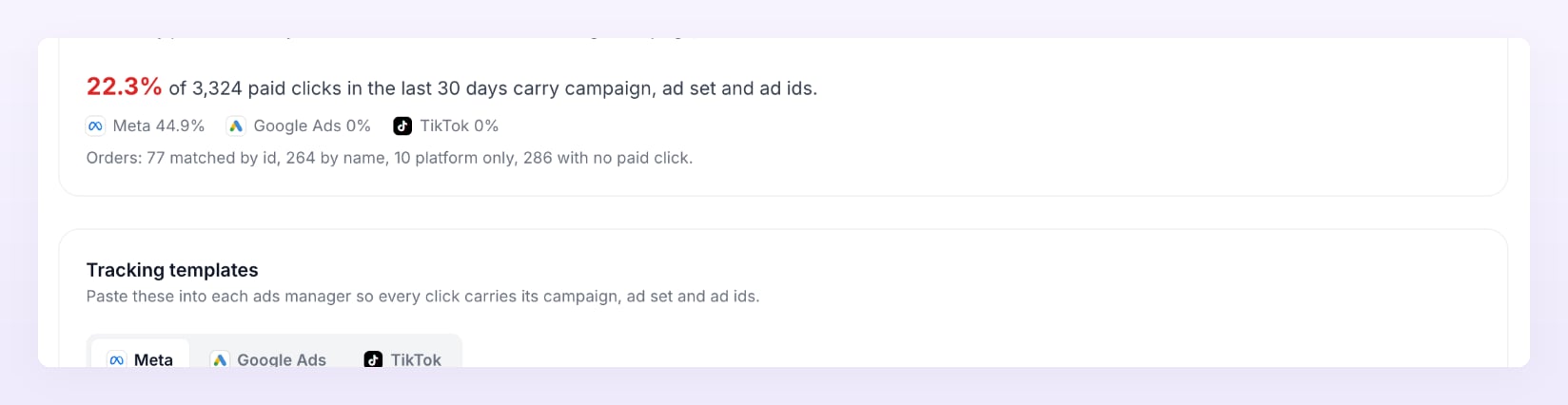
Re-sync, pause, reconnect, remove
Each account card has its own controls.- Re-sync imports the last 28 days again. Atlas confirms with Re-sync queued. You can watch it below. and the button reads Syncing until it is done. Use it after you fix something on the platform side, or when a card sits on Sync error.
- Pause stops the hourly sync for this account; the card shows Paused and what was imported so far stays in the Ad center. Resume turns it back on.
- Reconnect shows when the platform stopped accepting the login. It takes you through the platform’s sign-in again, and picking the same account switches it to the new login without using another slot.
- The More actions menu holds the two destructive options:
- Remove ad account opens Remove Harbor Ads? (your account’s name). It removes this ad account and its synced spend from Atlas. If it is the only account from that login, the login is disconnected too; otherwise the other accounts on the login stay connected. Your orders stay. You can add it again any time.
- Disconnect Meta login (or the platform in question) opens Disconnect this Meta login?: it removes all the ad accounts that came from this login, with their synced spend. Your orders stay. You can connect again any time. Confirm with Disconnect 3 accounts.
Related
Ad center dashboard
Read ROAS, spend and revenue once your accounts are synced.
UTM tagging
Paste the tracking templates so every click carries its ids.
Billing
Ad account limits per plan and how to move up.
Statuses
Every ad account and campaign state in one place.