

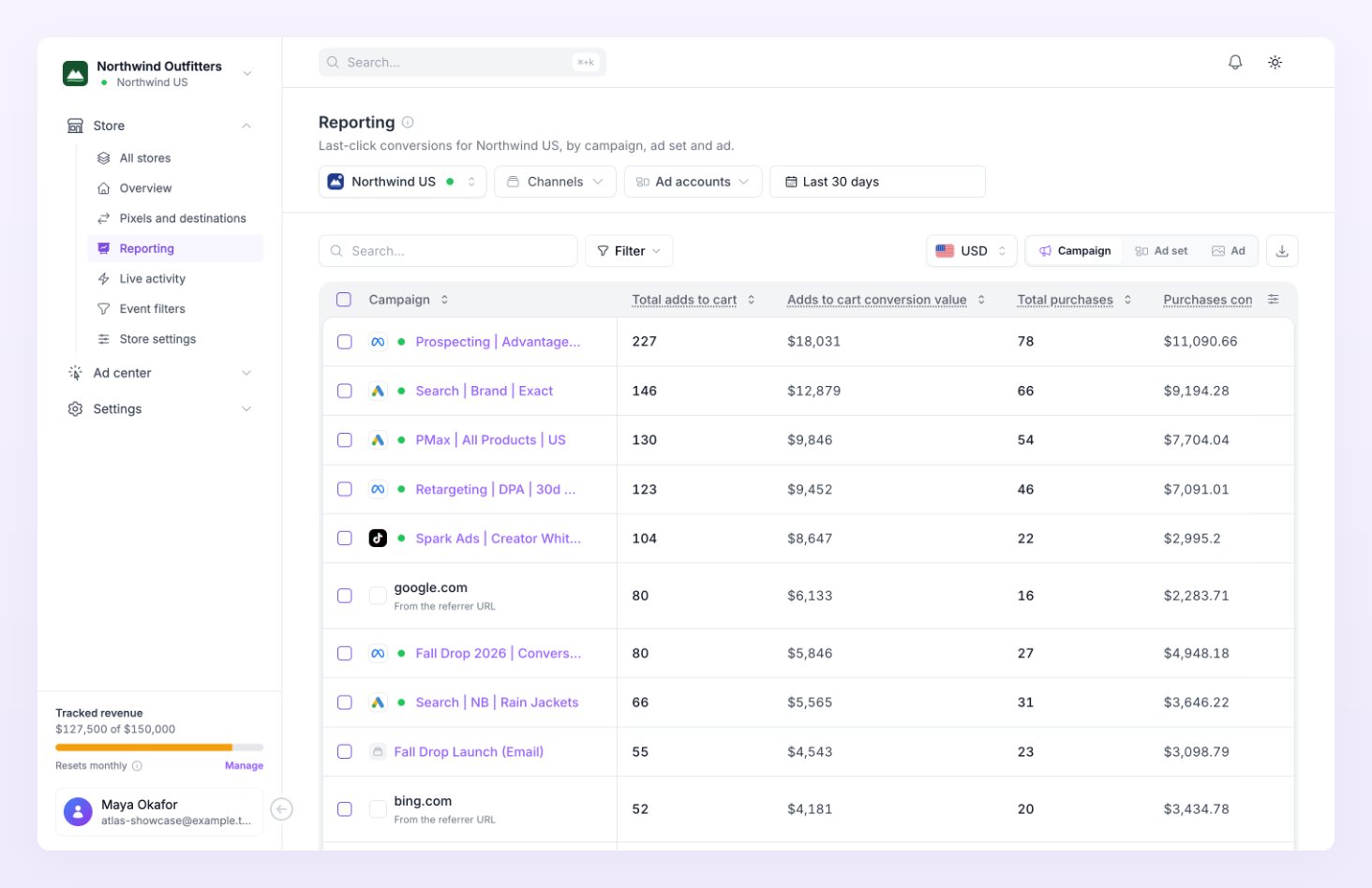
Campaign, ad set and ad
Referly Atlas reads three UTM parameters from the landing URL of each visit and uses them as the three levels of the table:
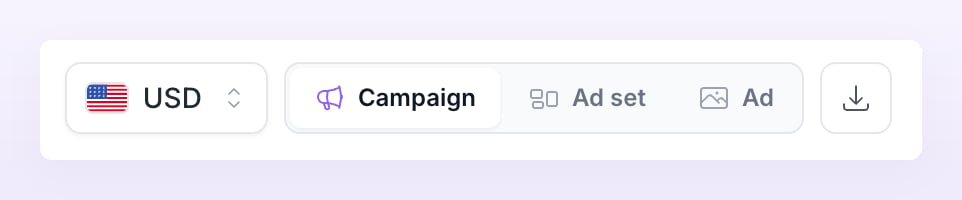
Switch levels with the Campaign, Ad set and Ad tabs above the table, next to the currency selector and Export.
How a visit gets its platform
Each visit is assigned to an ad platform in two steps:- The click id in the landing URL comes first.
fbclidmeans Meta;gclid,gbraidorwbraidmean Google Ads;ttclidTikTok;msclkidMicrosoft Ads;sccidSnapchat;epikPinterest;rdt_cidReddit;twclidX;tblciTaboola. Platforms add these to ad clicks on their own. - Without a click id, Atlas reads
utm_sourceand recognises the usual names for each platform, such asfacebook,instagramormetafor Meta andgoogleoryoutubefor Google Ads. The full list is in Tag your ads with UTMs.
Which visit gets the order
Atlas uses last click. Each paid order, lead, sign up, trial and subscription goes to the last session with a UTM or click id inside the store’s attribution window: 7, 30 or 90 days, set under Attribution in Store settings, 30 days by default. When a visitor had several qualifying sessions in the window, a session with a platform click id wins over one with only UTMs, and a session with only UTMs wins over one with only a referrer. Adds to cart and checkouts work differently: they count for the UTMs of the session they happened in, not the session that later produced the order. A few rules keep the numbers honest:- Refunded and cancelled orders are left out; partially refunded orders count net of the refund.
- Orders recorded in test mode never count.
- An order has to be matched to a visitor session first. The Match column on Overview shows how each order was matched; an order with no match cannot be attributed to a campaign.
Rows without UTMs
Conversions whose session carried no campaign UTMs are grouped by where they came from instead, and pinned to the bottom of the table:
If you connected ad accounts in Ad center, campaigns, ad sets and ads that synced from them but have no conversions in the range still appear, as rows of zeros, so you can see what is not converting.
Choose columns
The table starts with the columns that fit your business type: the ecommerce funnel (Adds to cart, Checkouts initiated, Purchases) for stores, and Leads, Sign ups, Trials started, Subscriptions and Purchases for SaaS businesses.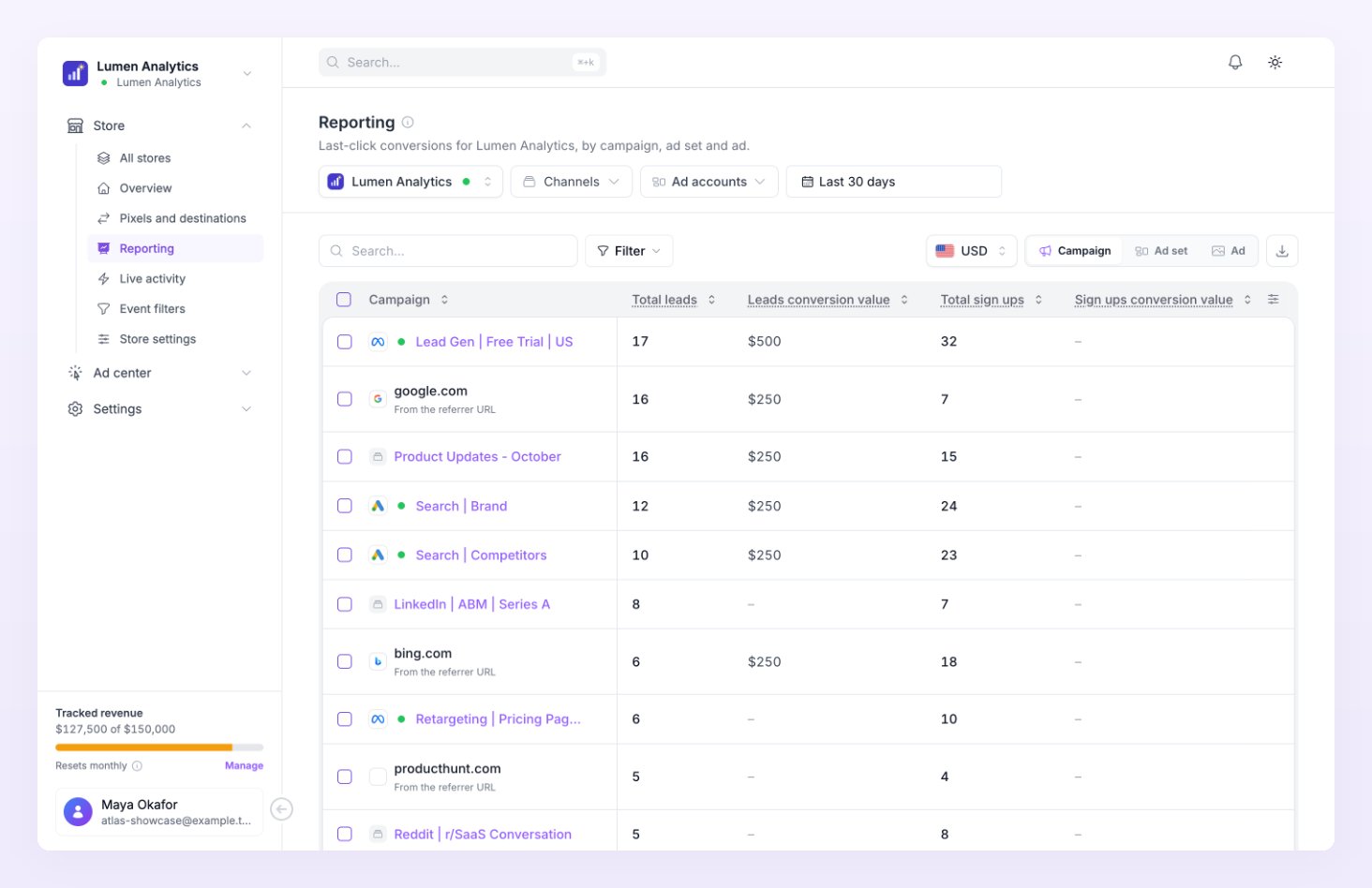
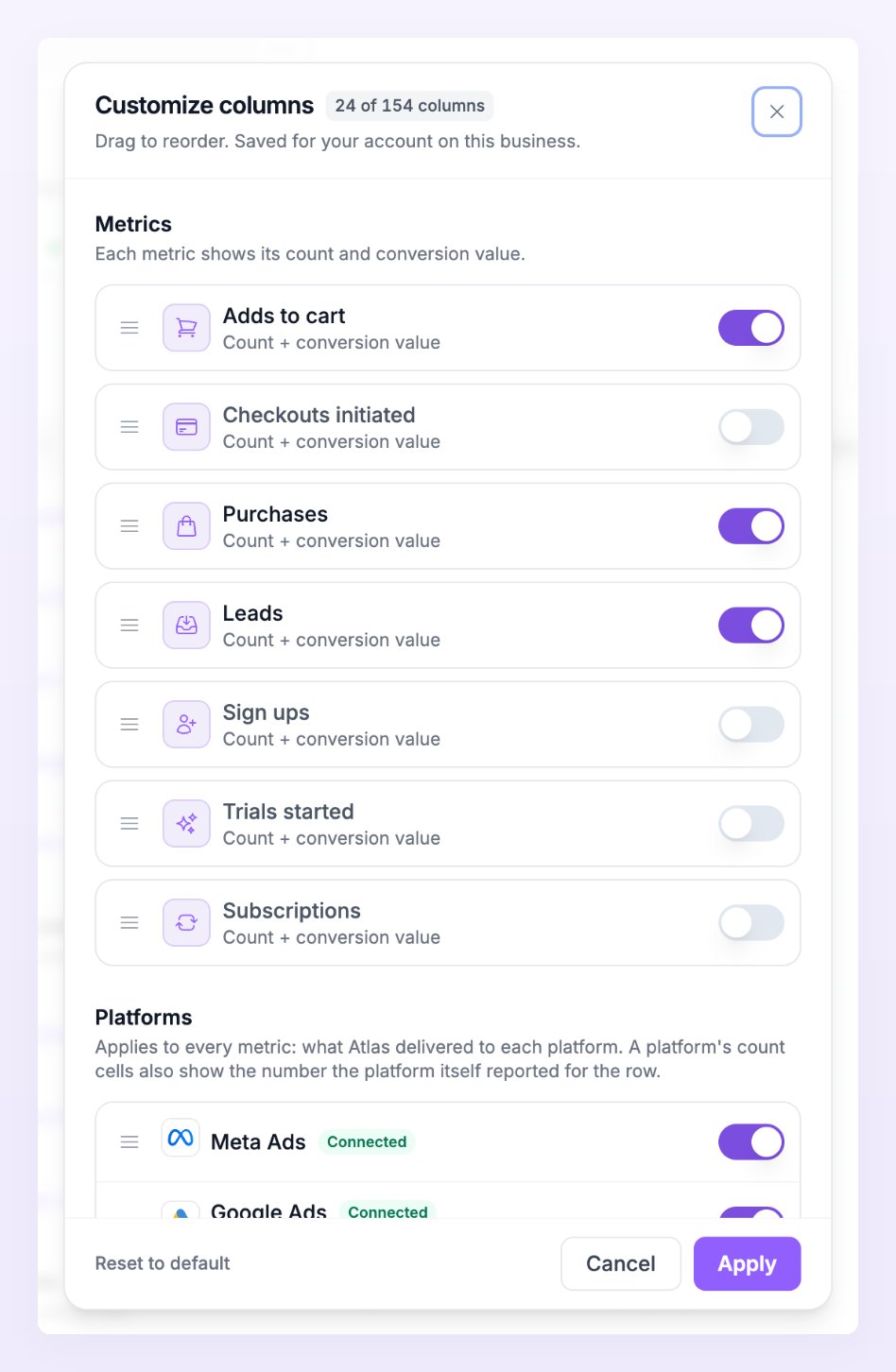
- Metrics: each metric you turn on adds two columns, Total plus the metric (for example Total purchases) and the metric’s conversion value (Purchases conversion value). Hover a column header for what it counts, for example “Paid orders whose last click had this UTM. Value is revenue minus refunds.” Drag to reorder.
- Platforms: applies to every metric and adds, for each platform you switch on, what Atlas delivered to that platform.
Platform columns
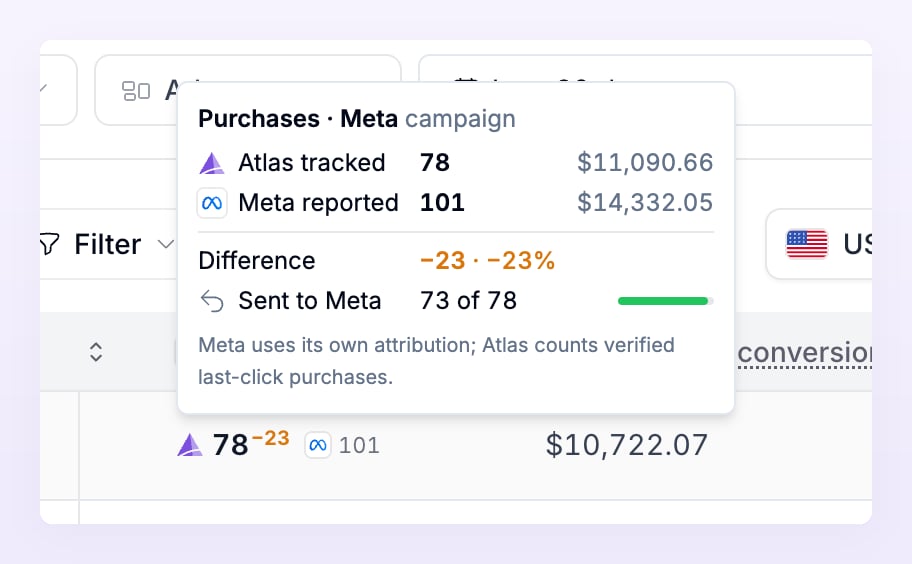
A platform column tells you how many of a row’s conversions Atlas sent to that platform. On rows that belong to the same platform (a Meta campaign in the Meta column, say), the count cell shows three things: Atlas’s own count, a small signed difference, and the number the platform itself reported for that campaign, ad set or ad.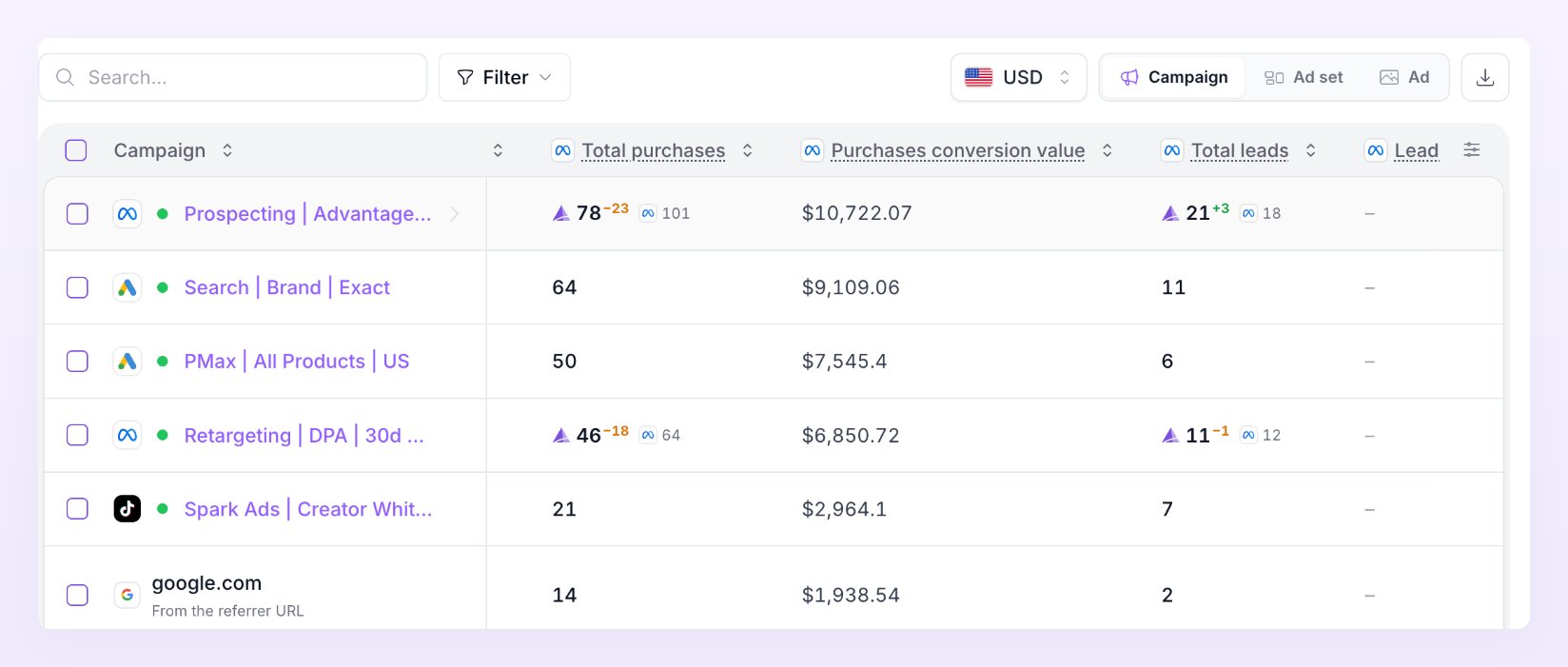
Search, filter, currency and channels
The controls above the table, from left to right:- Search finds a campaign, ad set or ad by name. The search term is part of the page address, so a bookmarked or shared link keeps it.
- Filter narrows the table to the campaigns or ad sets you pick. Each active filter becomes a chip that you can reopen or clear with its ×; Clear all removes them.
- The currency selector sets the currency every amount is shown in. Suggested lists the currencies your stores and ad accounts use; All currencies lists the rest. When amounts were converted, a note reads, for example, “Amounts in USD, converted from EUR”. Hover it for the Exchange rates card, which names the date of the rates and reminds you that “Ad spend converts from each ad account’s currency, sales from each store’s.”
- Channels and Ad accounts, next to the date range, list the ad accounts you connected in Ad center and work like the same pickers on the Ad center pages. They limit the synced campaign rows to the accounts you tick; if nothing is ticked the table asks you to select at least one. The selection covers the 2,000 most recently seen synced campaigns, so narrow it in Ad accounts when you have more.
Export
Export, next to the level tabs, downloads the current level with your columns, filters and date range in one of three formats: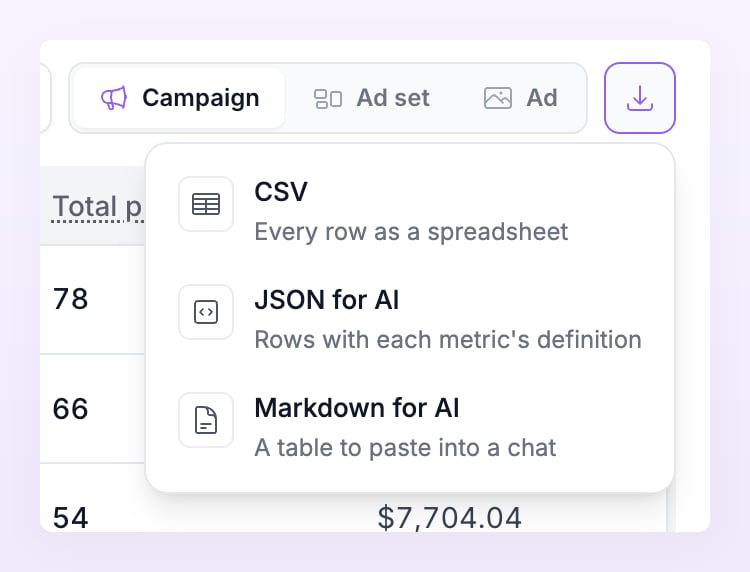
How far back you can go
- Any range up to 92 days reads the raw data: every conversion with its value.
- For longer ranges the page notes “Ranges over 92 days count adds to cart and checkouts from the daily summary, without values or platform columns.” A campaign or ad set filter cannot narrow that summary either; shorten the range to see filtered adds to cart and checkouts.
- Platform columns rely on Atlas’s delivery logs, which are kept for 90 days. For an older range the page tells you the date the platform columns start on.
- Events and sessions are kept for the event history your plan includes; see Billing.
Related
Tag your ads with UTMs
The templates to paste in Meta, Google Ads and TikTok so every click carries its campaign.
Overview
Revenue, orders, conversions and tracking health at a glance.
Date ranges and comparison
Presets, one range for every page, and how the comparison period is picked.
Campaigns in Ad center
Spend, ROAS and CPA per campaign, ad set and ad from your connected ad accounts.