

Pick a range
The date range control sits in the top right of every page. Click it to open the picker: presets on the left and two calendar months on the right.
For any other range, click a start day and an end day in the calendars and press Apply.
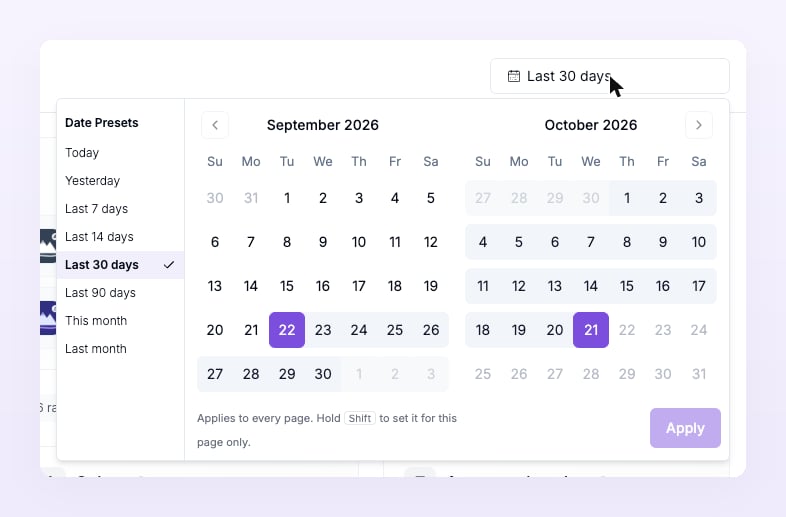
One range for every page
The note at the bottom of the picker says it: “Applies to every page. Hold Shift to set it for this page only.” A range you pick on Overview is the range Reporting, Live activity and the Ad center open with, and Atlas remembers it per business, so it is still there when you come back. To look at a different range on one page without disturbing the rest, hold Shift while you click a preset or Apply. A This page only pill appears next to the control; click its × to go back to the shared range.How the comparison period is chosen
Every change badge, every dashed “previous period” line on a chart and the vs. prior range column in Ad center compare your range with an earlier one of the same length. Which one depends on how long your range is:
So Last 7 days compares each weekday with the same weekday a week earlier, and This month on the 15th compares the 1st to the 15th with the 1st to the 15th of last month. In the “same dates last month” case, a range that ends on the last day of its month is compared with one that ends on the last day of the previous month, so Feb 10 to Feb 28 compares with Jan 10 to Jan 31.
Hover any change badge to see the exact dates, for example “Compared with Sep 1 to Sep 8, the same dates last month.” When there was nothing in the earlier period, the badge reads New instead of a percentage.
The Campaigns table in Ad center uses the same period for its vs. prior range column. Its Period comparison settings change the thresholds for Increased, Stable and Decreased, not the period itself; see Campaigns.
Time zone
A day in your reports runs from midnight to midnight in the time zone set in Preferences, which says “Days in reports and the weekly email start at midnight in this time zone.” It applies to every business and store on your account, so the Today and Yesterday presets, the month presets and the comparison period all follow it. Each store also has its own Time zone under Currency and time zone in Store settings. Live activity shows its Time column in the store’s time zone. A store’s own time zone, set in Store settings, decides where its days start in the Overview, Reporting and Live activity. The account time zone in Preferences applies to the weekly email and to businesses viewed across several stores.Related
Overview
Revenue, orders, conversions and tracking health for the selected range.
Reporting
Conversions by campaign, ad set and ad, and how far back you can go.
Preferences
Time zone, display currency and email notifications for your account.
Ad center dashboard
Spend beside revenue, with the previous period on every trend card.