

Who this is for
You are on the right page if, on Step 1: Your website, you picked one of these tiles: Wix, Squarespace, Webflow, Ecwid or Custom code / other. That last one covers anything you build yourself or host on a framework. Shopify and WooCommerce stores have their own guides (Shopify, WooCommerce) and do not need the snippet.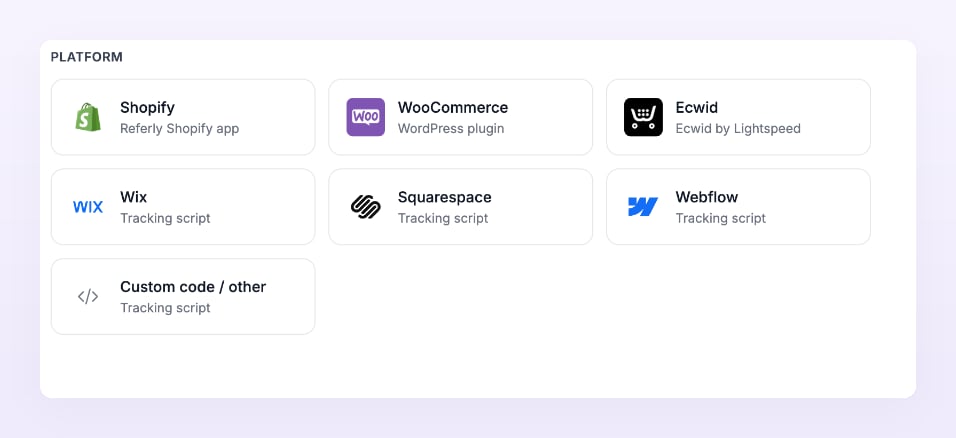
Step 1: Copy the snippet
The first block is Copy the script into your site’s head, one tag, on every page of your site. The method dropdown at the top right of the block picks the instructions and the matching snippet: your site builder (when you chose one), Standard, or Google Tag Manager.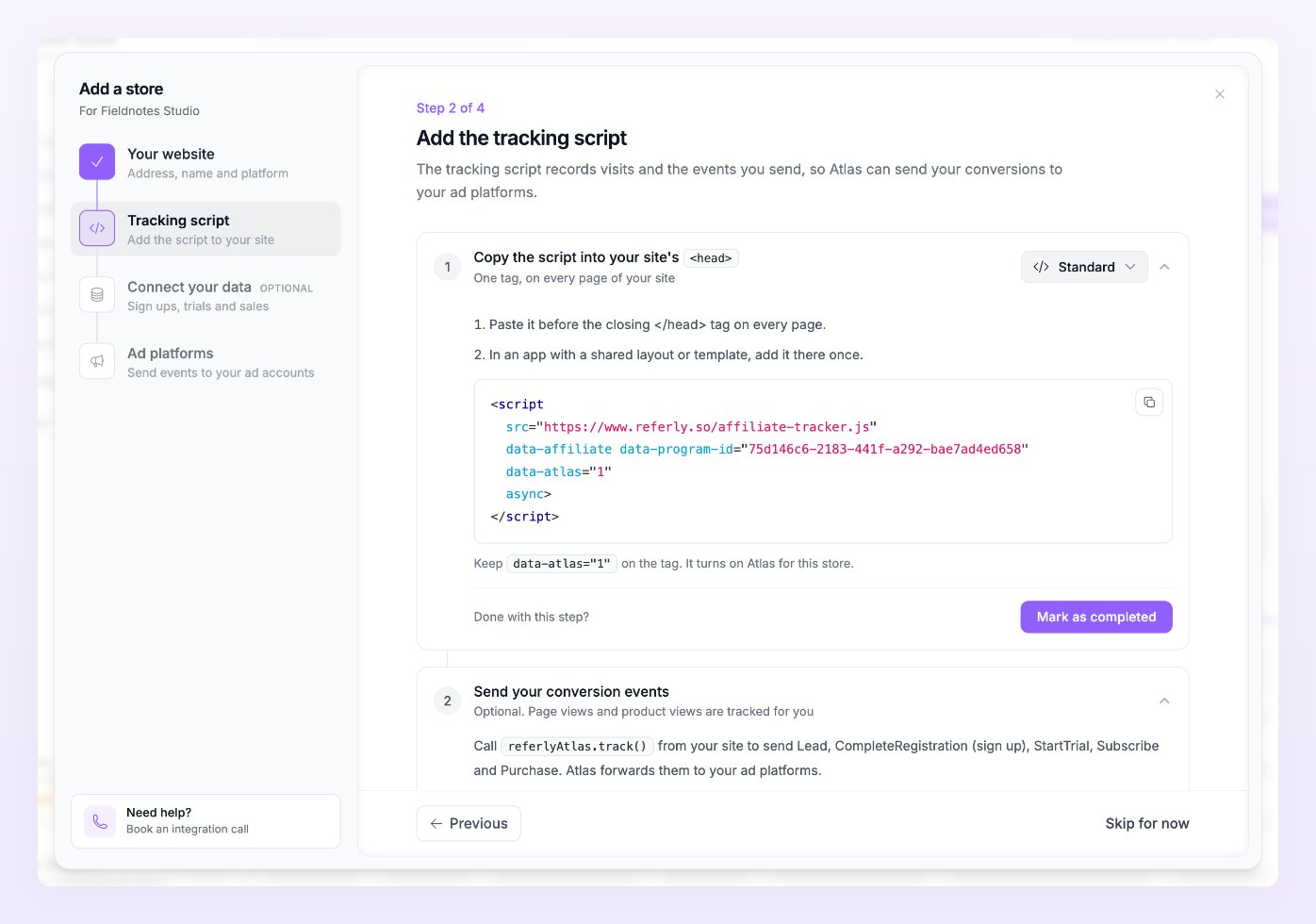
Standard snippet
data-atlas="1" on the tag. It turns on Atlas for this store; without it the script tracks affiliate clicks only.
Step 2: Add it to your site
Pick your method in the dropdown. The wizard shows the right instructions, repeated here.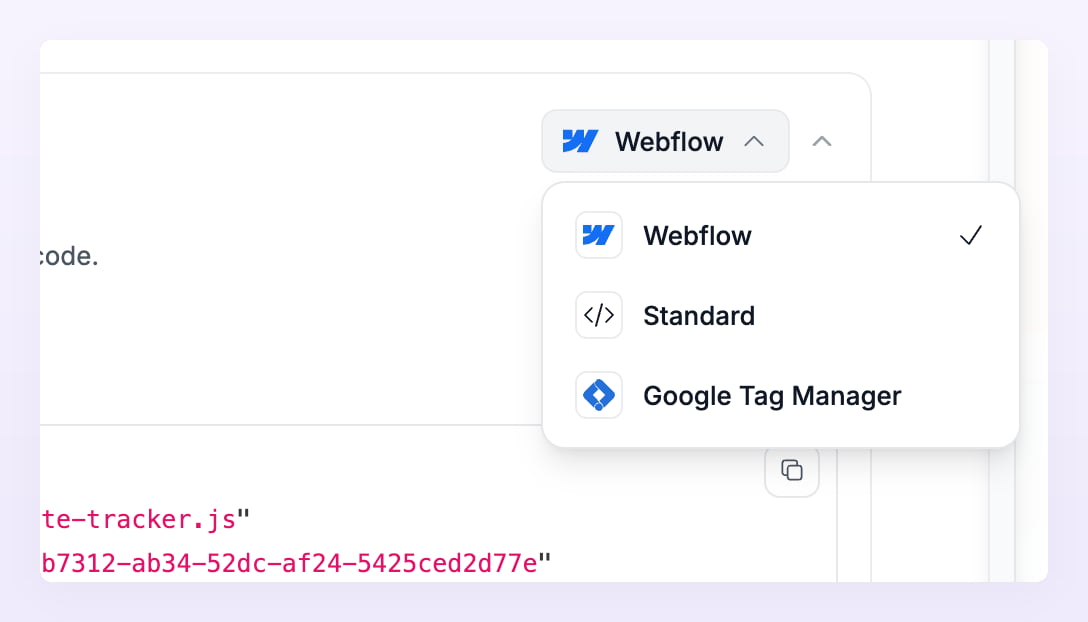
Wix
- In your Wix dashboard, open Settings, then Custom code.
- Click Add custom code and paste the script.
- Choose All pages and Load code in Head, then click Apply.
Squarespace
- In Squarespace, open Code injection (under Settings, in Developer tools or Advanced).
- Paste the script in the Header field.
- Click Save.
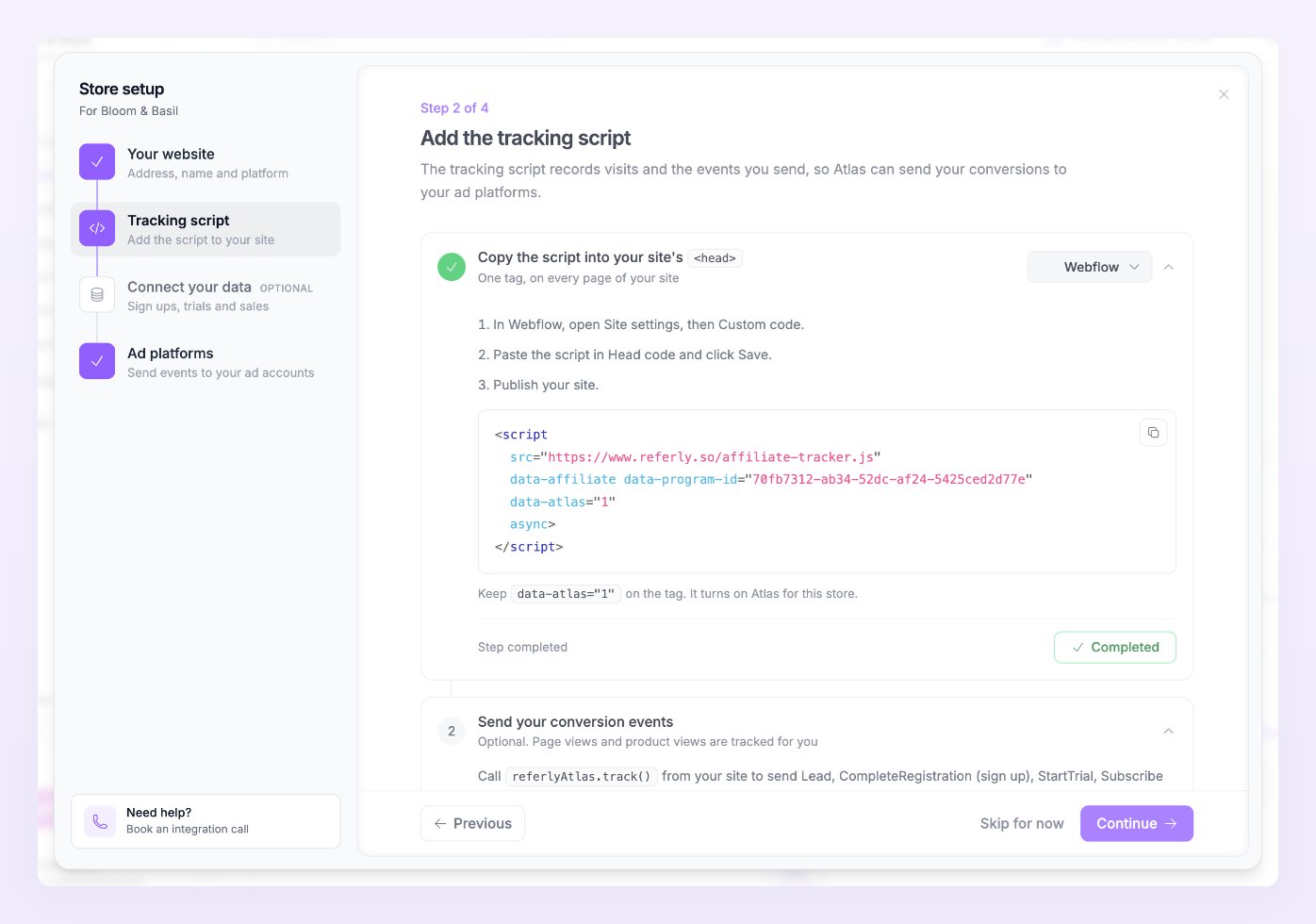
Webflow
- In Webflow, open Site settings, then Custom code.
- Paste the script in Head code and click Save.
- Publish your site.
Google Tag Manager
Switch the dropdown to Google Tag Manager: the snippet changes to a version that creates the tag from inside a container.- In Google Tag Manager, add a Custom HTML tag with the code shown.
- Trigger it on All Pages, then publish the container.
Any other site
Paste it before the closing</head> tag on every page. In an app with a shared layout or template, add it there once.
Ecwid stores get an extra block first: Install the Referly app on Ecwid. The app is recommended because it adds the script and sends your orders and refunds; approve it in your Ecwid admin and you come back with the store connected. Already installed it? Open your Ecwid admin, go to Apps, then Referly, and use the connect button there. Otherwise paste the snippet in the head of the site where your Ecwid store runs, on every page.
Step 3: Send conversion events
The second block, Send your conversion events, is optional. Page views and product views are tracked for you (product views are read from your page’s product markup). Conversions are different: Atlas needs to be told when a lead, sign up, trial, subscription or purchase happens. From your site, that is one call per conversion:Conversion events
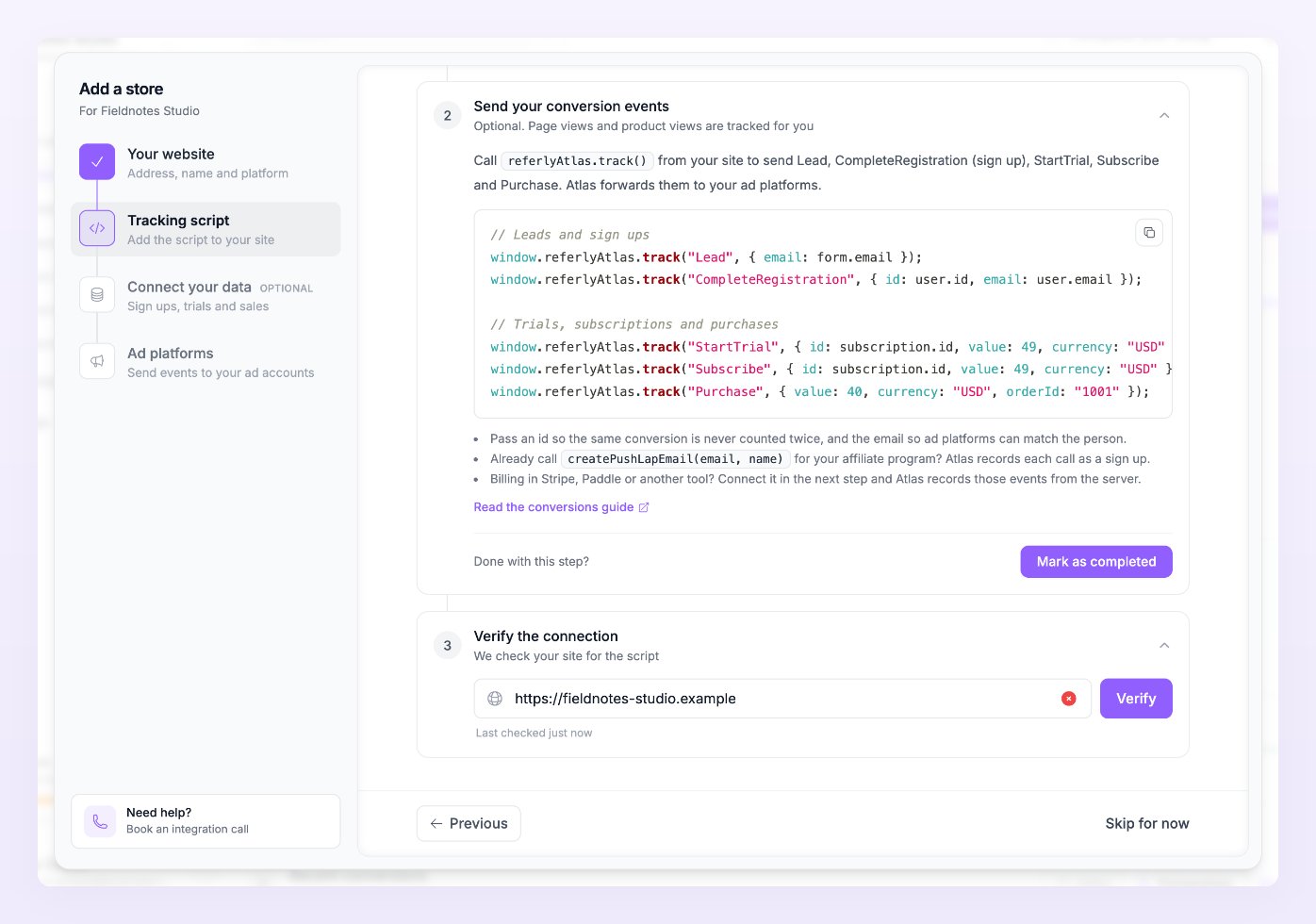
- Pass an id so the same conversion is never counted twice, and the email so ad platforms can match the person.
- Already call
createPushLapEmail(email, name)for your affiliate program? Atlas records each call as a sign up. - Billing in Stripe, Paddle or another tool? Connect it in the next step and Atlas records those events from the server.
Step 4: Verify
The last block, Verify the connection, checks your site for the script. Your address from Step 1 of the wizard is prefilled. Select Verify. Atlas first reads your page; if it finds nothing, it opens your site in a short popup so a script added through Tag Manager or a framework can report in, then checks again.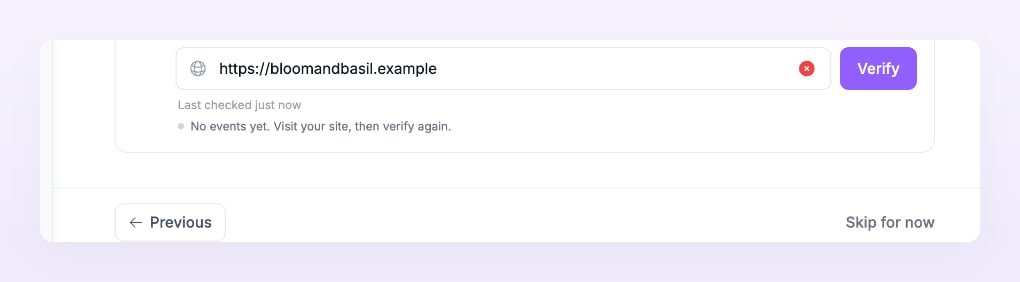
Consent on your own site
Atlas only sends a visitor’s events to your pixels when it is allowed to. The rule is set per store under Privacy and consent in Store settings: Balanced (the default) requires marketing consent only for visitors in the EEA, the UK and Switzerland, Strict requires it everywhere, and Off sends everything except an explicit decline. Where does the script learn the answer? If your site uses a consent banner that supports the IAB TCF v2 standard, the tracker reads it on its own. Otherwise, tell it yourself when the visitor accepts or declines:Consent
Troubleshooting
Verify says Not found yet, but I pasted the script
Verify says Not found yet, but I pasted the script
Publish your site after saving (Webflow, Wix and Squarespace all need it), then verify again. If the script is added by Tag Manager, check the tag fires on All Pages and the container is published, allow popups for the Atlas page and verify once more. A caching layer in front of your site can also serve old pages: clear it.
Verify says the script has another store ID
Verify says the script has another store ID
The tag on your site carries a different store’s ID, often an older affiliate snippet. Replace every copy with the snippet from this store’s wizard.
The script is found, but No events yet never changes
The script is found, but No events yet never changes
Open your site in a normal browser window (not one with an aggressive blocker), load a couple of pages, and verify again. If your store is still a Draft, events start when you finish the setup and the store goes live.
Page views arrive, conversions do not
Page views arrive, conversions do not
Each conversion call needs an id or an email, and a purchase needs a value. If you send a purchase, identify the visitor first so the email travels with it; the Tracker JS API shows how. Conversions also show in Live activity with their delivery status, which tells you whether they were skipped for consent or filtered.
My site spans several domains
My site spans several domains
List every domain your site runs on under Allowed domains in Store settings (up to 20), and keep the same snippet on all of them.
Related
Connect your data
Let Stripe, Paddle, Zapier or your backend send the conversions.
Test your connection
Rerun the four checks from Store settings.
Tracker JS API
Every event, property and attribute the script understands.
Consent and privacy
Consent modes, hashing and allowed domains.