

Before you start
You need:- A store in Atlas that is set up and live. Only stores that are Running or Awaiting data send events. See Store statuses.
- A Meta dataset (pixel) in Events Manager. Atlas sends to a dataset you already have, it does not create one.
- The developer role on that dataset, so you can generate a Conversions API access token.
Step 1: Find your Pixel ID
Meta now calls this number the Dataset ID. It is the same 15 to 16 digit number that used to be called the Pixel ID, and Atlas accepts either name.1
Open your data sources
In Events Manager, open Data sources and select your dataset.
2
Open the dataset settings
Select Settings.
3
Copy the Dataset ID
Copy the Dataset ID (formerly Pixel ID, same number). It looks like
1234567891234567.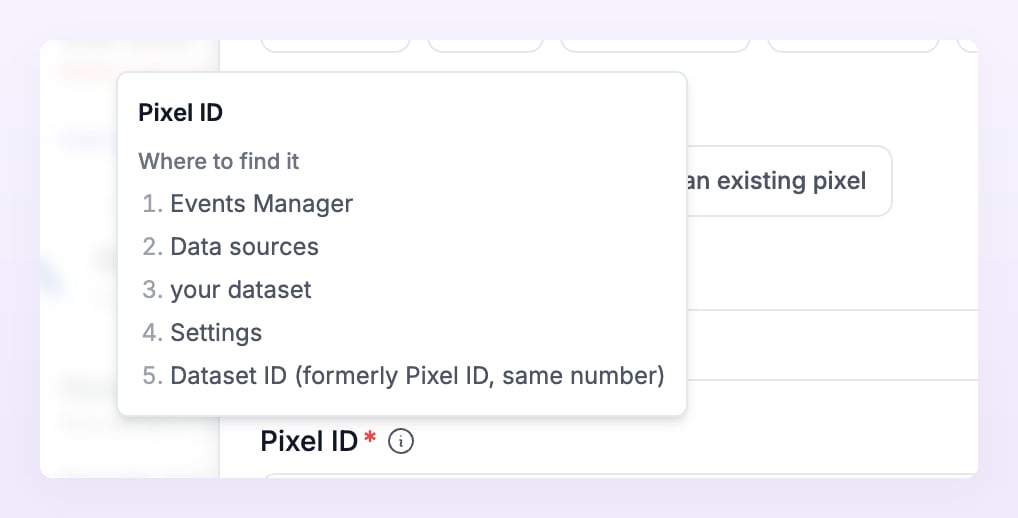
Step 2: Create an access token
The access token lets Atlas send events to your dataset. Meta shows it once, so copy it straight into Atlas.1
Open the dataset settings
In Events Manager, select your dataset, then Settings.
2
Go to the Conversions API section
Scroll to Conversions API.
3
Generate the token
Select Generate access token. You need the developer role to see this option. Copy the token now: Meta does not show it again.
Step 3: Add the pixel in Atlas
1
Open Pixels and destinations
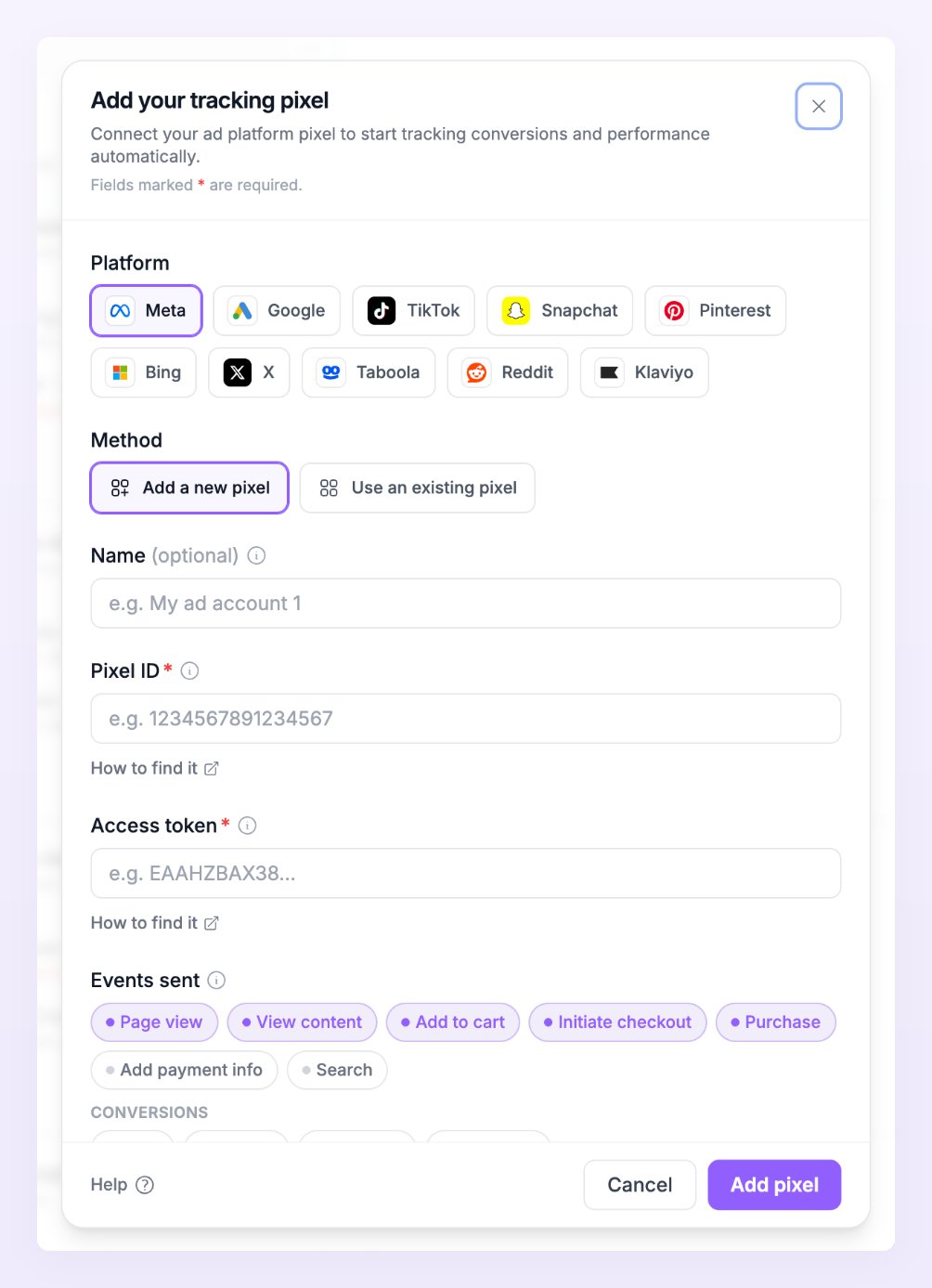
In the left sidebar of Atlas, open Pixels and destinations for the store, then select + Add pixel.
2
Choose Meta
In the Add your tracking pixel dialog, select the Meta chip. Leave Method on Add a new pixel. If another store of your business already sends to this dataset, choose Use an existing pixel instead and Atlas copies its ids and keys to this store. See Use an existing pixel.
3
Paste the two values
Fill in Pixel ID and Access token. Atlas checks that the Pixel ID is 15 to 16 digits. Name (optional) helps you tell pixels apart when a store sends to more than one Meta dataset.
4
Choose the events to send
Under Events sent, keep or change the events Atlas pre-selected for your business type. Every event in the table below is available. See Default events by business type.
5
Save
Select Add pixel. Atlas shows the Pixel saved screen with a Data flowing badge.
Events Atlas sends to Meta
Meta accepts every event Atlas tracks. Atlas uses Meta’s standard event names, so they match what Meta already expects.
Only the events ticked under Events sent are forwarded. Orders and conversions are always evaluated; the browser events (page views, product views, carts, checkouts, payment info, searches) are forwarded only when a pixel wants them.
Verify that events arrive
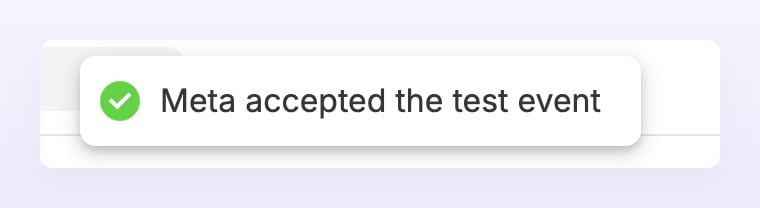
- Send a test event. On the pixel row, open the row’s menu and choose Send test event. A toast confirms that Meta accepted the event, or shows Meta’s error. Test events time out after 10 seconds.
- Read the delivery line. The line under the pixel reads how many events reached Meta in the last 24 hours, for example 8 sent in 24 h, or 8 sent, 2 failed in 24 h when some were rejected. A green dot means Live: events are being sent. See Pixel states.
- Watch Live activity. Open Live activity in the left sidebar and filter by destination to see each event’s status and Meta’s response. See Live activity.
- Check Events Manager. In Meta’s Events Manager, open your dataset and look for the events Atlas sent.

Meta settings in Atlas
Select Edit on the pixel row to reach the settings that only Meta pixels have. A blank Access token field keeps the saved token, so you never need to paste it again to change a setting.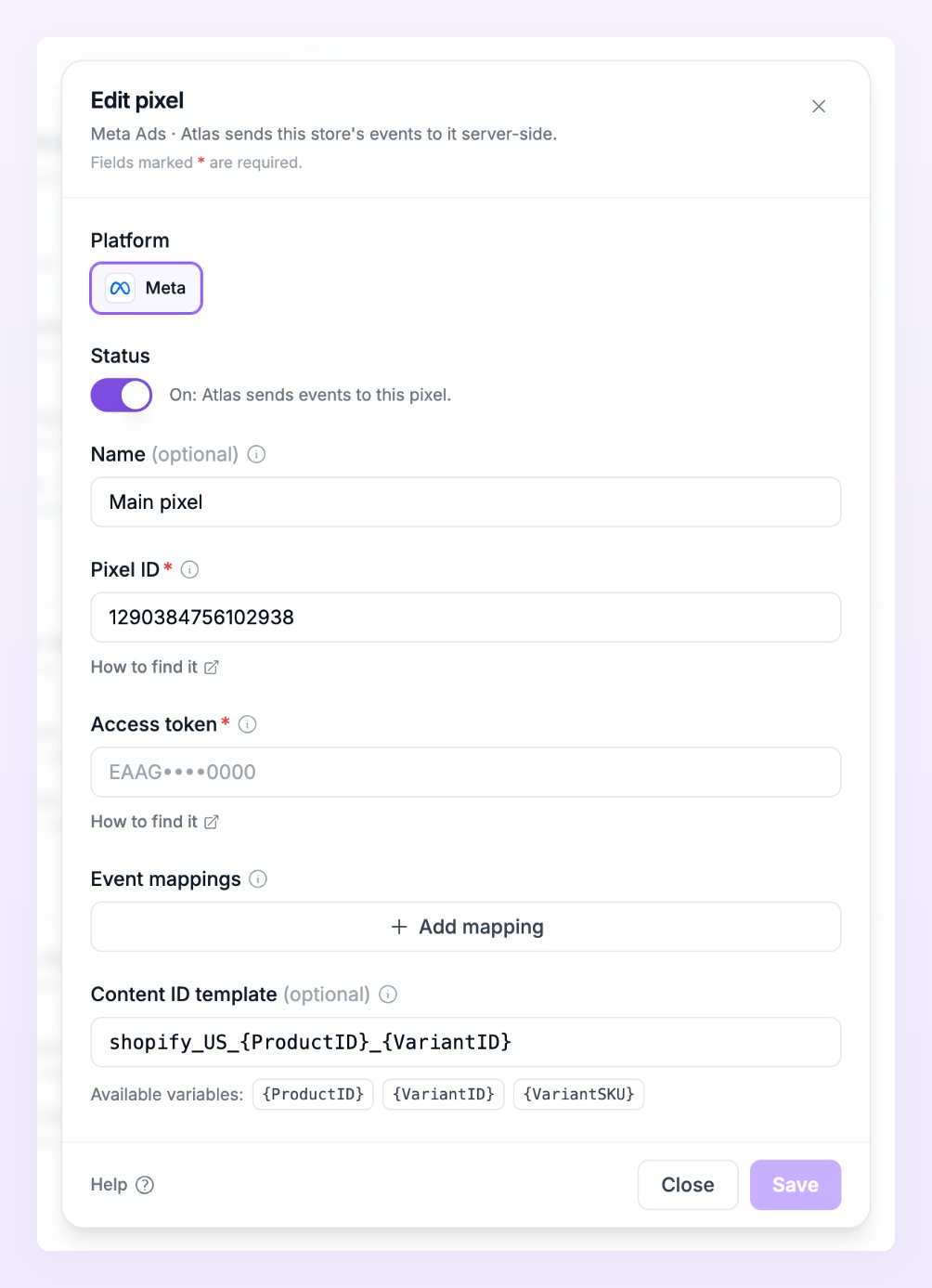
Event mappings
If Meta restricts your dataset from receiving standard events, give any event a custom name under Event mappings. Atlas then sends that name instead of the standard one. A name can be up to 50 letters, numbers, spaces, hyphens or underscores. Leave a mapping blank to keep the standard name.Content ID template
Meta matches the items in an event to your catalog by their content id. By default Atlas sends the variant id, written as{VariantID}. If your catalog feed uses product ids or SKUs instead, change Content ID template (optional) to {ProductID} or {VariantSKU}, or combine them, for example {ProductID}_{VariantID}. The template needs at least one of the three variables and must stay under 200 characters.
Shopify stores: browser events and server events
If your Shopify store also shares data with Meta through Shopify’s Facebook & Instagram app, Meta receives each event twice: once from Shopify’s browser pixel and once from Atlas. You have two ways to handle this, and both are fine:- Let Meta deduplicate. Atlas reuses the same event id Shopify gives its own pixel events, so Meta recognises the pair and keeps one. You keep the browser pixel as a backup for visitors Atlas cannot see.
- Send from Atlas only. Turn off customer data sharing in the Facebook & Instagram app in Shopify. Meta then receives one copy of every event, from Atlas.
Limited Data Use
Atlas can flag every event this pixel sends with Meta’s Limited Data Use. There is no switch for it in the app: email support@referly.so and ask for it on the pixel. See Consent and privacy.Troubleshooting
The test event fails
The test event fails
Atlas shows Meta’s error next to the test. Check the Pixel ID first, then the token: Atlas never shows a saved token again, so select Edit on the row and paste a fresh one (a blank field keeps the saved value). Generate the token with the developer role on the dataset. Test events time out after 10 seconds, so a slow answer also counts as a failure: try once more.
The row says No events in the last 24 h
The row says No events in the last 24 h
Atlas sends only from stores that are Running or Awaiting data, only the events ticked under Events sent, and never test-mode orders. Check that the platform switch at the top of the Meta row is on, then open Live activity and read the Status column: Skipped means no consent or no identifiers Meta can match, Filtered means an event filter stopped it, Deduped means the same event was already sent within 48 hours. See Delivery statuses.
Events Manager shows more events than Atlas sent
Events Manager shows more events than Atlas sent
On Shopify, the Facebook & Instagram app sends its own browser events. Atlas reuses Shopify’s event id so Meta can deduplicate the pair; if you would rather Meta received one copy, turn off customer data sharing in that app. On other sites, remove any Meta pixel code that sends the same events. See Avoid double counting.
Related
Pixels and destinations
Add, edit, test and detach pixels on any store.
Avoid double counting
Keep Shopify’s own pixels and Atlas from counting the same event twice.
Consent and privacy
What is hashed, what consent Atlas needs, and Limited Data Use.
Live activity
Watch every event and Meta’s response as they happen.