

Before you start
You need:- A store in Atlas that is set up and live. Only stores that are Running or Awaiting data send events. See Store statuses.
- A Klaviyo account where you can create a private API key with permission to write events.
- Events that carry an email or phone. Klaviyo attaches every metric to a profile, so Atlas sends an event only when it knows the visitor’s email or phone number. Orders and conversions usually do; anonymous page views usually do not. See Events that need an identity.
Step 1: Find your Public API key
1
Open your API keys
In Klaviyo, open Account, then Settings, then API keys.
2
Copy the Public API key
Copy the Public API key / Site ID. It is short, for example
ABc1De.Step 2: Create a private API key
1
Open your API keys
In Klaviyo, open Account, then Settings, then API keys.
2
Create the key
Select Create Private API Key. Give it Full access, or Custom access with events set to write.
3
Copy it now
Klaviyo shows the key once. It starts with
pk_, for example pk_a1b2c3d4....Both keys must come from the same Klaviyo account. When Atlas tests the connection it checks the public key against the account the private key belongs to, and fails the test if they are from two different accounts.
Step 3: Add the pixel in Atlas
1
Open Pixels and destinations
In the left sidebar of Atlas, open Pixels and destinations for the store, then select + Add pixel.
2
Choose Klaviyo
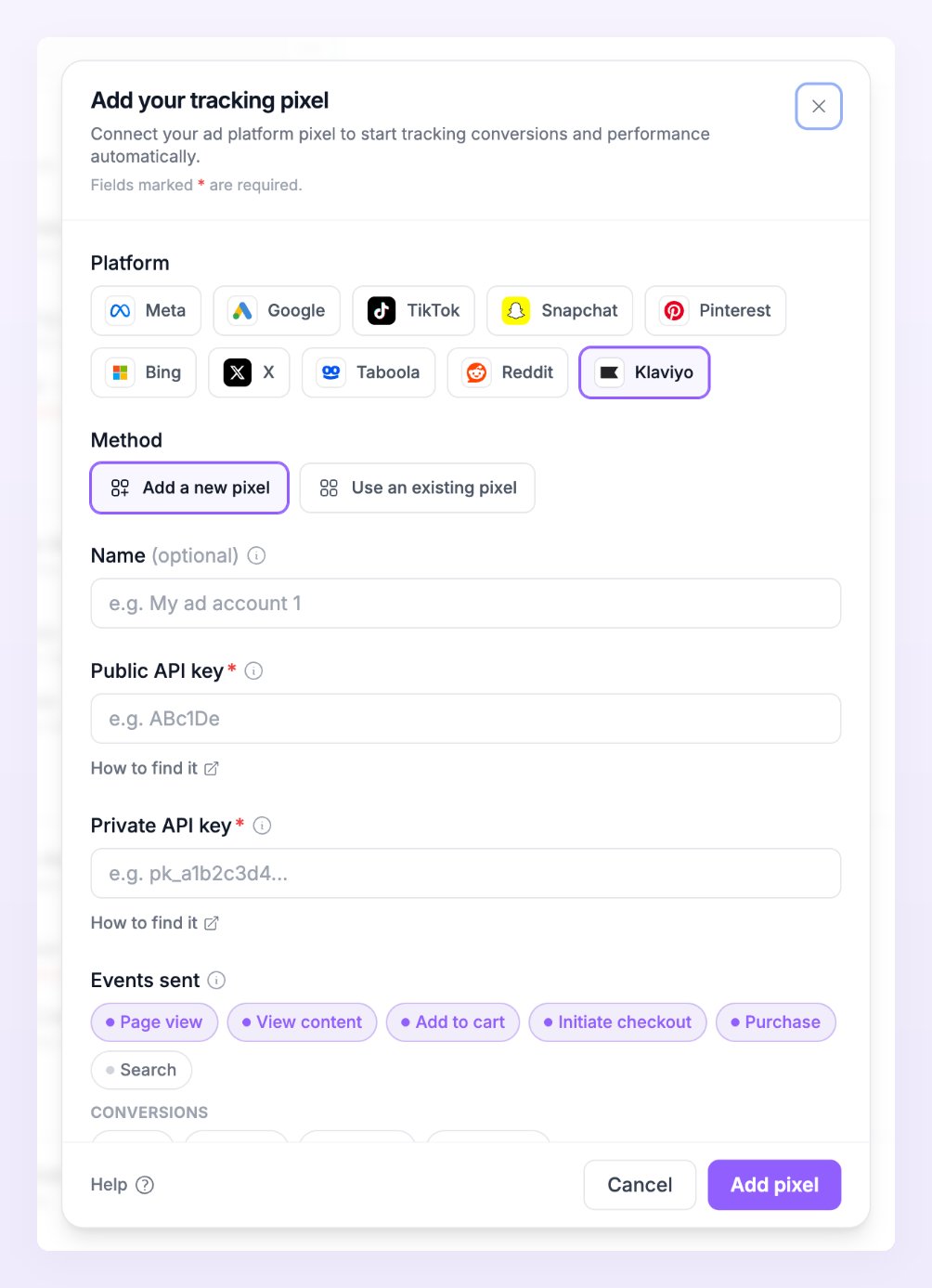
In the Add your tracking pixel dialog, select the Klaviyo chip. Leave Method on Add a new pixel. If another store of your business already sends to this Klaviyo account, choose Use an existing pixel instead and Atlas copies its ids and keys to this store. See Use an existing pixel.
3
Paste the two keys
Fill in Public API key and Private API key. Atlas checks that the private key starts with
pk_. Name (optional) helps you tell connections apart.4
Choose the events to send
Under Events sent, keep or change the events Atlas pre-selected for your business type, limited to the events Klaviyo accepts (see the table below). See Default events by business type.
5
Save
Select Add pixel. Atlas shows the Pixel saved screen with a Data flowing badge.
Events Atlas sends to Klaviyo
Each Atlas event becomes a Klaviyo metric with one of these names. Use them when you build flows and segments.
Add payment info is not sent to Klaviyo.
Only the events ticked under Events sent are forwarded, and only when the visitor’s email or phone is known. Orders and conversions are always evaluated; the browser events (page views, product views, carts, checkouts, searches) are forwarded only when a pixel wants them.
Verify that events arrive
- Send a test event. On the pixel row, open the row’s menu and choose Send test event. A toast confirms that Klaviyo accepted the event, or shows Klaviyo’s error. Test events time out after 10 seconds.
- Read the delivery line. The line under the pixel reads how many events reached Klaviyo in the last 24 hours, for example 8 sent in 24 h, or 8 sent, 2 failed in 24 h when some were rejected. A green dot means Live: events are being sent. See Pixel states.
- Watch Live activity. Open Live activity in the left sidebar and filter by destination to see each event’s status and Klaviyo’s response. Rows marked Skipped with No identifiers the platform can match are visitors Atlas could not tie to an email or phone. See Live activity.

Klaviyo settings in Atlas
Klaviyo connections have no extra settings in Atlas. Three things decide what Klaviyo receives:- Every event needs an email or phone. Klaviyo stores metrics on profiles, so Atlas sends an event only when it knows the visitor’s email or phone number. Purchases and conversions from your store or billing tool carry one. Page views, product views and carts from a visitor who has not identified themselves are skipped. On a custom site, identify the visitor through the tracker as soon as you know who they are; see Tracker JS API.
- The metric names are fixed. Atlas sends the names in the table above. Build your Klaviyo flows and segments on those metrics, for example a flow triggered by Started Checkout without a Placed Order afterwards.
- The test checks both keys belong to one account. When you send a test event, Atlas checks the public key against the private key’s account before sending. A test that fails with a message about the keys means they came from two Klaviyo accounts: copy both from the same account’s API keys page.
Troubleshooting
The test event fails
The test event fails
Atlas shows Klaviyo’s error next to the test. Check that the private key starts with
pk_ and has permission to write events, and that both keys come from the same Klaviyo account. Atlas never shows a saved private key again, so select Edit on the row and paste a fresh one (a blank field keeps the saved value). Test events time out after 10 seconds, so a slow answer also counts as a failure: try once more.The row says No events in the last 24 h
The row says No events in the last 24 h
Atlas sends only from stores that are Running or Awaiting data, only the events ticked under Events sent, and never test-mode orders. Check that the platform switch at the top of the Klaviyo row is on, then open Live activity and read the Status column: Skipped means no consent or no email or phone to match, Filtered means an event filter stopped it, Deduped means the same event was already sent within 48 hours. See Delivery statuses.
Purchases arrive in Klaviyo but page views and carts do not
Purchases arrive in Klaviyo but page views and carts do not
That is normal for anonymous visitors: Klaviyo needs an email or phone on every metric, and a visitor who has not signed in, bought or filled in a form has neither. Once a visitor is identified (an order, a sign up, a form, or a call to the tracker on your own site), their later events are sent. Orders from Shopify, WooCommerce and your billing integrations carry the customer’s email, which is why purchases arrive.
Related
Pixels and destinations
Add, edit, test and detach pixels on any store.
Events
What each event means and which events need an identity.
Conversions
Leads, sign ups, trials and subscriptions, and where they come from.
Tracker JS API
Identify visitors on a custom site so Klaviyo can match their events.