

Before you start
You need:- A store in Atlas that is set up and live. Only stores that are Running or Awaiting data send events. See Store statuses.
- A Taboola account in Realize, Taboola’s ads platform.
- Conversions in Taboola named like the events in the table below. Taboola matches what Atlas sends to a conversion by its name, so create one conversion per event you want to count, with the same name.
- Ads whose landing URL carries Taboola’s click id. Atlas can send an event to Taboola only when the visitor arrived through a Taboola click; every other visitor’s events are skipped.
Step 1: Find your Account ID
1
Open Tracking
In Realize, choose the account you advertise from, then open Tracking.
2
Copy the numeric Account ID
Copy the numeric Account ID shown top left. It is digits only, for example
123456789.Step 2: Add the pixel in Atlas
1
Open Pixels and destinations
In the left sidebar of Atlas, open Pixels and destinations for the store, then select + Add pixel.
2
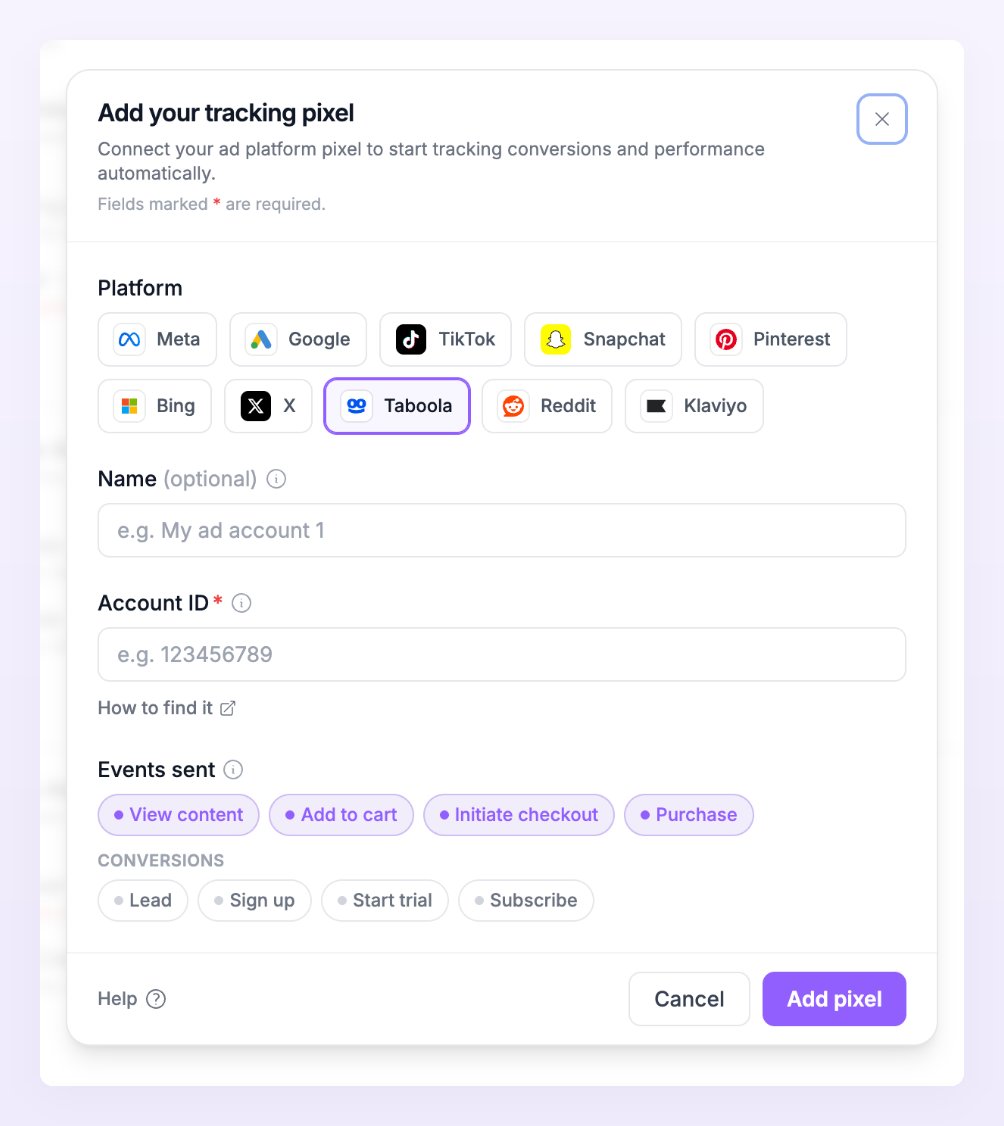
Choose Taboola
In the Add your tracking pixel dialog, select the Taboola chip. Leave Method on Add a new pixel. If another store of your business already sends to this account, choose Use an existing pixel instead and Atlas copies its ids to this store. See Use an existing pixel.
3
Paste the Account ID
Fill in Account ID. Name (optional) helps you tell pixels apart when a store sends to more than one Taboola account.
4
Choose the events to send
Under Events sent, keep or change the events Atlas pre-selected for your business type, limited to the events Taboola accepts (see the table below). See Default events by business type.
5
Save
Select Add pixel. Atlas shows the Pixel saved screen with a Data flowing badge.
Events Atlas sends to Taboola
Taboola matches each event to a conversion by name, so these names are the ones to use when you create conversions in Taboola.
Page view, Add payment info and Search are not sent to Taboola.
Only the events ticked under Events sent are forwarded. Orders and conversions are always evaluated; the browser events (product views, carts, checkouts) are forwarded only when a pixel wants them.
Verify that events arrive
- Send a test event. On the pixel row, open the row’s menu and choose Send test event. A toast confirms that Taboola accepted the event, or shows Taboola’s error. Test events time out after 10 seconds.
- Read the delivery line. The line under the pixel reads how many events reached Taboola in the last 24 hours, for example 8 sent in 24 h, or 8 sent, 2 failed in 24 h when some were rejected. A green dot means Live: events are being sent. See Pixel states.
- Watch Live activity. Open Live activity in the left sidebar and filter by destination to see each event’s status and Taboola’s response. Expect many Skipped rows: they are the visitors who did not come from a Taboola ad. See Live activity.

Taboola settings in Atlas
Taboola pixels have no extra settings in Atlas. Two rules decide what Taboola receives:- Atlas matches by Taboola’s click id only. When someone clicks a Taboola ad, Taboola adds its click id to the landing URL and the Referly tracker remembers it for that visitor. Atlas sends that visitor’s events to Taboola with the click id. Visitors without one, which means everyone who did not arrive through a Taboola ad, are skipped with the reason No identifiers the platform can match. Hashed emails and phones are not used for Taboola.
- Create conversions with the same names. Taboola matches what Atlas sends to a conversion in your account by name. Create one conversion in Taboola for each event you send, named exactly as in the table above, for example
make_purchasefor purchases.
Troubleshooting
The test event fails
The test event fails
Atlas shows Taboola’s error next to the test. Check the Account ID: it is the numeric id shown top left under Tracking in Realize, not the account name. Select Edit on the row to correct it. Test events time out after 10 seconds, so a slow answer also counts as a failure: try once more.
The row says No events in the last 24 h
The row says No events in the last 24 h
Atlas sends only from stores that are Running or Awaiting data, only the events ticked under Events sent, and never test-mode orders. Check that the platform switch at the top of the Taboola row is on, then open Live activity and read the Status column: Skipped means no consent or no Taboola click id, Filtered means an event filter stopped it, Deduped means the same event was already sent within 48 hours. See Delivery statuses.
Every event shows Skipped with No identifiers the platform can match
Every event shows Skipped with No identifiers the platform can match
Those visitors did not arrive through a Taboola click, or the click id was lost before the event. Check that your Taboola ads land on the tracked store’s domain, that nothing strips query parameters on the way (a redirect, a link shortener), and that the tracking script runs on the landing page so the click id is remembered. See Test the connection.
Related
Pixels and destinations
Add, edit, test and detach pixels on any store.
Events
What each event means and which platform calls it what.
Conversions
Leads, sign ups, trials and subscriptions, and where they come from.
Live activity
Watch every event and Taboola’s response as they happen.