


What the Creem integration can and can’t do
Before you start
You’ll need:- Admin access to your Creem account, so you can create a webhook and an API key.
- The ability to add code to your website, or someone who can. Every setup needs the tracking script, and payment-link setups need one extra line.
- Your Referly program open. Go to your program, then Settings, then Integrations, and choose Creem. Your webhook address is shown there, already filled in with your program’s details.
Step 1: Set your commission structure
Before you connect anything, decide what an affiliate earns. In your program setup, open the commission step and set a percentage or a flat amount, paid on purchase.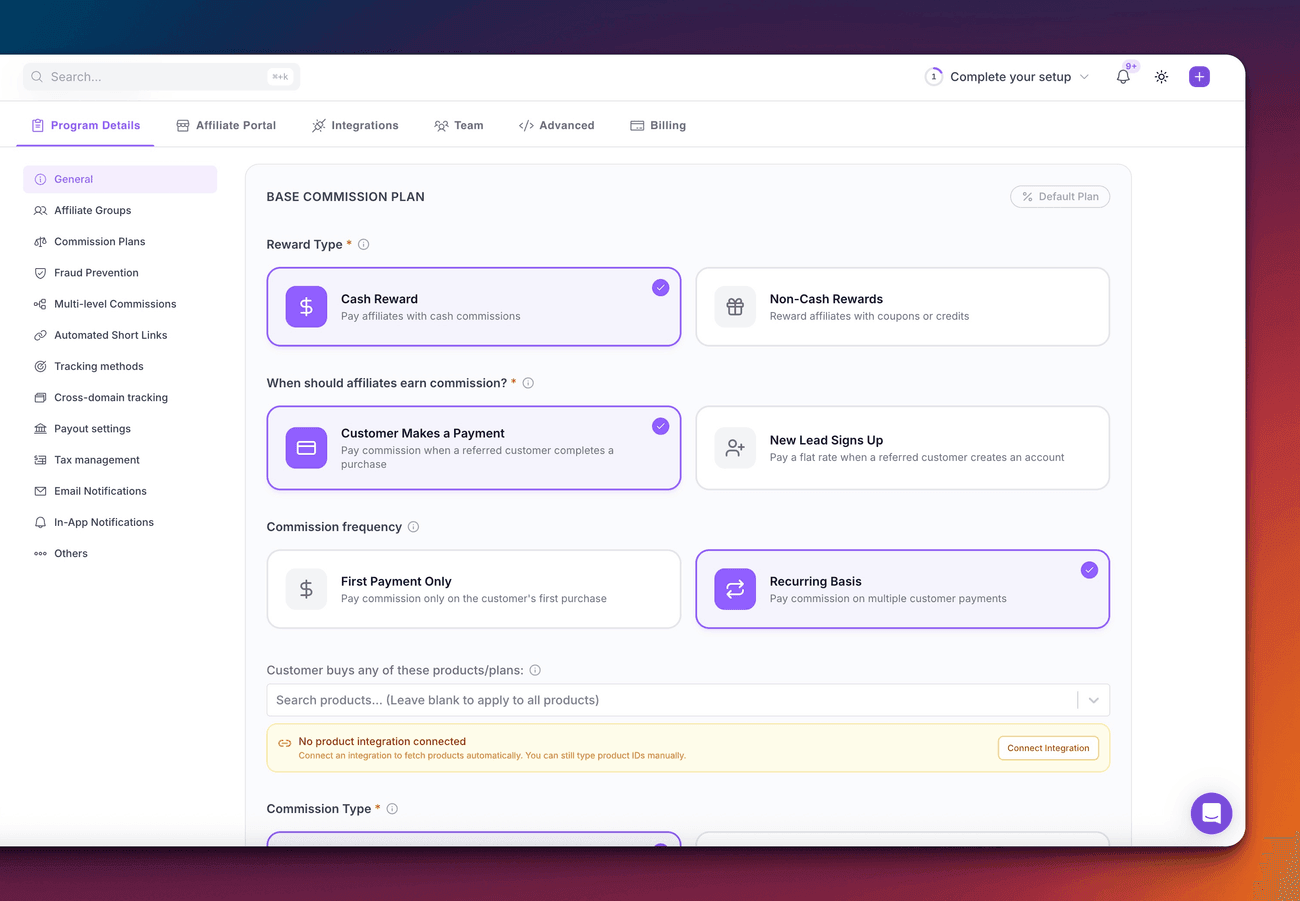
- Commission structure — a percentage or a fixed amount per sale. You can add rates for individual Creem products later, once Creem is connected and Referly can read your product list.
- Payout hold — how long a commission is held before it can be paid out. This doubles as your refund window: a refund inside that window claws the commission back automatically.
Step 2: Open the Creem integration in Referly
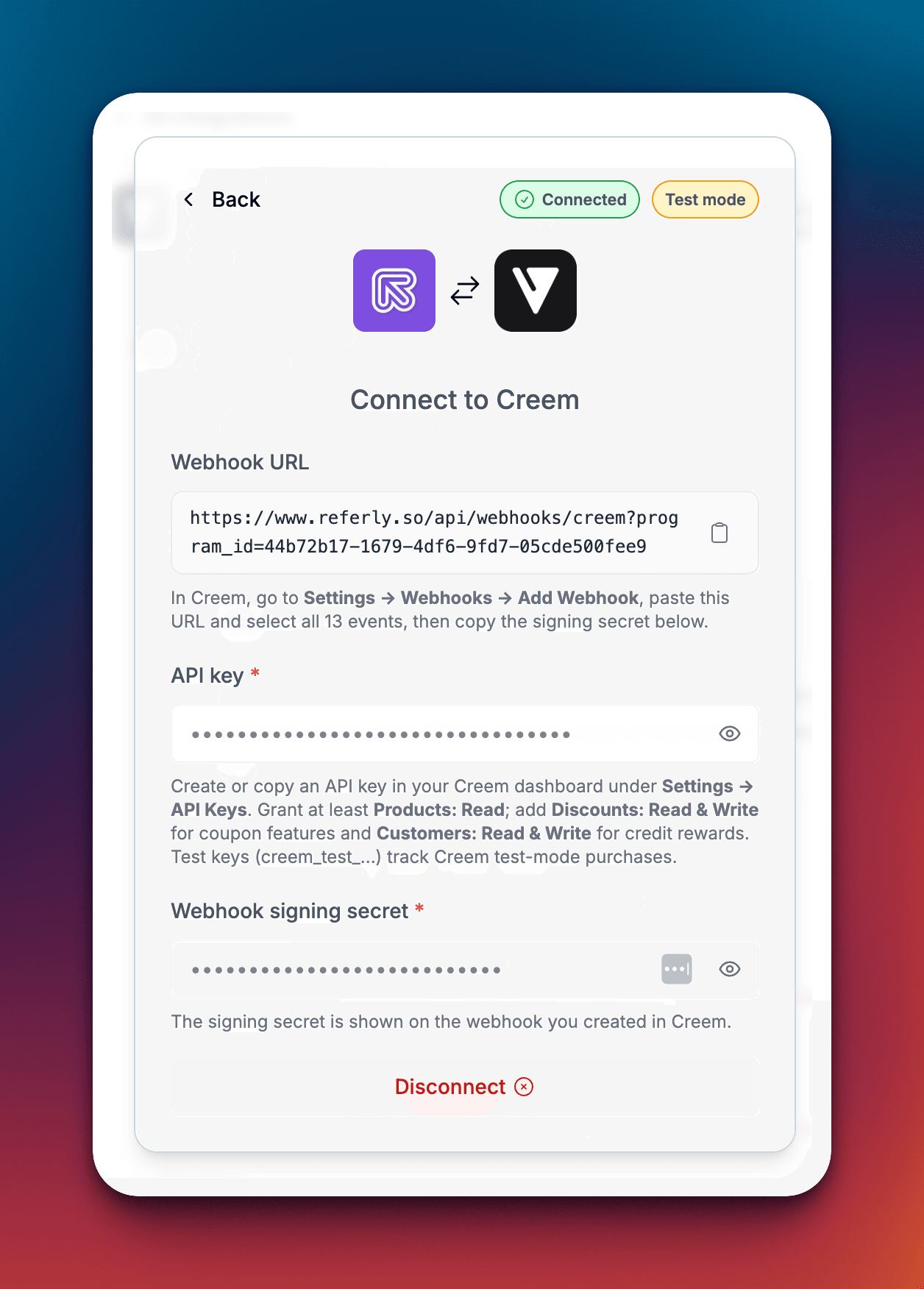
In Referly, open your program, go to Settings, then Integrations, and choose Creem. The dialog shows your program’s own Webhook URL at the top, plus the two fields you’ll fill in shortly. Copy the webhook URL and keep this dialog open — you’ll come back to it in Step 4.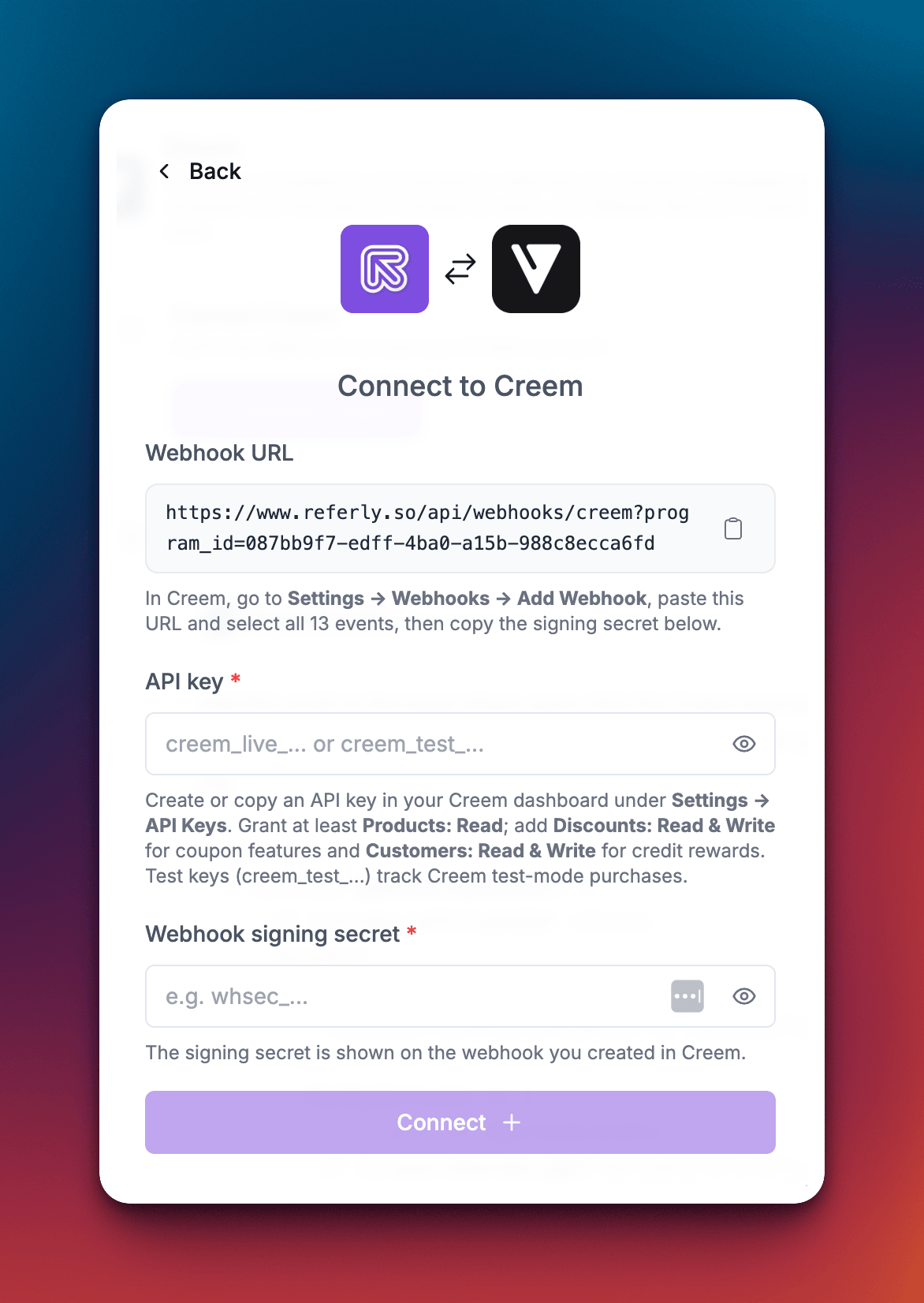
Webhook URL
Step 3: Add the webhook in Creem
This is what tells Referly that a payment happened.1
Open your webhook settings
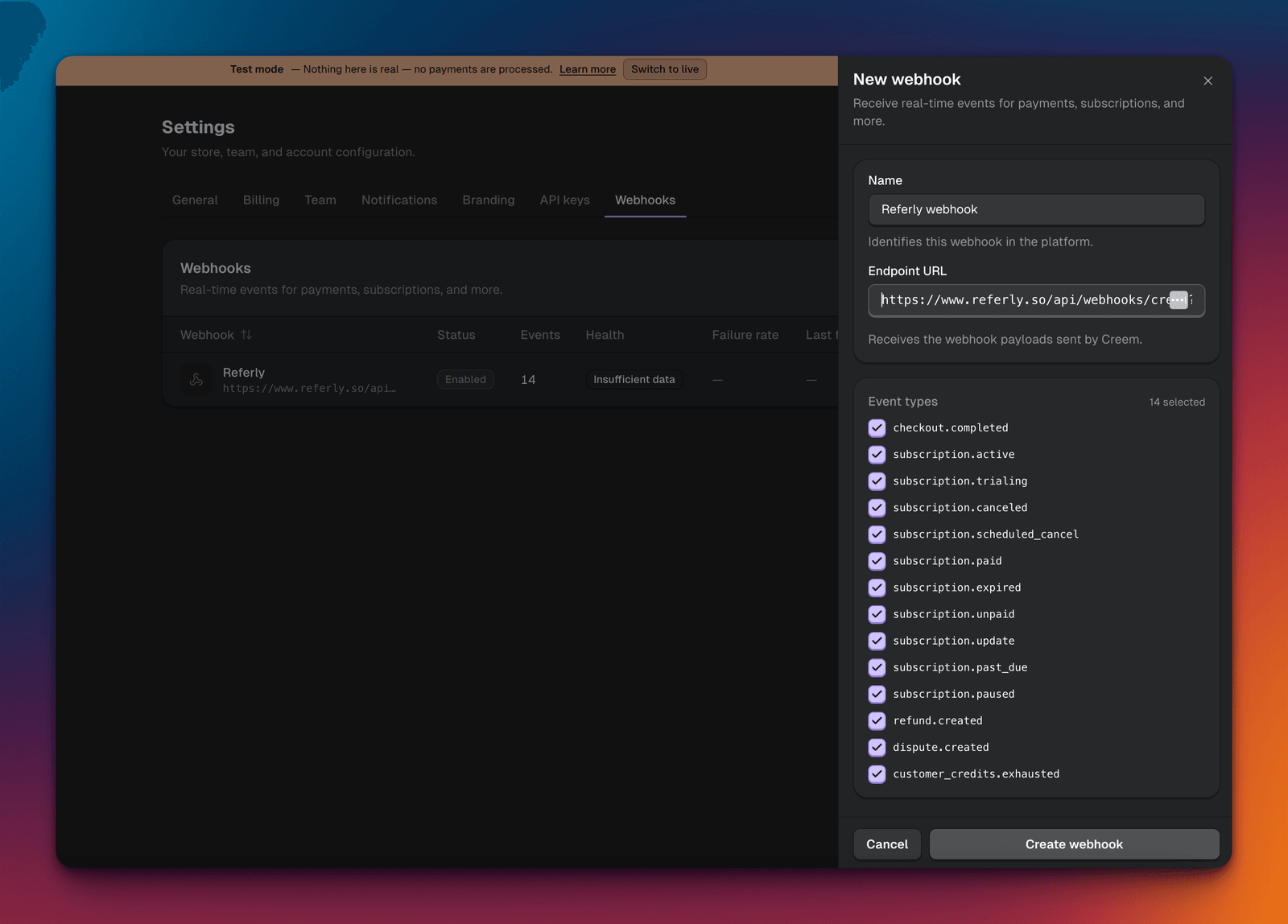
In your Creem dashboard, go to Settings, then Webhooks, and click Add Webhook.
2
Name it and paste the URL
Give it a name you’ll recognise later, such as “Referly”, and paste the webhook URL you copied in Step 2.
3
Select every event
Use Select All so every event type is ticked. Referly ignores the ones it doesn’t need.
4
Create it and copy the signing secret
Click Create, then copy the webhook’s signing secret. You’ll paste it into Referly in Step 4. It’s shown on the webhook itself in Creem.
Step 4: Create an API key and connect
Referly uses an API key to check the connection is valid, read your product list for product-based commission rules, and manage discount codes for affiliates.Create the key in Creem
In Creem, go to Settings, then API Keys, and create a key. Grant it:
Full access works too, if you’d rather not pick individual permissions.
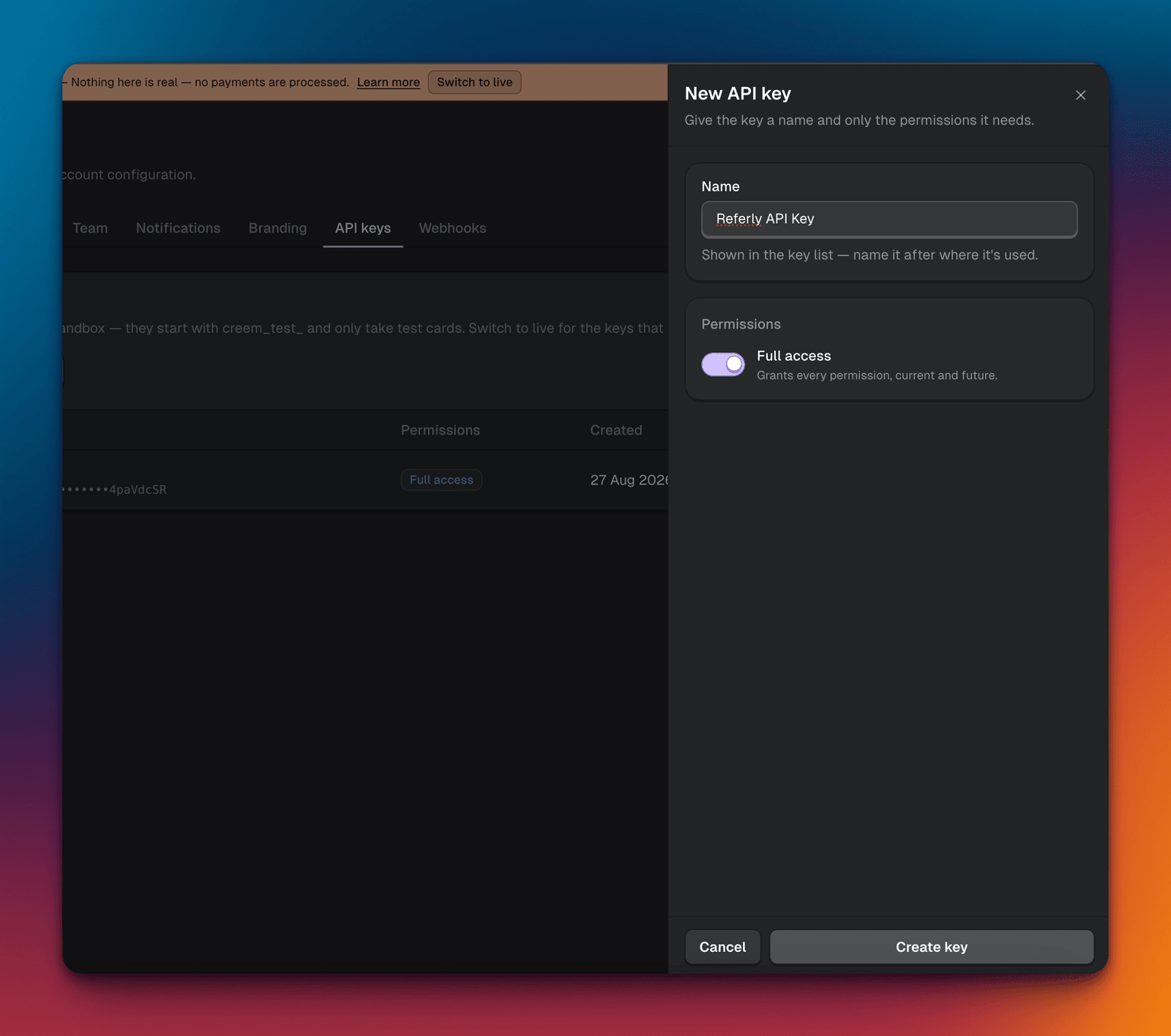
creem_test_ connects the same way and tracks Creem test-mode purchases instead.
Paste both values into Referly
Back in the Creem dialog from Step 2:- Paste the API key you just created.
- Paste the Webhook signing secret from Step 3, including its prefix.
- Click Connect.
Step 5: Install the tracking script on your site
The tracking script recognises visitors who arrived from an affiliate link, records the click, and remembers who referred them until they buy. Copy the snippet from your Referly dashboard — it comes pre-filled with your program ID — and paste it inside thehead section of your website, on every page.
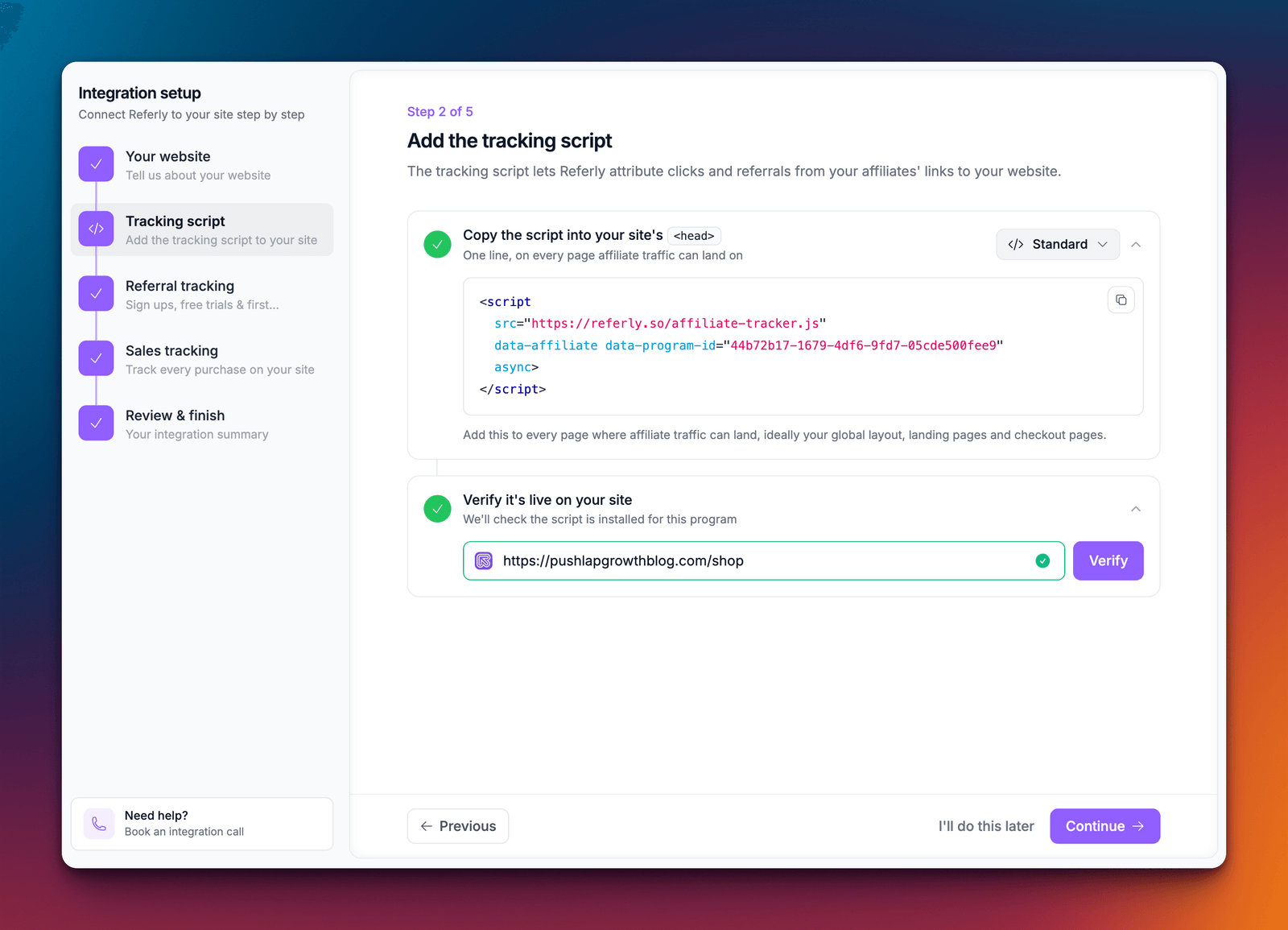
Tracking script
window.affiliateId, which is what the next step uses.
Step 6: Carry the referral into the Creem checkout
This is the step that connects a click to a sale. Skip it and link-based sales arrive with no affiliate attached — though discount code sales still work, because the code identifies the affiliate on its own. Referly reads the referral from a checkout field calledreferly_ref. Pick whichever method matches how you sell.
- Payment links
- Checkout API
Add this line to the pages where people click your Creem payment links, after the tracking script and before the closing Nothing else to configure. The snippet only acts when the visitor actually arrived from an affiliate link, and it leaves links untouched for everyone else.To check it’s working, open one of your pages through an affiliate link, wait a second or two for the page to settle, then hover a Creem payment link and look at the address — it should now carry the referral. Checking your page source won’t show it, because the snippet runs after the page loads.
body tag. It finds Creem payment links on the page and attaches the referral to them once it’s known.Payment link snippet
Referly uses
referly_ref, not creem_ref. Creem reserves creem_ref for its own built-in affiliate feature, so the two can run side by side without clashing.How Referly decides who gets credit
When a payment arrives, Referly looks for the affiliate in this order:- The referral in the checkout — the
referly_refvalue carried in from Step 6. - The discount code used at checkout — if the code belongs to one of your affiliates, that affiliate is credited.
- Neither — the customer and the revenue are still recorded so your Referly numbers match Creem, but no affiliate is credited and no commission is created.
Step 7: Test it end to end
Do this once before you go live. It takes a few minutes and it’s the only way to be sure every piece is connected.1
Connect with a test key
Use a
creem_test_ API key so you’re working in Creem’s test mode. Referly shows the amber Test mode badge when you are.2
Visit your site through an affiliate link
Use a real affiliate link from your program. This is what sets the referral in your browser.
3
Buy something through your Creem checkout
Use Creem’s test card,
4111 1111 1111 1111, with any future expiry date.4
Check the sale in Referly
The referral and the sale should appear against the right affiliate, with the commission calculated from your rate.
5
Refund it in Creem
Refund the test order from your Creem dashboard, then check Referly again — the sale should be marked refunded and the commission taken back off.
6
Swap in your live key
Disconnect, then reconnect with your live API key and the signing secret of a webhook created on your live account.
What gets tracked automatically
Once you’re connected, all of this happens without any further work:
Every sale is recorded against its Creem order, so a webhook retry or a manual resend from Creem won’t count the same sale twice.
Affiliate discount codes
If you granted Discounts: Read & Write on your API key, Referly can give each affiliate their own Creem discount code. A customer who types that code at checkout is credited to that affiliate, which is useful for affiliates who promote on video or in person where links are awkward. Codes are created in Creem when an affiliate joins your program, and automatic code generation is available on Business plans and up. See Coupons and promo codes for the full picture.Refunds and chargebacks
When an order is refunded in Creem, Referly finds the matching sale, marks it refunded, and takes the commission back off, so you don’t pay out on money you returned. A chargeback is handled the same way. Two things to know:- A partial refund reverses the whole commission, not a proportional slice of it.
- This applies while the commission is still on hold. Once your payout hold period has passed and the affiliate has been cleared for payout, the sale is left alone — adjust it by hand if you want it reversed.
Disconnecting
There are two parts, and you usually want both:- To stop tracking, delete the Referly webhook in your Creem dashboard under Settings, then Webhooks. Nothing reaches Referly after that.
- To remove your key, open the Creem dialog in Referly and choose Disconnect.
Troubleshooting
Nothing is appearing in Referly
Nothing is appearing in Referly
Check the webhook’s event selection first — a webhook saved with only some events ticked fails quietly, and this is the most common cause. Open the webhook in Creem and confirm every event is ticked. Then confirm the webhook URL is the one from your Referly dialog, including the program ID on the end.
Sales are tracked but no affiliate is credited
Sales are tracked but no affiliate is credited
The referral isn’t reaching the checkout. Open a recent order in Creem and look for
referly_ref in its metadata. If it’s missing, the problem is Step 6: check that both the tracking script and the payment-link snippet are on the page where people click your payment links, and that you tested through a real affiliate link.The referral isn't on my payment links
The referral isn't on my payment links
The snippet runs a moment after the page loads, so check the link’s address after the page has settled rather than in your page source. Make sure the snippet comes after the tracking script, and remember it does nothing for a visitor who didn’t arrive from an affiliate link.
Connecting fails or the key is rejected
Connecting fails or the key is rejected
Referly validates the key against Creem before saving. Check that the key has at least Products: Read, that you copied it in full, and that you’re not connecting a key already used on another Referly program — one Creem key can only be connected to one program.
Everything stopped working after I changed the webhook
Everything stopped working after I changed the webhook
Deleting and recreating a webhook in Creem gives you a new signing secret. Paste the new secret into the Referly dialog, otherwise deliveries fail their signature check and nothing is recorded.
Discount code sales aren't being credited
Discount code sales aren't being credited
Check that discount-code tracking is switched on for your program under tracking methods, and that the code is one Referly knows about and has assigned to an affiliate. Codes created directly in Creem aren’t linked to anyone until you connect them in Referly.
I'm seeing test purchases in my live numbers
I'm seeing test purchases in my live numbers
You’re connected with a
creem_test_ key. Referly shows the amber Test mode badge when that’s the case — disconnect and reconnect with your live key.Related
Coupons and promo codes
Give each affiliate their own Creem discount code.
Product-based commissions
Pay different rates on different Creem products.
Tracking methods
Choose whether links, codes, or both credit your affiliates.
All integrations
See every platform Referly connects to.