

Open the White Label page
Select the gear at the bottom of the left bar to open Agency Settings, select the Customization tab, then select White Label. Only the agency Owner or an Admin can save changes here.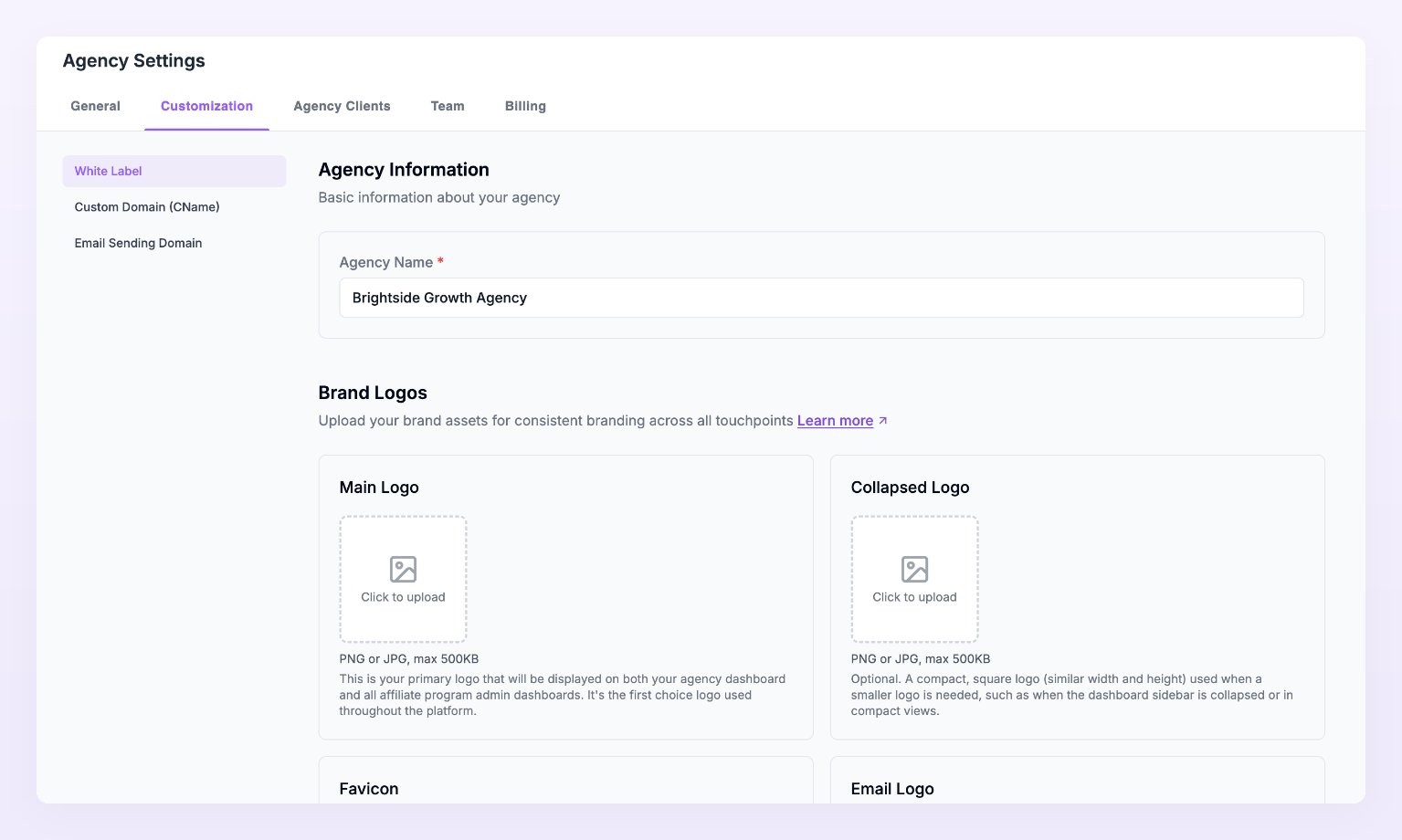
Set your agency name
Under Agency Information, enter your agency’s name in Agency Name. It’s required, so you can’t save the page with it empty. Your agency name is shown as the page title in the browser tab on your agency’s sign-in and sign-up pages, and as the title of link previews when you add an Open Graph image.Upload your logos
Under Brand Logos, select an upload box to add each image. Logos and the favicon can be PNG or JPG files of up to 500KB.Add a link preview image
Open Graph Image is the picture people see when a link to your agency domain is shared in apps like Slack, Discord, or WhatsApp. When you add one, the preview also shows your agency name as its title. Upload a PNG or JPG of up to 1MB. If you leave it empty, Referly’s default preview image is used.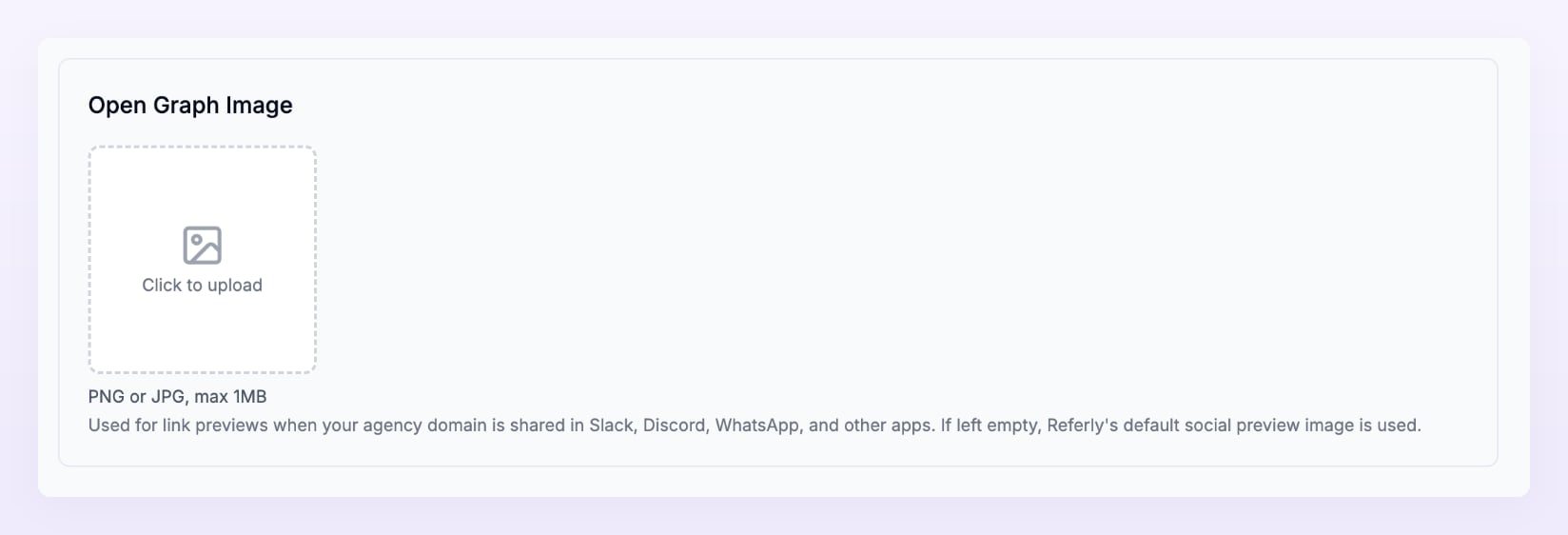
Save your changes
As soon as you change anything, a Save Changes button appears in the bottom right corner. Select it to apply your changes. You’ll see Agency settings saved successfully.What your clients and their affiliates see
Every client program you run is white-labelled automatically, with no settings to change:- No Referly help links. “Learn more” links to Referly’s help center are hidden throughout your clients’ dashboards. The Help section of their sidebar (help center, developer documentation, and booking a call) and the free link shortener are hidden too.
- Your logo when connecting a payment processor. When a client connects a payment processor such as Stripe or Shopify, the connect window shows your Main Logo instead of Referly’s. If you haven’t uploaded a logo, no logos are shown there.
- No “Join other programs” for affiliates. Affiliates of your client programs don’t see Join other programs in their portal’s program switcher, so they aren’t sent to Referly’s marketplace.
- Your domain during setup. If you’ve added a custom domain, then when a client sets up their program, the Affiliate Portal Subdomain field and the final setup page show the portal address on your agency domain instead of
referly.so. - Branded emails to your clients. Once your Email Sending Domain is verified, the notification emails your clients get (such as new affiliates, new referrals, new sales, payouts, and the weekly report) come from your domain, carry your Email Logo, and don’t include Referly’s footer.
Related
Custom domain
Run your dashboard, portals, and emails on your own domain.
Feature access and usage limits
Choose what each client can use, and switch options off for everyone.
Agencies overview
How the agency dashboard and settings fit together.
Manage client programs
Create programs, hand them to clients, and manage them day to day.