

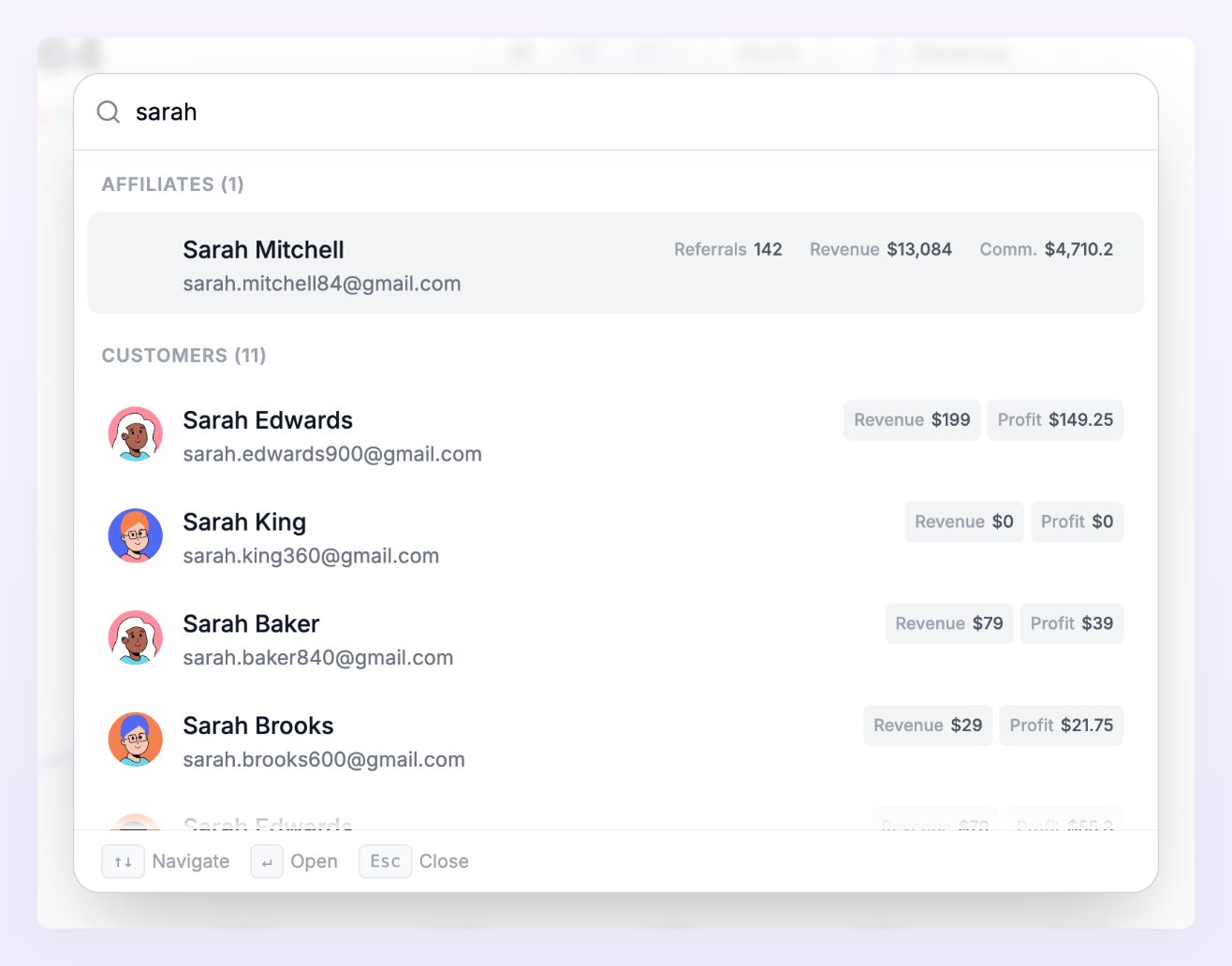
Open search
There are two ways to open search from anywhere in your dashboard:- Select the Search… bar at the top of the page. It appears on larger screens and shows the keyboard shortcut next to it.
- Press Cmd+K on a Mac or Ctrl+K on Windows. Press it again to close search.

What you can search for
Start typing in the box at the top, which reads “Search pages, settings, affiliates, customers, docs…”. Results appear as you type, grouped under a heading for each type:
You don’t need to use the exact name of a page or setting. Searches also match common alternative words, so typing “home” finds your Dashboard and “receipts” finds your Invoices.
How search matches what you type
- Type at least 2 characters to search your affiliates, customers, transactions, commission plans and coupons. Pages, settings and help results start appearing from the first character.
- Results come from the program you have open. To search a different program, switch to it first, then open search again.
- Words can be in any order. When you type more than one word, each word has to match somewhere, in any order. “Jane Doe” finds an affiliate whose first name is Jane and last name is Doe, and “domain portal” finds the Custom Domain setting for your affiliate portal. An email address counts as a single word, so you can paste one in whole. Coupon names are the exception: they match the text exactly as you type it.
- Only the best page and settings matches are shown. If you don’t see the page or setting you want, add another word to narrow it down.
Move through your results
- Use the up and down arrow keys to move through the results, Enter to open the highlighted one, and Esc to close search. These shortcuts are listed at the bottom of the search window.
- Each affiliate, customer and transaction group shows the 5 most recent matches, with the total number of matches in its heading (for example, Affiliates (12)). Select Show more under a group, which also tells you how many are left, to load the next few.
- If nothing matches, search shows “No results found.” Check the spelling, or try part of the name or email address instead.
If an agency runs your program, the Help & Resources results don’t appear. If the agency has also turned off the marketplace, Marketplace and the other marketplace pages are left out of search, the same way they’re hidden from your sidebar.
Related
Welcome to Referly
A quick tour of what you can do in Referly.
Setup checklist
The steps to get your program ready to launch.
Affiliates overview
Read your affiliate list and find anyone fast.
Rewards overview
Review every commission your affiliates earn.