

New client programs start exempt
Every client program you create starts with a permanent exemption, with the reason “Billing not set up yet”. This keeps the program working while you connect Stripe and set up your plans, so your client isn’t blocked on day one. The exemption stays on until you turn it off. Once your client is on a plan and you want their access to depend on paying for it, end the exemption (see End an exemption below).What an exemption does
While a client program is exempt:- The program has full access without payment requirements.
- Its affiliate portal keeps working even if no plan is assigned.
- Your client sees Payment Exempt under Next payment on their billing page.
- The Billing Status tab in your agency controls shows Payment Exempted.
Grant an exemption
1
Open the program's Payment Exemption page
From your agency home screen, select the client’s program card. Go to the Plan & Billing tab and select Payment Exemption.
2
Turn the exemption on
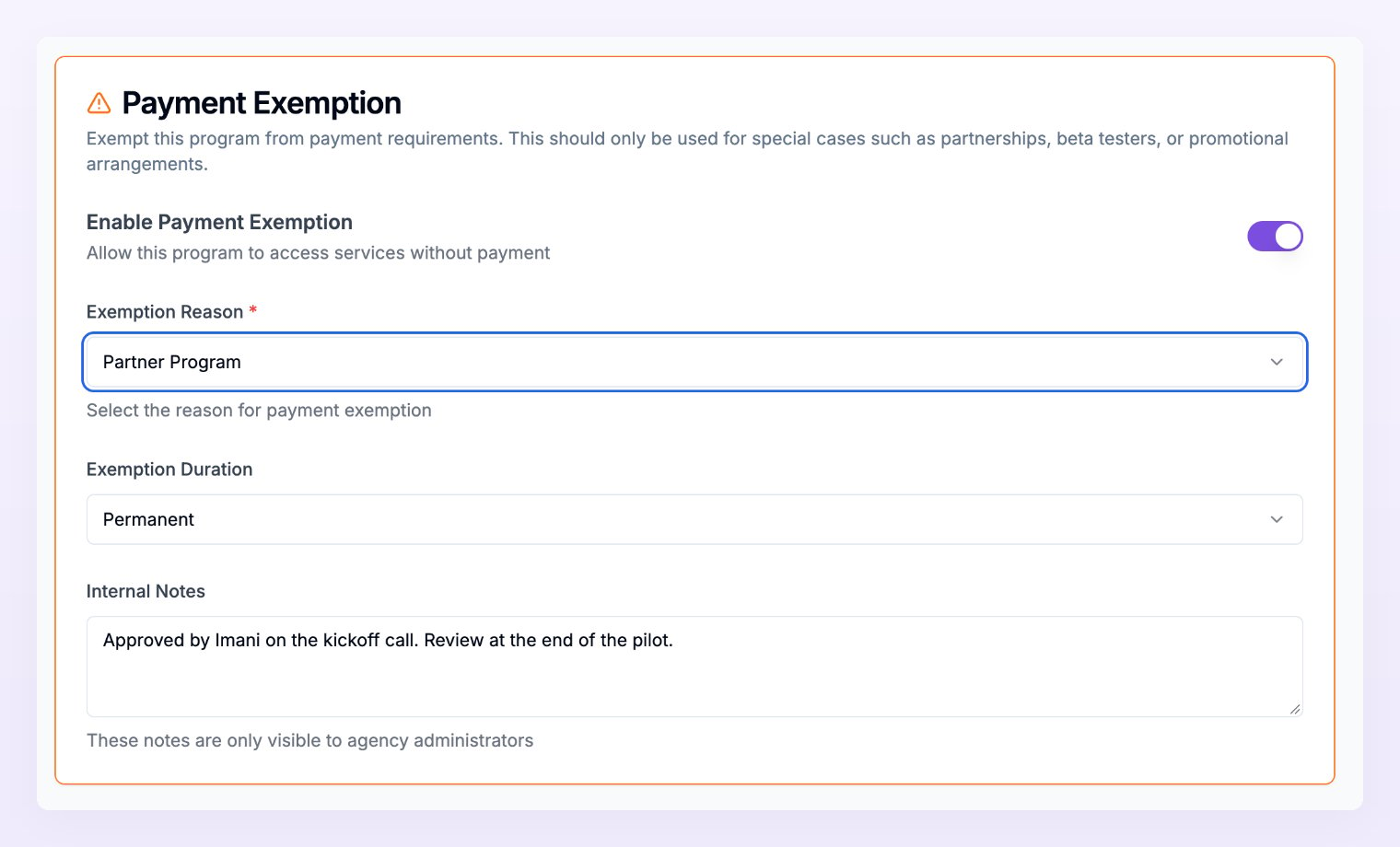
Switch on Enable Payment Exemption. The rest of the form appears below it.
3
Choose a reason
Pick one under Exemption Reason: Partner Program, Beta Tester, Promotional, Non-Profit, Internal Use, or Other. A reason is required.
4
Choose how long it lasts
Under Exemption Duration, choose Permanent or Temporary. For a temporary exemption, set an End Date (required) and, if you like, a Start Date. If you leave the start date empty, it starts today.
5
Add notes and save
Use Internal Notes to record why you granted it or who approved it. These notes are only visible to agency administrators, never to your client. Select Save Changes.
Check a program’s exemption
Open the program’s Plan & Billing tab and select Billing Status. An exempt program shows Payment Exempted with an Exemption Details card listing the Exemption Type, the Reason and, for a temporary exemption, the date it ends under Exemption Ends.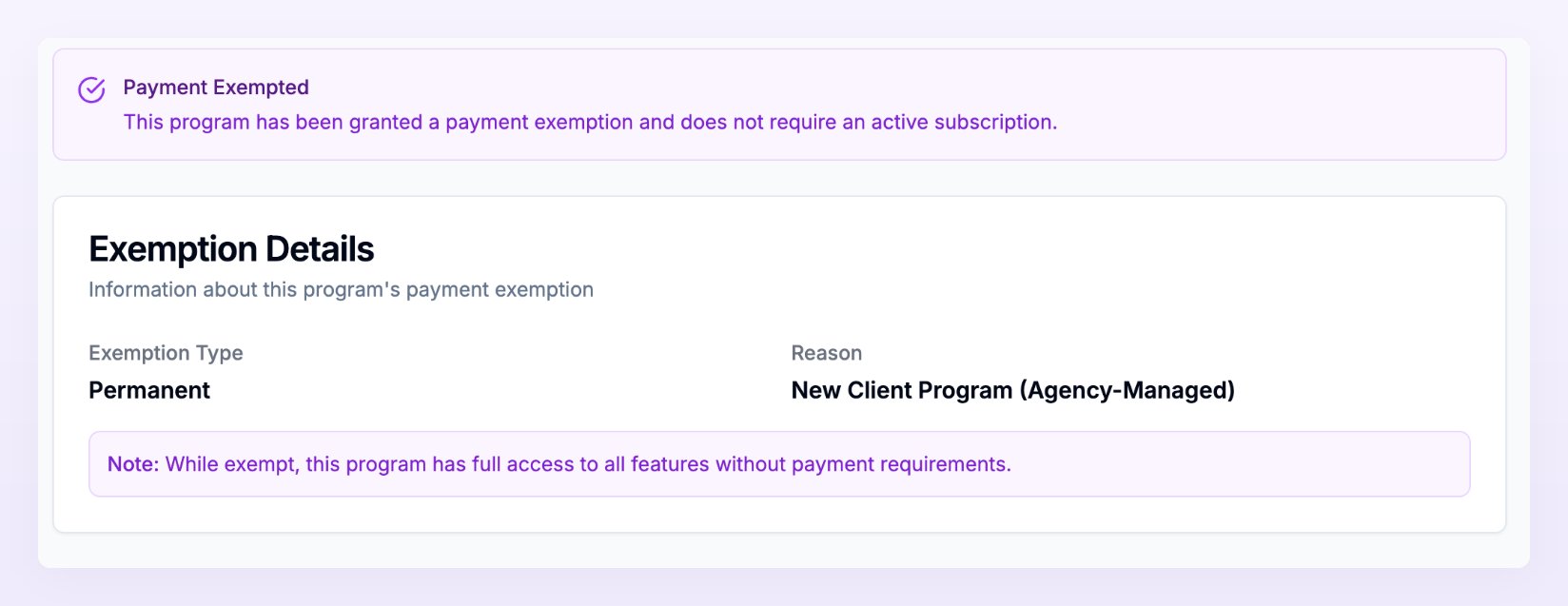
After a temporary exemption’s end date passes, Billing Status stops showing it as exempt. To make sure the program’s access follows the client’s subscription from then on, open Payment Exemption and switch the exemption off.
End an exemption
1
Assign a plan first
Go to Plan & Billing, select Current Plan, and assign the client one of your plans. See assign a plan to a client program.
2
Switch the exemption off
Select Payment Exemption, switch off Enable Payment Exemption, and select Save Changes.
Related
Agency billing
Connect Stripe, create plans, and assign them to clients.
Manage client programs
Create programs, invite clients, and manage them day to day.
Feature access and usage limits
Choose what each client can use and how far they can grow.
Agencies overview
How an agency account works and where everything lives.