

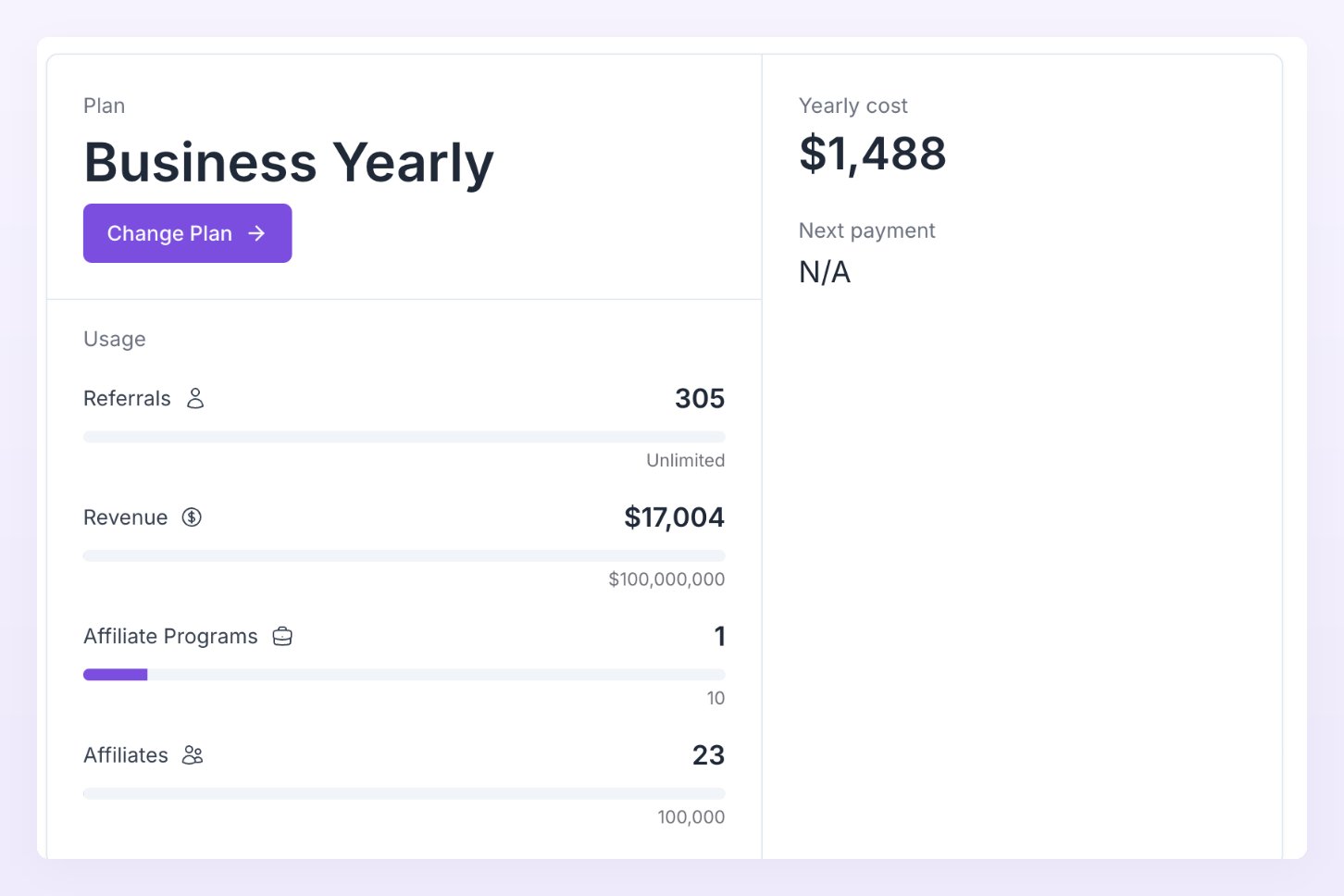
What the Subscription screen shows
- Plan: the name of your plan, followed by Monthly or Yearly. While you’re trialing, a Free Trial badge sits next to it.
- Change Plan: opens the plan chooser. If you don’t have a plan yet, the button reads Choose Plan.
- Usage: how much of your plan’s limits you’ve used. See plans and features for what each bar counts.
- Monthly cost or Yearly cost: what you pay each billing period.
- Next payment: the date of your next charge. If a payment is late, an Overdue badge appears next to the date, along with a Pay now button that opens the unpaid invoice so you can settle it.
- Manage/Cancel Subscription: opens your secure Stripe billing portal, where you can cancel. See Cancel your subscription below.
- Add-ons: the card below your plan, where you buy and manage add-ons. See add-ons.
If you’re on a custom Enterprise contract, there’s no Change Plan button. Instead you’ll see “You are on a custom Enterprise contract. To change your plan, contact your account manager.”
Choose or change your plan
Select Change Plan (or Choose Plan) under your plan name. The Choose your plan panel opens with the plans side by side.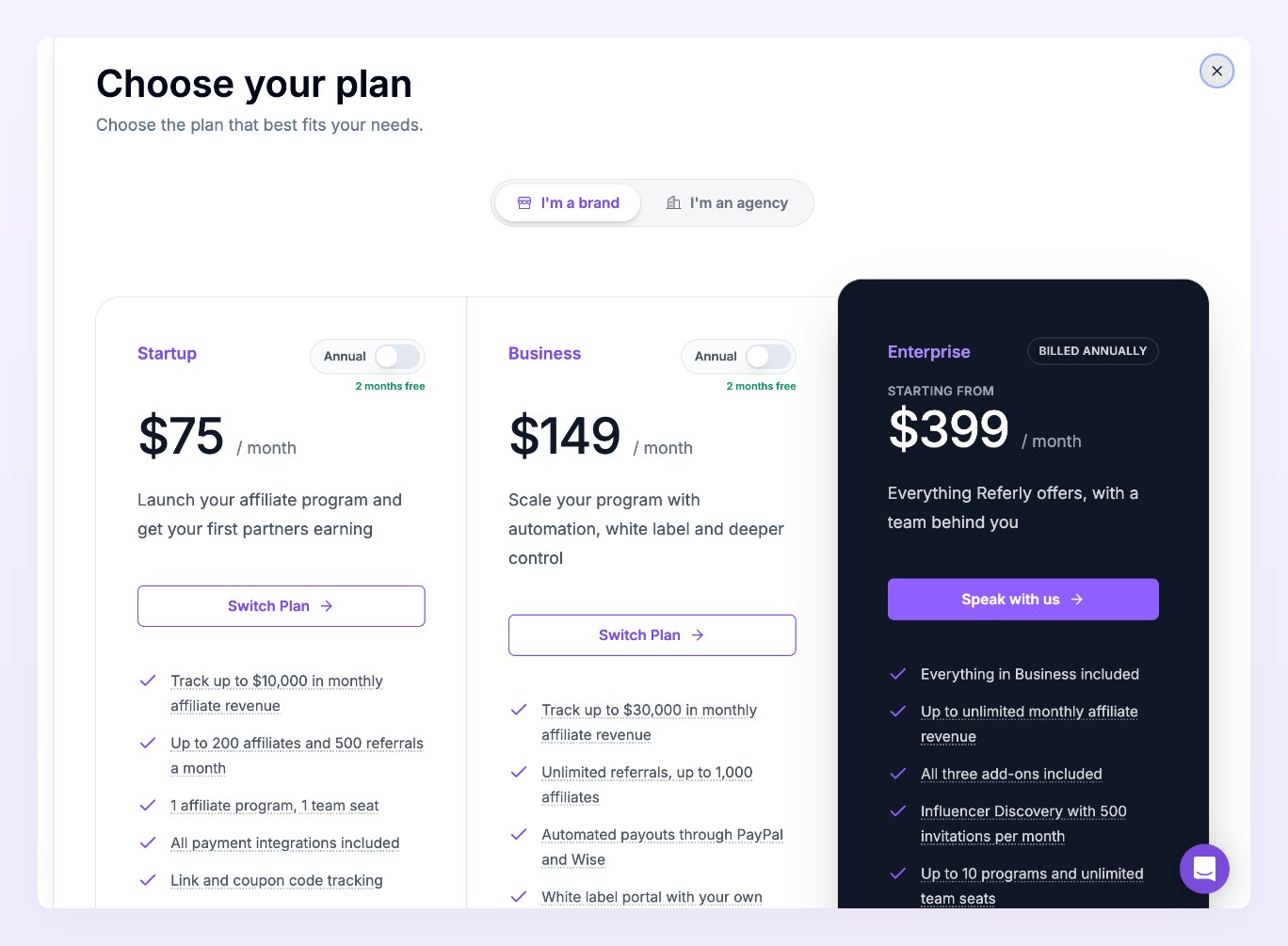
- Use the I’m a brand and I’m an agency tabs at the top to switch between the brand plans and the agency plans.
- Turn on the Annual switch on a plan card to see yearly prices. Paying yearly gets you 2 months free.
- Hover over most features in a card’s list to see a short explanation of what they do.
- To compare every feature in one table, select View full pricing page at the bottom of the panel.
To learn what each plan includes and costs, see plans and features.
Upgrade or downgrade a paid plan
1
Open the plan chooser
On the Subscription screen, select Change Plan.
2
Pick the billing period
Turn the Annual switch on for yearly billing, or leave it off for monthly.
3
Choose the new plan
Select Upgrade or Switch Plan on the plan you want. A confirmation window opens showing exactly what will happen to your card.
4
Confirm
Check the amount and the card, then select the confirm button. The change takes effect right away and you’ll see “Your plan has been updated”.
How upgrades and downgrades are charged
Plan changes are settled immediately, based on how much of your current billing period is left:- If the new plan costs more: your card is charged today for the new plan’s price for the period ahead, minus a credit for the unused part of your current plan.
- If the new plan costs less: nothing is charged today. The unused part of your current plan is added to your account as credit and taken off your future invoices.
Review the charge before you confirm
Whenever a button would charge the card you have saved, Referly opens a confirmation window first, so a stray click never turns into a charge you didn’t expect. It’s titled Confirm plan change when you switch plans, or Start your paid plan when you end a free trial early. The same window opens from the upgrade prompts on locked features and from the Start Paid Plan button in the left sidebar during a trial. The window shows:- The plan you’re moving to, with its regular price (such as
$149.00/month) and, for a plan change, the plan you’re moving from. - Charged today or Account credit: the amount that will be charged now, or the credit you’ll receive when you move to a cheaper plan. Below it, each line of the calculation is listed, and any discount you have appears as a Discount line.
- Your card: the card brand, its last four digits and its expiry date. A Will be charged badge appears when the card is charged on confirmation.
- A plain-language summary of what happens when you confirm, including when the plan renews and at what price.
If you don’t have a card saved
When you start your paid plan and there’s no card saved on your subscription, Referly skips the review and takes you straight to Stripe’s secure checkout, with the message “Taking you to secure checkout to add a card.” You add your card there, and the checkout page shows the amount before you pay. When you change plans and Referly can’t find a card to charge, the window warns you that Stripe will email you an invoice for the amount instead of charging a card automatically, and the confirm button reads Continue and invoice followed by the amount.If the charge preview doesn’t load
Occasionally the window shows “We could not load a preview of this charge.” Select Try again to reload it. If you select Continue anyway, the card you have saved is charged for the plan without a preview, so we recommend trying again first.Start your paid plan during a free trial
While you’re on a free trial, the Subscription screen shows a You’re on a free trial banner with the number of days you have left. Your plan’s full limits are unlocked during the trial, but a few features stay locked until you start paying. See plans and features for what the trial includes.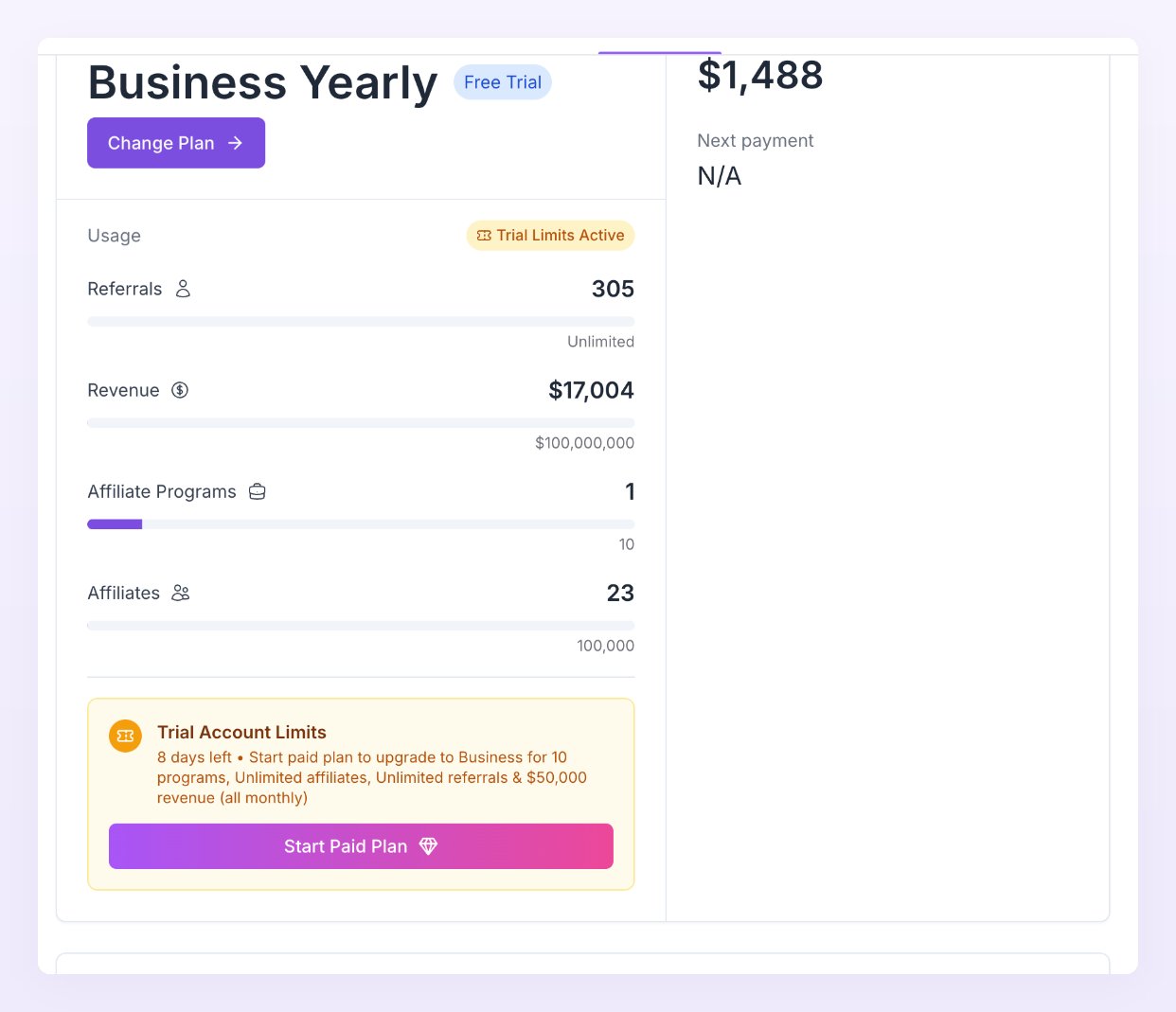
1
Select Start Paid Plan
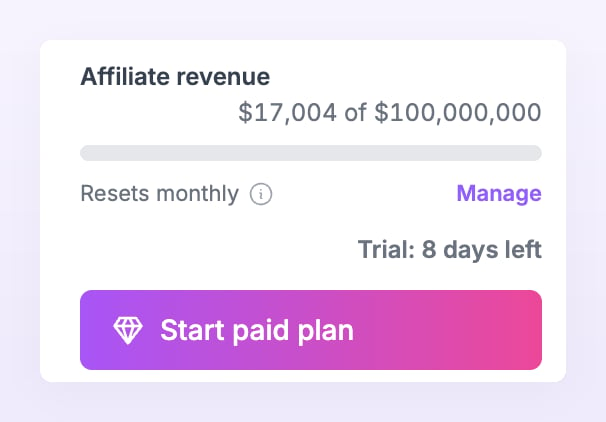
Select Start Paid Plan in the trial banner. You’ll also find a Start Paid Plan button in the left sidebar, under the number of trial days you have left.
2
Review the charge
The Start your paid plan window shows the card on file and the amount. Your trial ends as soon as you confirm, and you pay the full price of your plan today.
3
Confirm
Select the confirm button. Your new billing period starts today, so your next payment is due one billing period from now.
Switch plans during your trial
You can try a different plan without ending your trial. Open Change Plan, keep the Annual switch off, and select Switch Trial Plan on the plan you want. Your trial carries on with that plan, and nothing is charged until the trial ends. Yearly billing isn’t available during a free trial. With the Annual switch on, the plan cards show Start Paid Plan instead. Selecting it takes you to Stripe’s secure checkout to pay for the yearly plan, which replaces your trial straight away.Cancel your subscription
1
Open the billing portal
On the Subscription screen, select Manage/Cancel Subscription on the right. Your secure Stripe billing portal opens.
2
Cancel your plan
Cancel your subscription in the portal. When you’re done, use the portal’s link back to Referly to return to the Subscription screen.
Add-ons are billed separately from your plan. To manage or cancel one, select Manage add-on next to it in the Add-ons card. See add-ons.
If you pay through Shopify
If your Referly subscription is billed through Shopify, you’ll see a Cancel Subscription button instead of Manage/Cancel Subscription. Select it, and a window asks “Are you sure you want to cancel your subscription? You’ll lose access to premium features.” Select Confirm Cancel to cancel, or Keep Subscription to keep your plan.If an agency manages your program
When you open a client’s program from an agency account, the Subscription screen shows a notice that the program is managed by your agency settings, with a Go to Agency Account Billing button. Your agency’s own plan and billing live in your agency account. See billing for agencies.Related
Plans and features
Compare plans, limits and what each one unlocks.
Add-ons
Add Engage, Gamify or Influencer Discovery to your plan.
Invoices
Find, view and pay your Referly invoices.
Billing for agencies
How billing works when you run programs for clients.