


What the Sharetribe integration can and can’t do
Which setup do you have?
Every marketplace captures referrals the same way — through Sharetribe’s Referral sources feature in Step 4. The only difference is an optional extra:No-code marketplace
Your marketplace is hosted by Sharetribe and you build it in Console. Referral sources is all you need — affiliate links are tracked automatically with no code at all.
Custom-code template
You run the Sharetribe Web Template on your own hosting. Referral sources works exactly the same, and you can additionally run the Referly tracking script for click-level analytics.
Before you start
You’ll need:- Admin access to Sharetribe Console, so you can create an Integration API application and edit your user types.
- A developer, only if you want the optional tracking-script extras on a custom-code template. The core setup needs no code at all.
- Your Referly program open. Go to your program, then Settings, then Integrations, and choose Sharetribe.
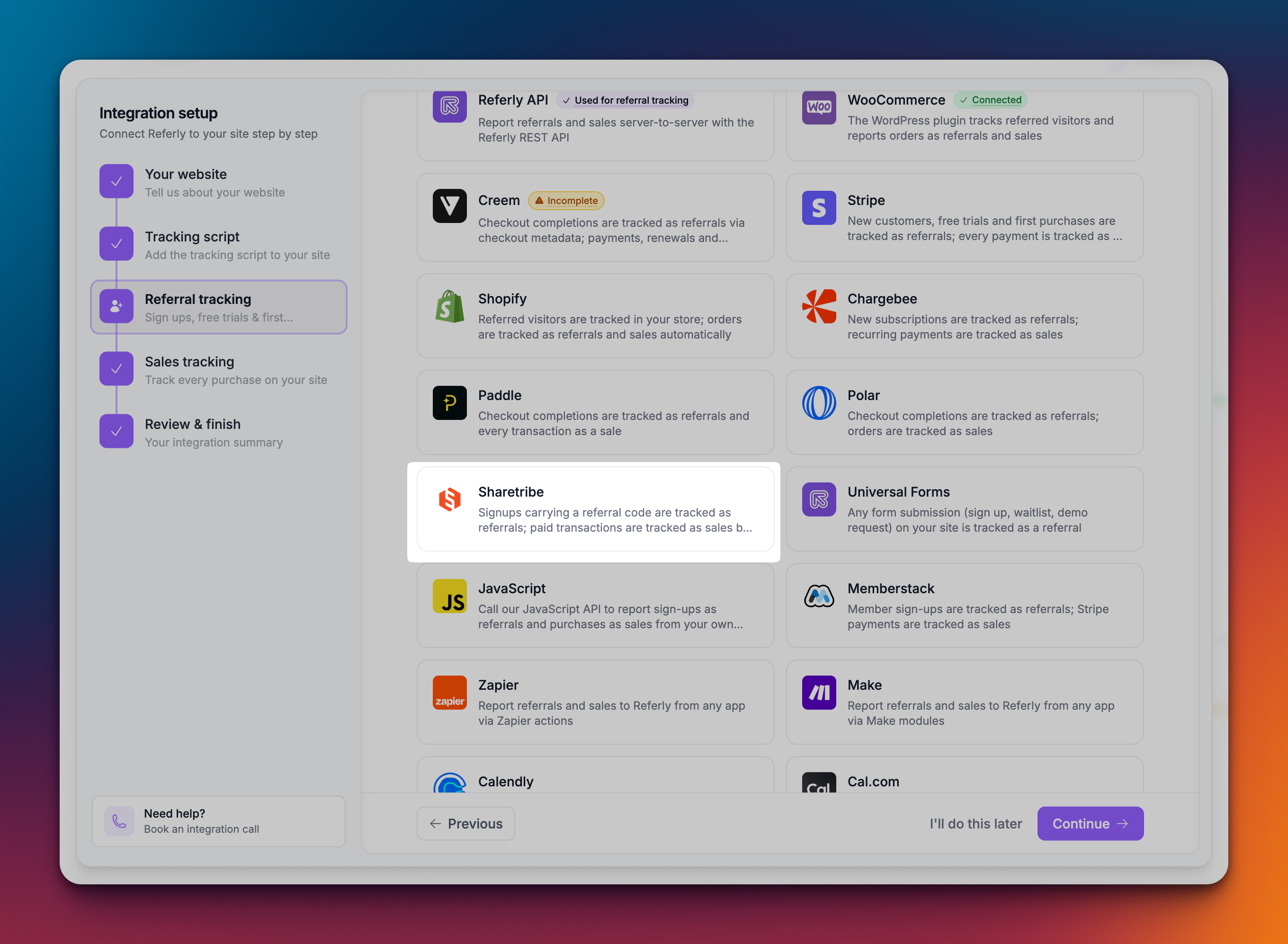
Step 1: Create an Integration API application in Sharetribe
This is what lets Referly read your marketplace.1
Open your applications
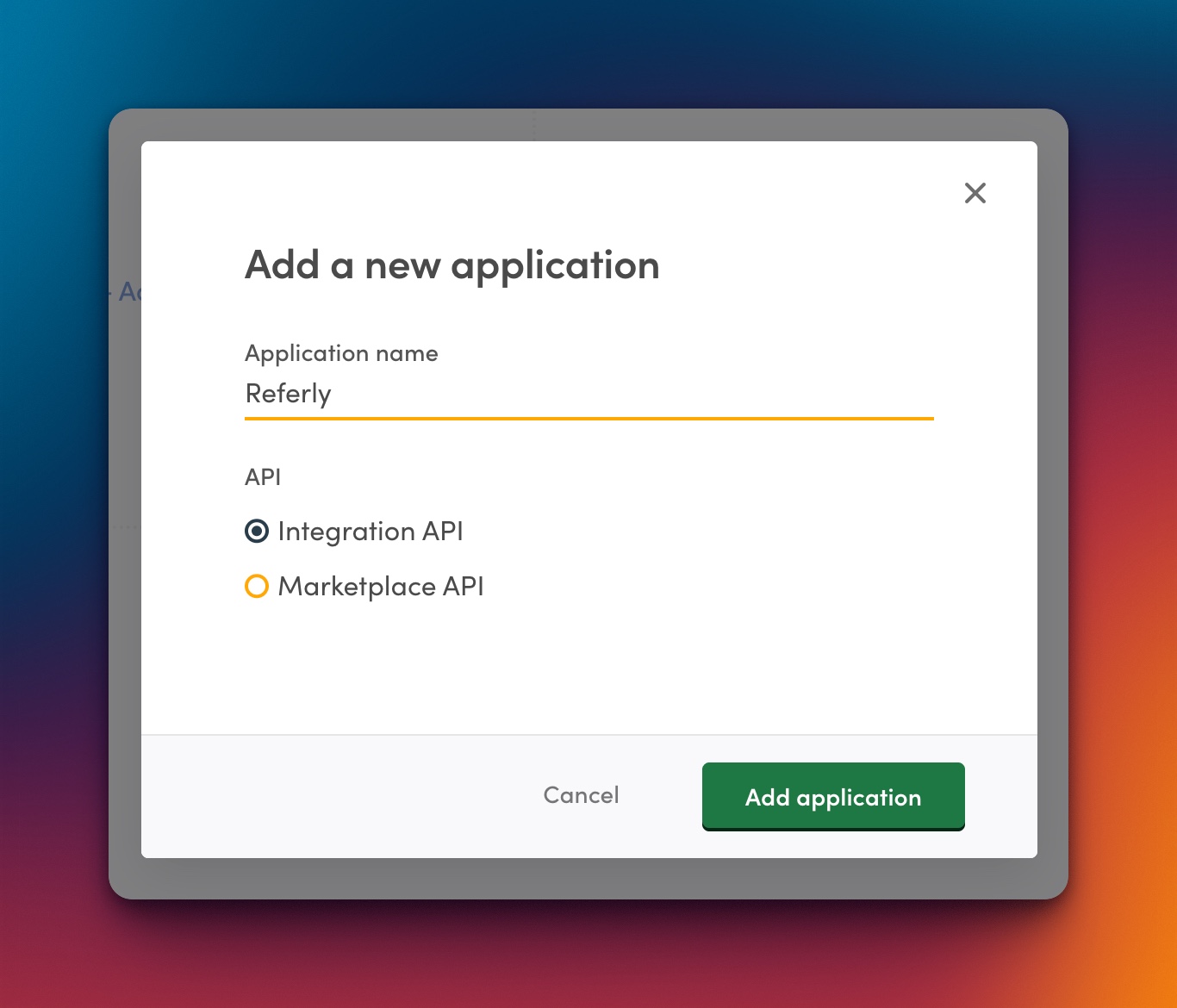
In Sharetribe Console, go to Build, then Advanced, then Applications.
2
Create an Integration API application
Choose Integration API as the type — not the Marketplace API. Give it a name you’ll recognise later, such as “Referly”.
3
Copy both credentials
Copy the Client ID and the Client Secret. The secret is shown only once, when the application is created, so copy it now — if you lose it you’ll need to create a new application.
Step 2: Connect Sharetribe in Referly
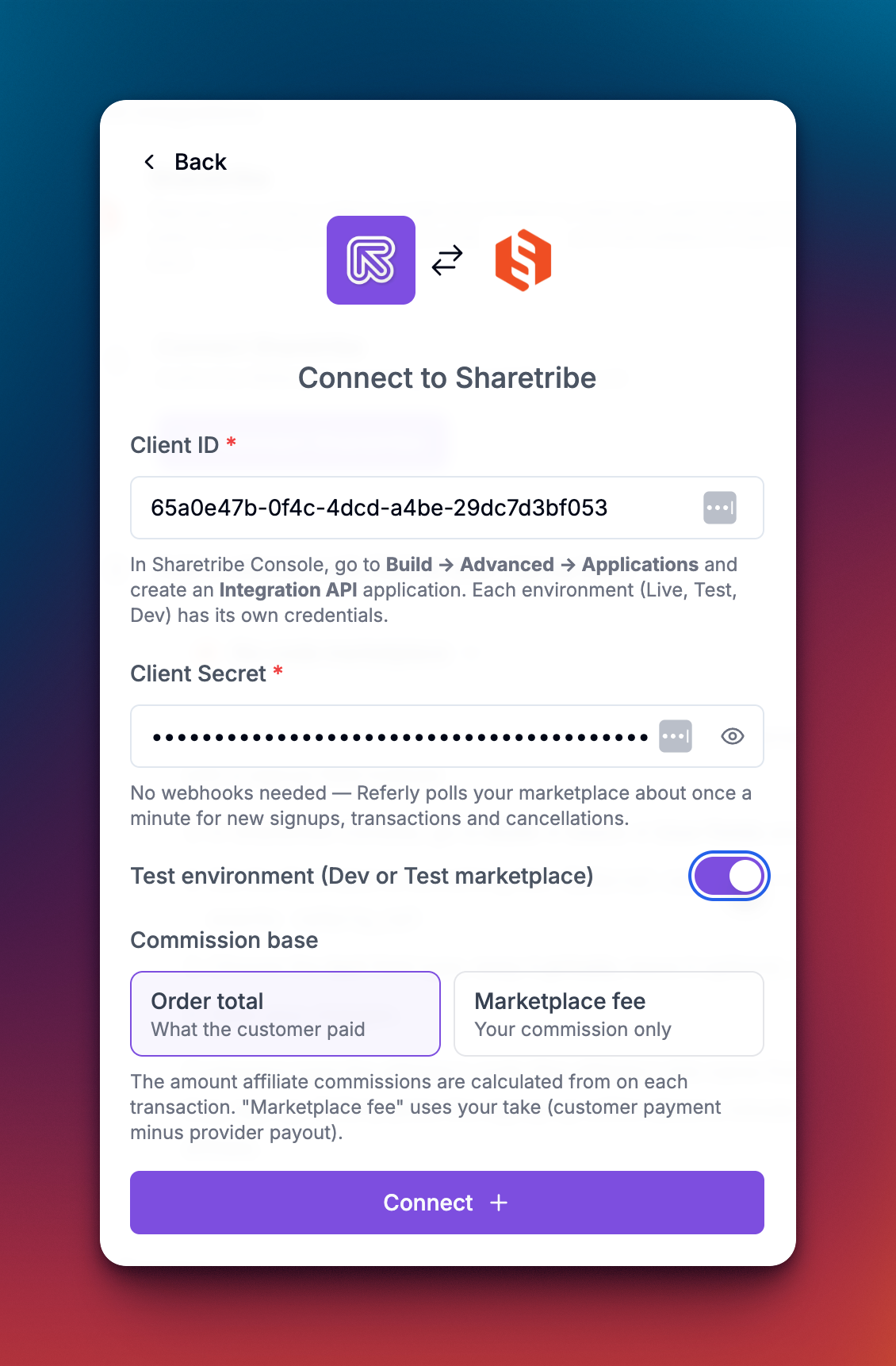
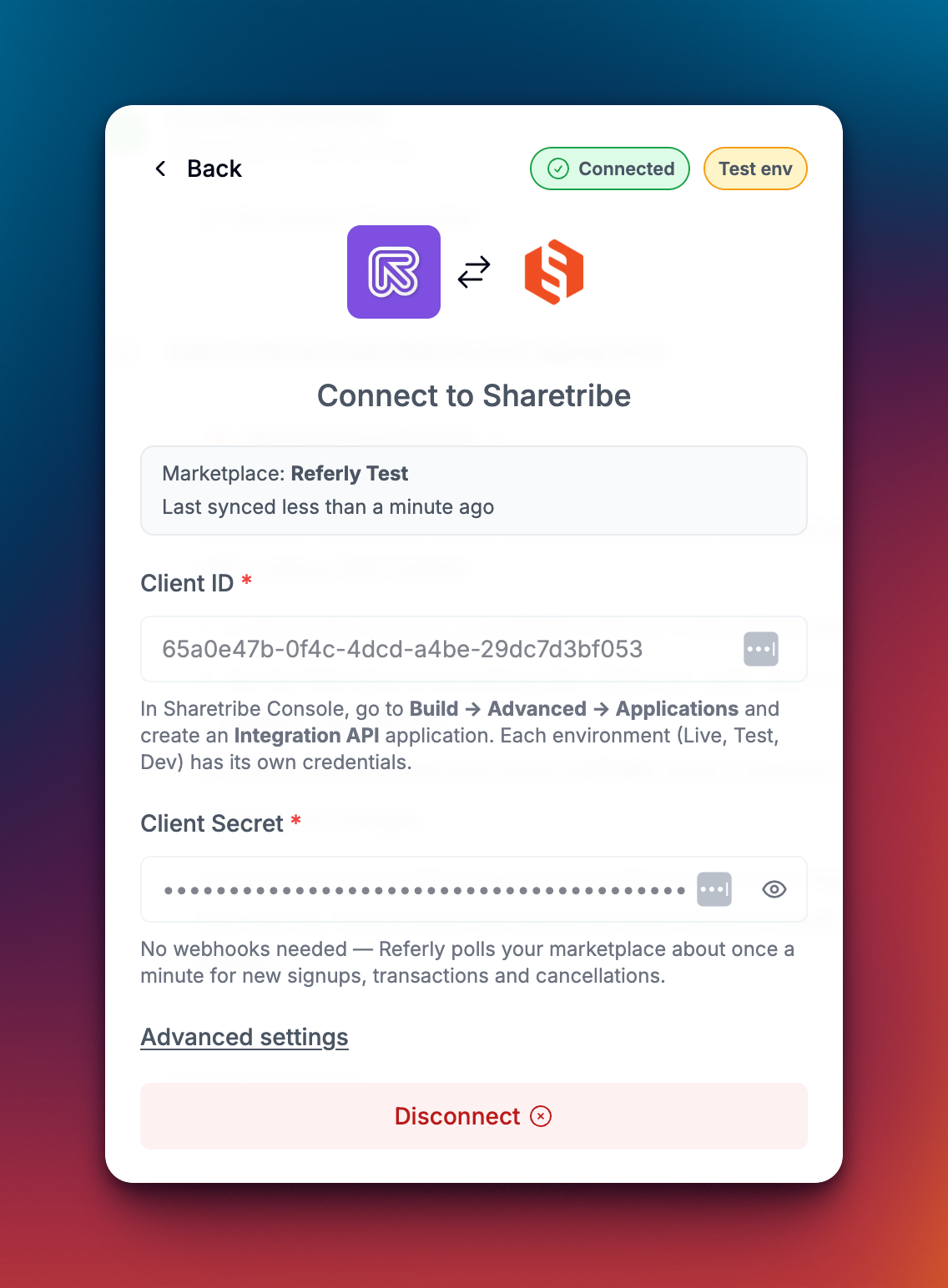
Back in Referly, open the Sharetribe dialog under Settings, then Integrations.- Paste your Client ID.
- Paste your Client Secret.
- If you’re connecting a Dev or Test marketplace, turn on Test environment (Dev or Test marketplace).
- Click Connect.
Step 3: Choose what commission is based on
Marketplaces are unusual in that the money passing through them isn’t all yours. Sharetribe collects the full amount from the buyer, pays out the provider, and keeps a marketplace fee. So Referly asks which of those numbers your affiliates get paid on:- Order total — commission is worked out on the whole amount the customer paid. Use this when you want affiliates paid on the size of the sale they brought in. Most programs use this.
- Marketplace fee — commission is worked out on your take alone: the customer payment minus the provider payout. Use this when you’re paying affiliates out of your own margin and want the rate to mean the same thing on every listing.
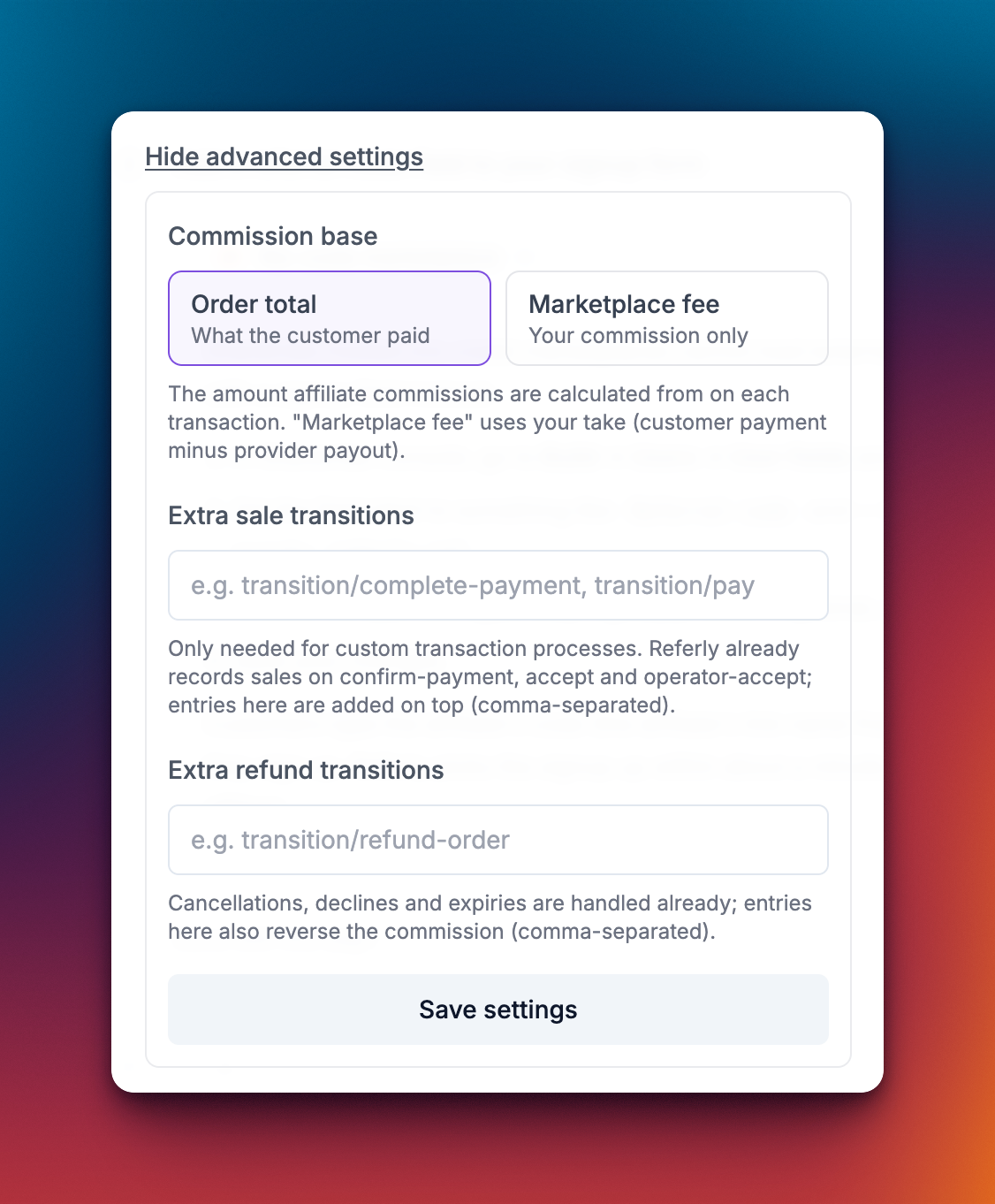
Changing the setting affects commissions worked out from that point on. Sales already recorded keep the figures they were given.
Step 4: Turn on Referral sources
This is the step that connects an affiliate to a signup, and it’s a one-time Console setting. Sharetribe’s Referral sources feature watches for a URL parameter on the links people arrive through — and every Referly affiliate link already carries one,?ref= followed by the affiliate’s link name. Once you switch it on, a visitor who lands anywhere on your marketplace through an affiliate link is remembered for 90 days, and if they sign up in that window — even weeks later — Sharetribe saves who referred them.
1
Open your user types
In Sharetribe Console, go to Users, then User types, and open the user type your customers sign up with.
2
Add a referral source
Under Referral sources, click + Add a new referral source.
3
Name it and set the parameter
Name it “Referly” so you recognise it later. Then set the URL parameter name to exactly
ref — this part matters, because it has to match the parameter on your affiliates’ links.4
Repeat for your other user types
Each user type has its own referral sources, so add the same one to every user type people can sign up with, then save.
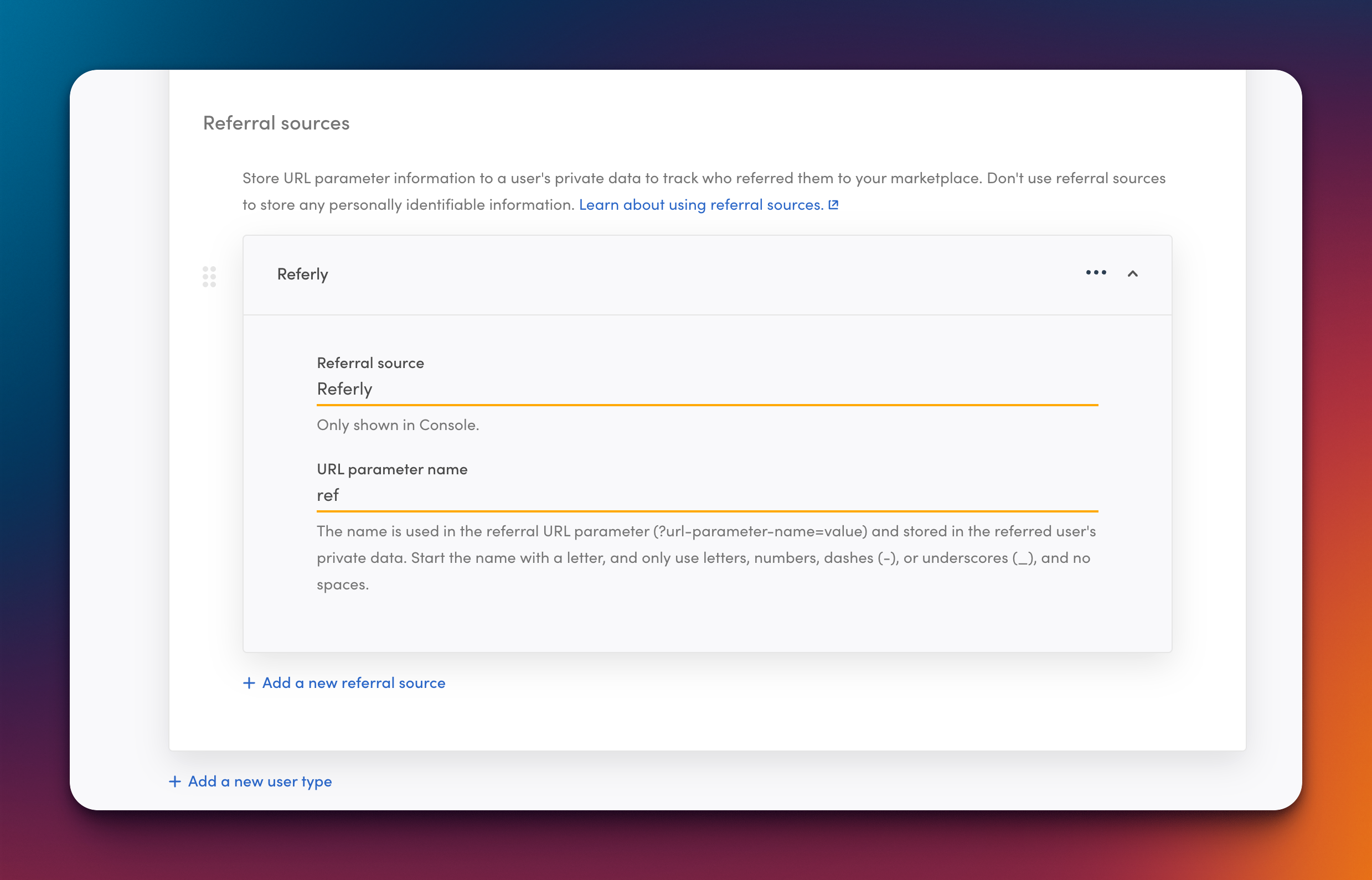 That’s the whole capture. Your affiliates don’t need to do anything new — the links in their affiliate portal already carry
 ?ref= and work as-is. Attribution is first-touch: the first affiliate link a person arrives through is the one that gets the credit.
If you’ve customised your program’s link parameter in Referly (most programs use the default,
ref), set the URL parameter name to match yours instead.Optional: click analytics on a custom-code template
If you run the Sharetribe Web Template on your own hosting, you can additionally run the Referly tracking script. Referral sources already handles attribution on its own — the script adds click-level data on top: every click counted, landing pages, countries and devices. There are two changes, and one optional third. 1. Add the tracking script where your template injects scripts, alongside the analytics scripts it already loads:Tracking script
https://www.referly.so to both the script source and the connect source, or the script is blocked with no visible error.
2. Send the tracked referral with the signup. Where your template submits the signup, merge the referral into the new user’s protected data under the key referly_ref:
Signup
Checkout
Do clicks get tracked?
Not on their own, and this is worth understanding before you promise affiliates click reports. Clicks are not tracked unless you either turn on Referly short links or run a custom-coded site. A Sharetribe-hosted marketplace can’t run the Referly tracking script, and an affiliate link points straight at your marketplace — so the visit goes from the affiliate’s audience to Sharetribe without ever passing through Referly. Nothing on our side sees it. Signups and sales are still tracked in full, because those come from your marketplace’s own data; it’s only the click itself that goes uncounted, which means click-through and conversion rates stay empty. There are two ways to get them.Turn on automated short links
This is the option for a Sharetribe-hosted marketplace, and it takes about a minute. With short links on, an affiliate’s link points at Referly first: we record the click, then forward the visitor to your marketplace carrying the same?ref= parameter.
1
Open the setting in Referly
Go to Settings, then Program details, then Automated short links.
2
Turn it on and choose a domain
Use
refurl.link, or a custom domain of your own once it’s verified.3
Save
Short links are generated for every affiliate automatically, and their portal shows the short link in place of the long one. Your affiliates don’t have to do anything or re-copy anything.
Short links change nothing about attribution — the referral is still captured by Sharetribe’s Referral sources from the
?ref= parameter the redirect passes through. They only add the click record in front of it.Or run the tracking script
Only possible on a custom-coded (self-hosted) template, where the script records every click along with the landing page, country and device. See the tracking-script steps on the Custom-code template tab of the Sharetribe guide in your Referly dashboard.How Referly decides who gets credit
When a transaction comes through, Referly looks for the affiliate in this order:- The referral on the transaction itself — the most accurate, and only present if you did the optional third change above.
- The customer’s existing referral — if that person was already recorded as referred by an affiliate when they signed up, the sale goes to that affiliate.
- The referral stored on the customer — the value captured at signup, whether saved by Sharetribe’s Referral sources or carried in by the tracking script.
Step 5: Set your commission and test it end to end
Set your rate first — a percentage or a fixed amount — and remember it applies to whichever base you picked in Step 3. You can add rules for individual listings once Sharetribe is connected. Then run the whole thing once before you go live:1
Connect your Test marketplace
Use your Test environment’s Client ID and Secret with Test environment turned on.
2
Sign up as a test customer
Arrive through a real affiliate link first — it lands on your marketplace as
?ref= plus the affiliate’s link name — browse around if you like, then sign up as normal. Nothing to type; the referrer travels with you.3
Wait about a minute
The referral appears in your Referly dashboard, credited to that affiliate. If it doesn’t, the problem is in Step 4.
4
Make a test purchase or booking
As that same customer. A purchase is recorded once the payment is confirmed; a booking once it’s accepted.
5
Cancel it
Cancel or decline the test transaction in Console, wait another minute, and check that the commission has been reversed in Referly.
6
Switch to Live
Disconnect, then reconnect with your Live marketplace’s credentials and Test environment turned off.
What gets tracked automatically
Once you’re connected, all of this happens on its own, within about a minute:Custom transaction processes
If your marketplace uses a custom transaction process with its own transition names, Referly won’t recognise them out of the box — it knows the default purchase and booking transitions. You can teach it yours. Open the Sharetribe dialog in Referly and select Advanced settings. There are two fields, both comma-separated:- Extra sale transitions — transitions that should record a sale. Referly already records one when a payment is confirmed, and when a booking is accepted by the provider or by an operator. Anything you list here is added on top.
- Extra refund transitions — transitions that should reverse a commission. Cancellations, declines and expiries are already handled; anything you list here reverses too.
transition/ prefix off — Referly accepts the names either way.
Cancellations and refunds
When a transaction is cancelled, declined, or its payment expires, Referly finds the matching sale and reverses the commission, so you don’t pay out on an order that never completed. Two things to know:- Reversals are always the full commission. Sharetribe’s Stripe integration only issues full refunds, so there’s no partial reversal to work out.
- This applies while the commission is still on hold. Once your payout hold period has passed and the affiliate has been cleared for payout, the sale is left alone — adjust it by hand if you want it reversed. See Refunds and Reward holds.
Disconnecting
Open the Sharetribe dialog in Referly and select Disconnect. Referly stops checking your marketplace immediately. For a clean break, also delete the Integration API application in Sharetribe Console under Build, then Advanced, then Applications — that revokes the credentials entirely. Nothing already tracked is deleted. Signups and transactions that happen while you’re disconnected are not recorded and can’t be picked up later, so add them by hand with Add a sale if you need to.Troubleshooting
Nothing is appearing in Referly at all
Nothing is appearing in Referly at all
First give it a couple of minutes — nothing here is instant. Then check you connected the right environment: Test credentials only ever see Test marketplace activity. If you’re testing on your Live marketplace with Test credentials connected, you’ll see nothing.
Signups appear but no affiliate is credited
Signups appear but no affiliate is credited
Check the referral source’s URL parameter name is exactly
ref (or your program’s custom link parameter) — a mismatch here looks fine in Console and captures nothing. Then check it’s added to the user type the person actually signed up with, since each user type has its own referral sources. And remember capture is per browser and first-touch: signing up in a different browser than the one that opened the link won’t carry the referral.The tracking script isn't working on my template
The tracking script isn't working on my template
Check your Content Security Policy first — this is the usual cause, and the script is blocked without any visible error. Both the script source and the connect source need to allow
https://www.referly.so. After that, confirm the signup actually sends the referral in the new user’s protected data.Referrals are tracked but sales aren't
Referrals are tracked but sales aren't
Your marketplace probably uses a custom transaction process. Referly records a sale when a payment is confirmed or a booking is accepted; if your process renames those transitions, add them under Advanced settings as extra sale transitions.
Cancelled transactions still show a commission
Cancelled transactions still show a commission
Same cause, other direction — add your process’s cancellation transitions as extra refund transitions under Advanced settings. Also check the commission hasn’t already been cleared for payout, because a cleared reward isn’t reversed automatically.
Commission amounts look wrong
Commission amounts look wrong
Check which base you’re on in Advanced settings. On Marketplace fee, commission is worked out on your take rather than the order total, so the figures are much smaller than the sale amounts by design.
Connecting fails or the credentials are rejected
Connecting fails or the credentials are rejected
Make sure the application you created is an Integration API application and not a Marketplace API one, that you copied the whole secret, and that the environment toggle in Referly matches the environment the credentials came from.
Related
Tracking methods
Link tracking has to be on for Sharetribe referrals to be credited.
Product-based commissions
Pay different rates on different marketplace listings.
Add a sale
Record a sale by hand when a transaction wasn’t attributed.
All integrations
See every platform Referly connects to.