

- Both store pages are finished. See Finish your App Store page and Finish your Google Play page.
- You’ve sent yourself a test notification. See Build and test your app.
- The reviewer account exists. See Reviewer sign-in.
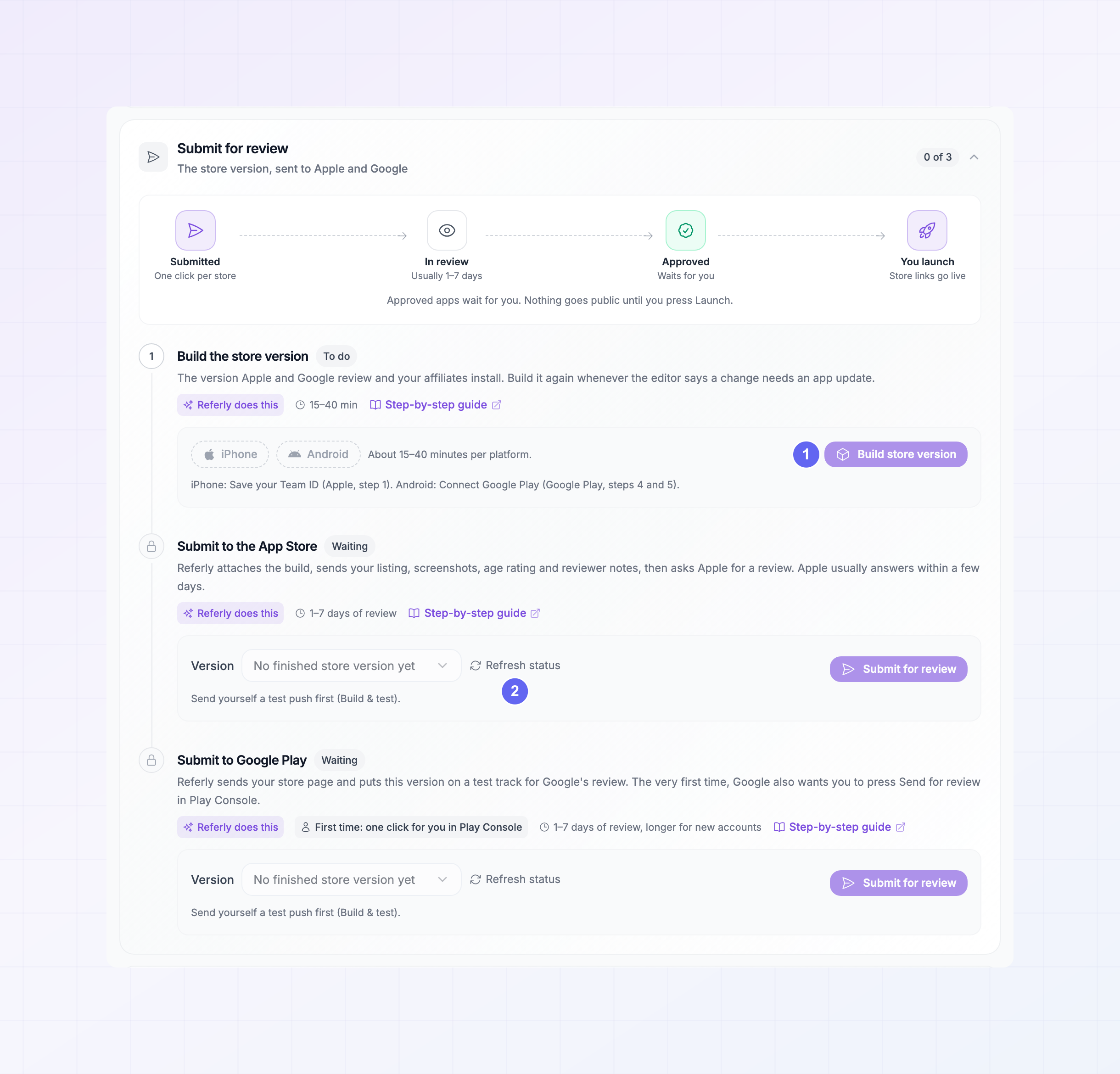
- Build store version starts the build the stores review.
- Refresh status asks the store for the latest review status.
Reviewer sign-in
Apple and Google sign in to your app before they approve it. A failed sign-in is the most common reason apps are rejected. Referly makes a sign-in just for them in Listing → Reviewer account and sends it to Apple with every submission.- Affiliate apps: select Create reviewer account. Referly makes an approved demo affiliate in your program with a made-up email address only this app accepts, and a fixed sign-in code. It appears in your affiliate list as App Store Reviewer. It never refers anyone, so it earns nothing. Keep it while your app is in the stores: Apple and Google sign in again to review every update.
- Client apps (agencies): choose the Client program it can see (a test or demo program is best), then select Create reviewer account. Referly makes a view-only team member of that one program with a generated password. It can only sign in through your client app, not the web dashboard or the Referly app.
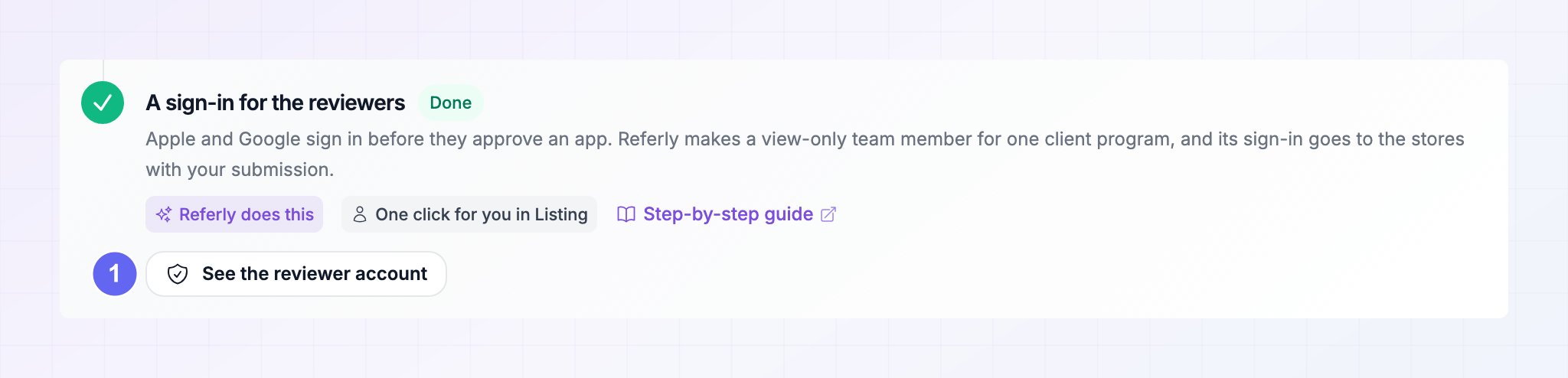
- The Publish step shows whether the reviewer sign-in is ready, and opens the Listing step where you create or check it.
- Select Auto-draft under Notes for the reviewer so the notes include the sign-in.
- In Play Console, add the same sign-in under Sign-in details in App content. See Answer the App content questions.
Build the store version
Under Build the store version, pick both platforms and select Build store version. This is the version the stores review and people install. It takes 15 to 40 minutes per platform. Build a new store version whenever the editor shows Needs app update for a change: the app name, icon, splash screen, fonts and sign-in options are built into the app. Other design changes reach the app without a new version.Submit to the App Store
Under Submit to the App Store, check the version and select Submit for review. Referly:- Waits until Apple has finished processing the build.
- Attaches it to a new App Store version with manual release.
- Sends your listing in every language, the screenshots, categories, age rating answers, reviewer contact, demo login and notes.
- Submits the version for review.
Submit to Google Play
Under Submit to Google Play, check the version and select Submit for review. Referly sends your store page and puts the version on the Closed testing track, which Google reviews.Review times and statuses
Apple and Google usually take one to seven days. Google can take longer for a brand-new developer account. Referly checks the status regularly; select Refresh status to check now.If your app is rejected
- Read the reviewer’s message under the status. Apple’s full message is in App Store Connect → your app → App Review.
- Fix what it names. Most often that’s the reviewer sign-in, a privacy answer, or a link in the listing.
- If you changed something built into the app, build a new store version.
- Select Send again.
Launch
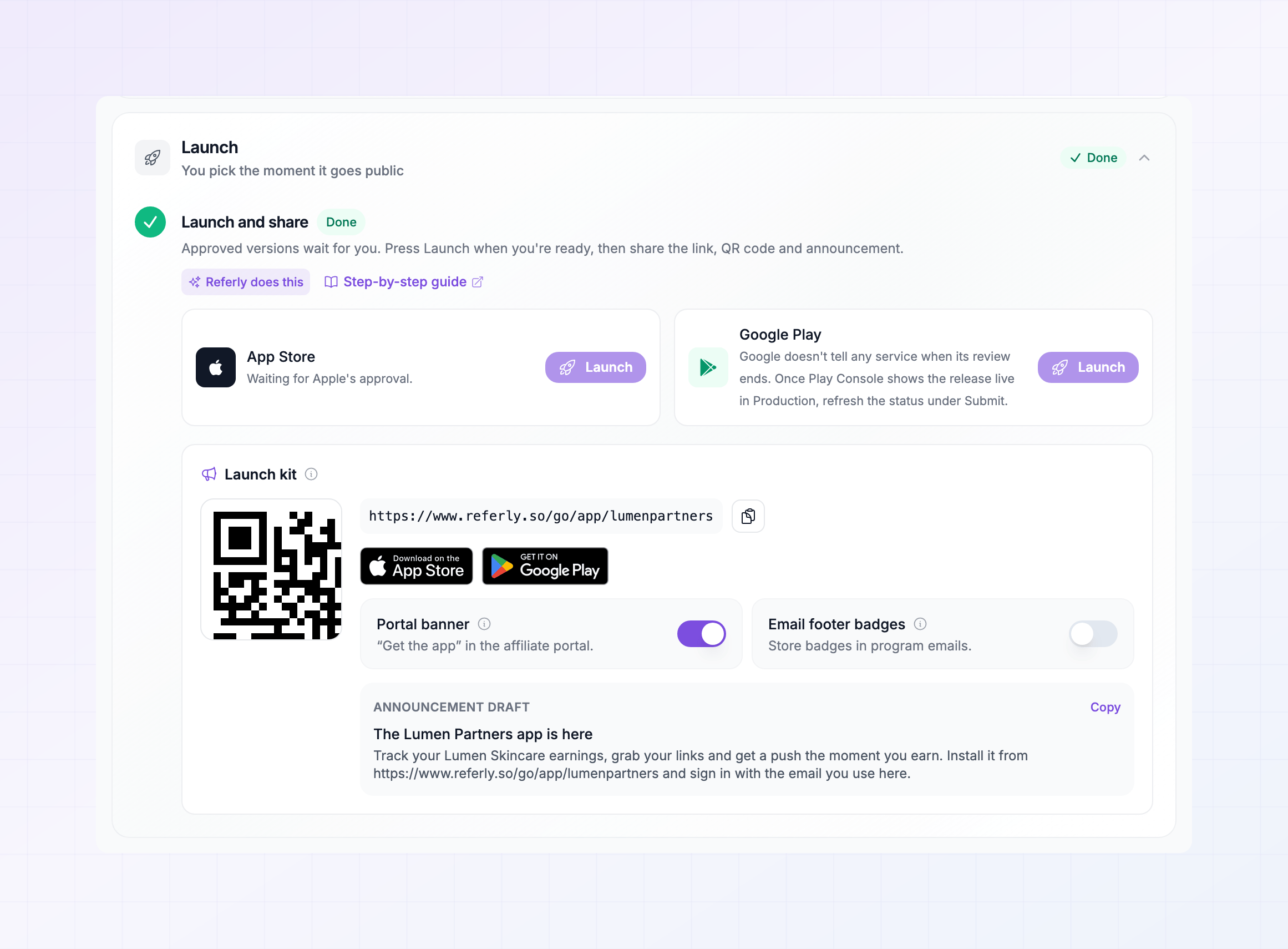
- App Store: when Apple approves, the row shows Approved, waiting for you. Select Launch when you’re ready; Apple releases the version, and it can take up to a day to show in every country.
- Google Play: Google publishes your first release when its review passes, unless you turned on Managed publishing in Play Console. For later versions that Referly sent to Closed testing, open Play Console → Test and release → Closed testing and promote the release to Production. Select Refresh status in Referly afterwards; the row turns Live.
Share the app
When the app is live, the Launch kit appears:- A smart link that sends iPhones to the App Store and Android phones to Google Play, and its QR code.
- The official store badges.
- An announcement draft you can copy into an announcement or email.
- For affiliate apps, a Portal banner switch (a “Get the app” banner in your affiliate portal) and an Email footer badges switch (store badges at the bottom of your program emails).
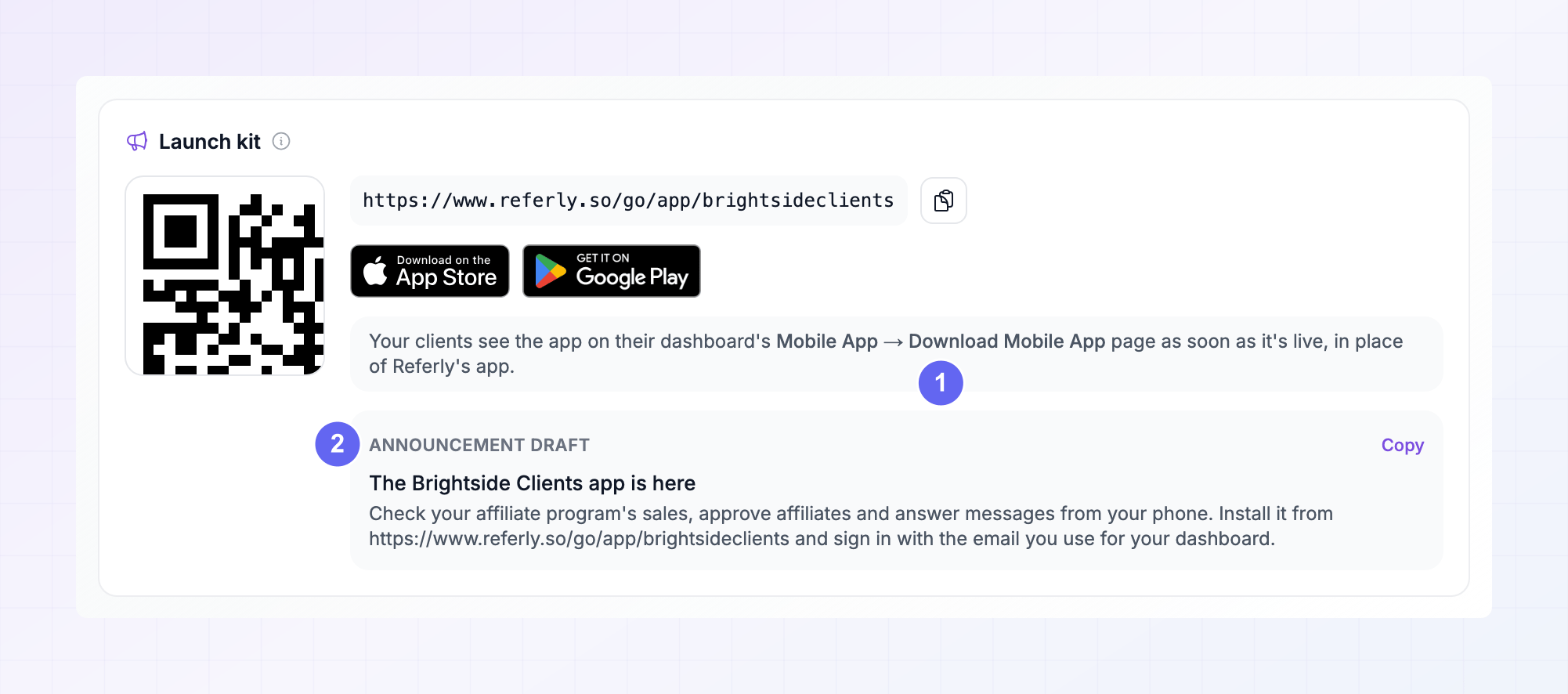
- Where your clients find the app.
- A ready-made announcement for your clients.