

- Your Google Play developer account is verified. See Create a Google Play developer account.
- Your Custom App licence is active (building needs it).
- Your app icon is generated (Design → App icon).
Play Console is behind Google’s sign-in, so the Play Console steps are written out. The screenshots show the Referly side.
Create the app
Referly shows the values Google asks for, each with a Copy button.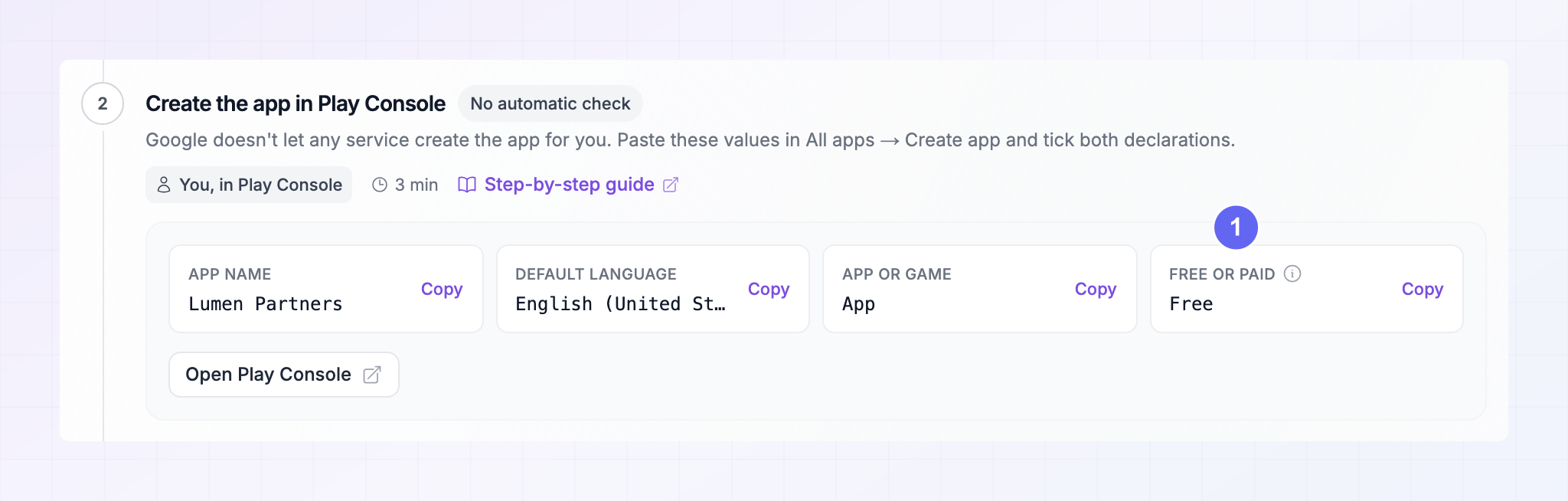
- Free or paid must be Free, and Google never lets you change it later.
- Open Play Console and select Create app.
- Paste the App name and choose the Default language Referly shows.
- App or game: App. Free or paid: Free.
- Tick both declarations (the Developer Program Policies and US export laws).
- Select Create app.
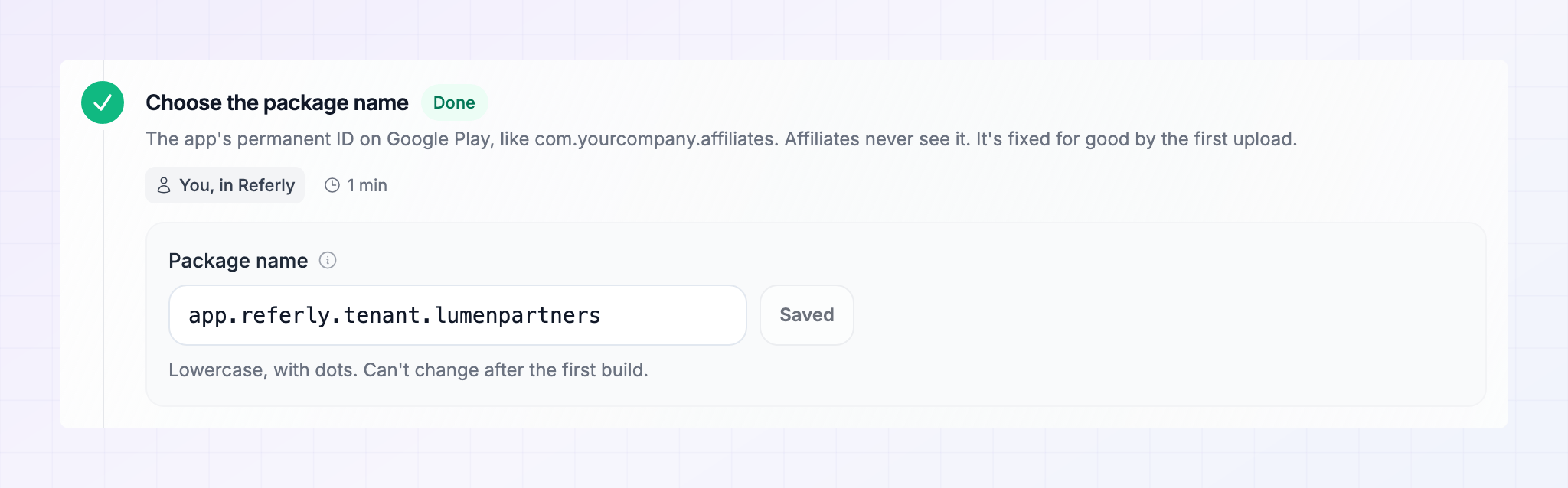
Save the package name in Referly
The package name is the app’s permanent ID on Google Play, likecom.yourcompany.affiliates. Affiliates never see it.
Build the first Android file
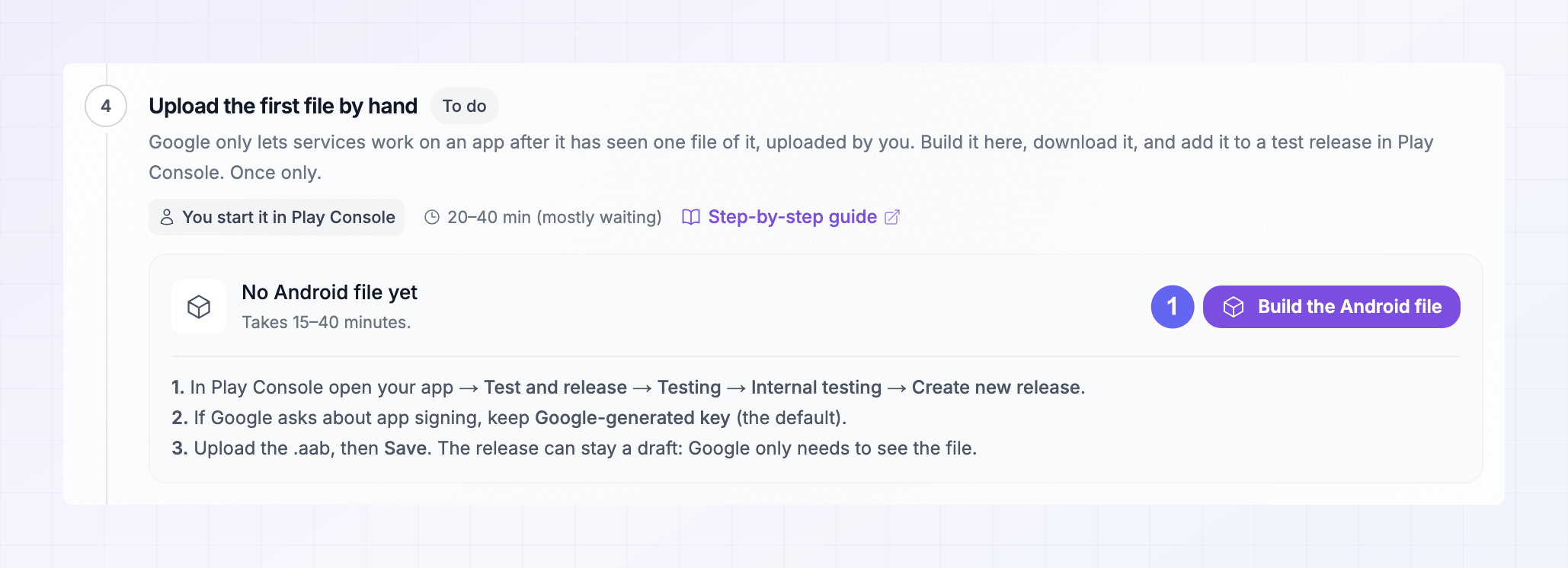
- Select Build the Android file. Referly builds your app as an
.aabfile, the format Google Play takes. It usually takes 15 to 40 minutes; you can leave the page.
If you already uploaded the service account key (next guide), that’s fine: until Google Play recognises the app, Referly keeps the file for you to download instead of trying to upload it.
Upload the first file by hand
- In Play Console, open your app → Test and release → Testing → Internal testing.
- Select Create new release.
- If Google asks how to sign the app, keep the default: Google-generated key (Play App Signing).
- Under App bundles, upload the
.aabyou downloaded. - Select Next, then Save. The release can stay a draft: Google only needs to see the file once.
If something goes wrong
- The Build button is greyed out. Check the line under it: the licence isn’t active, or the package name isn’t saved.
- The build fails. Select Log next to the build in Build & test to see why, then build again.
- Google says the package name is already used. Another app on Google Play has it. Change the package name in Referly (possible until an Android build exists), build again and upload the new file.