

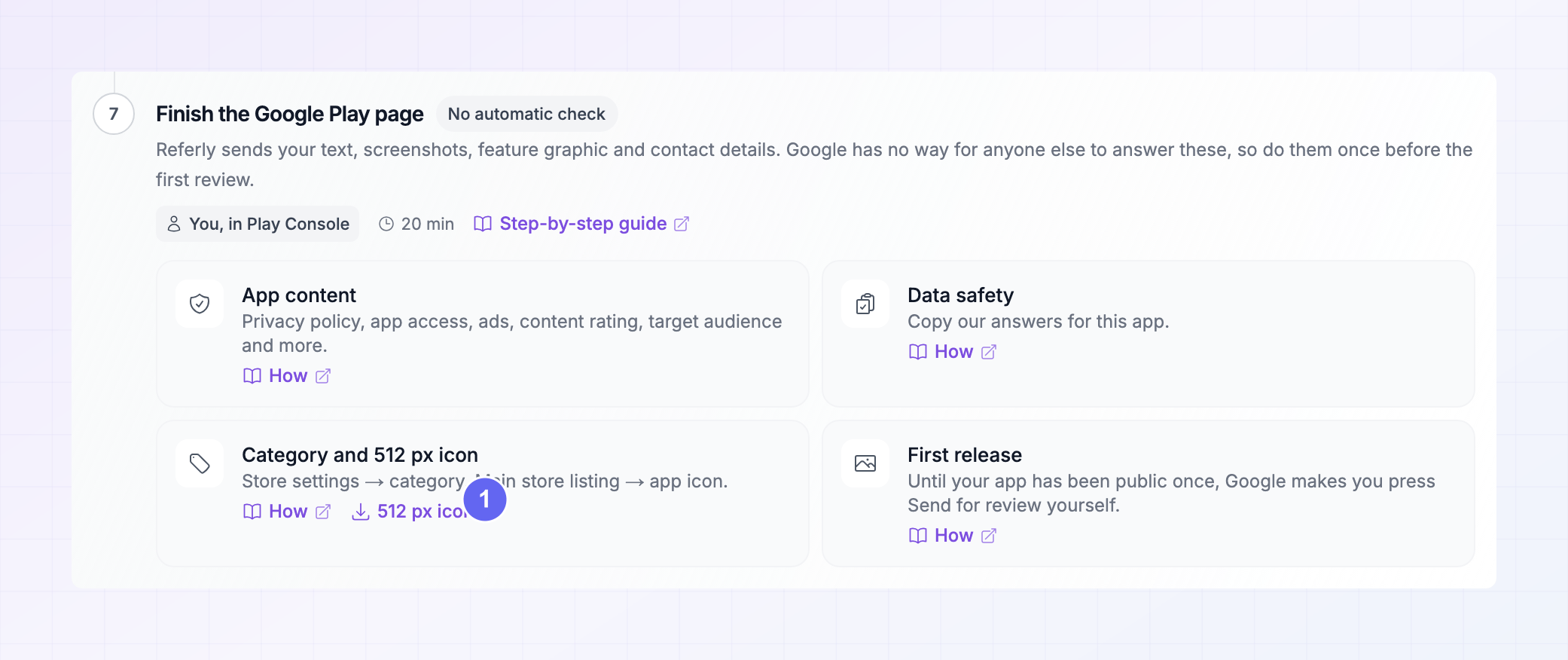
- 512 px icon downloads your app icon in the size Google Play’s store listing needs.
- Google Play is connected in Referly. See Connect Google Play.
- Your Referly listing is complete, including the privacy policy link and the reviewer account (affiliate apps).
Play Console is behind Google’s sign-in, so these steps are written out.
Answer the App content questions
In Play Console, open your app → Monitor and improve → Policy and programs → App content. Google lists each declaration under Needs attention. Start each one, answer, and save.Data safety answers
Open Data safety in the same App content page and select Start.- Does your app collect or share any of the required user data types? Yes.
- Is all of the user data collected by your app encrypted in transit? Yes.
- Which account creation methods does your app support? Choose the ones you turned on in Design → Login (email, Google, Apple).
- Tick the data types below. Everything else is not collected. For each one, data is collected, not shared (Referly processes it for you, which Google doesn’t count as sharing), and not processed ephemerally.
- Can people request that their data is deleted? Yes: the app has Delete account in its settings.
- Review the preview and select Submit.
Store settings and icon
- Open Grow users → Store presence → Store settings and choose the App category that matches the one in your Referly listing. Google doesn’t let Referly set the category.
- Open Main store listing. Referly fills in the text, screenshots and feature graphic when you submit. Upload the App icon yourself: a 512 × 512 PNG. Download it from Referly with 512 px icon.
Send the first release yourself
Until your app has been published once, Google only accepts draft releases from any service, Referly included. So the very first time:- In Referly, select Submit for review under Submit to Google Play. Referly uploads your store page. Google refuses to release the version, and Referly shows One more click in Play Console.
- In Play Console, open your app → Test and release → Production → Create new release.
- Select Add from library and pick the version Referly built (the number matches the store version in Referly).
- Select Next, then Save.
- Open Publishing overview and select Send changes for review.
- Back in Referly, select Refresh status under Submit to Google Play now and then. When Google approves and publishes the release, the status turns Live.