

- Who: someone with the legal authority to sign for your company (an owner, founder or executive). Apple calls this person the Account Holder.
- An Apple Account with two-factor authentication turned on, ideally using your company email address.
- A public, working company website on your own domain.
- Cost: 99 USD a year, paid to Apple.
Apple only shows the screens below after you sign in, so the steps from step 2 onwards are written out rather than shown.
Get a D-U-N-S number
A D-U-N-S number is a free, nine-digit company ID from Dun & Bradstreet. Apple uses it to check that your company exists. Skip this section if your company already has one.- Open Apple’s D-U-N-S lookup at developer.apple.com/enroll/duns-lookup and sign in with the Apple Account that will own the membership.
- Enter your company’s legal name and registered address exactly as they appear in your company registry.
- If Apple finds a number, it emails it to you. If it doesn’t, submit the request on the same page; Dun & Bradstreet may contact you to confirm the details.
- A new number can take up to five business days, and a few more days before Apple can see it.
Enrol as an organization
Apple’s enrolment page lists what it checks. Read it once before you start.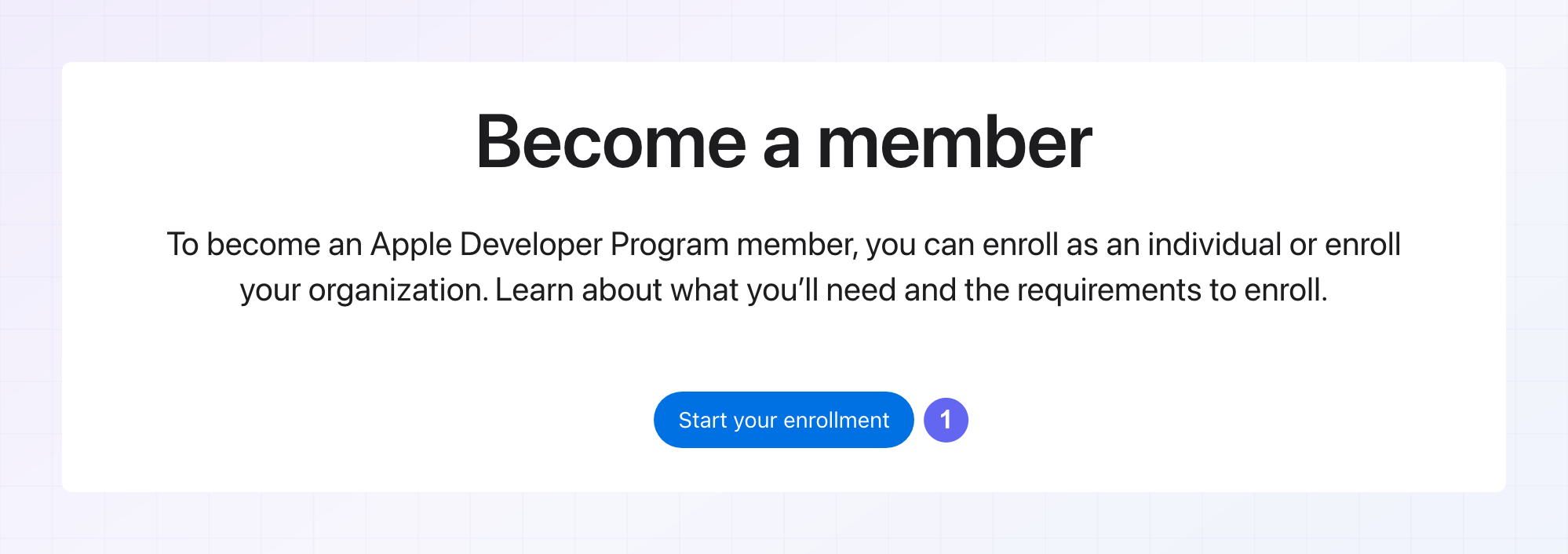
- Select Start your enrollment.
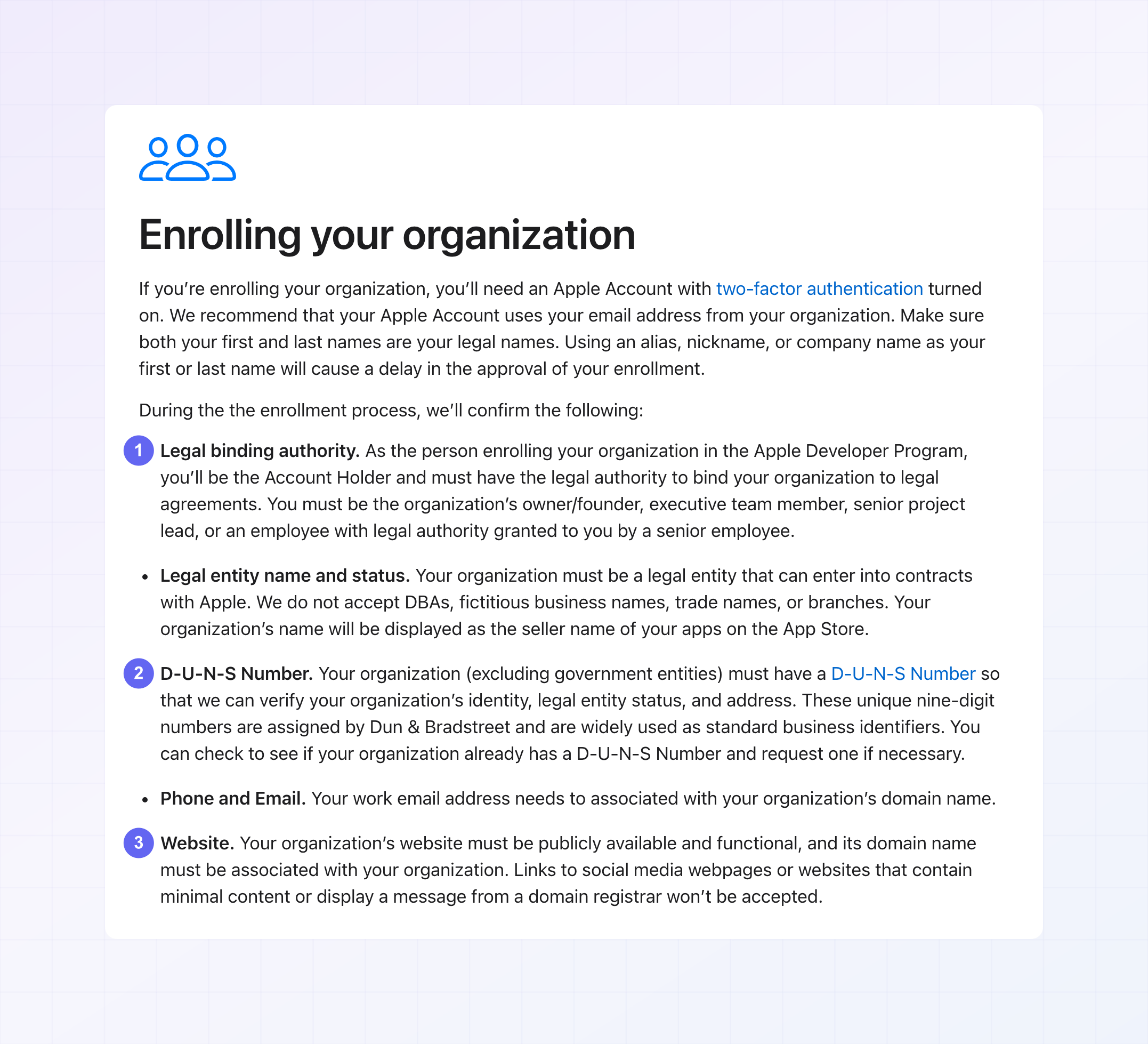
- Legal binding authority: you must be able to sign contracts for the company.
- D-U-N-S Number: the legal name and address must match Dun & Bradstreet’s record.
- Website: a real company website on your own domain, not a social media page.
- Choose Organization as the entity type. An individual membership shows your personal legal name as the seller on the App Store.
- Enter your legal entity name, D-U-N-S number, website, headquarters phone and address.
- Confirm you have the authority to bind your organization, accept the Apple Developer Program License Agreement and pay the fee.
- Apple may email or phone you to confirm. You’re done when the welcome email arrives.
Accept Apple’s agreements
Nothing can be published until the Account Holder accepts Apple’s latest agreement.- Sign in to App Store Connect as the Account Holder.
- Open Business and accept any agreement waiting there. Your app is free, so you don’t need the Paid Apps agreement.
- If Apple asks about the EU Digital Services Act, declare that you’re a trader (you’re a business) and give your business contact details.
Find your Team ID
The Team ID is a 10-character code (for exampleA1B2C3D4E5) that identifies your developer team.
- Open developer.apple.com/account and scroll to Membership details.
- Copy the Team ID.
- In Referly, open Publish → Apple App Store, paste it into Team ID under step 1 and select Save.
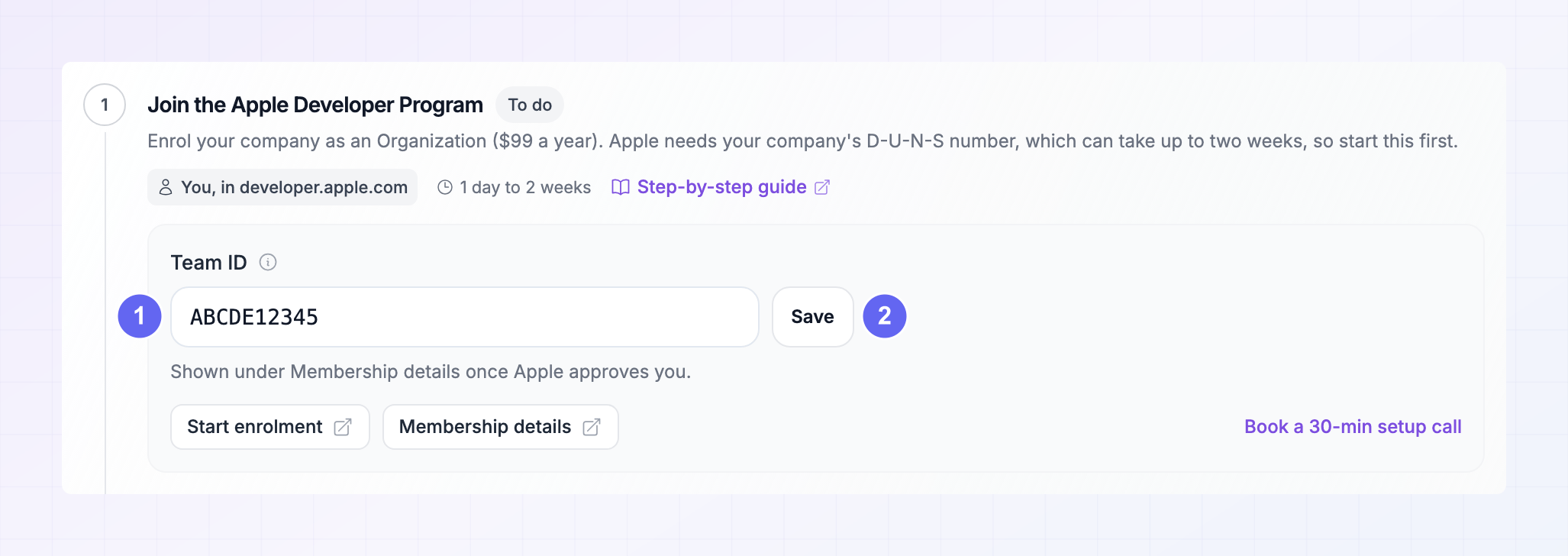
- Paste the Team ID here.
- Select Save. The step turns green.
If enrolment stalls
- Apple can’t match your D-U-N-S record. The legal name or address you typed differs from Dun & Bradstreet’s record. Correct the record with Dun & Bradstreet, wait a day, and try again.
- Apple rejects your website. Make sure it’s live on your company’s own domain and describes your business.
- No reply after a week. Contact Apple through developer.apple.com/contact and quote your enrolment ID from the confirmation email.