

- The App Store Connect key is connected and shows Checked with Apple. See Connect your Apple account.
- You’re the Account Holder or an Admin of the Apple team.
Apple only shows these pages after you sign in, so the Apple-side steps are written out. The screenshots show the Referly side.
Register the bundle ID
The bundle ID is your app’s permanent ID at Apple, likecom.yourcompany.affiliates. Affiliates never see it. App Store Connect only offers bundle IDs that are already registered in your account, so register it before you create the record.
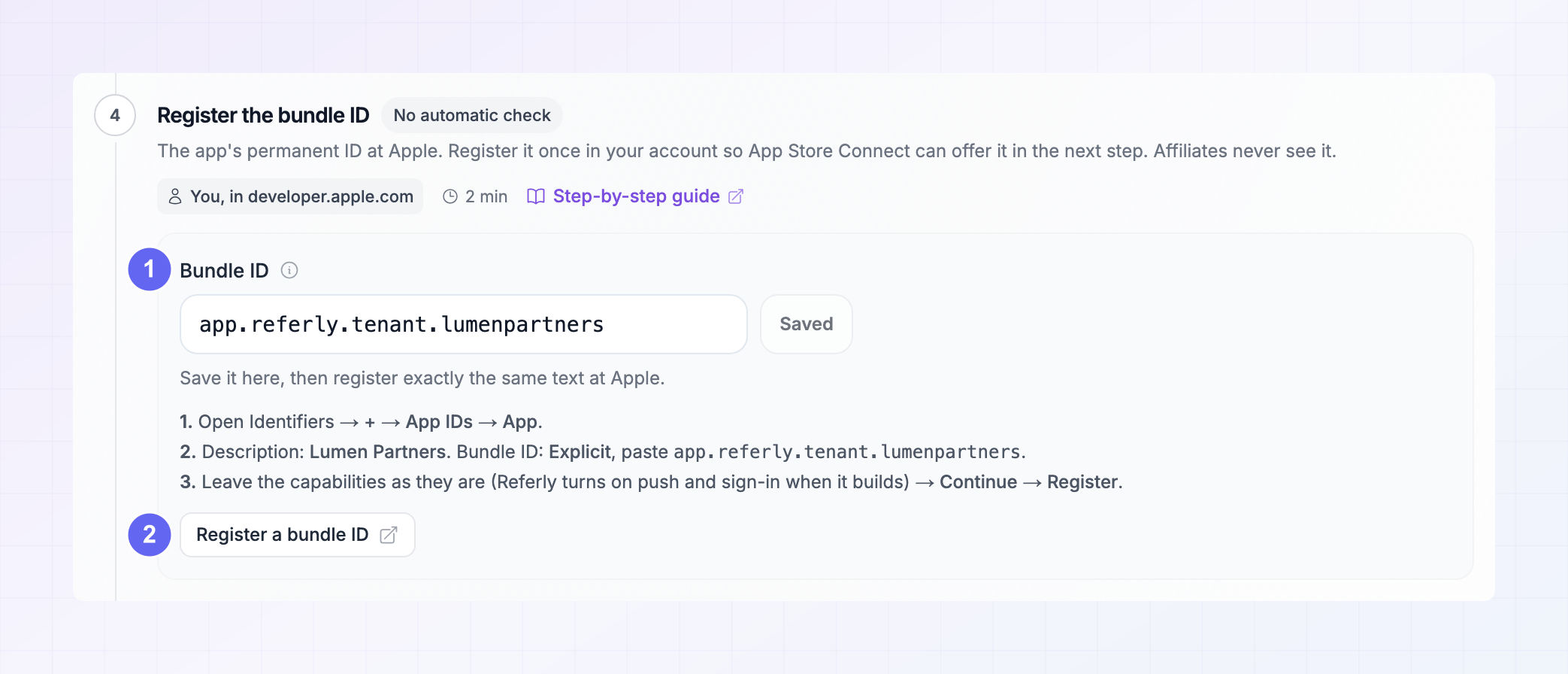
- Check the Bundle ID in Referly. Referly suggests one; change it if you want your own (lowercase words and dots), then select Save.
- Select Register a bundle ID. Apple’s Identifiers page opens.
- Select App IDs, then Continue.
- Select App, then Continue.
- Description: your app’s name. Bundle ID: choose Explicit and paste the bundle ID exactly as it is in Referly.
- Leave the capabilities as they are. Referly turns on push notifications, links and Sign in with Apple itself when it builds.
- Select Continue, then Register.
Create the app record
Referly shows every value the form asks for, each with a Copy button.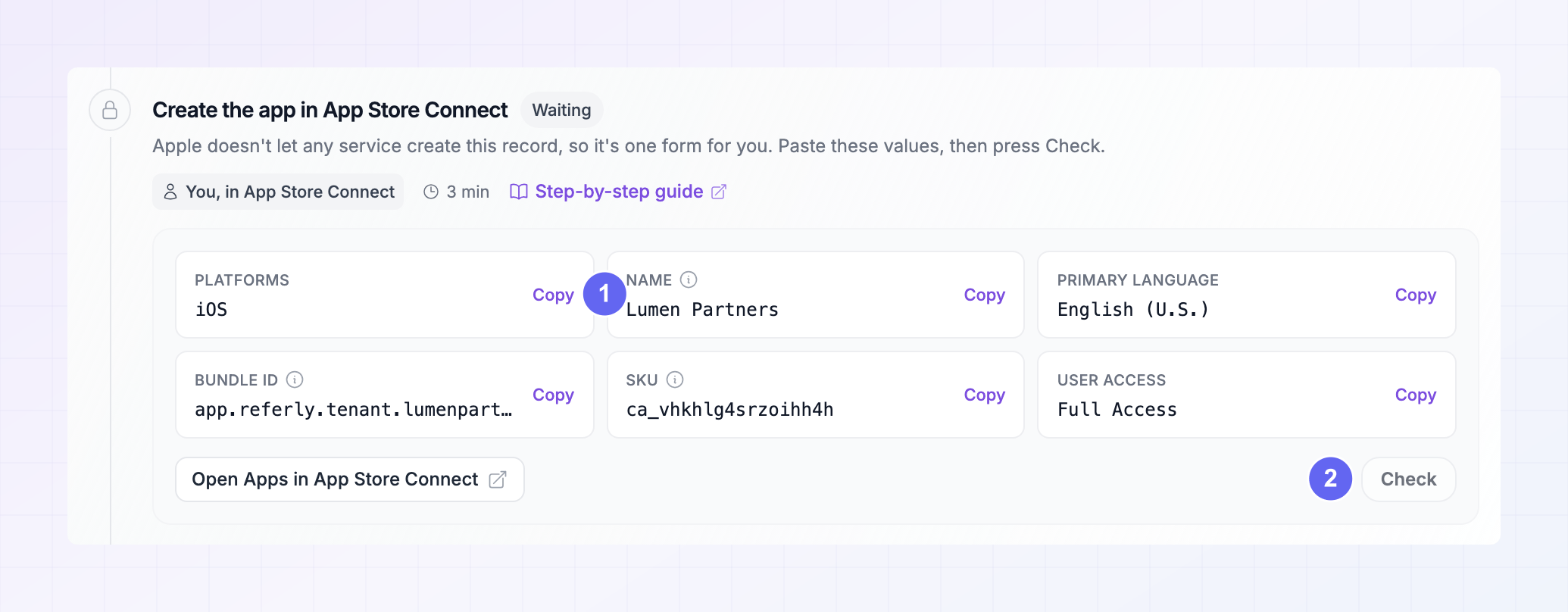
- Copy each value into Apple’s form.
- Select Check when you’ve created the record.
- Open Apps, select + and then New App.
- Platforms: tick iOS.
- Name: your app’s name as Referly shows it. It’s what the App Store shows under the icon; your listing can change it later.
- Primary Language: the language Referly shows.
- Bundle ID: pick the bundle ID you registered from the list.
- SKU: paste Referly’s value. It’s your own reference and is never shown to the public.
- User Access: Full Access.
- Select Create.
Check it in Referly
Back in Referly, select Check. Referly looks for an app with your bundle ID in App Store Connect. When it finds it, the step turns green and the button reads Found · check again. Next: Finish your App Store page.If the bundle ID is missing
- The bundle ID isn’t in Apple’s list. It isn’t registered yet, or it was registered with a typo. Repeat Register the bundle ID and make sure the text matches Referly exactly.
- “The name is already in use.” App names are unique on the App Store. Pick another name here, then use the same name in your Referly listing.
- “You can’t add an app until the Account Holder signs the latest agreement.” The Account Holder accepts it under Business in App Store Connect.
- Check says “No app with bundle ID … in App Store Connect yet”. The record isn’t created, or it uses a different bundle ID from the one saved in Referly.