

- Your company is enrolled in the Apple Developer Program and your Team ID is saved in Referly. See Join the Apple Developer Program.
- You’re the Account Holder or an Admin of the Apple team.
- Apple lets you download each key file once. Keep it until you’ve uploaded it to Referly, then delete it.
App Store Connect and the Apple Developer site only show these pages after you sign in, so the Apple-side steps are written out. The screenshots show where each value goes in Referly.
Create the App Store Connect key
This key lets Referly register your app’s capabilities, create its signing certificate, upload builds to TestFlight, fill in your App Store page and submit it for review.- Open App Store Connect → Users and Access → Integrations. The page opens on App Store Connect API.
- The first time only, the Account Holder selects Request Access, accepts the terms and selects Submit. Apple reviews the request; it’s usually approved quickly.
- Select Team Keys, then Generate API Key (or + if you already have keys).
- Name: anything you’ll recognise, such as
Referly publishing. Access: Admin. Referly needs Admin to create your app’s signing certificate. - Select Generate.
- In the new row, select Download API Key. The file is called
AuthKey_XXXXXXXXXX.p8. - Copy two values from the same page:
- Key ID: the 10 characters in the key’s row (also in the file name).
- Issuer ID: the long ID with dashes shown above the list of keys.
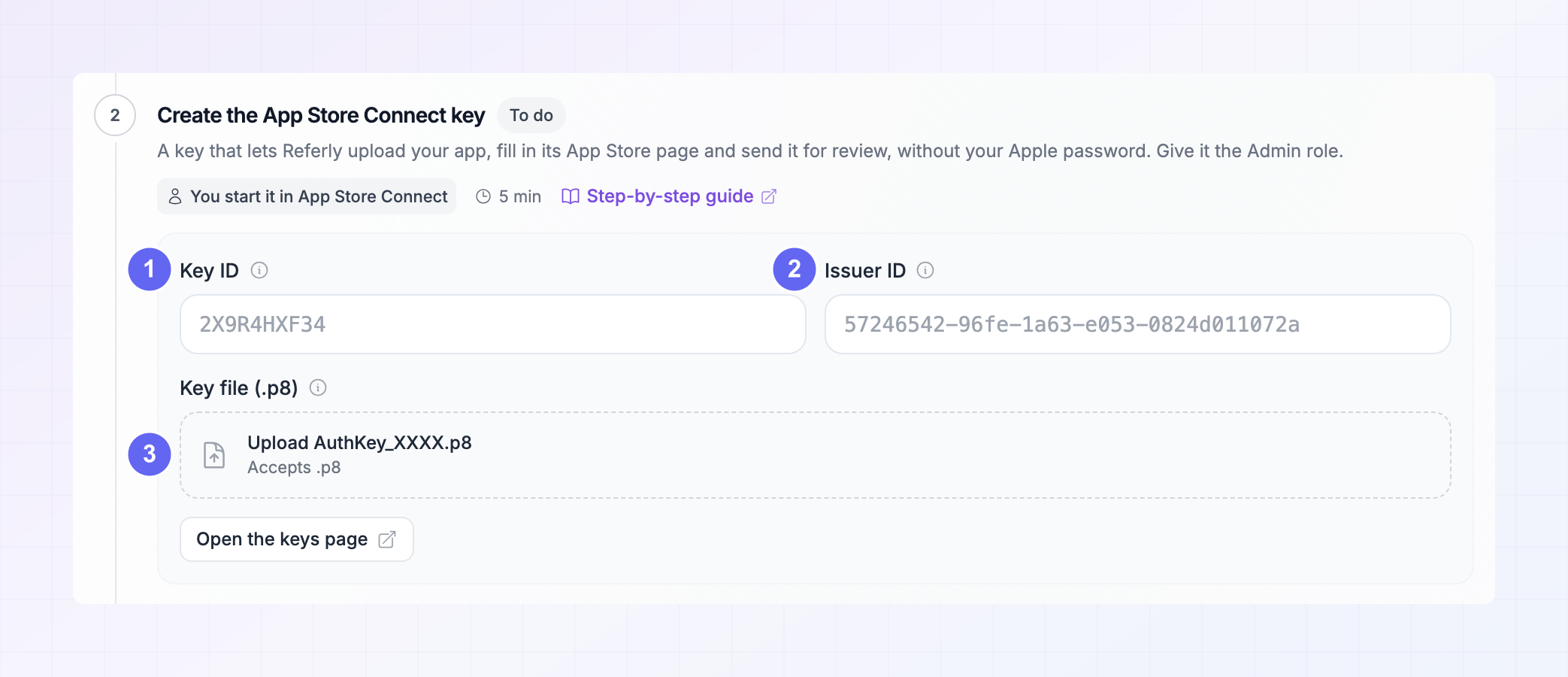
- Paste the Key ID.
- Paste the Issuer ID.
- Select Upload AuthKey_XXXX.p8 and choose the file.
Create the push notification key
This key lets your app receive notifications on iPhones. One key works for every app on your team, so if you already have one and still have its file, you can upload that.- Open Certificates, Identifiers & Profiles → Keys and select +.
- Key Name: for example
Referly push. - Tick Apple Push Notifications service (APNs) and select Configure next to it.
- Choose the environment Sandbox & Production and the key type Team Scoped (All Topics), then confirm.
- Select Continue, then Register.
- Select Download. The file is called
AuthKey_YYYYYYYYYY.p8. - Note the Key ID shown on the key’s page.
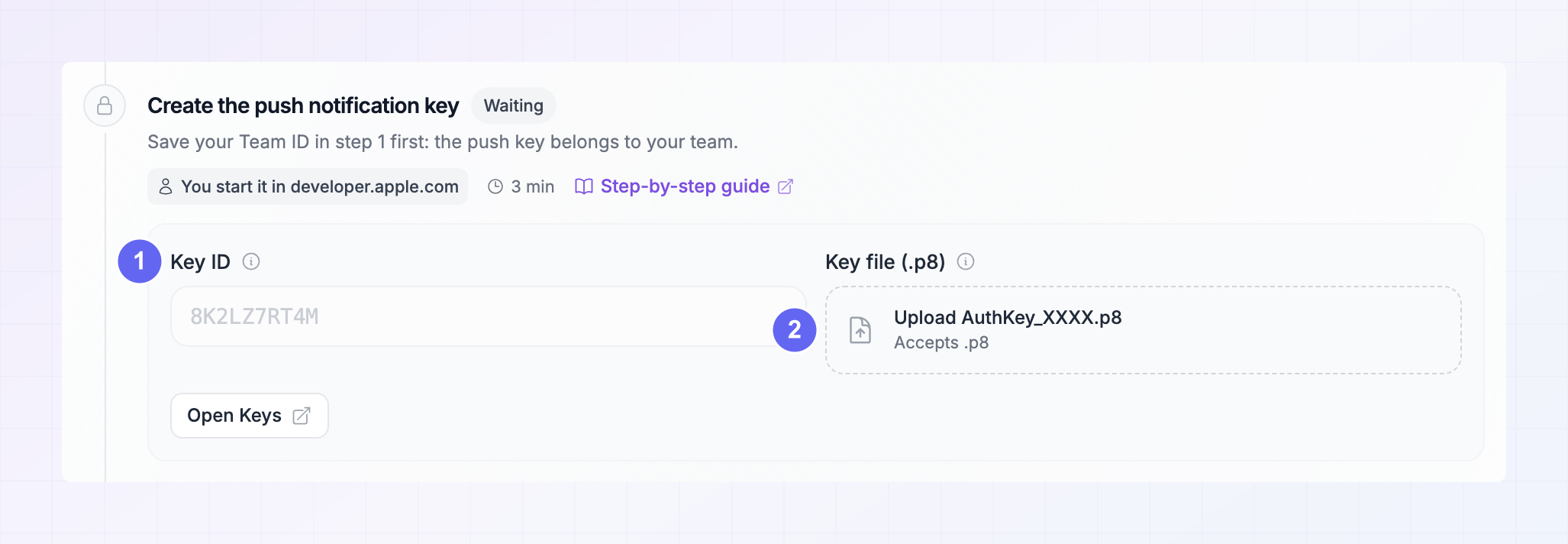
- Paste the Key ID.
- Select Upload AuthKey_XXXX.p8 and choose the file.
What Referly does with the keys
- Both files are stored encrypted and only used to build, publish and notify for this app.
- When it builds, Referly turns on Push Notifications, Associated Domains (so portal links open the app) and Sign in with Apple for your bundle ID, and creates a distribution certificate and an App Store provisioning profile.
- You can revoke a key at any time in your Apple account. Referly then can’t build or notify until you upload a new one.
If Apple rejects the key
- “Apple rejected this key … Make sure the key has the Admin role.” The key’s access is below Admin, or the Key ID, Issuer ID and file don’t belong together. A key’s access can’t be changed: revoke it, generate a new Admin key and upload that.
- “That is not a .p8 private key file.” You picked a different file. Use the
AuthKey_….p8you downloaded. - A build fails with “already has 3 distribution certificates”. Apple allows three distribution certificates per team and Referly creates one per app. Revoke one you no longer use at Certificates, Identifiers & Profiles → Certificates, then build again.