

Before you start
Connect the platform your customers pay on first — see Connect a coupon source. If you already made the coupon on that platform, sync it instead of building a new one.Start a new coupon
Open your campaign, select Coupons in the left sidebar, then select Create Coupon in the top right.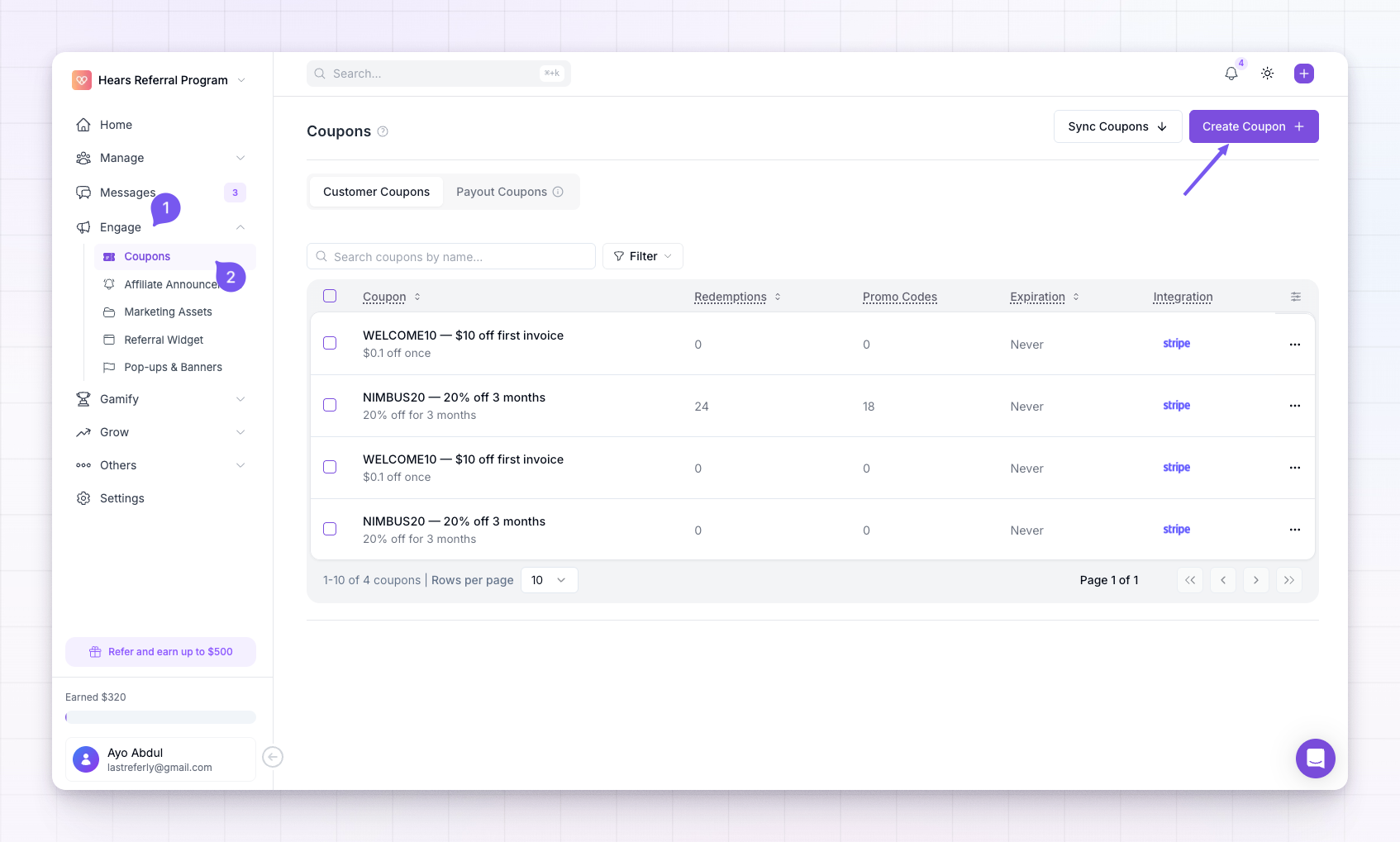
Choose the source
At the top, pick where the coupon should be created: Stripe, Shopify, WooCommerce, Polar, Creem, Ecwid, or the API. This is the platform Referly will build the coupon on. If the one you want isn’t connected yet, you’ll be prompted to connect it first. A couple of platforms have limits worth knowing before you start:- Creem: each code can be at most 14 characters. If a code you type is longer, Referly shows a message naming the code and its length, and the coupon isn’t created until you shorten it. Auto-generated codes are shortened to fit automatically. See the Creem integration.
- Ecwid: there’s no Multiple Months duration, and Ecwid coupons are either single-use or unlimited. If you set Maximum Redemptions above 1, Referly tracks it in your reporting, but your Ecwid checkout doesn’t enforce it. See the Ecwid integration.
Name the coupon
Give the coupon a name so you can recognise it later in your library — for example “Summer 20%” or “Creator deal”. This is an internal label; it’s not the code customers type. That comes next as a promotional code.Set the discount
Choose how much money the coupon takes off:- Percentage — a percent off the order, like 20%. Enter the number in the Percentage Off field.
- Flat Rate — a fixed amount off, like $10. Enter the number in the Amount Off field, and pick the currency.

Choose how long it lasts
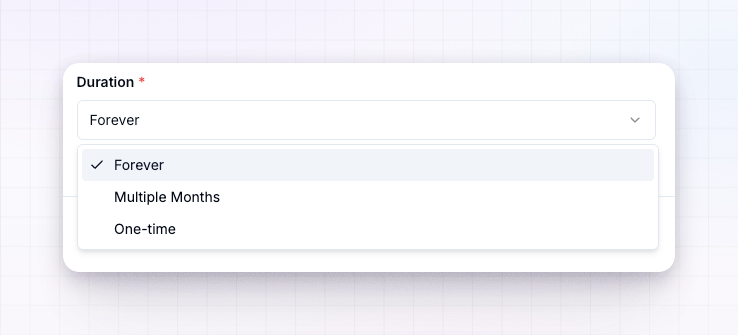
For subscription products, the duration decides how many billing cycles the discount applies to:- Forever — the discount applies for the life of the subscription.
- One-time — the discount applies to the first payment only.
- A set number of months — the discount repeats for the number of months you enter, then stops.
Add redemption limits (optional)
Under Redemption Limits you can cap how widely the coupon is used:- Maximum redemptions — the total number of times the coupon can be used across everyone. Leave it as Unlimited for no cap.
- Expiry date — a date after which the coupon stops working.
Create it
Select Create at the bottom. Referly builds the coupon on your connected platform and adds it to your library, ready to assign to affiliates. You can change some of these settings later. What you can change depends on the platform, so check Edit a coupon before you rely on it.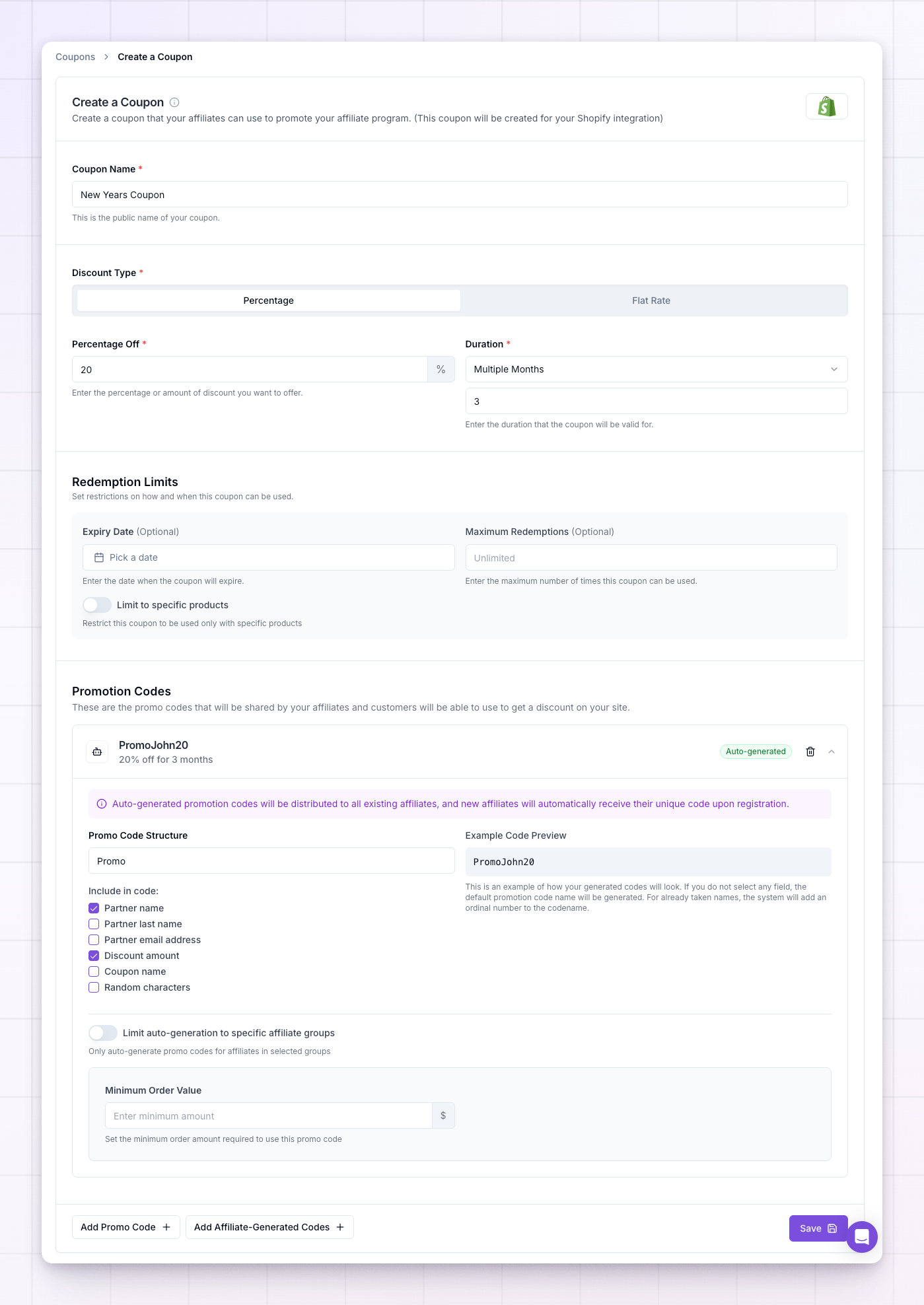
What to do next
- Add the promotional code customers will type, or tie a code to a specific affiliate.
- Auto-generate a unique code for every affiliate from this coupon.
- Add restrictions like a minimum order or first-time-customer rule.
- Let affiliates create their own codes under this coupon.
- Edit the coupon later if your offer changes.
Related
Promotional codes
Add the codes customers type at checkout.
Auto-generate codes
Give every affiliate their own unique code.
Restrict a code
Limit a code to products, a minimum order, or first-time buyers.
Connect a coupon source
Link the platform Referly builds the coupon on.