

Open a coupon
Open your campaign, select Coupons in the left sidebar, then select the coupon in your library. The coupon page shows the same settings you filled in when you created it. Settings your platform doesn’t let you change are greyed out. When that happens, a short amber note under the Percentage / Flat Rate switch explains why.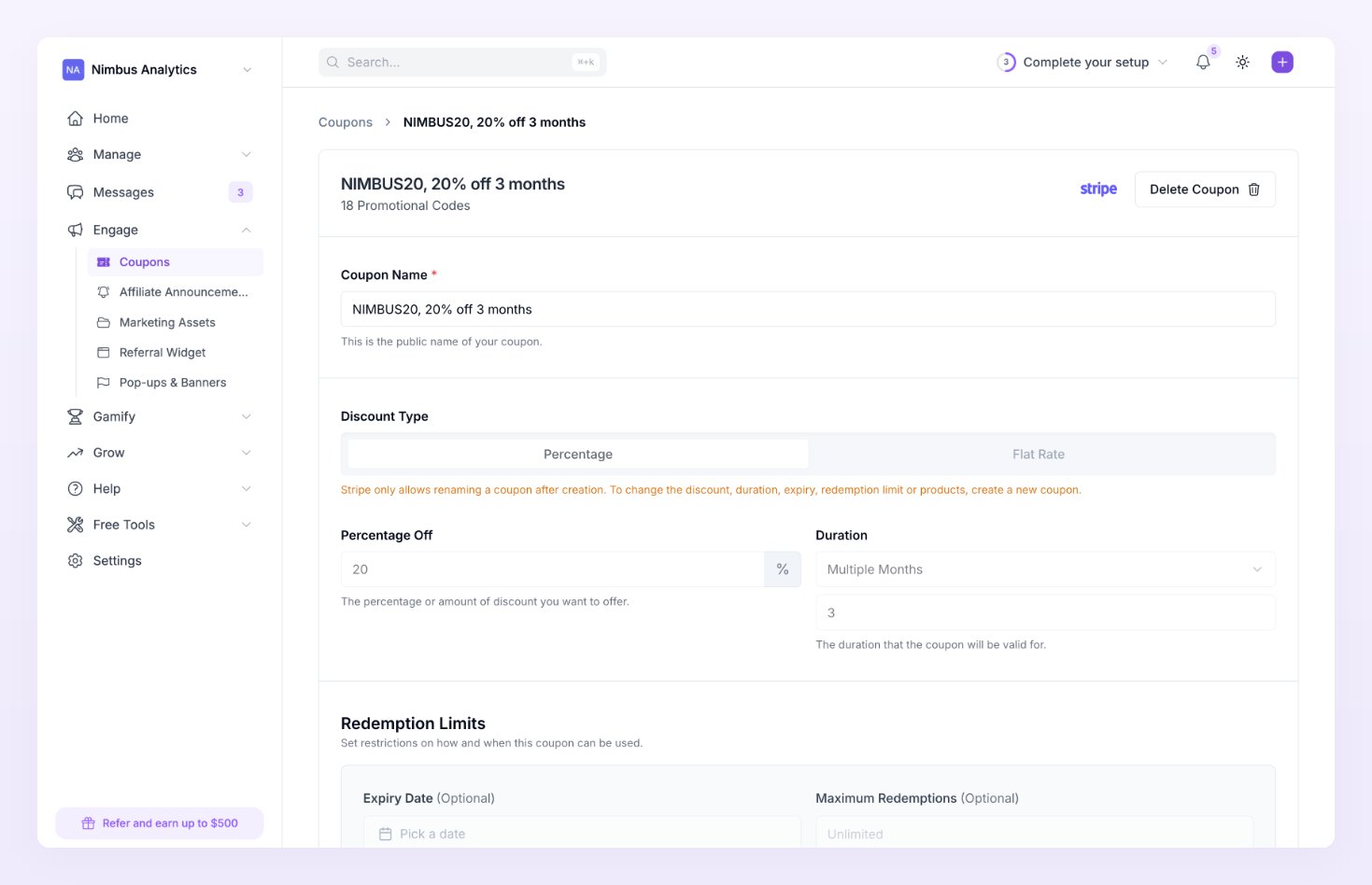
What you can change on each platform
“Everything” means the coupon name, the discount type and amount, the duration, the Expiry Date, Maximum Redemptions and the product limit.
For Stripe, Shopify, WooCommerce, Polar and Ecwid coupons, Referly makes the same change on your platform when you save. API coupons live only in Referly, so there’s nothing to sync.
Stripe only allows renaming a coupon after it’s created. To change the discount, duration, expiry, redemption limit or products of a Stripe coupon, create a new coupon instead.

Change the products a coupon covers
Turn on Limit to specific products, then search for the products you want in the box below it. The box says Search products…, or Search products or collections… for Shopify coupons, where collections are marked (collection) in the list. If nothing matches what you type, you’ll see No products found. To let the coupon apply to the whole order again, turn Limit to specific products off. For more on what a product limit does, see Restrict a code.Save your changes
Select Update at the bottom right of the coupon page. You’ll see Coupon updated successfully once it’s saved. If something needs fixing first, Referly tells you what and doesn’t save:- Please enter a coupon name: the name is empty.
- Please enter a valid discount amount: the discount is empty or zero.
- Percentage discount cannot exceed 100%: lower the percentage.
- Please enter the number of months for the discount duration: you picked Multiple Months but left the number of months empty.
- Please select at least one product, or turn off the product limit: Limit to specific products is on but no product is picked.
How coupon changes affect your codes
Each code on a coupon can have its own expiry date and redemption limit. The coupon page keeps them in line with the coupon’s own settings:- If you move the coupon’s Expiry Date earlier, any code with a later expiry date is moved back to the new date.
- If you lower the coupon’s Maximum Redemptions, any code with a higher limit is lowered to match.
Related
Create a coupon
Set up a new coupon when your platform won’t let you change the old one.
Promotional codes
Add, rename, or turn off the codes customers type.
Restrict a code
Limit a code by product, order value, or expiry.
Connect a coupon source
See which platforms Referly can build coupons on.