

PROMO30. One coupon can have several promotional codes, and each code can be pointed at a specific affiliate or customer — which is how Referly knows who to credit for the sale.
Coupon vs promotional code
Think of it as two layers:- The coupon is the deal — for example “20% off, forever”.
- The promotional code is a way in to that deal — the words someone enters to get the 20% off.
SARAH20, JAMES20) while managing one discount behind the scenes.
Add a promotional code
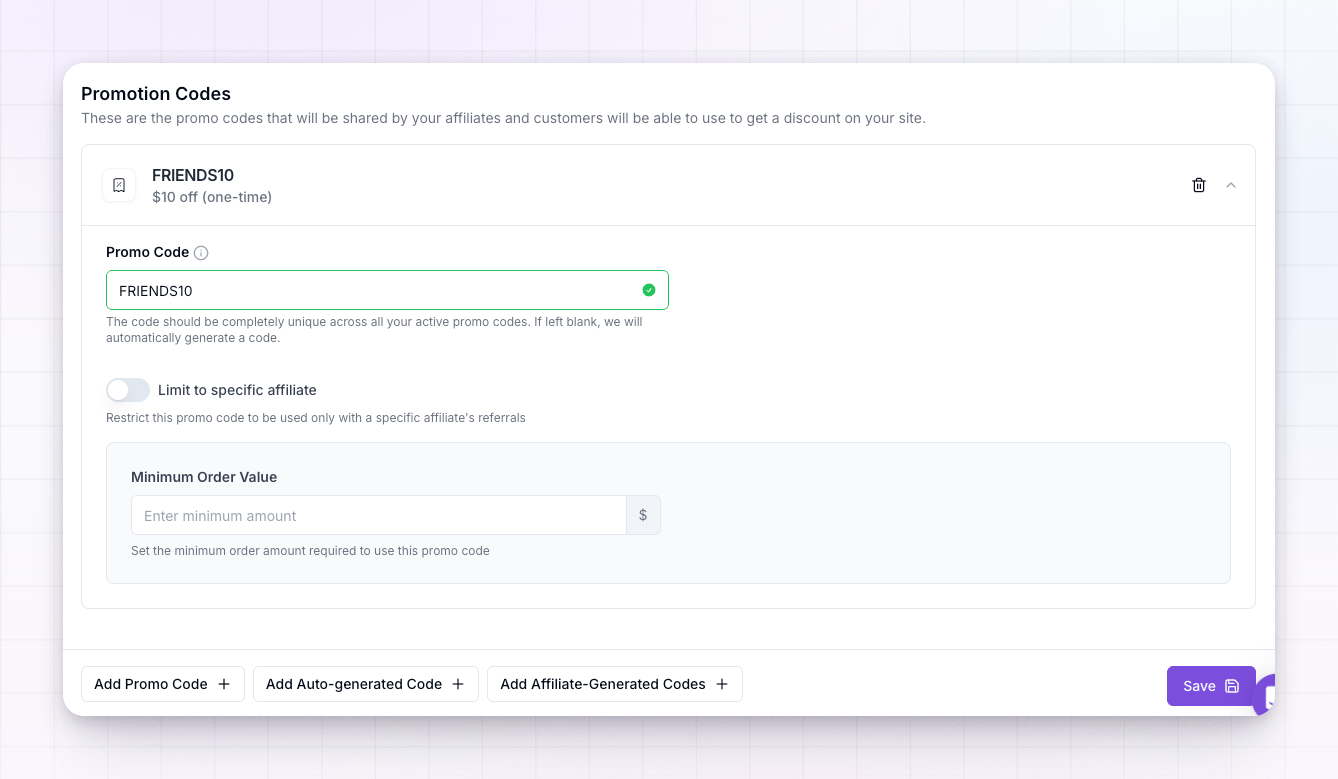
When you create a coupon, scroll to the Promotion Codes section. You can also open an existing coupon from your library and add codes to it there.1
Enter the code
Type the code customers will use — for example
PROMO30. Keep it short and easy to remember or say out loud. Referly checks that the code isn’t already taken.2
Add more if you need them
Add another code to the same coupon whenever you want a second way in — a different code for a different affiliate or campaign, all sharing the one discount.
3
Save
Save the coupon. Each code is created on your connected platform and starts working right away.
Tie a code to an affiliate
To make sure a code credits the right person, turn on Limit to specific affiliate and search for the affiliate. From then on, every order placed with that code is tracked to them and earns them commission — exactly like a referral link would. Leave this off for a general code that anyone can use without crediting a particular affiliate.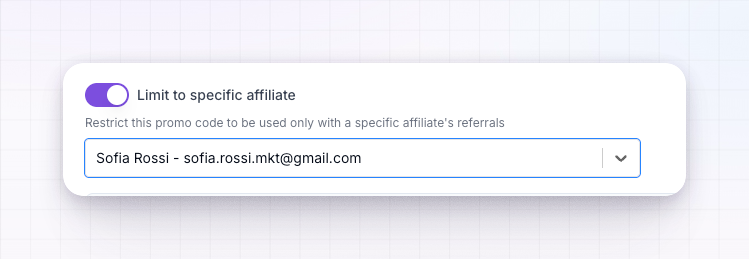
Tie a code to a customer
You can also turn on Limit to specific customer and choose a customer, so the code only works for that one person. This is useful for a one-off deal you’ve agreed with a single buyer, rather than a code you hand to an affiliate to share.Rename a code
You can change the text of any active code after it’s saved, for example to swap a random code for something easier to say out loud. Open the coupon from your library, or an affiliate’s Promo Codes tab on their detail page, and find the code.1
Select the pencil
Select the pencil next to the code (its tooltip says Edit promo code). The code turns into a text box.
2
Type the new code
Use letters and numbers only. Anything else is removed as you type, and capitals are kept the way you type them. About half a second after you stop typing, Referly checks that no other code in your program uses it, ignoring capitals, and that it isn’t already taken on your connected platform. A spinner shows while it checks, then a green tick if the code is free or a red message, such as This promo code already exists in this program, if it isn’t.
3
Save
Select the tick or press Enter to save. Press Escape to cancel. You’ll see Promo code updated when it’s done.

What happens on your platform
For most platforms, Referly changes the code on the platform for you and the old code stops working at checkout. The code stays assigned to the same affiliate.- Stripe: the old promotion code is turned off and a new one is created with the new text.
- Shopify: the old code is removed from the discount and the new one is added.
- WooCommerce and Ecwid: the code is renamed in place.
- Creem: a new discount is created with the new code and the old one is deleted. Creem codes can be at most 14 characters.
- Polar: renaming changes the code in Referly only. The code isn’t changed on Polar.
If the code is connected to a short link
If the code is connected to a short link, a Connected link dialog opens when you save. It names the link and has a switch, on by default, to Also rename the link to your new code:- On: both the code and the link are renamed. The old short link stops working.
- Off: only the code changes. The link keeps its current name.
Find a code
On a coupon’s page, codes are grouped into Manually Added Promotion Codes, Auto-generated Promotion Codes and Affiliate-Generated Promo Codes, and each group shows 20 codes at a time. Once a group has more than one page, a search box appears at its top right (Search by code, affiliate name or email) and arrows to move between pages appear at its bottom right.Turning a code on or off
Each code can be active or inactive. Deactivate a code to stop it working at checkout without deleting it — handy when a promotion ends but you want to keep the history. You can reactivate it later if the deal comes back.Give every affiliate their own code automatically
Adding codes one at a time works for a handful of affiliates. When you want a unique code for everyone in your program, let Referly build them for you from a pattern — see Auto-generate codes. You can also let affiliates create their own codes under a coupon from their portal, within limits you set. See Let affiliates create their own codes.Related
Auto-generate codes
Create a unique code for every affiliate from a pattern.
Restrict a code
Limit a code by product, order value, or expiry.
Create a coupon
Set up the discount your codes belong to.
Coupons overview
See how coupons and codes fit together.