

SARAH-20 and JAMES-20 are created and assigned without you typing a thing.
When to use this
Auto-generated codes are the fast way to give a whole program personalised codes. Each affiliate gets a code that’s clearly theirs, every order placed with it credits them, and new affiliates can be handed a code the moment they join. If you’d rather your affiliates pick their own codes, see Let affiliates create their own codes.Add an auto-generated code
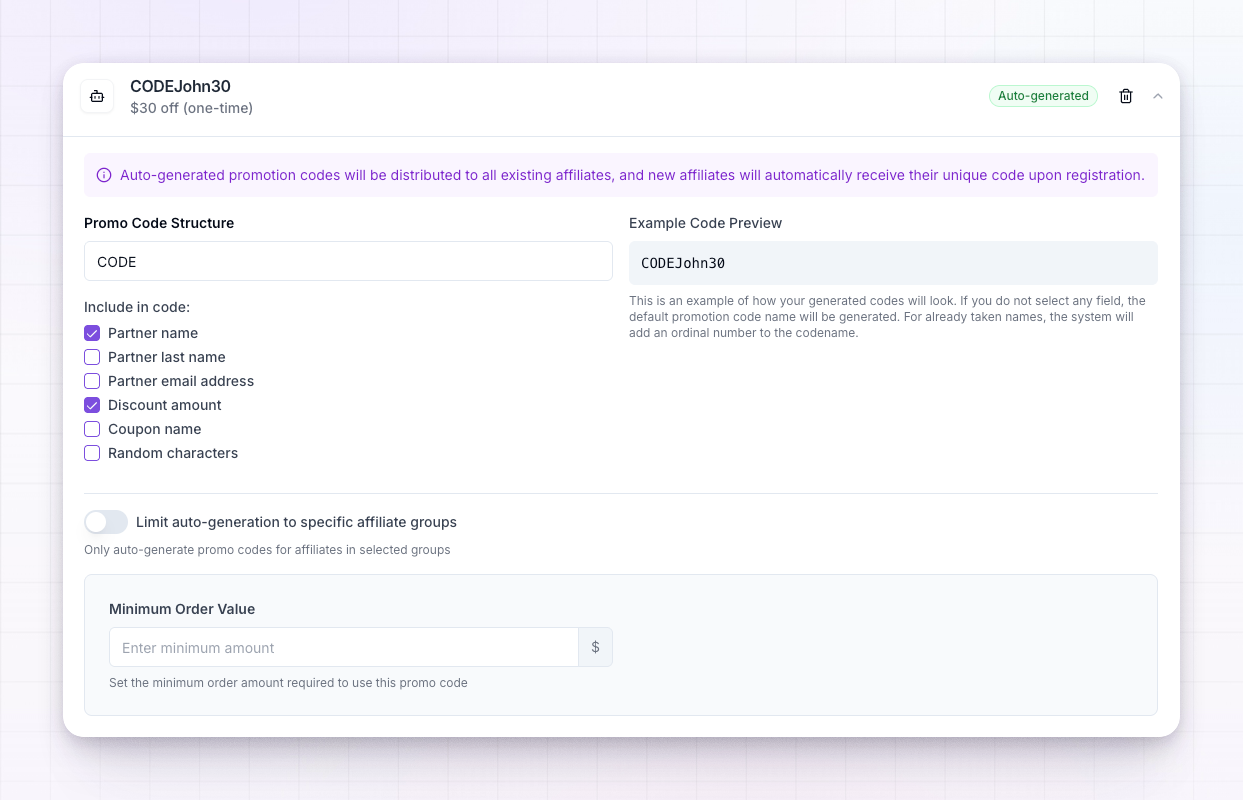
Open a coupon from your library, or create a new one, and add an auto-generated code in the Promotion Codes section. Instead of typing a code, you’ll build the pattern Referly uses to make one per affiliate.Design the code pattern
Choose what goes in the code
Under Include in code, pick the pieces that make up each code. You can combine any of:- Partner name — the affiliate’s first name.
- Partner last name — their last name.
- Partner email address — part of their email.
- Discount amount — the coupon’s discount, like
20. - Coupon name — the name you gave the coupon.
- Random characters — a short random string that keeps every code unique.
Add a prefix
Optionally set a prefix — a fixed word at the front of every code, likePROMO. This keeps your codes consistent and recognisable (for example PROMO-SARAH-20).
Tune the random characters
If you include random characters, choose their length and case (for example Mixed case). More characters mean less chance of two codes ever clashing; shorter codes are easier to type and say.Check the preview
As you build the pattern, the Example Code Preview shows what a finished code will look like. Adjust the pieces until it reads the way you want before you save.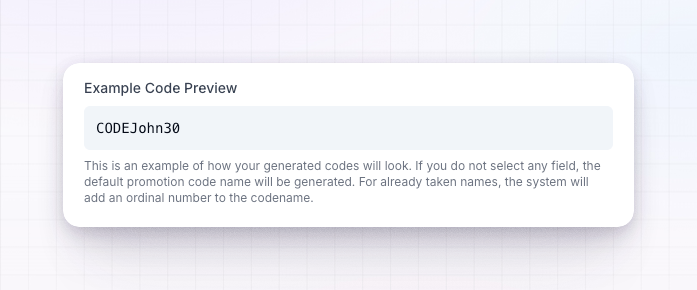
Limit which affiliates get a code
By default Referly generates a code for every affiliate. To narrow that, turn on Limit auto-generation to specific affiliate groups and choose the groups that should receive codes — useful when only your top tier gets a particular deal.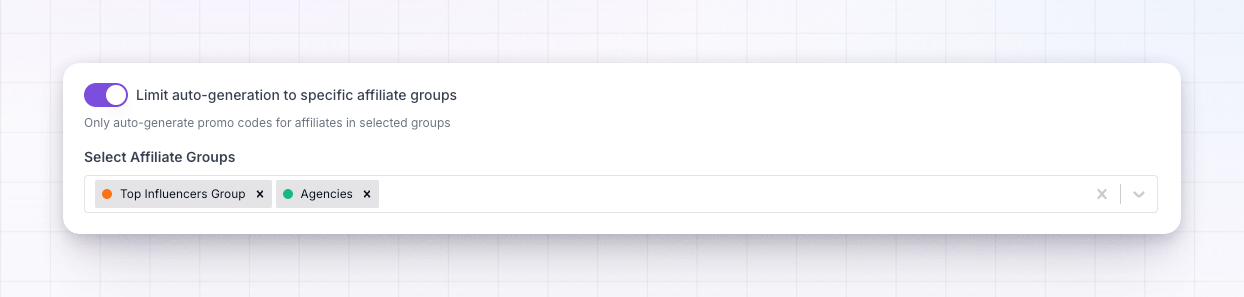
Add rules to the codes
Auto-generated codes can carry the same limits as any other code — first-time orders only, a minimum order amount, an expiry date, or a redemption cap. Set these alongside the pattern. For what each rule does, see Restrict a code.Let affiliates rename their code
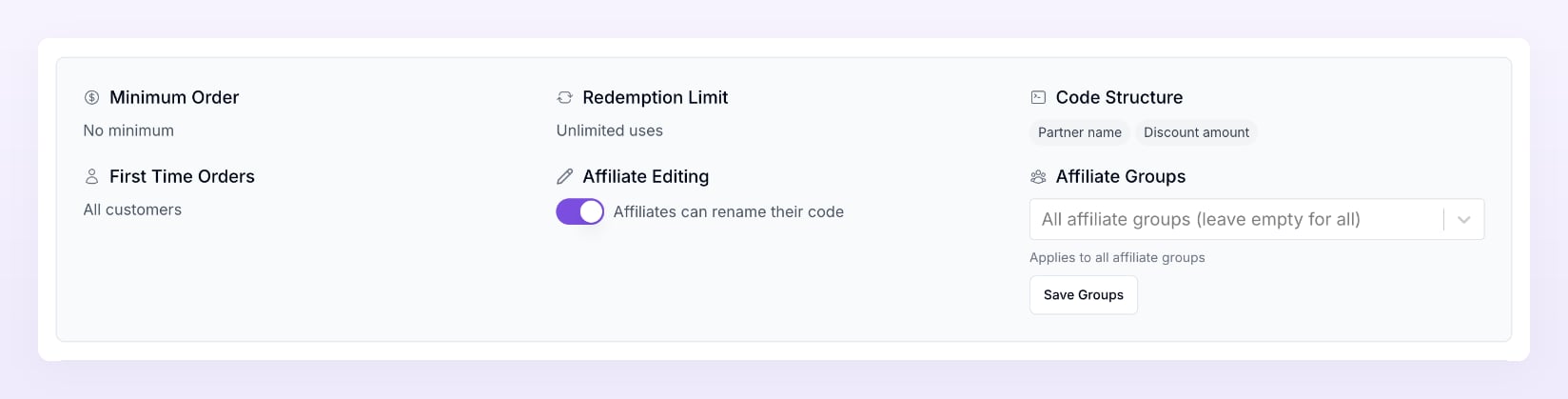
An auto-generated code is locked by default. If you’d like affiliates to be able to change theirs to something they prefer, for example their handle, turn on Allow affiliates to edit their code when you add the auto-generated code. Affiliates can then rename their code from their portal, and Referly checks that the new code isn’t used anywhere else in your program. On a coupon that already has auto-generated codes, use the Affiliate Editing card in the Auto-generated Promotion Codes section. Its switch reads Affiliates can rename their code when it’s on and Locked when it’s off, and the change saves as soon as you flip it. When an affiliate renames their code, it shows a blue Edited by affiliate badge on the coupon page. Renaming works the same way as when you rename a code yourself, including what happens on your platform. The affiliate side is covered in Your promo codes.
Regenerate codes later
If you change the pattern, or add affiliates after setting it up, you can regenerate the codes so everyone gets one that matches the current pattern. New affiliates are picked up too, so your whole program stays covered.Regenerating replaces existing auto-generated codes with new ones. Codes your affiliates have customized themselves are kept. If affiliates have already shared their current codes, let them know the code has changed.
Related
Promotional codes
Add or assign a single code by hand instead.
Restrict a code
Add first-time-order, minimum-order, and expiry rules.
Affiliate groups
Group affiliates so you can target who gets a code.
Create a coupon
Set up the discount your codes belong to.