

What you need
Before you start, have a proof of the payment ready:- A screenshot or document that shows the payout was actually made, for example a bank transfer receipt, a PayPal confirmation, or a screenshot from your payment platform.
- A PNG, JPEG, WebP, or PDF file of up to 10MB. You upload one file at a time. If the file is too big, you’ll see “Proof file must be 10MB or smaller.”
Where you can mark something as paid
You can mark a whole batch, individual payouts, or individual rewards as paid. Pick the place that matches what you paid:You can’t mark a Referly Payouts batch as paid by hand once Referly has charged you for it. Those batches are settled through Referly.
Upload the proof
Whichever option you choose, the Upload payment proof dialog opens. It names what you’re about to mark as paid, for example “this payout batch” or “3 payouts”.- Drag your file into the box, or click the box (Drag & drop or click to upload) to choose a file.
- Check the file. Images show a preview. To use a different file, select the X icon next to the file name.
- Select Upload & mark as paid.
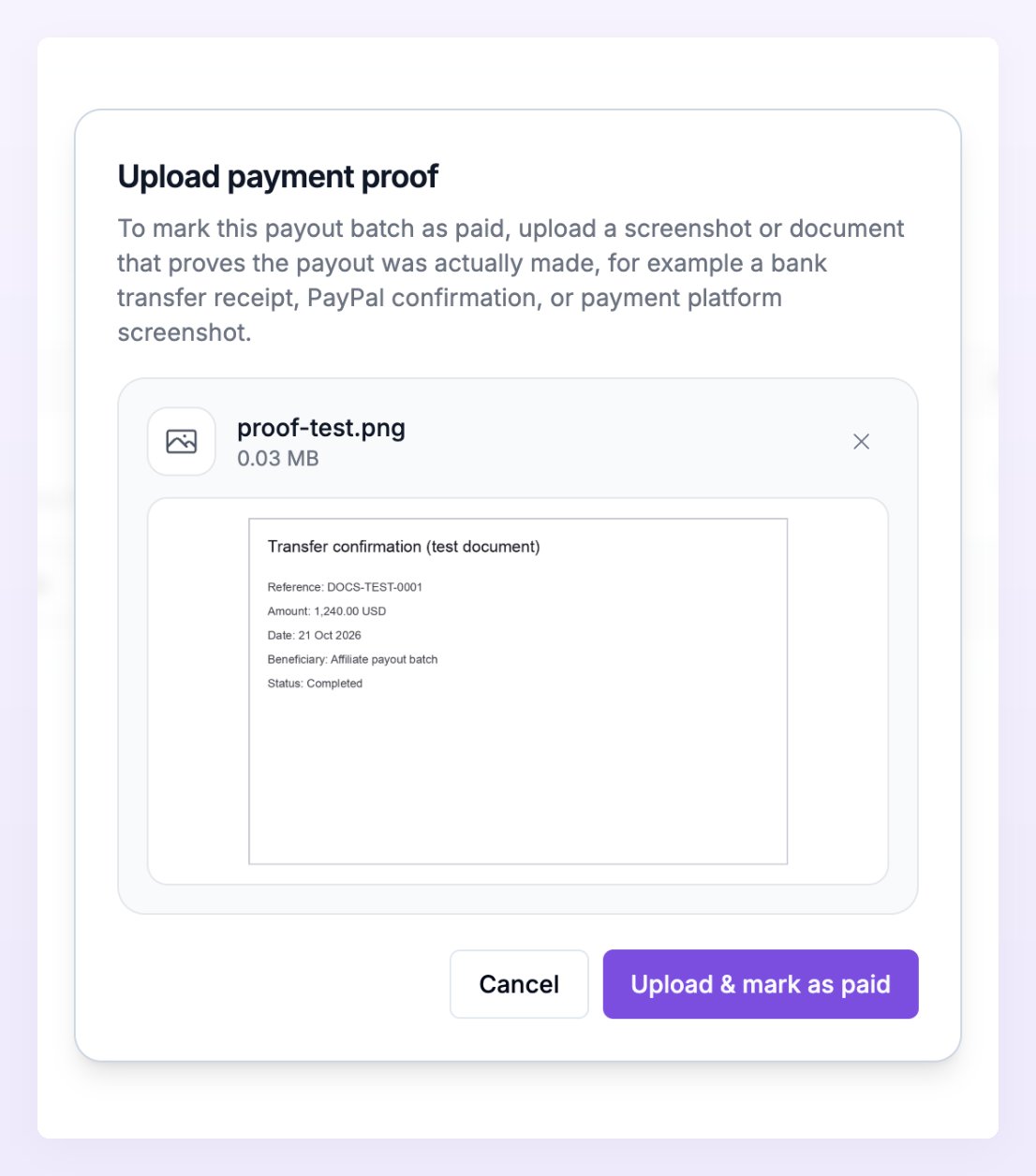
- A batch: every payout in it that wasn’t already paid is marked as paid, and the batch moves to Paid.
- Payouts: the payouts you chose are marked as paid. Once every payout in a batch is paid, the batch moves to Paid as well.
- Rewards: the rewards show as Paid in the Payout column.
View a payment proof
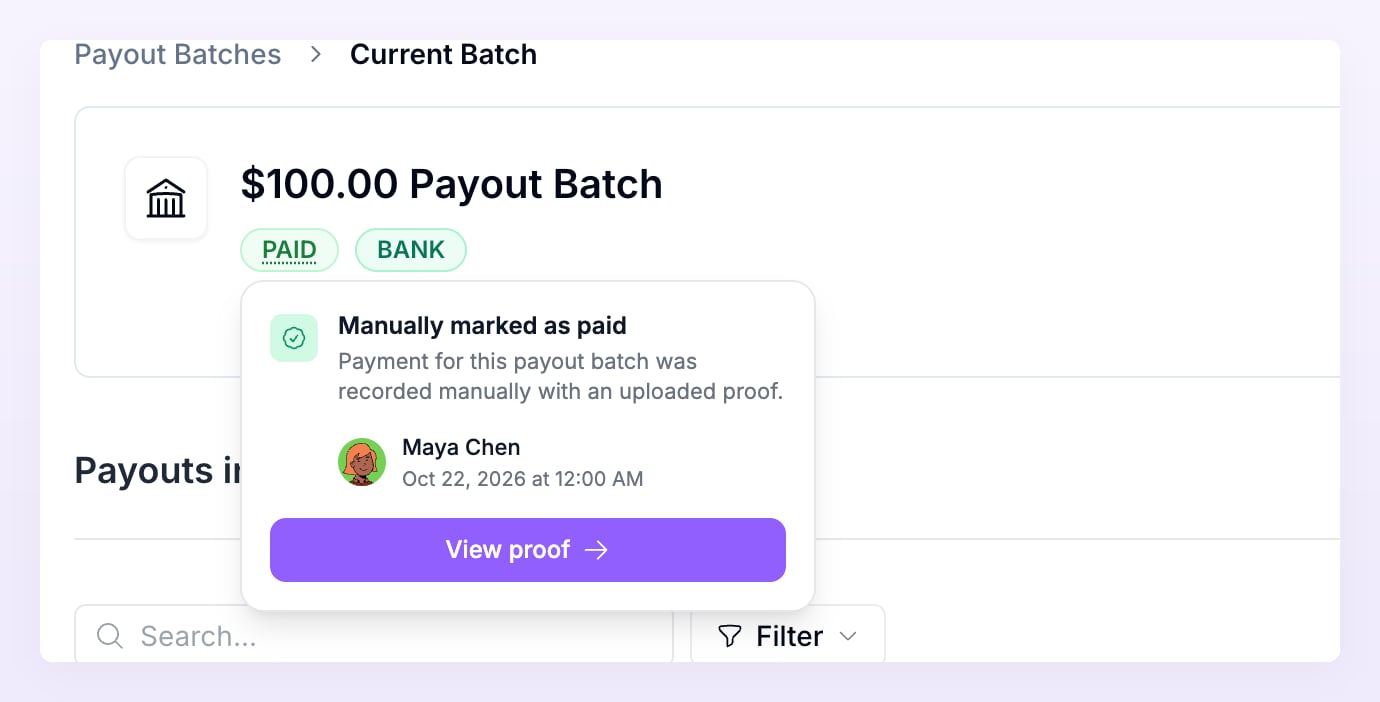
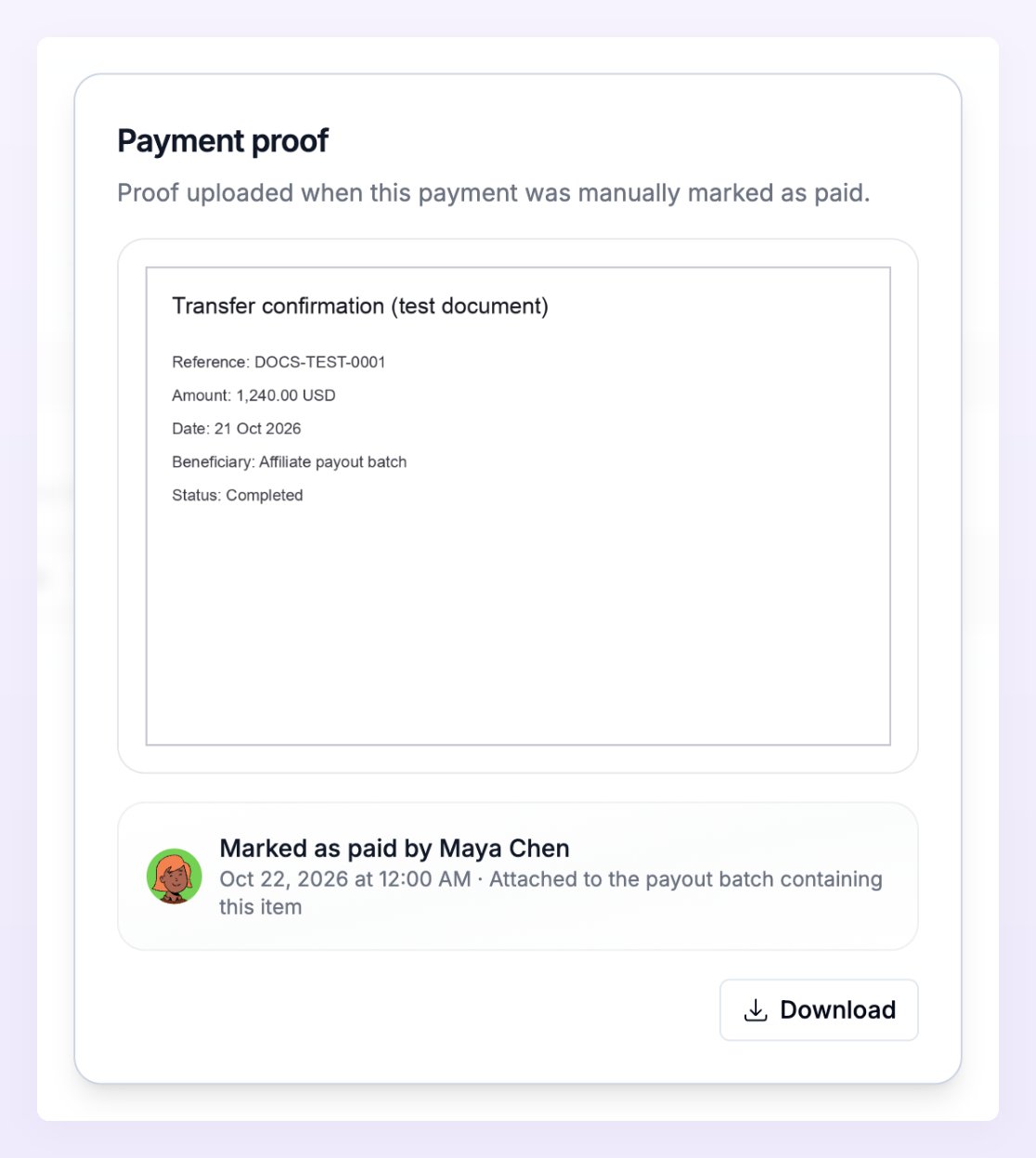
Anything marked as paid by hand has a Paid label with a dotted underline. You’ll see it on the batches list, inside a batch, in a payout’s details, and on the Rewards page.- Hover the Paid label. A Manually marked as paid card shows who marked it and when.
Mark a batch or payout as unpaid
If you marked something as paid by mistake, or before the money actually left your account, you can undo it. This only works for batches and payouts that were marked as paid by hand. You can’t mark a Referly Payouts batch as unpaid once Referly has charged you for it.Undo a batch
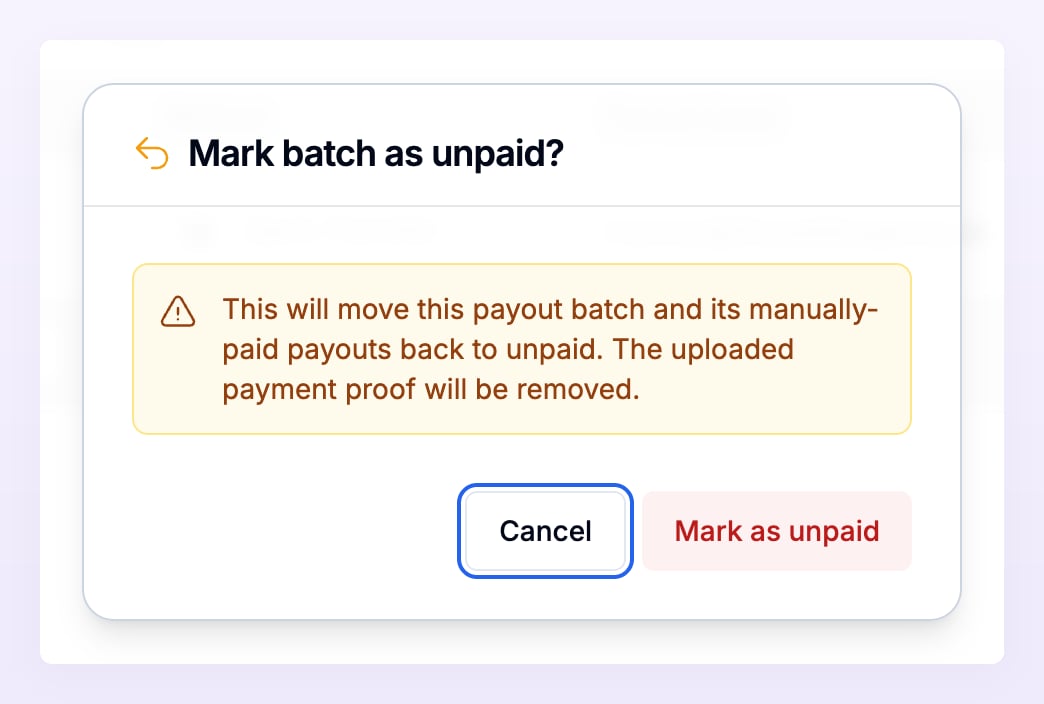
- Open the batch and choose Mark Batch as Unpaid from the Actions menu. On the batches list, you can also choose Mark as Unpaid from the menu at the end of the batch’s row. Both appear only when the batch is Paid and was marked as paid by hand.
- Confirm with Mark as unpaid.
Undo a payout
- Open the batch and select the payout to open its details.
- Select Mark as Unpaid at the bottom, then confirm in Mark payout as unpaid?.
Undo a reward
On the Rewards page, choose Mark as unpaid from the menu of a reward you marked as paid on its own. The reward goes back to unpaid, and its proof is removed from it.Why some rewards can’t be marked as unpaid on their own
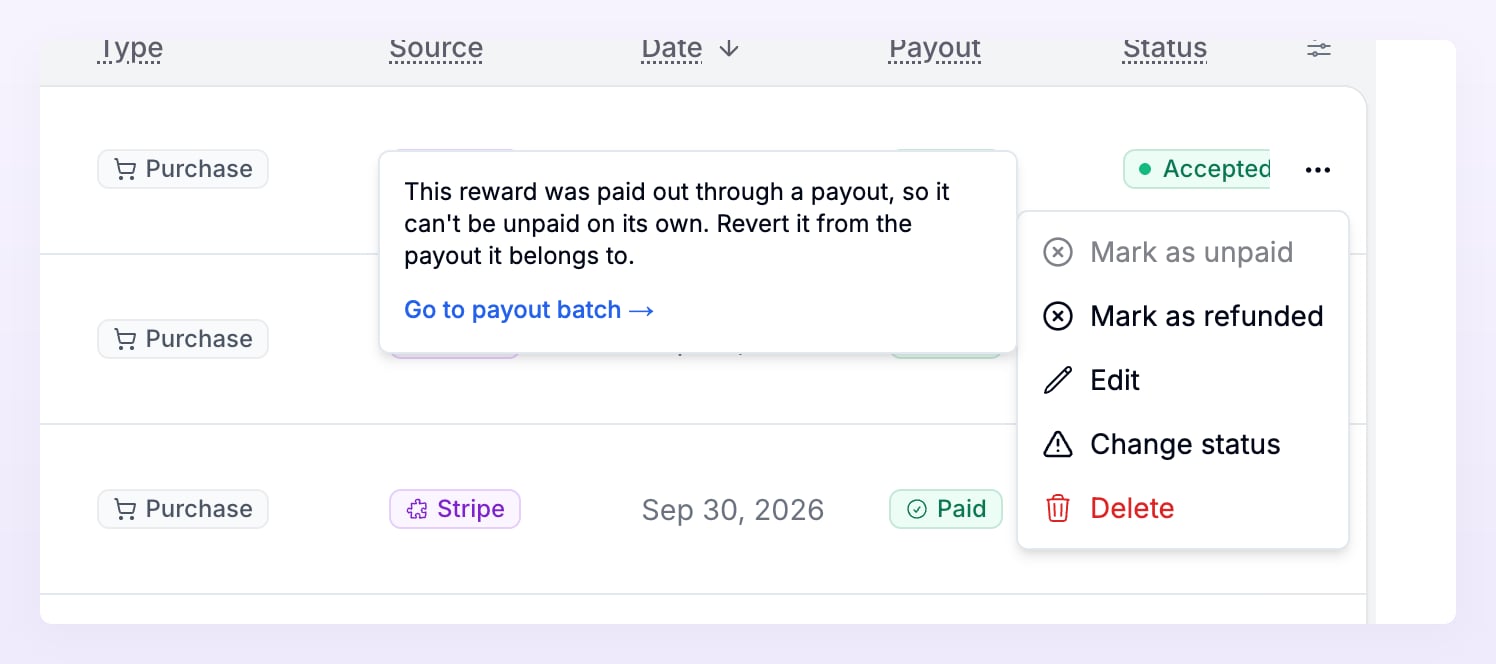
A reward that was paid as part of a payout belongs to that payout, so you undo it from the payout or batch, not from the Rewards page. That way the reward, its payout, and its batch always agree. For these rewards, Mark as unpaid in the reward’s menu is greyed out. Hover it to see why:- If the batch was marked as paid by hand, the tooltip asks you to mark that payout batch as unpaid.
- If the payout was marked as paid by hand, it asks you to mark that payout as unpaid.
- Otherwise (for example, the payout was sent through Wise or PayPal), it explains that the reward can’t be unpaid on its own and has to be reverted from the payout it belongs to.
Related
Payout batches
Review, pay, and manage your payout batches.
Export payouts
Download a batch as a CSV, pay it, then mark it as paid.
Manual bank transfer
Pay affiliates from your own bank and record it in Referly.
Rewards overview
See every reward and whether it has been paid.