

What’s in a batch
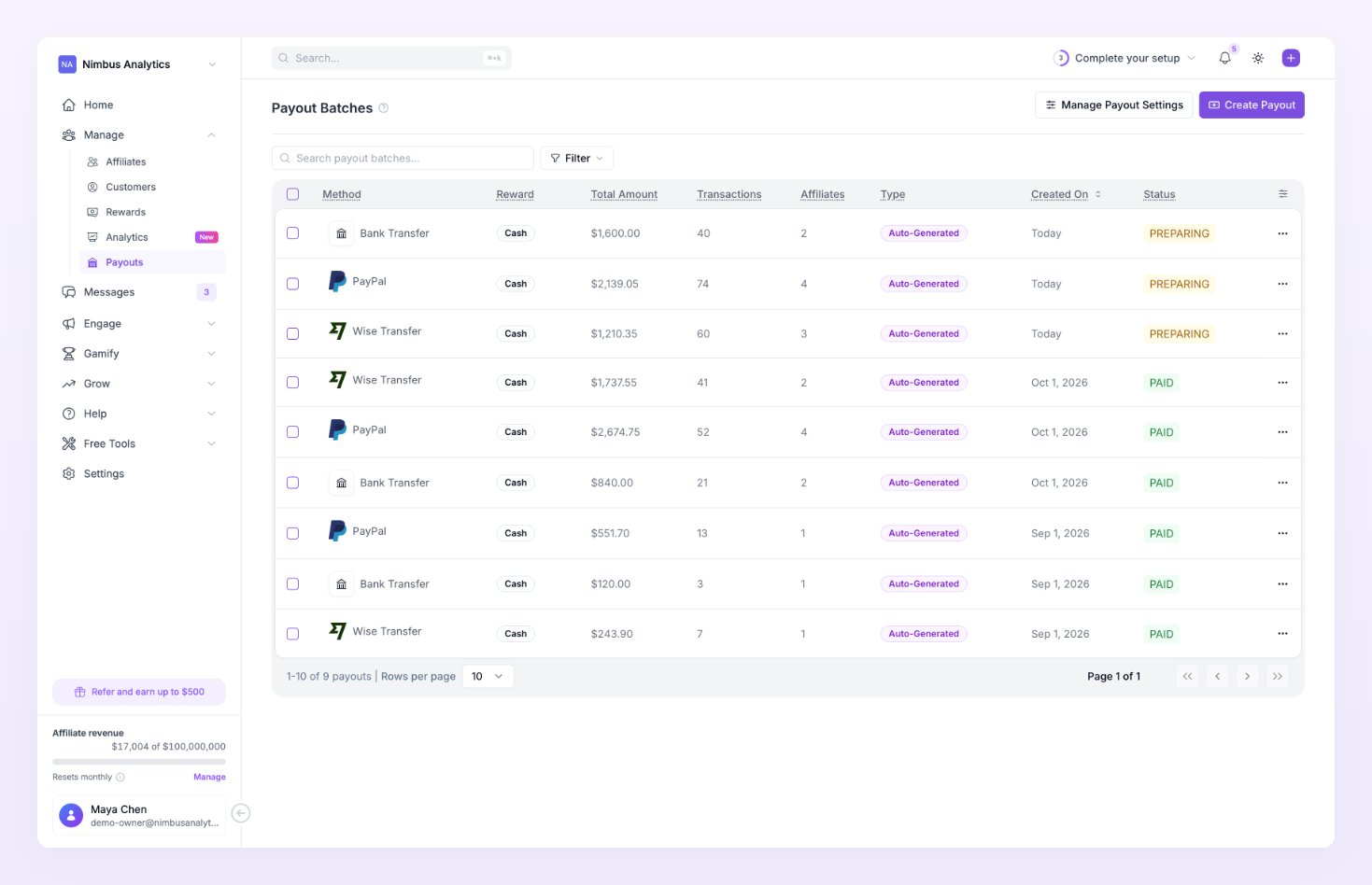
Each batch collects all the eligible commissions since the last payout for the affiliates it covers. A batch is for one payout method and one reward type, so cash, coupon, and credit earnings are grouped into separate batches even when they’re created at the same time. The batches table shows a row per batch, with columns you can turn on or off:- Method — how this batch will be paid (Wise, PayPal, manual bank, Referly Payouts, or a coupon or credit source).
- Reward — whether the batch pays out Cash, Coupons, or Credits.
- Total Amount — the total value of every payout in the batch.
- Transactions — how many sales are included.
- Affiliates — how many affiliates are paid in this batch.
- Type — whether the batch was Auto-Generated on your schedule or Manually Created.
- Created On — when the batch was created.
- Status — where the batch is in the payout process. See Payout batch statuses.
Auto-generated vs manually created batches
A batch gets created one of two ways:- Auto-Generated — Referly creates it for you on the schedule you set, if you’ve turned on automated payouts. See Holding period and frequency.
- Manually Created — you create it yourself with Create Payout when you want to pay affiliates outside the normal schedule.
Create a payout manually
You don’t have to wait for the schedule. Select Create Payout at the top right of the Payouts page to gather approved, unpaid rewards into new batches right away. You choose how old the rewards must be and the minimum each affiliate needs to have earned, and you can see who’s included before anything is created. Create a payout manually walks through every option.Find a batch
At the top of the list you can search by keyword and open Filters to narrow down by status, method, type, reward type, affiliate, or amount ranges. Active filters show as chips you can clear one at a time. This is handy when you want to see, for example, only failed cash batches, or every batch that included a particular affiliate.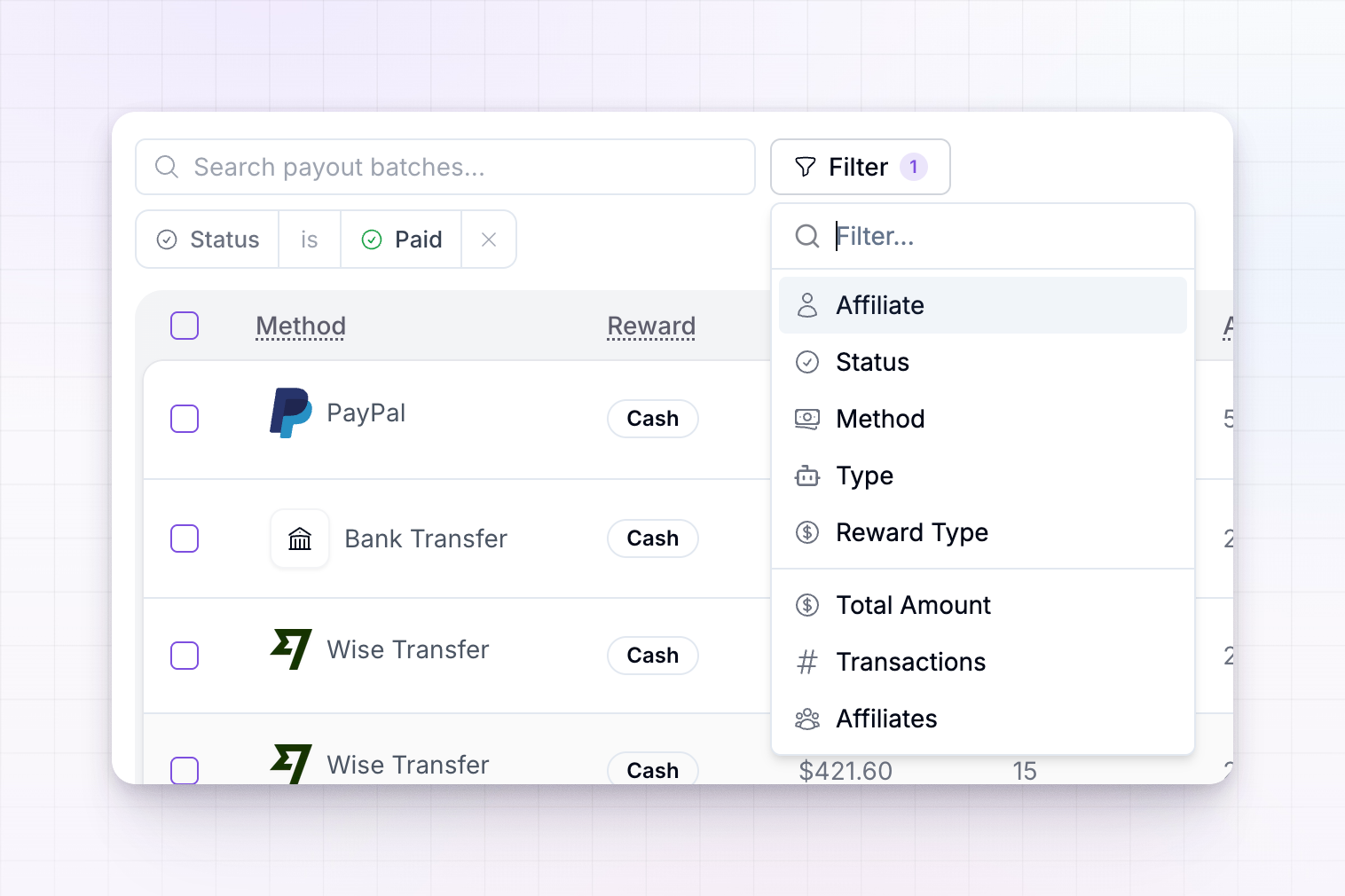
Pay a batch
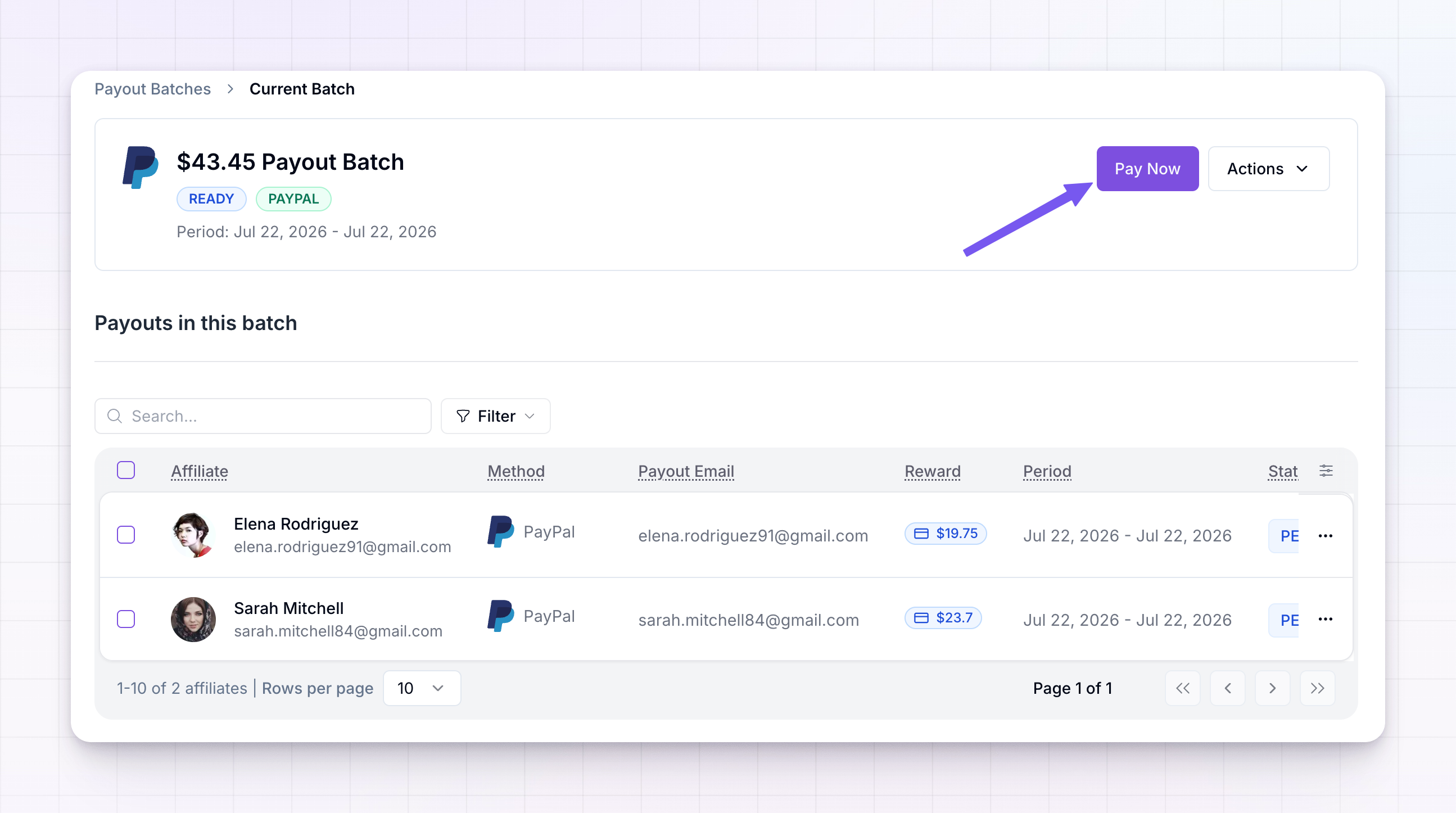
Select a batch to open it and see every affiliate payout inside. From there:- Select Pay Now to pay a cash batch, or Process Rewards to deliver a non-cash batch. Referly then walks you through paying with the batch’s method. A manual bank transfer batch shows Mark as Paid instead, because you send that money from your own bank.
- Select individual payouts and choose Mark as paid if you paid them elsewhere and want to record that. Referly asks you to upload a payment proof first, such as a bank transfer receipt. See Mark payouts as paid.
- Use the Export option to download the payouts as a CSV for Wise, PayPal, or your bank — see Export payouts.
- Download invoices from the Actions menu. Download All Invoices saves an invoice for every payout in a cash batch as one ZIP file, and a Referly Payouts batch has Download Invoice instead. Both stay greyed out until the batch has been paid or marked as paid. See Tax and invoices.
- Select a payout to open its details. If an affiliate’s payout details are missing or wrong, select Edit Payout Details at the bottom to fix them yourself, without waiting for the affiliate.
- On the Business plan, choose Tax Forms from the Actions menu to view or request a W-9 or W-8 form from an affiliate in the batch. See tax forms.
Manage batches in bulk
Back on the list, you can select several batches at once (or select all that match your current filters) and then:- Mark as paid — record a set of batches as paid in one go. You upload one payment proof, and it’s attached to every selected batch.
- Delete batches (in the menu next to Mark as paid) — remove batches you don’t need.
You can’t delete a batch that has already been paid, and you can’t manually mark a Referly Payouts batch as paid once Referly has charged you for it — those are settled through Referly.
Related
Payout batch statuses
Learn what each batch status means and what to do next.
Holding period and frequency
Control when batches are automatically created.
Export payouts
Download a batch as a CSV to pay affiliates.
Failed payouts
Find out why a payout failed and how to retry it.
Create a payout manually
Gather unpaid rewards into new batches on demand.
Mark payouts as paid
Record payments you made outside Referly, with proof.