

Before you start
Only rewards that are ready to be paid can go into a payout:- The reward is Accepted. Rewards that are on hold, declined, or refunded are left out. See Approve or decline a reward.
- The reward hasn’t been paid and isn’t already in a payout. Rewards from a payout that failed can be included again.
- For cash rewards, the affiliate has set up their payout details (and their invoice details, if you require them). Coupons and credits don’t need payout details.
Open the Create payout dialog
Go to Payouts in the left sidebar and select Create Payout at the top right, next to Manage Payout Settings. The Create payout dialog opens. If there’s nothing to pay, you’ll see No unpaid rewards to pay out instead.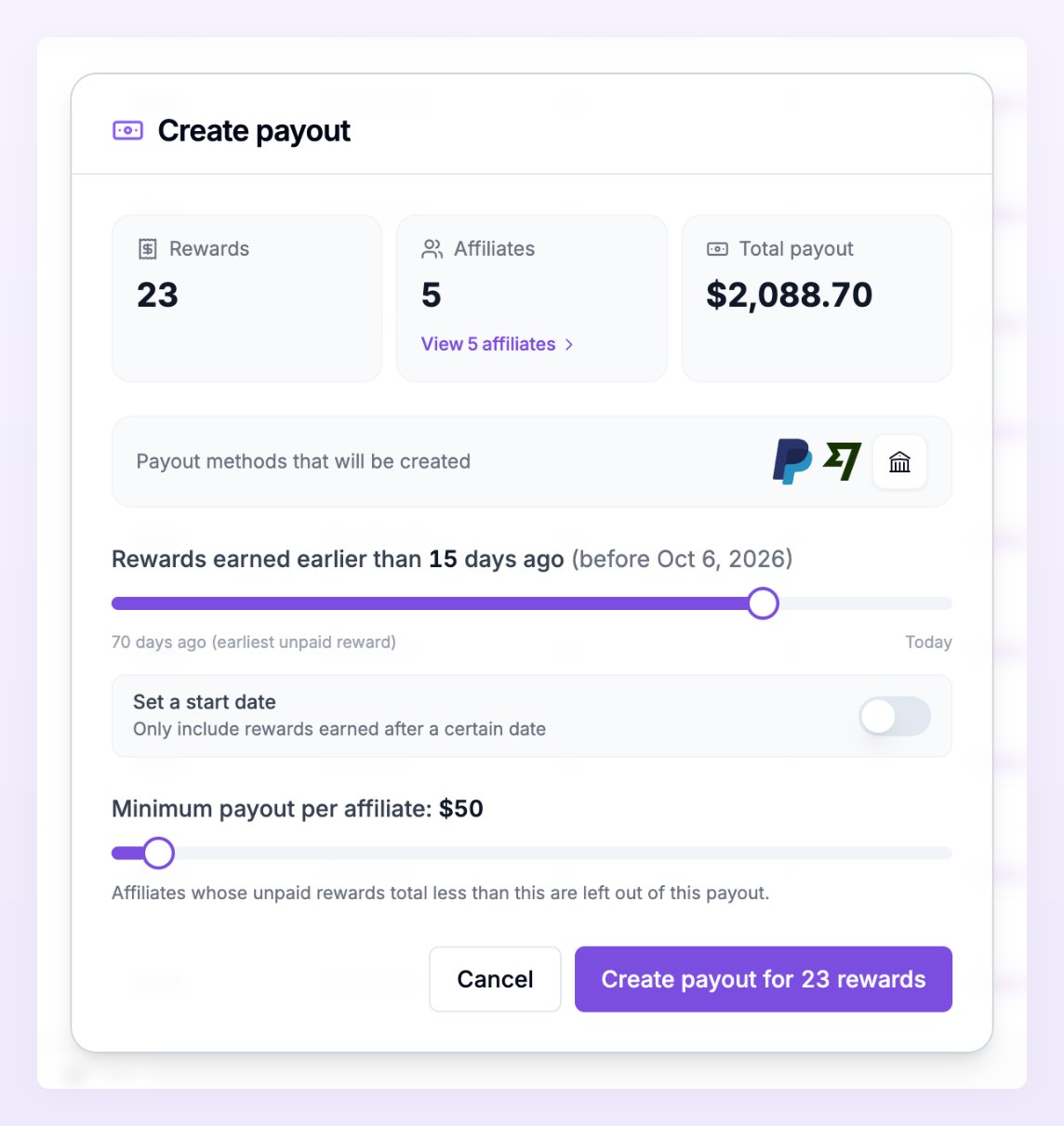
Check what’s included
The three tiles at the top update as you change the options below, so you always see what the payout will cover:- Rewards: how many rewards will be paid.
- Affiliates: how many affiliates will be paid. Select the link under the number (for example View 3 affiliates) to open Affiliates in this payout, a list of every affiliate with their number of rewards and amount.
- Total payout: the total cash amount.
Choose which rewards to include
The first slider decides how old a reward must be to be included. Its label reads Rewards earned earlier than a number of days ago, with the matching date. Drag it to the right, toward Today, to include more recent rewards, or to the left, toward the earliest unpaid reward, to include only older ones. The slider starts at your holding period, so by default only rewards that have cleared it are included. Moving it closer to today lets you pay rewards that are still inside the holding period, so think about refunds before you do. To leave out older rewards too, turn on Set a start date (“Only include rewards earned after a certain date”). A second handle appears on the slider and the label changes to Rewards earned between two numbers of days ago, with both dates shown.Set a minimum per affiliate
The Minimum payout per affiliate slider sets how much an affiliate must have earned to be included. Affiliates whose unpaid rewards total less than this are left out of this payout, and their rewards stay unpaid for a later one. The slider starts at your program’s minimum payout amount. Changing it here only affects this payout, not your settings. Like the program minimum, it only applies to cash rewards, so coupons and credits are included whatever their value.Fix affiliates who were left out
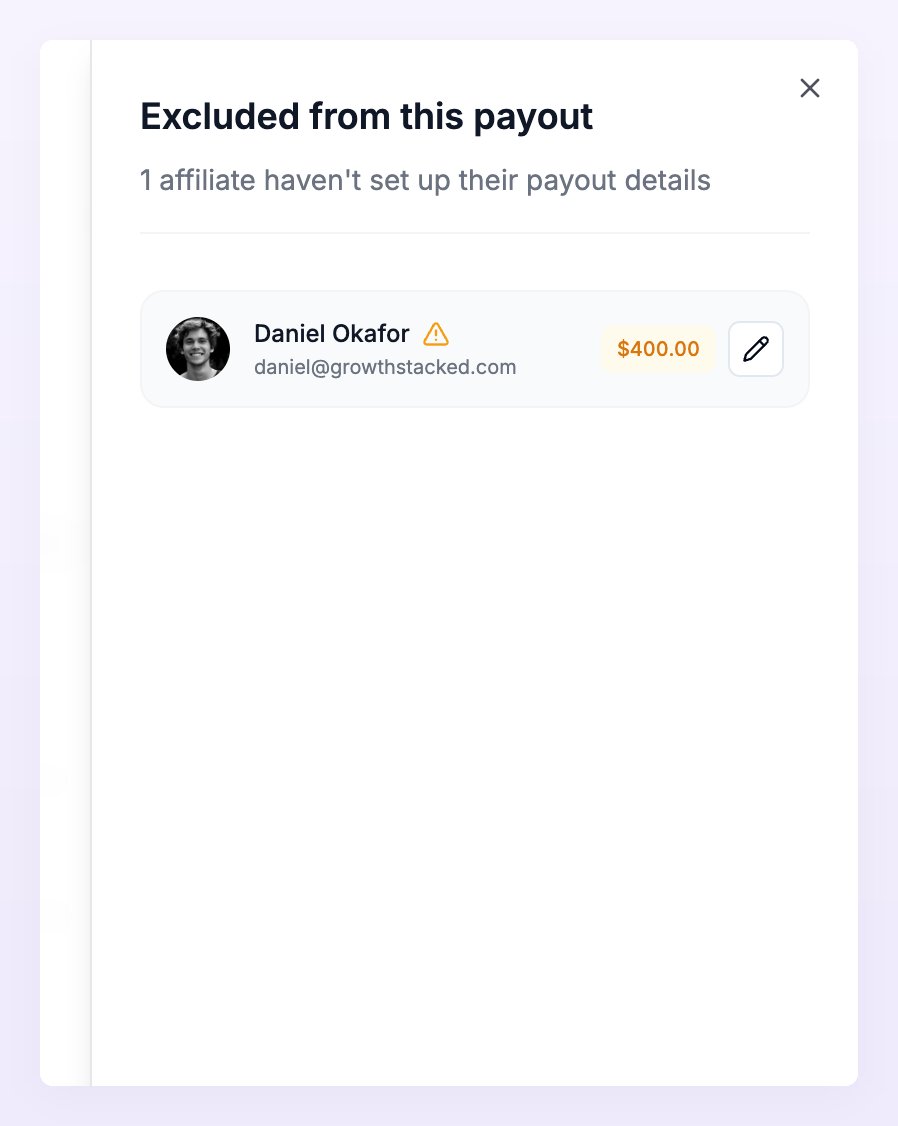
If some affiliates have unpaid cash rewards but haven’t set up their payout details, an amber message tells you how much was excluded and for how many affiliates. Select Click here to fix it to open Excluded from this payout, a list of those affiliates and their amounts.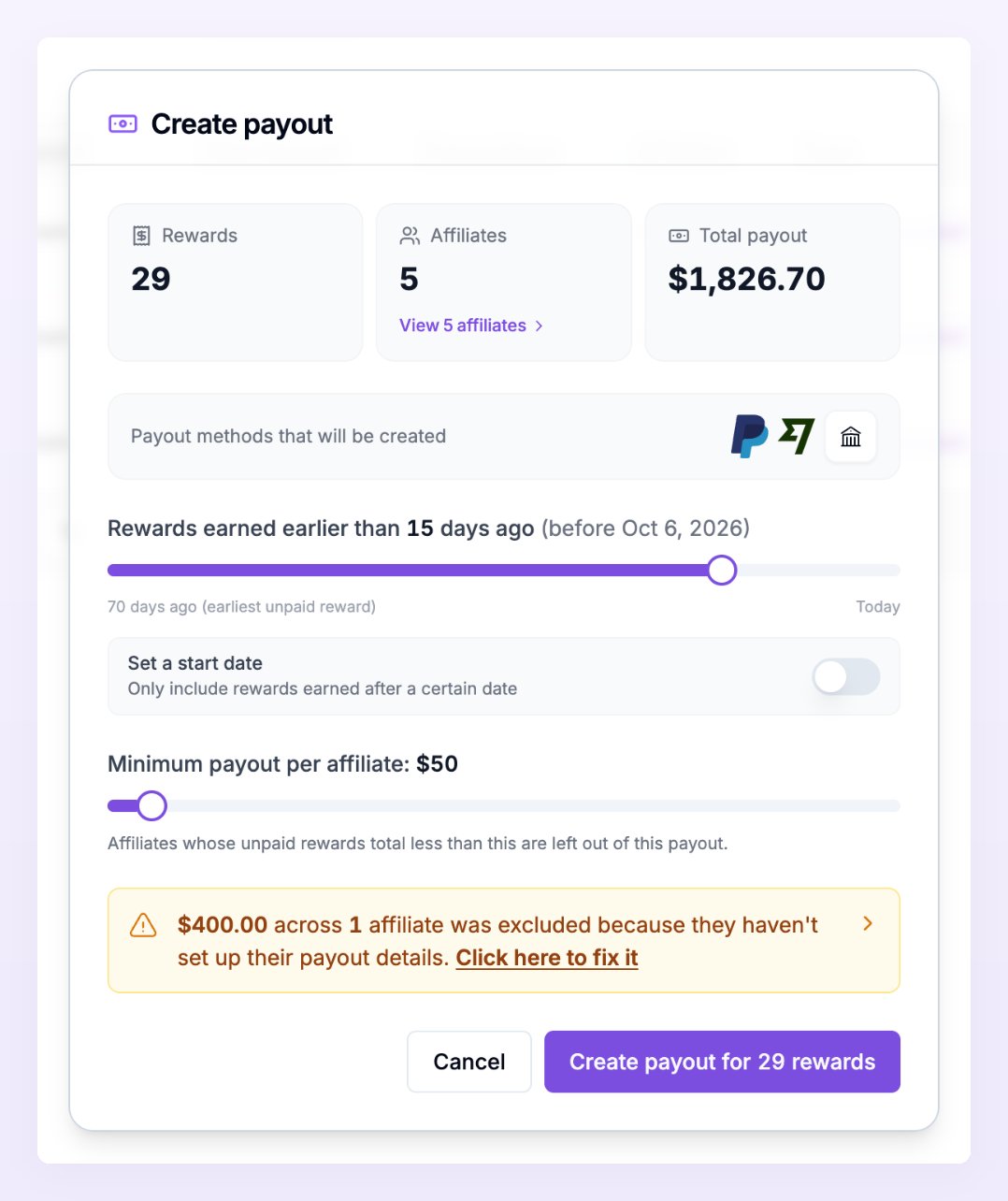
- Select the pencil button (Edit payout details) next to the affiliate.
- Add the missing details in Edit Payout Details. If something is missing or wasn’t accepted, the field is highlighted with the problem underneath.
- Select Save Changes.
Create the payout
When the numbers look right, select Create payout for the number of rewards shown. Referly confirms how many batches it created and how many rewards they cover. Here’s what happens next:- Referly creates one batch for each payout method and reward type. They show as Manually Created in the Type column.
- Referly Payouts batches start as Waiting for payment. All other batches start as Ready.
- If you’ve turned on automatic payouts for Referly Payouts or PayPal, those batches are paid automatically.
- Each affiliate in the payout gets a notification in their portal that a payout was created.
Pay specific rewards instead
If you’d rather pick individual rewards, go to Rewards in the left sidebar, tick the rewards you want, and select Create Payout in the bar that appears. Review the Create Payout Batch summary and select Confirm. This route ignores your minimum payout amount and other payout criteria. Rewards on hold, rewards already in a payout in progress, and rewards for affiliates whose payout details aren’t complete are still left out. See Rewards overview.Related
Payout batches
Review, pay, and manage the batches you create.
Holding period and frequency
Let Referly create batches for you on a schedule.
Minimum payout amount
Set how much an affiliate must earn before they’re paid.
Mark payouts as paid
Record payments you made outside Referly, with proof.