

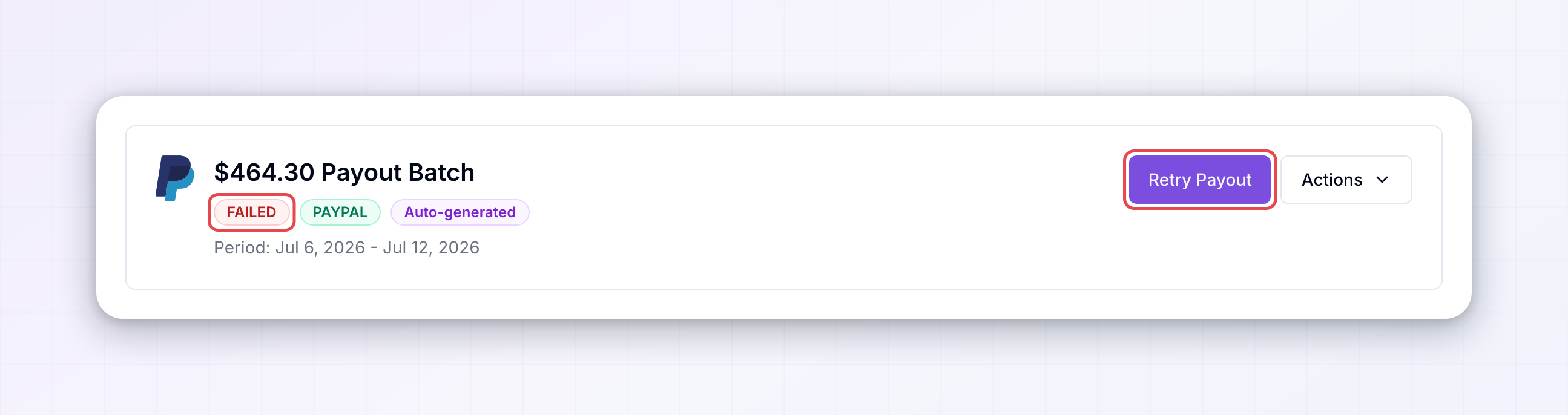
Find out why it failed
Referly attaches a reason to every failure. To see it:- On the list — hover over the Failed or Some payouts failed label and the reason appears in a tooltip. For a partly failed batch, the tooltip tells you how many payouts failed, unless Referly has a more specific reason to show.
- Inside the batch — open the batch to see the reason at the top, and hover the status on any individual payout that failed to see its specific reason.
Common reasons and how to fix them
Most failures come down to one of these:- The payout method isn’t connected. If your Wise or PayPal connection dropped or was never finished, the batch can’t be sent. Reconnect the method under Payout settings, then retry.
- Not enough funds. If the account you pay from doesn’t have enough to cover the batch, the payment fails. Top up your Wise, PayPal, or bank balance and retry.
- A payment method was declined. For Referly Payouts, if the card or bank account Referly charges is declined or can’t be charged, the batch fails. Update or switch your payment method, then retry.
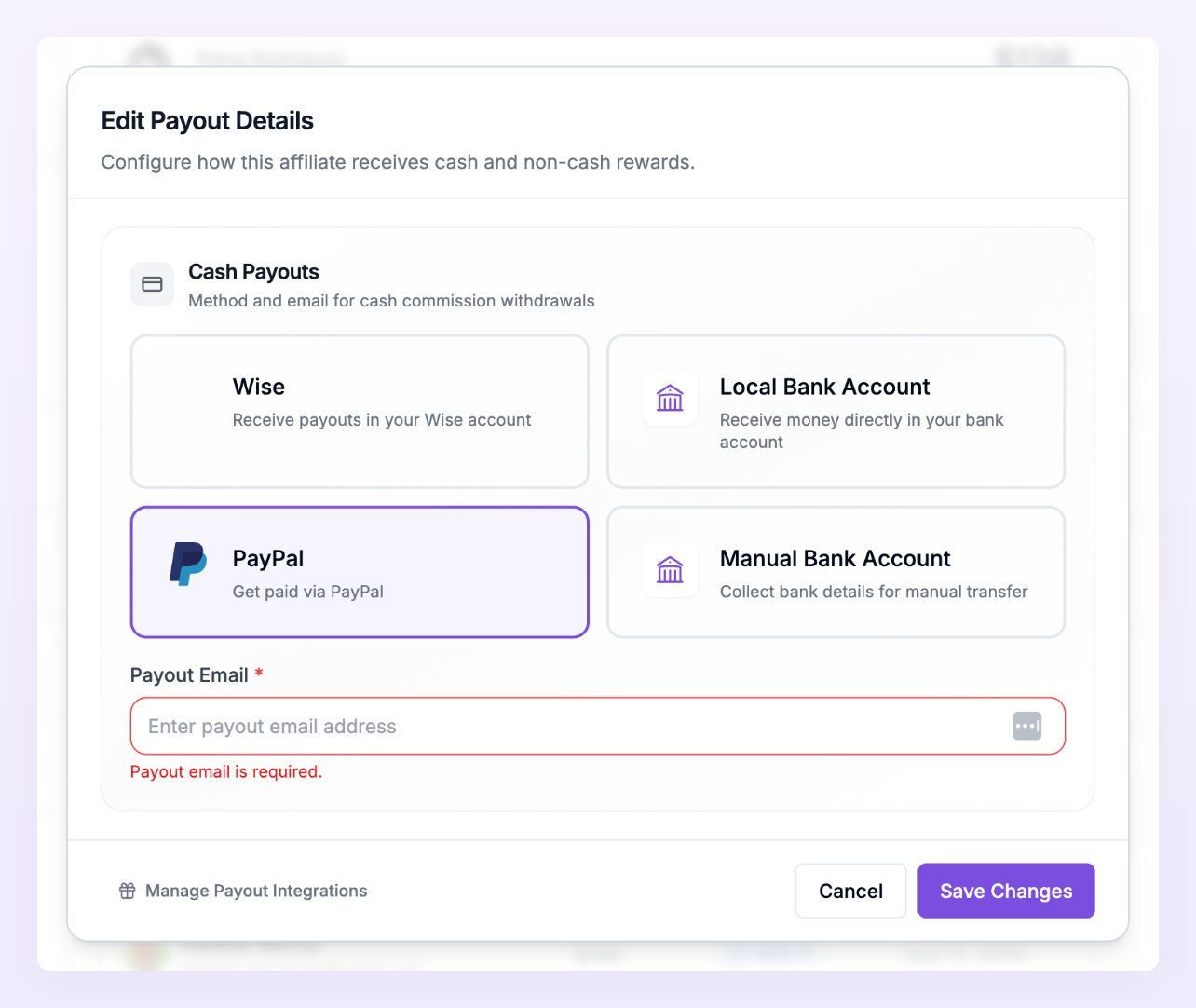
- An affiliate’s payout details are wrong. If an affiliate’s bank, PayPal, or Wise details are invalid, their payout can fail. Ask the affiliate to correct their details, or fix them yourself, before you retry.
- Some Wise transfers couldn’t be created. If Wise couldn’t create a transfer for some payouts in a batch, the batch is marked failed with a reason like “2 payout(s) could not be transferred and remain unpaid”, followed by the first error Wise returned. Fix the affected affiliates’ payout details, then retry the batch.
- The payout came to zero. If refunds or other adjustments bring an affiliate’s payout down to nothing, there’s no money to send, so that payout fails with the reason “Payout amount is 0 after commission adjustments (e.g. refunds); nothing to transfer.” Nothing is owed to that affiliate for this payout.
Fix an affiliate’s payout details
You don’t have to wait for the affiliate to update their details. To fix them yourself:- Open the batch and select the affiliate’s payout to open its details.
- Select Edit Payout Details at the bottom.
- Correct the details and select Save Changes.
Retry the payout
Once you’ve fixed the cause, open the batch and select Retry Payout. Referly attempts the payment again with the same batch — you don’t need to recreate it.- For a Wise batch, if the connection was the problem, you’ll be prompted to connect Wise before the retry runs.
- For a Referly Payouts batch, retrying charges your payment method again and sends the payout.
If only some payouts in a batch failed, the ones that went through are already paid. When you retry, Referly sends only the payouts that are still unpaid, so no affiliate is paid twice.
Related
Payout batch statuses
Understand every status a batch can show.
Payout methods
Reconnect Wise, PayPal, or bank transfer.
Payout batches
Open a batch to review and retry payouts.
Self-managed vs Referly Payouts
How each payout option is charged and sent.