


What the Jumpseller integration can and can’t do
Before you start
You’ll need:- Access to your Jumpseller store with permission to authorize apps.
- A Referly account and affiliate program. You can create a program during setup.
- A test affiliate and a way to place a paid test order.
Step 1: Install and connect the app
1
Open the Jumpseller connection
In Referly, open your program’s Settings → Integrations, choose Jumpseller, and select Install the Referly app on Jumpseller. You can also start from the Referly app in Jumpseller.
2
Authorize the app
Sign in to Jumpseller if asked, review the requested permissions and approve access to your store.
3
Choose your program
Sign in or create your Referly account. If you have one program, the store can connect automatically; if you have several, select the program that should receive its orders. If you have no program yet, follow the setup flow to create one.
4
Confirm the connection
Return to Settings → Integrations in Referly and open Jumpseller. Check the connected store name or store code.
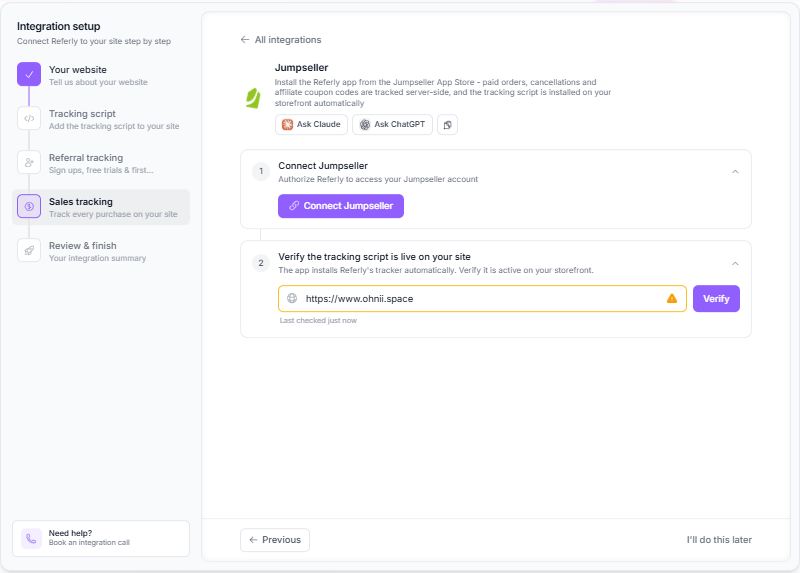
What the app sets up for you
- Storefront tracking: a JavaScript app loads Referly’s tracker on the store layout; no theme snippet is required.
- Order notifications: Referly subscribes to paid, updated and canceled order events.
- A store connection: orders and promotion operations are associated with the selected Referly program.
Step 2: Verify the tracking script
In Referly’s integration setup, run the tracking-script verification against your published storefront URL, not your Jumpseller admin address. Open an affiliate link in a private window and confirm the click is recorded. The script links a shopper’s cart to a Referly click on the storefront. Checkout v2 does not run this script, so a successful click is only the first part of the test: complete an order and confirm attribution in Referly as well.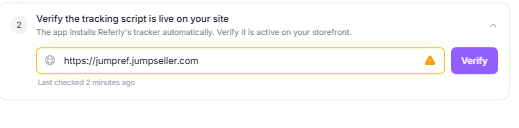
Step 3: Decide how affiliates will promote you
Referral links
Enable link tracking under Tracking methods and share each affiliate’s Referly link. Jumpseller-connected programs useref or aff as their URL tracking parameter. Use the link Referly generates rather than changing the parameter yourself. Make sure your store URL is included in the Landing Page URL section
Promotion codes
In Referly’s Coupons page, create a coupon with Jumpseller as the source and assign promo codes to affiliates. You can also sync supported existing Jumpseller promotions and link their codes to affiliates. See Create coupons. Jumpseller calls the discount a promotion and its individual codes coupons. In Referly, the promotion appears as a coupon with promo codes. Redemption limits apply to individual codes, not a shared coupon-wide total. Promotion targets include subtotal, shipping, selected products and buy-X-get-Y. Available conditions depend on the target. For selected products, Referly supports no minimum condition or a combined quantity of selected products; other minimum-condition modes cannot be reliably configured through the integration. Payment-method targeting is not supported.How Referly decides who gets credit
When a paid order is processed, Referly checks:- An assigned affiliate promo code, when coupon tracking is enabled.
- The cart-linked referral click, when link tracking is enabled. If no cart link is available, Referly can use Jumpseller’s order referral value.
- An existing referred customer, matched by email or Jumpseller customer ID when no new affiliate was found.
Step 4: Place a test order
1
Open an affiliate link
Copy a test affiliate’s link from Referly and open it in a private window. Confirm the click appears on the affiliate’s record.
2
Complete a paid order
Add a product to the cart and check out using your normal store flow. Make sure the order is marked paid in Jumpseller.
3
Check the result
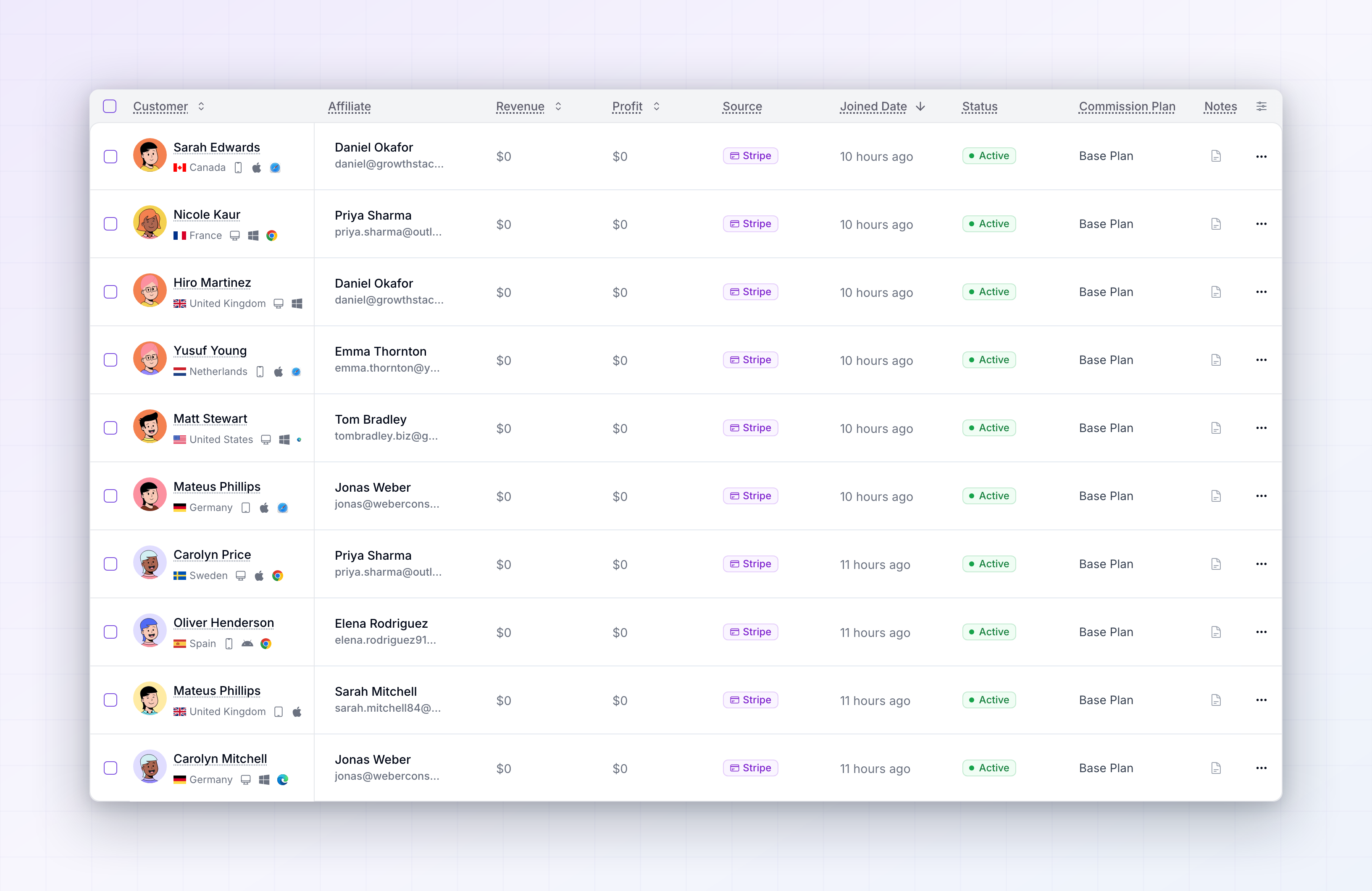
In Referly, check Customers, Sales and Rewards for the buyer, order and commission. If you use a product rule, check the commission amount too.
4
Test an affiliate code
Start a separate private session, place an order with an assigned affiliate promo code and confirm the correct affiliate is credited.
5
Check cancellation handling
Cancel a test order in Jumpseller and review the corresponding sale and reward in Referly. Automatic reversal is subject to the reward’s eligibility and holding rules.
Cancellations and refunds
Referly handles Jumpseller cancellation notifications by attempting to mark the matching sale refunded. Automatic reversal can be refused for a reward that has already been paid or is beyond the applicable holding window. The current integration does not separately process a refund-only order status as a reversal. If you refund without canceling, review the sale and adjust it in Referly where needed. Verify the result for partial refunds too; don’t assume a proportional adjustment. See Refunds and Reward holds.Disconnecting your store
In Referly, open Settings → Integrations, select Jumpseller, and choose Disconnect. Remove the app in Jumpseller too if you no longer want it installed. Uninstalling the app also disconnects it from Referly. Your previously recorded affiliates, customers, sales and rewards remain in Referly. Don’t rely on orders placed while disconnected being automatically recovered when you reconnect.Troubleshooting
The storefront tracker isn't detected
The storefront tracker isn't detected
Check that the correct store is connected, wait briefly for setup, and verify the published storefront address. If it still fails, reconnect the app and contact support.
A click was recorded but the order wasn't credited
A click was recorded but the order wasn't credited
Confirm link tracking is enabled and the order is paid. Retry with a fresh private window and the normal add-to-cart and checkout flow. Checkout v2 cannot run the tracking script, so attribution has to reach the order from the storefront or another supported source.
A promotion code didn't credit the affiliate
A promotion code didn't credit the affiliate
Confirm coupon tracking is enabled, the promotion is connected or synced in Referly, and its code is assigned to that affiliate. Test the code in a separate session without another affiliate link.
A promotion condition isn't available
A promotion condition isn't available
The available conditions depend on the target. Selected Products supports no minimum or a combined selected-product quantity; payment-method promotions aren’t supported.
The app asks me to reconnect
The app asks me to reconnect
Restart the connection from Jumpseller or Referly, approve the requested permissions, and select the correct program. If an installation has expired, begin a fresh installation.
A refund or cancellation didn't reverse the reward
A refund or cancellation didn't reverse the reward
Refunds without cancellation are not automatically handled as reversals by the current integration. For cancellations, check whether the reward is still eligible for reversal; paid or past-hold rewards may require a manual adjustment.
Related
Create coupons
Create and assign affiliate promotion codes.
Product-based commissions
Set commission rules for products.
Reward holds
Understand when rewards can be reversed.
Integrations overview
Explore other ways to connect Referly.