

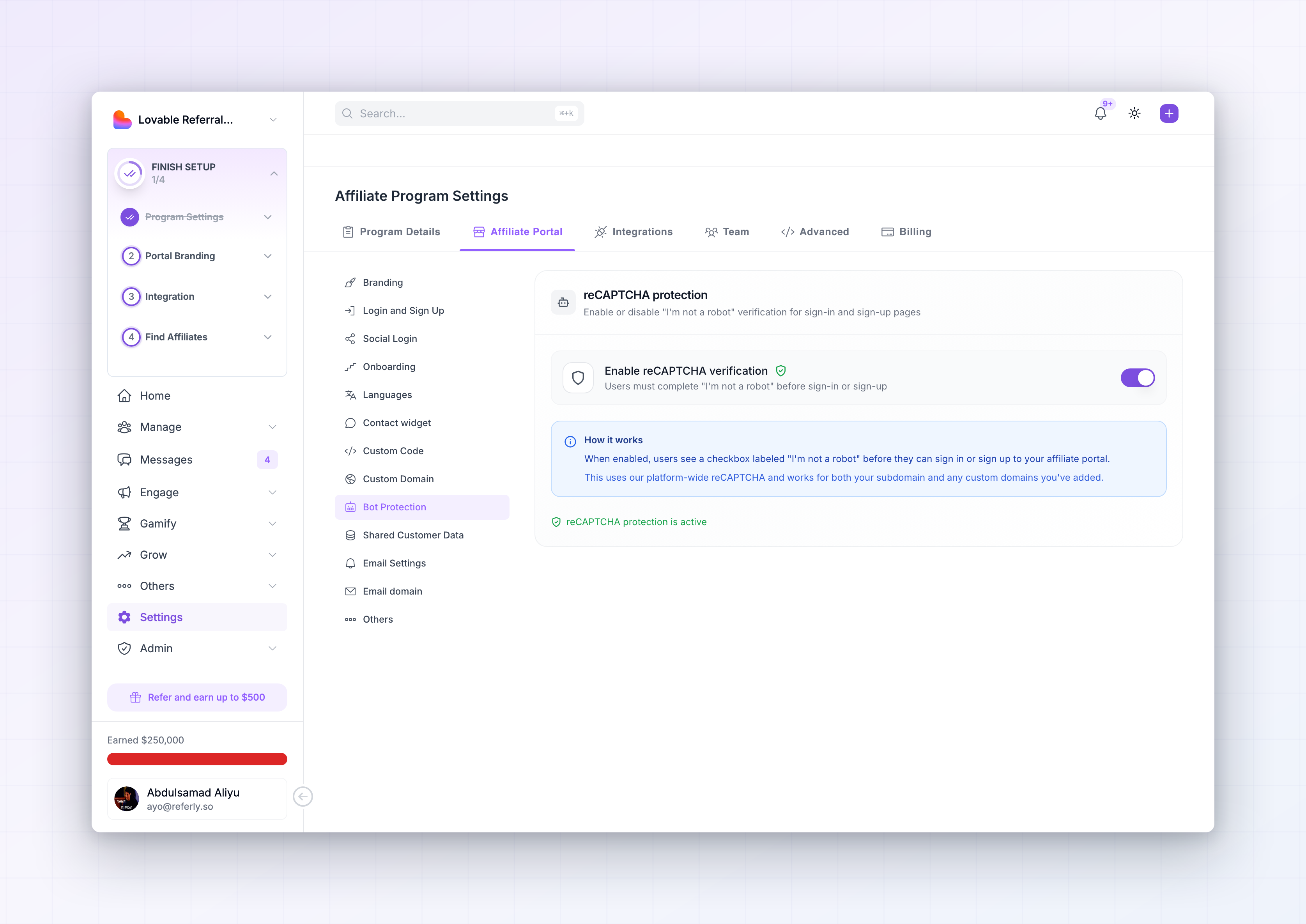
Turn on bot protection
The reCAPTCHA protection card has one switch: Enable reCAPTCHA verification. Turn it on and it takes effect immediately — there’s no separate save button.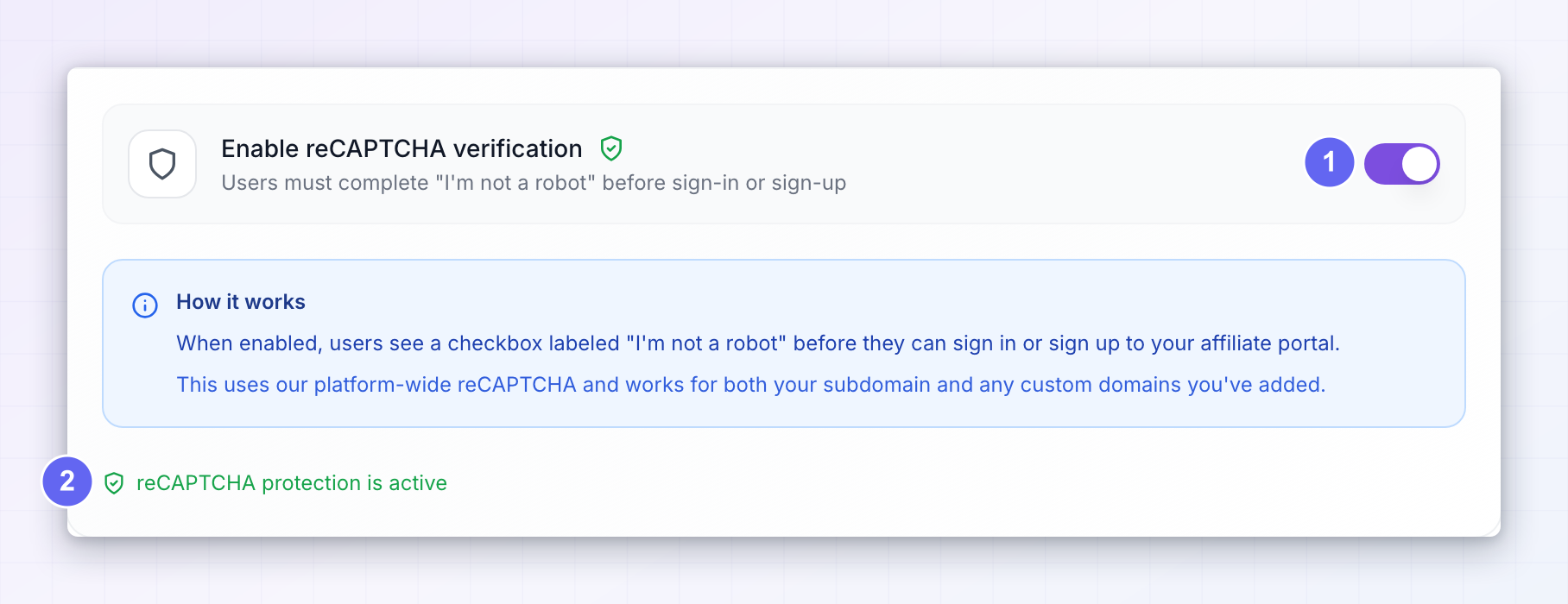
When the “reCAPTCHA settings updated successfully” message appears and the bottom of the card reads reCAPTCHA protection is active in green, your portal is protected.
acme.referly.so.
On a custom domain the check can’t load, so it isn’t enforced there. Affiliates who use your custom domain sign in and sign up without it rather than being blocked.
What your affiliates see
With bot protection on, an I’m not a robot checkbox appears on your portal’s sign-up page and login page, above the button that submits the form. The button stays greyed out until the box is ticked.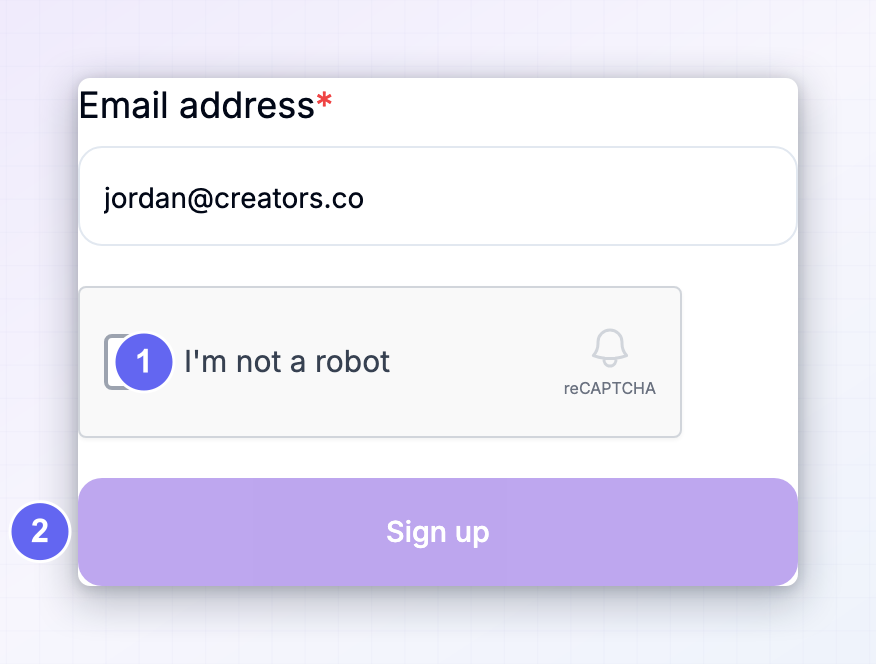 For a real person this is one click and usually nothing more. Occasionally it shows a short picture puzzle when something looks unusual, such as an affiliate on a shared network.
The checkbox appears again on the next screen, where affiliates type in the verification code emailed to them. If the check doesn’t go through, they see We couldn’t verify that you’re human. Please try again. and can tick the box again to retry.
The check applies whenever an affiliate signs in, not only when they first join.
Affiliates who use social login go through their Google account instead, which already confirms they’re a real person.
Should you turn it on?
Bot protection costs your genuine affiliates an extra click or two, so it’s a trade-off worth thinking about. Turn it on when:- Your sign-up page is open to anyone and you’ve started seeing accounts that don’t look real.
- You’re getting sign-ups in bursts, or with addresses that follow an obvious pattern.
- You promote your program publicly, where the page is easy for automated tools to find.
- You invite affiliates directly rather than letting people apply.
- You review every application by hand before approving it.
If fake sign-ups still get through
Bot protection stops automated tools, not people who sign up in bad faith by hand. If unwanted accounts keep appearing, combine it with your other controls:- Review applications yourself instead of approving automatically, so nobody becomes active without your say-so. See approve or decline affiliates.
- Ask custom questions during onboarding. Fake applicants rarely bother answering them properly, which makes them easy to spot.
- Ban or deactivate accounts you don’t want.
- Check your fraud prevention settings for self-referrals and suspicious activity.
Related
Fraud prevention
Catch self-referrals and suspicious conversions.
Approve or decline affiliates
Review every application before anyone becomes active.
Login and sign up
Customize the pages where the check appears.
Ban or deactivate affiliates
Remove accounts you don’t want in your program.