Where you see an affiliate’s status
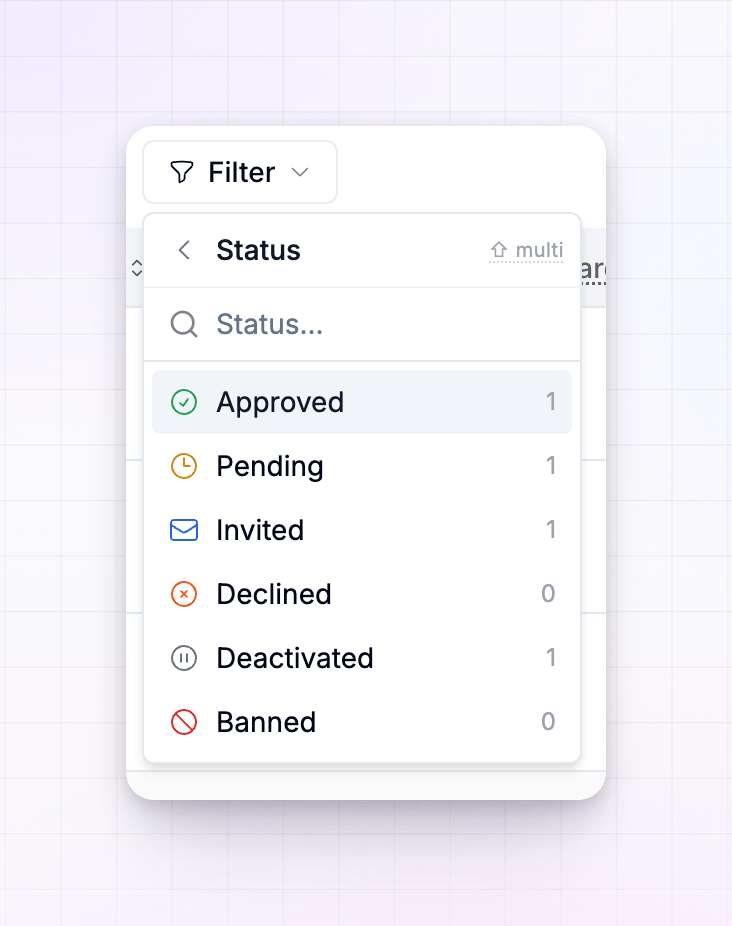
Status shows up as a colored badge in the Status column of your affiliates list, and again at the top of each affiliate’s detail page. To see everyone in one state at a time, open the Filter button and filter by status — each status shows a running count so you can tell at a glance how many people are, say, still pending.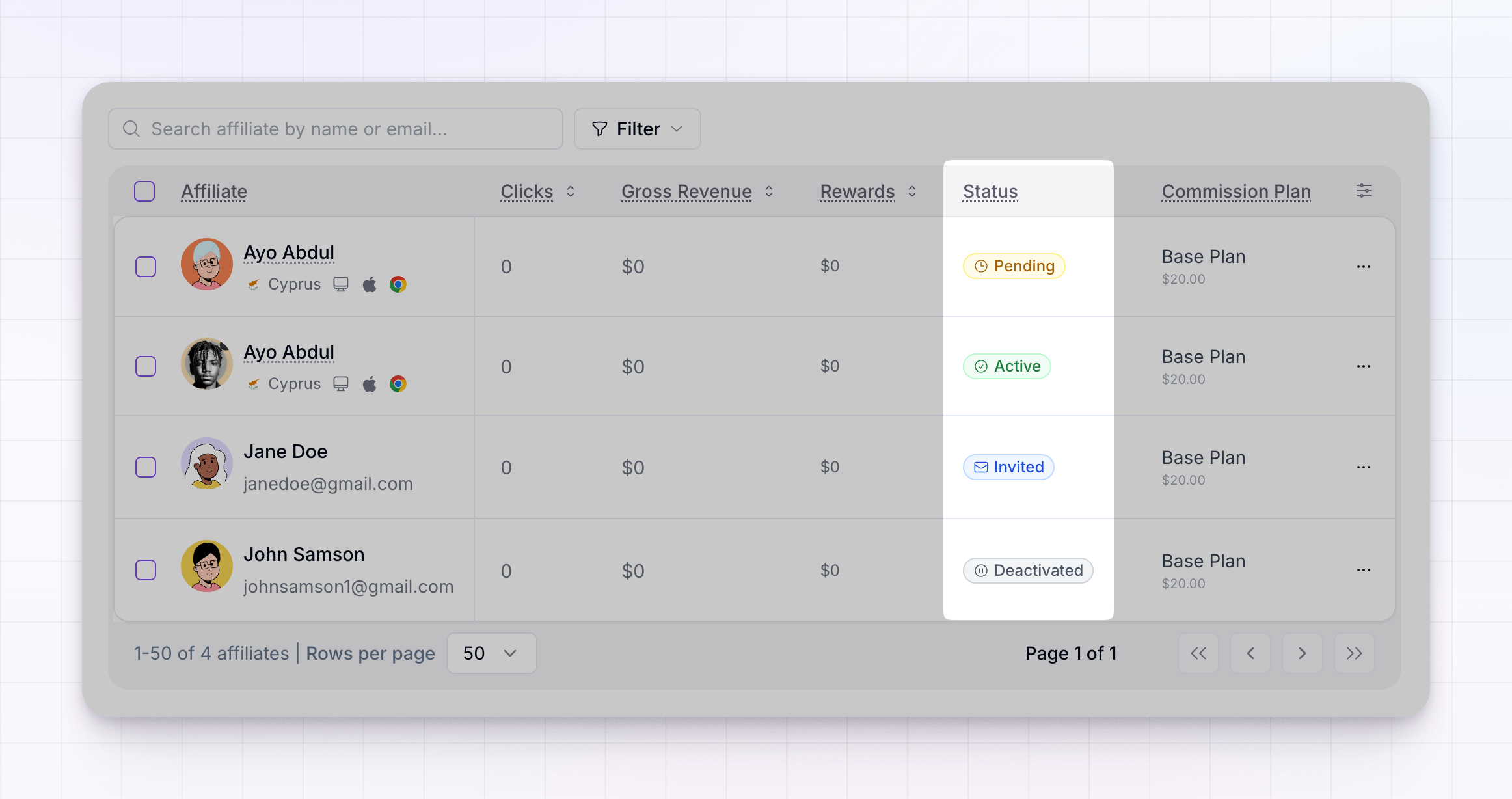
The statuses
Active
The affiliate is fully approved and live. Their referral link and any promo codes work, every click, referral, and sale they drive is tracked, and they earn on your terms. This is the state you want your real partners in. Active shows as a green badge.Pending
The affiliate has applied but hasn’t been approved yet. They can’t promote or earn while they wait — nothing is tracked until you let them in. Affiliates land here when you’ve turned off automatic approval and are reviewing applications yourself. Approve them to make them active, or decline them to turn the application down. Pending shows as a yellow badge.Affiliates only wait in Pending if you’ve switched off automatic approval. With auto-approval on — the default — new affiliates skip straight to Active. See Manually approve or decline applications.
Onboarding
The affiliate has signed up but hasn’t finished your onboarding yet, the short guided flow new affiliates go through right after they join. You only see this status when onboarding is turned on for your program. Onboarding shows as an indigo badge.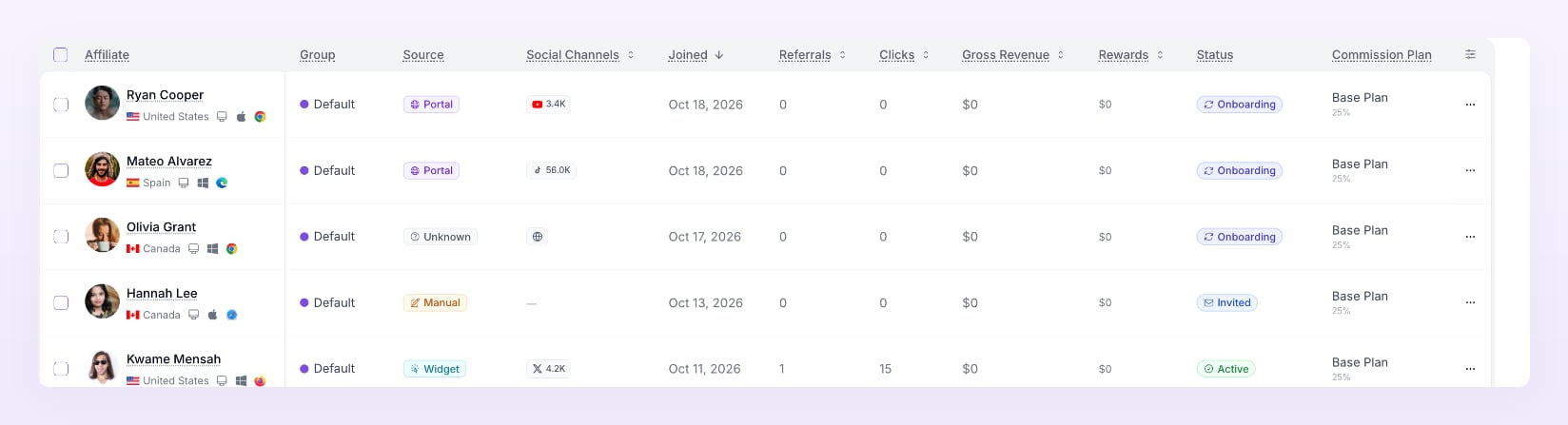
- They finish the last onboarding step.
- They select Skip onboarding (only possible if you allow skipping).
- You turn off Enable onboarding in your onboarding settings. Every Onboarding badge then switches back to the affiliate’s real status.
- You can approve or reject a pending affiliate while they’re still onboarding. The Approve Affiliate and Reject Affiliate buttons still appear on their detail page, and the bulk Approve action works for them too. Their badge stays Onboarding until they finish or skip.
- Only active and pending affiliates can show as Onboarding. Invited, declined, deactivated, and banned affiliates always show their own status.
Invited
You’ve sent this person an invitation to join your program, but they haven’t accepted and finished signing up yet. They’re on your list so you can keep track of who’s been asked, but they aren’t promoting or earning until they accept and their account becomes active. Invited shows as a blue badge. See Invite affiliates.Declined
You reviewed this person’s application and turned it down. They can’t promote or earn, and they see a message letting them know their application wasn’t accepted. An affiliate ends up here when you reject their pending application. Declined shows as an orange badge.Deactivated
The affiliate has been switched off. Their links stop working and they can no longer log in or earn, but their history stays intact — so this is the reversible option when you want to pause someone rather than remove them for good. You can reactivate a deactivated affiliate at any time to make them active again. Deactivated shows as a gray badge. See Ban or deactivate an affiliate.Banned
The affiliate has been removed from your program for a reason — usually something serious like fraud, spam, or a terms violation. Their links stop working and they can’t earn. When you ban someone you record a reason, which you can see by hovering over the badge, so you always know why. Banned shows as a red badge. See Ban or deactivate an affiliate.How an affiliate moves between statuses
Statuses aren’t fixed — they change as you manage your program:- Signed up → Onboarding: with onboarding turned on, a new affiliate shows as Onboarding while they work through it.
- Onboarding → Active or Pending: they finish or skip onboarding (or you turn onboarding off), and their real status shows again.
- Invited → Active: the person accepts your invitation and finishes signing up.
- Pending → Active: you approve their application (or auto-approval does it for you).
- Pending → Declined: you reject their application.
- Active → Deactivated: you deactivate them to pause their account.
- Deactivated → Active: you reactivate them.
- Active → Banned: you ban them for a recorded reason.
Only active affiliates promote and earn
The simplest way to think about status: only active affiliates can promote and earn. Everyone else — pending, invited, declined, deactivated, or banned — has links that don’t track and can’t earn commissions, whether they’re waiting to get in or have been removed. An affiliate showing Onboarding follows the rules of their real status underneath, active or pending. Keeping an eye on status is how you know exactly who’s live in your program at any moment.Related
Approve or decline applications
Review pending affiliates before they go live.
Invite affiliates
Send invitations and track who’s accepted.
Ban or deactivate an affiliate
Pause or remove someone from your program.
Filters and columns
Filter your list by status and more.