

Open your checklist
In the top bar of your dashboard, next to the notifications bell, select Complete your setup. The ring beside it fills up as you finish steps. On a small screen, only the ring shows. The panel opens with the heading Let’s set up your affiliate program, a progress bar, and a line showing how far along you are, for example 33% Complete · 2 of 6 steps. The next step you haven’t done is highlighted, so you always know where to pick up.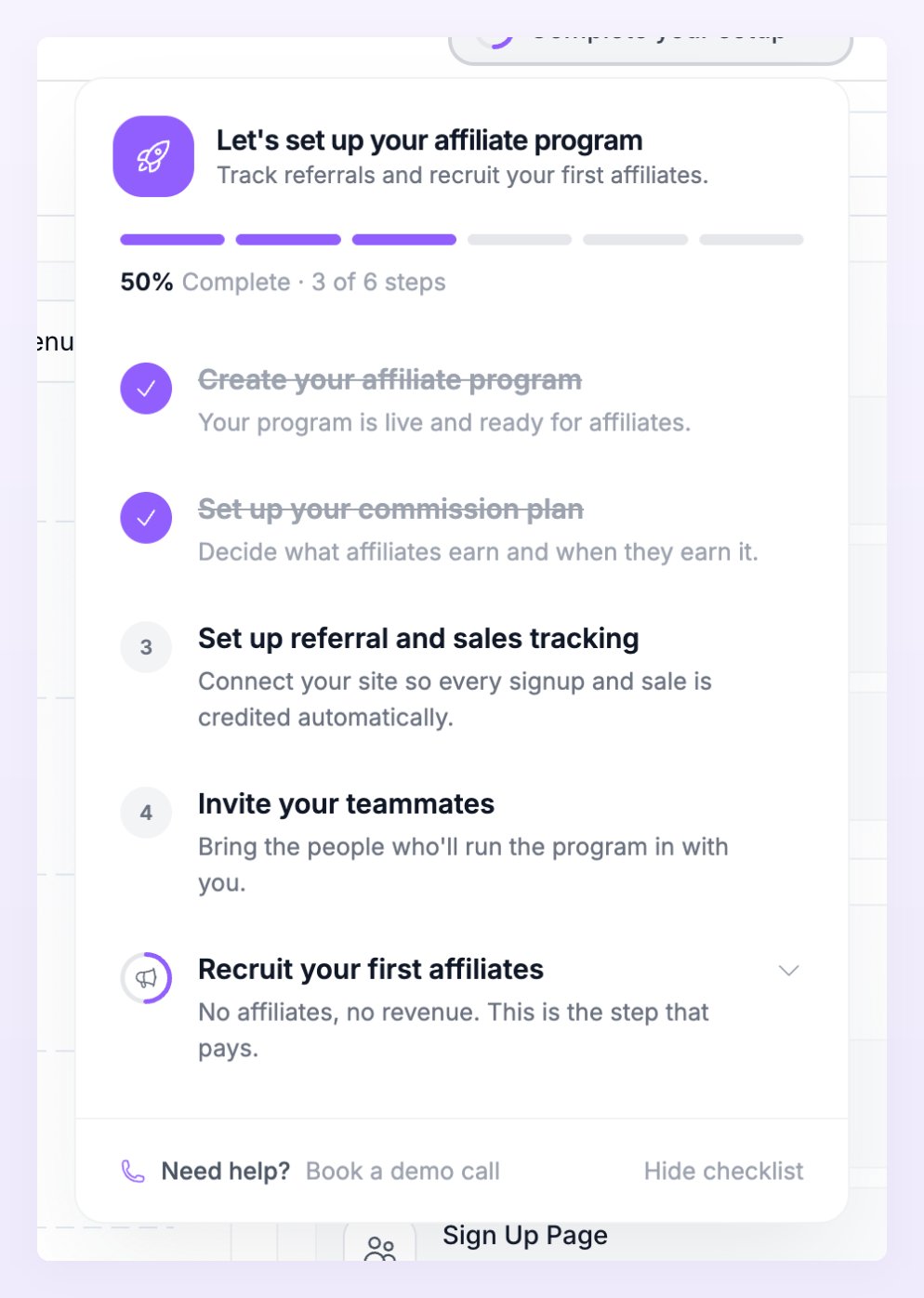
Work through the steps
Select any step to go and do it. The first two are usually ticked already when you finish the setup wizard.Create your affiliate program
Already done: you created your program in the setup wizard. Select it any time to open your program’s general settings, where you can change its name, subdomain, and more.Set up your commission plan
Ticks once you’ve saved your commission settings, which you usually did in the wizard’s commission step. Select it to open your commission plan settings. See the commissions overview.Set up referral and sales tracking
Select it to open Integration setup, a step-by-step guide to connecting Referly to your site. This step ticks once you’ve finished the tracking steps there. See Integrations overview.Invite your teammates
Select it to go to Settings > Team > Members with the invite form already open. This step ticks once a teammate with the Member role has access to this program, or has been invited to it. Inviting an Admin doesn’t tick it. See Team members.Recruit your first affiliates
Select it to show two smaller steps underneath. It ticks when both are done.- Add your sign-up link to your website opens instructions for putting your sign-up link on your site. See the next section.
- Invite affiliates directly opens the Invite Affiliate window so you can invite someone by email. It ticks as soon as your program has its first affiliate, whether you invited them or they signed up on their own. See Invite affiliates.
Add your sign-up link to your website
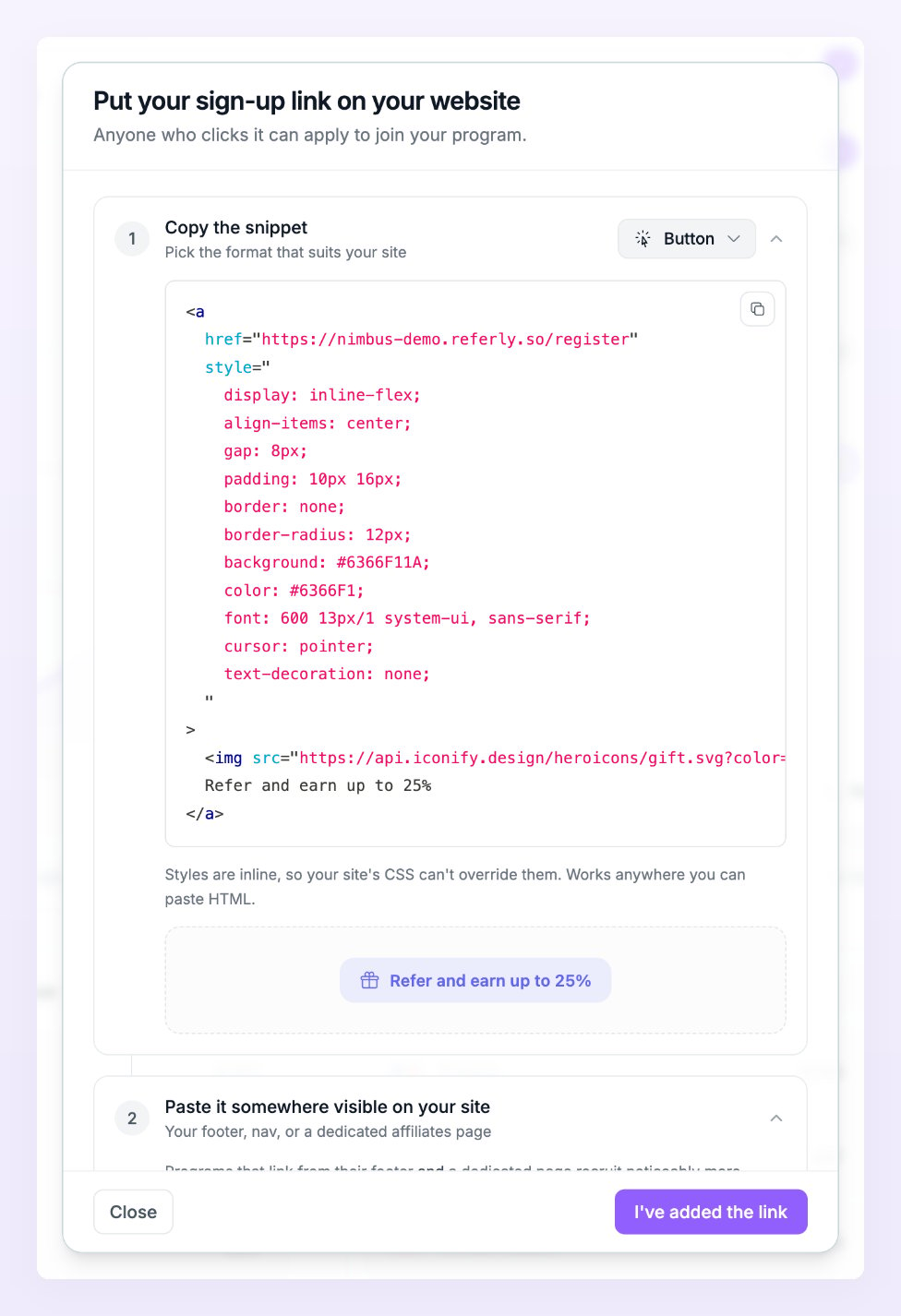
Referly can’t see your website, so this is the one step you tick yourself. Select Add your sign-up link to your website to open the Put your sign-up link on your website window.1
Copy the snippet
Pick a format from the menu, then copy the code shown:
- Button: a styled button that reads “Refer and earn”, or “Refer and earn up to” followed by your top reward. Works anywhere you can paste HTML.
- Text link: a plain “Become an affiliate” link. Best for a footer, a nav bar, or inside a paragraph.
- Just the URL: your bare sign-up link, for page builders like Webflow, Framer, or Wix. Paste it into the link field of a button you’ve already designed.
2
Paste it somewhere visible on your site
Your footer, navigation, or a dedicated affiliates page all work well. Your sign-up link is shown here too, with icons to copy it or open your sign-up page.
3
Mark it as done
Once the link is live on your site, select I’ve added the link. The step ticks and the button changes to Marked as done. Select Close if you want to come back to it later.
When you’ve finished everything
When every step is ticked, the checklist celebrates with You’re all set and “Your program is live, tracking, and ready to earn.” A few seconds later it disappears from your top bar. If something that ticked a step is undone later, the checklist comes back so you can sort it out.Hide the checklist
If you’d rather not see it, select Hide checklist at the bottom of the panel. A confirmation asks Hide the setup checklist? Select Hide checklist to confirm, or Keep it to go back. Hiding is permanent for this program, but every step stays available from the sidebar and your settings. It only hides the checklist for you: your teammates and your other programs keep theirs.Your affiliates get their own checklist
Your affiliates see a similar Complete your setup checklist in their portal. It walks them through adding their payout details and sharing their link. It’s on by default, and you can turn it off for your whole program. See Show the setup checklist to affiliates.Running an agency? Your agency dashboard has a separate setup checklist with agency steps, like adding your branding and billing your clients. See Agency overview.
Related
Setting up your program
Walk through the setup wizard step by step.
Connect an integration
Track referred sign-ups and sales automatically.
Invite affiliates
Invite your first partners by email.
Let affiliates sign up
Share your sign-up link so affiliates can join on their own.